
1. Introduction
This manual provides comprehensive instructions for the setup, operation, and maintenance of your HUAWEI B535-232a Wi-Fi 4G Mobile Access Point. This device is designed to provide high-speed internet access by converting a 4G mobile signal into a Wi-Fi and wired network. It supports LTE Cat7, offering download speeds up to 300Mbps and upload speeds up to 100Mbps. With dual-band Wi-Fi (802.11ac/n), it can connect up to 64 simultaneous users, ensuring optimal performance through automatic band selection. The device also features HarmonyOS Mesh+ for seamless roaming and can be managed effortlessly via the HUAWEI AI Life App.
2. Product Overview
Familiarize yourself with the components of your HUAWEI B535-232a device.

Figure 2.1: Front View
This image displays the front of the HUAWEI B535-232a, showing the indicator lights for power, network status, Wi-Fi, and signal strength. The HUAWEI logo is visible at the bottom.
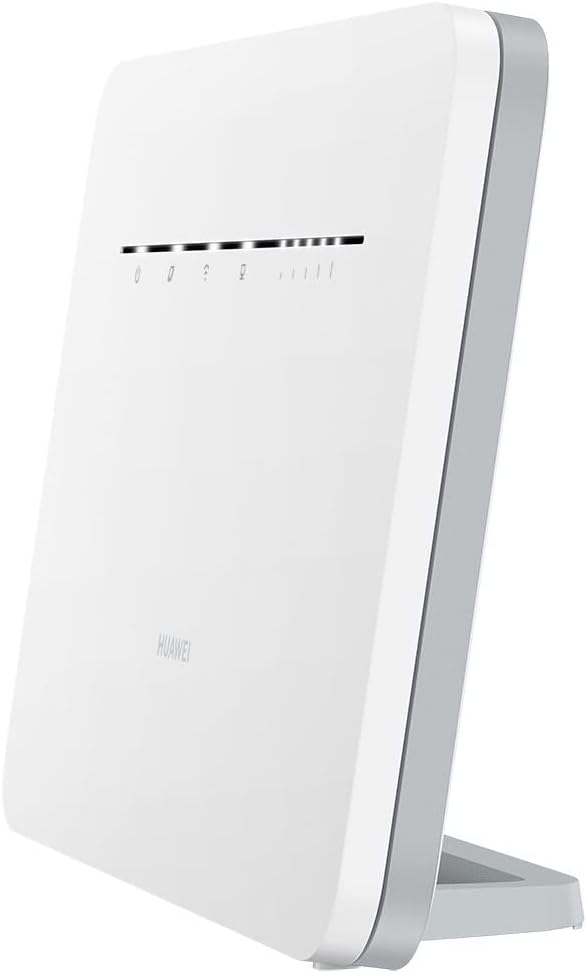
Figure 2.2: Side View (Upright)
This image shows the HUAWEI B535-232a standing upright on its base, highlighting its slim profile and the arrangement of indicator lights on the top edge.
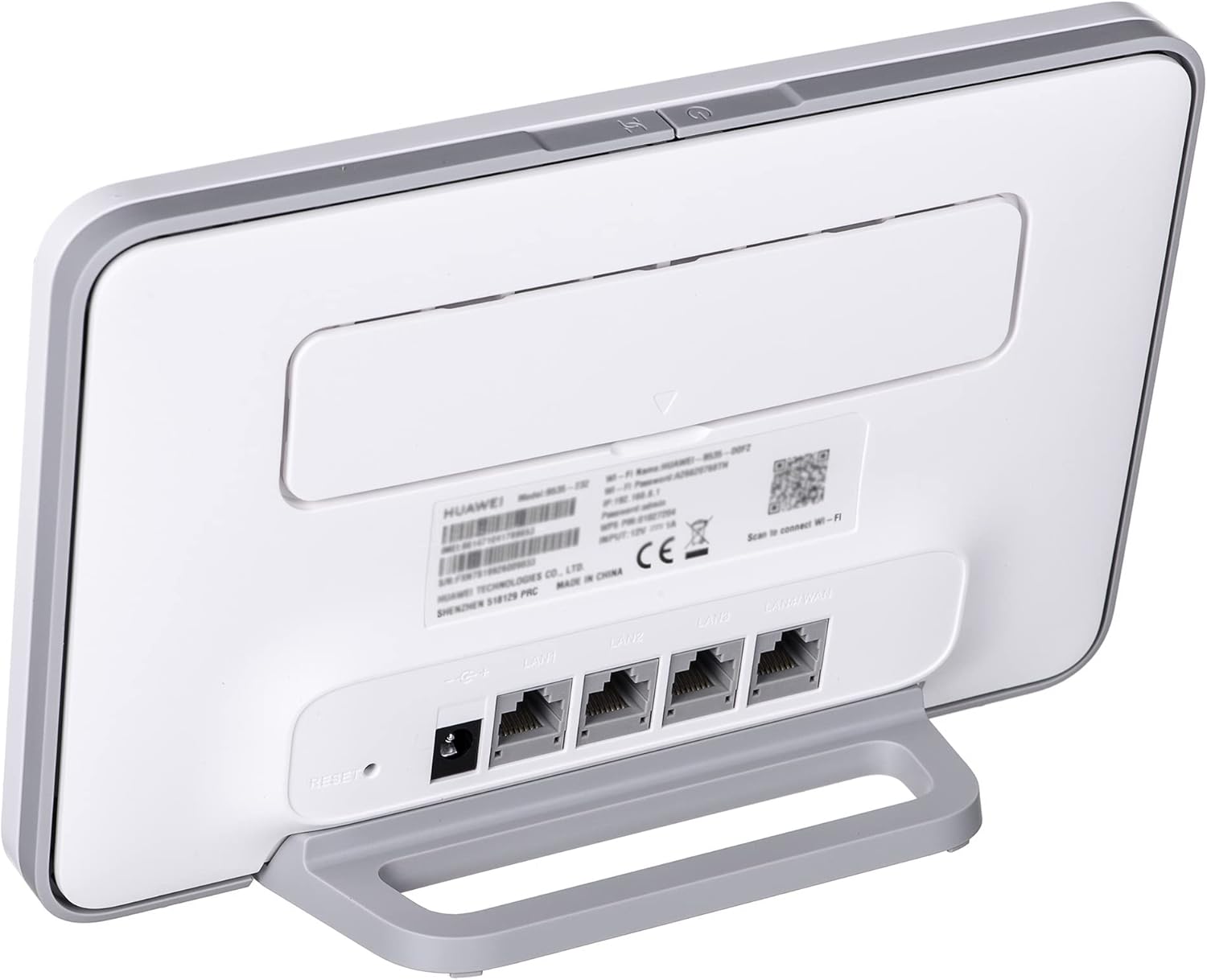
Figure 2.3: Rear View with Ports
This image illustrates the back of the device, featuring the power input, four RJ45 Ethernet ports (one of which is LAN/WAN capable), and the reset button. The SIM card slot is typically located on the side or bottom, not visible in this view.
Indicator Lights:
- Power Indicator: Indicates the power status of the device.
- Network Status Indicator: Shows the connection status to the 4G network.
- Wi-Fi Indicator: Displays the Wi-Fi network status.
- Signal Strength Indicators: Multiple lights indicating the strength of the 4G signal received.
Ports and Buttons:
- Power Port: For connecting the power adapter.
- RJ45 Ethernet Ports (x4): For wired connections to computers or other network devices. One port can function as both LAN and WAN.
- SIM Card Slot: For inserting a Micro SIM (3FF) card.
- WPS Button: For easy Wi-Fi Protected Setup connections.
- Reset Button: Used to restore the device to factory default settings.
- External Antenna Ports: Two SMA connectors for optional external antennas to improve signal reception.
3. Setup
Insert SIM Card: Locate the SIM card slot. Carefully insert a Micro SIM (3FF) card into the slot until it clicks into place. Ensure the SIM card is correctly oriented as indicated on the device.
Connect Power: Connect the provided power adapter to the power port on the back of the device, then plug the adapter into a power outlet. The power indicator light should turn on.
Placement: Place the device in an open area, away from obstructions, and preferably near a window for optimal 4G signal reception. Avoid placing it near large metal objects or other electronic devices that may cause interference.
Initial Boot-up: Wait for the device to power on and connect to the 4G network. The network status indicator and signal strength indicators will light up once a connection is established.
4. Operating Instructions
4.1 Connecting Devices via Wi-Fi
Find Wi-Fi Network: On your computer, smartphone, or other Wi-Fi enabled device, search for available Wi-Fi networks.
Select Network: Select the Wi-Fi network name (SSID) printed on the label at the bottom or back of your HUAWEI B535-232a device.
Enter Password: Enter the Wi-Fi password (WPA Key) also found on the device label. For security, it is recommended to change this password after initial setup.
WPS Connection: Alternatively, press the WPS button on the device and then activate WPS on your Wi-Fi client within two minutes to establish a connection without entering the password.
4.2 Connecting Devices via Ethernet
Connect an Ethernet cable from one of the RJ45 LAN ports on the back of the HUAWEI B535-232a to the Ethernet port on your computer or other network device.
4.3 Accessing the Web Management Interface
Ensure your device is connected to the HUAWEI B535-232a via Wi-Fi or Ethernet.
Open a web browser (e.g., Chrome, Firefox) and enter the default IP address (usually 192.168.8.1 or 192.168.1.1) into the address bar. This IP address can also be found on the device label.
Enter the default username and password (usually admin/admin or as specified on the device label) when prompted.
From the web interface, you can configure network settings, change Wi-Fi names and passwords, monitor data usage, and manage connected devices.
5. Maintenance
Firmware Updates: Regularly check for and install firmware updates through the web management interface. Updates can improve performance, add new features, and enhance security.
Cleaning: Use a soft, dry cloth to clean the device. Do not use liquid cleaners or aerosols. Ensure the device is powered off before cleaning.
Optimal Environment: Operate the device within the recommended temperature range of 0°C to 40°C. Avoid exposing it to extreme temperatures, direct sunlight, or high humidity.
Restarting: If you experience minor network issues, try restarting the device by unplugging the power adapter, waiting 10 seconds, and then plugging it back in.
6. Troubleshooting
| Problem | Possible Cause | Solution |
|---|---|---|
| No Internet Access | SIM card not inserted correctly, no 4G signal, or data plan issues. | Ensure SIM card is properly inserted. Check signal strength indicators. Contact your mobile service provider to verify your data plan. Try restarting the device. |
| Slow Internet Speed | Weak 4G signal, too many connected devices, or network congestion. | Relocate the device to an area with better signal. Disconnect unused devices. Consider using external antennas if signal is consistently weak. |
| Cannot Connect to Wi-Fi | Incorrect Wi-Fi password, Wi-Fi disabled, or device too far from the router. | Verify the Wi-Fi password. Check the Wi-Fi indicator light. Move closer to the device. Ensure Wi-Fi is enabled via the web management interface. |
| Forgot Web Management Password | Password changed and forgotten. | Use a paperclip or pin to press and hold the Reset button for approximately 5-10 seconds until the device restarts. This will restore factory default settings, including the default login credentials. |
7. Specifications
| Feature | Detail |
|---|---|
| Model Number | B535-232a (Item model number: 51060HPH-001) |
| Network Standard | LTE Cat. 7 (300 Mbps Download / 100 Mbps Upload) |
| Wi-Fi Standard | 802.11ac/n/a/b/g (Dual-Band) |
| Ethernet Ports | 4 x RJ45 (Gigabit, one LAN/WAN) |
| SIM Card Type | Micro SIM (3FF) |
| Max Connected Devices | Up to 64 simultaneous users |
| Special Features | WPS, HarmonyOS Mesh+, AI Life App management, External Antenna Ports (SMA) |
| Operating Temperature | 0°C ~ 40°C |
| Product Dimensions | 2.56 x 21.9 x 13.8 cm |
| Weight | 325 g |
8. Safety Information
Do not open or modify the device. Unauthorized modifications may void your warranty and could result in safety hazards.
Use only the power adapter provided with the device. Using an incompatible power adapter may damage the device and pose a fire risk.
Keep the device away from water, fire, and high humidity environments.
Ensure proper ventilation around the device to prevent overheating.
9. Warranty and Support
For warranty information and technical support, please refer to the warranty card included with your product or visit the official HUAWEI support website. You can also contact HUAWEI customer service for assistance with product inquiries, troubleshooting, and service requests.
HUAWEI Official Website: consumer.huawei.com


