
Roinvou 2+64G CarPlay
Roinvou Android Radio User Manual
For Chevrolet Chevy Cruze (2009-2014) - Model: 2+64G CarPlay
1. Introduction
This manual provides detailed instructions for the installation, operation, and maintenance of your Roinvou Android Radio. This unit is designed to upgrade the infotainment system in Chevrolet Chevy Cruze models manufactured between 2009 and 2014, offering advanced features such as CarPlay, Android Auto, GPS navigation, and Bluetooth connectivity.
Please read this manual thoroughly before installation and use to ensure proper function and to maximize your experience with the product.

Image 1.1: Roinvou Android Radio unit with included accessories.
2. Setup and Installation
2.1 Package Contents
Before beginning installation, verify that all components are present:
- Chevy Cruze Car Stereo Unit
- Power Cable
- CANBUS Decoder
- Original USB Cable
- Radio Antenna
- RCA Cable
- GPS Antenna
- AHD Backup Camera
- External Microphone
- Rear Camera Input Cable
- Dual USB Cable
- Installation Tool

Image 2.1: Complete package contents.
2.2 Important Installation Notes
- This radio dash kit is specifically designed for Chevrolet Chevy Cruze models from 2009 to 2014.
- Before purchasing and installing, verify that the power cable port on the detail page matches your original car's wiring.
- If your vehicle's dashboard display changes to Chinese after installation, please contact Roinvou support to obtain the necessary protocol upgrade package.
- Refer to online video tutorials for detailed removal of existing components and careful handling of plastic trims to prevent damage.

Image 2.2: Before and After Installation view.
2.3 Steering Wheel Control Connection
The unit supports steering wheel controls for convenience:
- Without CANBUS Decoder: Connect the plugs or steering wheel control wires (Key1/Key2) in the power cable to the corresponding port or wire of your original car. Then, navigate to "SteeringWheelKey" in the unit's settings to manually match and activate the button functions.
- With CANBUS Decoder: Connect the CANBUS before powering on the machine. Go to Settings > Factory Settings (Password: 8888) > Protocol Settings. Select the brand of the CANBUS decoder and then the matching model and year according to your vehicle's specifications to ensure proper SWC functionality.

Image 2.3: Steering Wheel Control wiring and setup.
2.4 Reversing Camera & CANBUS Wiring
The included AHD backup camera provides high-definition reversing images. Ensure proper wiring for optimal performance:
- The reverse input cable must be plugged in, even if the reverse camera is not being used. Failure to do so may affect Bluetooth and Wi-Fi signal reception.
- Connect the camera's red wire to the reversing lamp's positive (+) terminal and the black wire to ground (GND).
- Connect the video output cable from the camera to the unit's video input.

Image 2.4: Reversing Camera and CANBUS wiring diagram.
3. Operating Instructions
3.1 Android System Overview
The Roinvou car stereo operates on a powerful Android system with a high-performance CPU, ensuring a smooth user experience. The 9-inch HD capacitive touchscreen provides excellent color reproduction and responsiveness.

Image 3.1: Internal specifications of the Roinvou Android Radio.
3.2 Wireless/Wired CarPlay & Android Auto
Connect your smartphone to the Roinvou car stereo via Bluetooth (wireless) or the original USB data cable (wired) to access CarPlay or Android Auto. This transforms your dashboard into an infotainment center, allowing you to:
- Make and receive phone calls hands-free.
- Send and receive messages.
- Utilize navigation apps.
- Enjoy music and podcasts.
- Project your phone screen onto the radio display (Mirror Link).
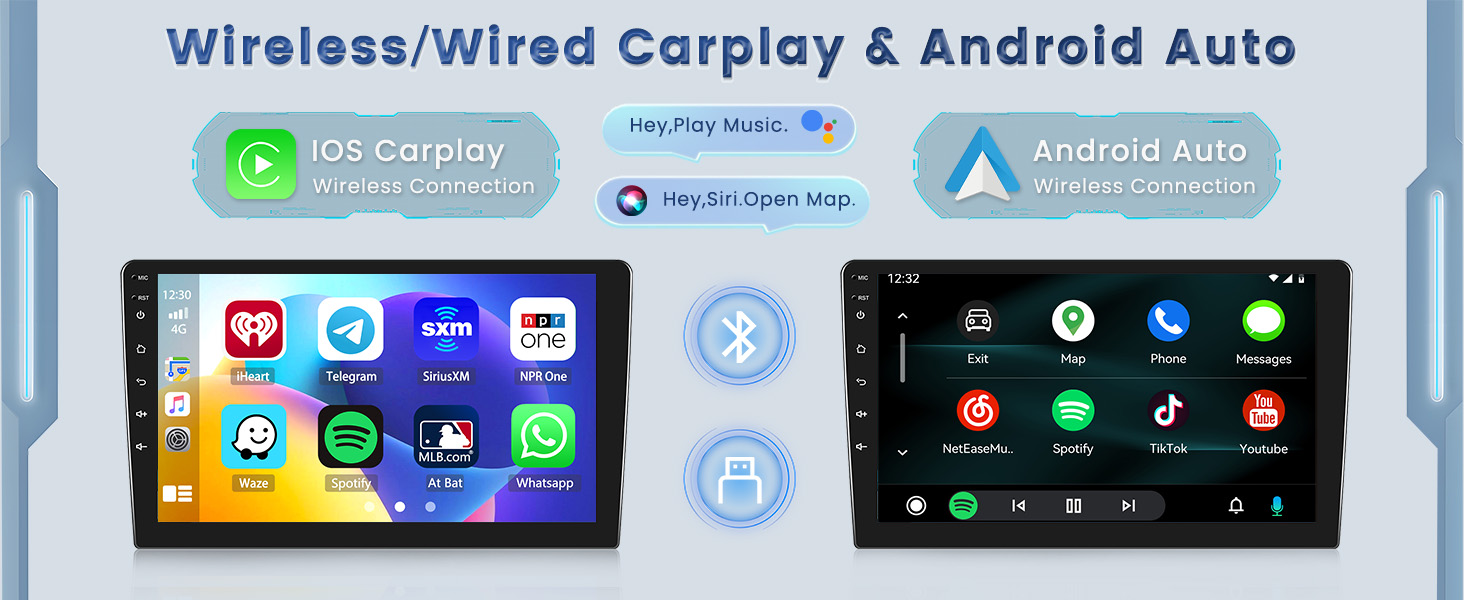
Image 3.2: Wireless/Wired CarPlay and Android Auto interface.
3.3 Bluetooth, HiFi & FM/RDS Radio
- Bluetooth: Supports hands-free calling, phonebook download, and music streaming from your connected device.
- HiFi Audio: The HiFi setting reproduces sound with high fidelity, closely matching your car's original audio quality for an enhanced listening experience. Various EQ settings are available for customization.
- FM/RDS Radio: Tune into FM radio stations and receive RDS (Radio Data System) information, including station names, program types, and real-time traffic updates.

Image 3.3: Bluetooth, FM/RDS Radio, and HiFi features.
3.4 GPS Navigation & WiFi Connection
The unit features built-in GPS navigation with free North American maps. This allows for undisturbed navigation without requiring a cellular network, ensuring privacy and reliability. The system also supports Wi-Fi hotspot connection, enabling you to access the internet and download popular applications like YouTube, Instagram, and TikTok.

Image 3.4: GPS Navigation and Wi-Fi connectivity.
3.5 Mirror Link Functionality
Mirror Link allows you to project your smartphone's screen onto the car stereo display. This feature supports both Android and iOS devices via Wi-Fi and USB connection.

Image 3.5: Mirror Link for Android and iOS.
3.6 Rear View Camera Display
The included AHD backup camera provides high-definition, waterproof, wide-angle, and night vision capabilities, making parking easier and safer. The display automatically switches to the camera feed when reversing.
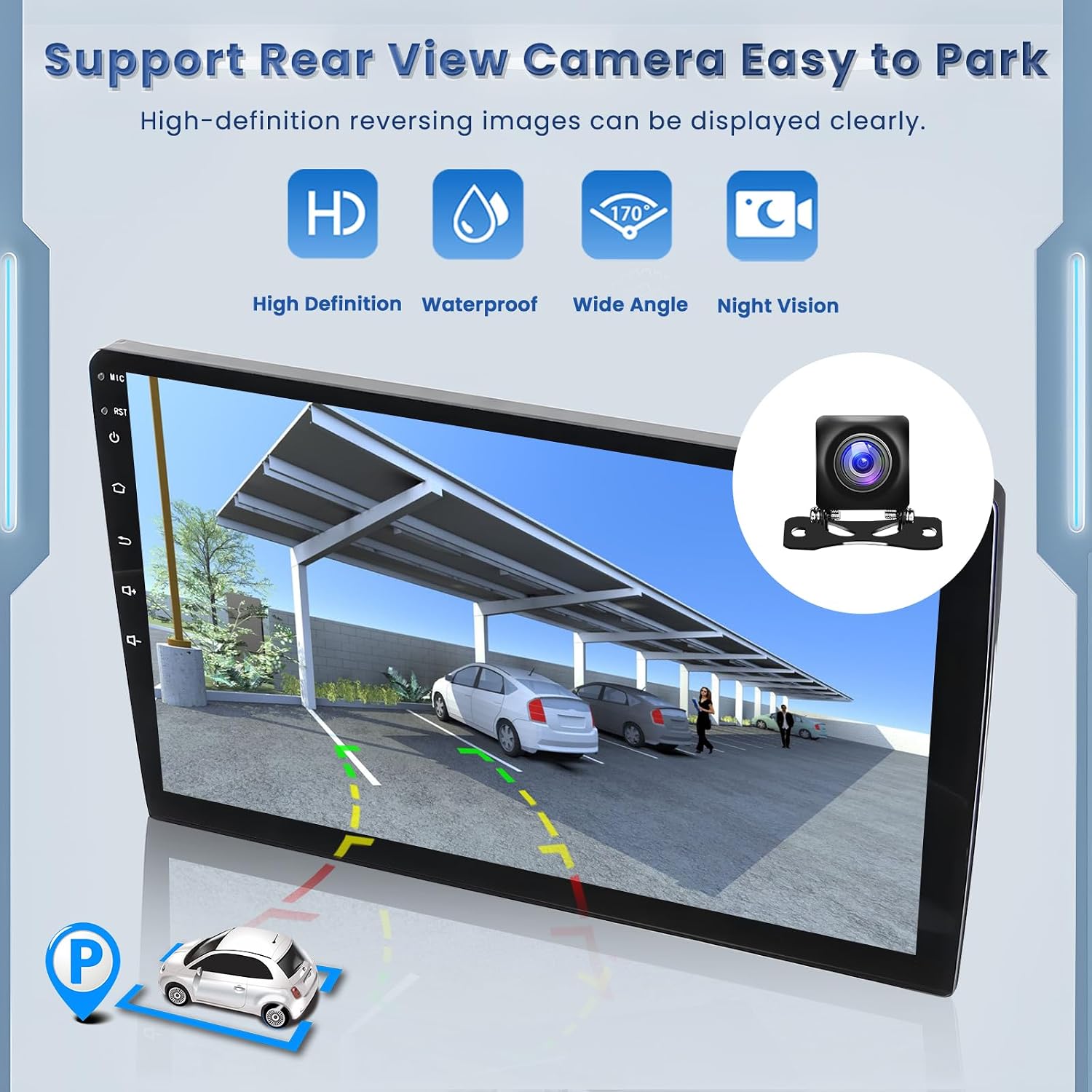
Image 3.6: Rear View Camera display.
4. Maintenance
- Screen Cleaning: Use a soft, lint-free cloth to gently wipe the touchscreen. For stubborn smudges, slightly dampen the cloth with water or a screen-safe cleaner. Avoid harsh chemicals or abrasive materials.
- Software Updates: Periodically check for software updates through the unit's settings or Roinvou's official support channels to ensure optimal performance and access to new features.
- Environmental Conditions: Avoid exposing the unit to extreme temperatures, direct sunlight for prolonged periods, or excessive moisture.
- Cable Connections: Ensure all cables are securely connected. Loose connections can lead to intermittent functionality.
5. Troubleshooting
If you encounter any issues, please refer to the following common problems and solutions:
- Dashboard Language Changes to Chinese: If your car's original dashboard display changes to Chinese after installation, contact Roinvou customer support immediately. They can provide a protocol upgrade package to resolve this issue.
- Bluetooth Audio or Internal Player Not Working: Ensure all wiring harness connections are correct. Some users have resolved this by contacting support for specific wiring adjustments.
- Wireless Android Auto Not Connecting: Verify that the unit's Wi-Fi hotspot is enabled and visible. If issues persist, try a wired USB connection for Android Auto. Ensure your phone's settings allow for wireless projection.
- Time and Date Resetting After Car Turns Off: This is a known issue for some users. Ensure the constant power wire (usually yellow) is correctly connected to a constant 12V source. If the problem persists, contact Roinvou support for potential software solutions.
- Volume Control Difficulty: The touchscreen volume control requires multiple taps for significant adjustments. This is a design characteristic. Consider using steering wheel controls if available and configured.
- No Sound: Check all speaker wire connections. Ensure the unit is not muted and volume is turned up. Verify the correct audio source is selected.
- Unit Not Powering On: Check the power cable connection and ensure the fuse is intact. Verify the car's ignition is on.
For issues not listed here or if the suggested solutions do not resolve the problem, please contact Roinvou customer support.
6. Specifications
| Feature | Detail |
|---|---|
| Model Name | Roinvou CarPlay |
| Display Size | 9 Inches |
| Operating System | Android |
| Memory (RAM) | 2GB |
| Storage (ROM) | 64GB |
| Connectivity Technology | Bluetooth, USB, Wi-Fi (5GHz support) |
| Special Features | Bluetooth, Touchscreen, CarPlay, Android Auto, Hi-Fi Sound, FM/RDS, Mirror Link, GPS Navigation, EQ Settings, Wi-Fi, SWC |
| Map Type | North America (Free) |
| Included Components | Car Stereo, Power Cable, CANBUS, USB Cables, Radio Antenna, RCA Cable, GPS Antenna, AHD Backup Camera, External Microphone, Installation Tool |
| Mounting Type | Dashboard Mount |
| Product Dimensions | 14.37 x 3.74 x 11.22 inches |
| Item Weight | 3.76 pounds |
7. Warranty Information
The Roinvou Android Radio comes with a 1-Year Warranty from the date of purchase. This warranty covers manufacturing defects and malfunctions under normal use. Please retain your proof of purchase for warranty claims. For detailed warranty terms and conditions, please contact Roinvou customer support.
8. Customer Support
If you have any questions, require technical assistance, or need to report an issue, please contact Roinvou customer support:
- Via Amazon Platform: Navigate to your order details on Amazon and select the option to 'Contact Seller' or 'Ask a question' to reach Roinvou directly.
- Via Email: You can also reach our customer service team at roinvouservices@163.com.
Roinvou aims to provide professional technical support and customer service to ensure your satisfaction. All messages are typically replied to within 24 hours, excluding holidays.

Image 8.1: Roinvou Customer Support contact methods.
Related documents2+64G CarPlay


Ask a question about this manual
Ask about setup, troubleshooting, compatibility, parts, safety, or missing instructions. Manuals+ will review the question and use this page’s manual context to help answer it.