
Introduction
Thank you for choosing the KRUX Atax Pro RGB Outemu Brown KRX0039 Wired Gaming Keyboard. This manual provides essential information for setting up, operating, maintaining, and troubleshooting your new mechanical gaming keyboard. Please read this manual thoroughly before use to ensure optimal performance and longevity of your device.
Setup
Follow these steps to set up your KRUX Atax Pro RGB keyboard:
- Unpack the Keyboard: Carefully remove the keyboard from its packaging. Ensure all components are present.
- Connect to Computer: Plug the USB-A connector of the keyboard cable into an available USB-A port on your computer or laptop.
- Driver Installation: The keyboard is plug-and-play. Your operating system (Windows, macOS, Linux) should automatically detect and install the necessary drivers. No additional software installation is typically required for basic functionality.
- Positioning: Place the keyboard on a stable, flat surface. Adjust the rear feet for your preferred typing angle.
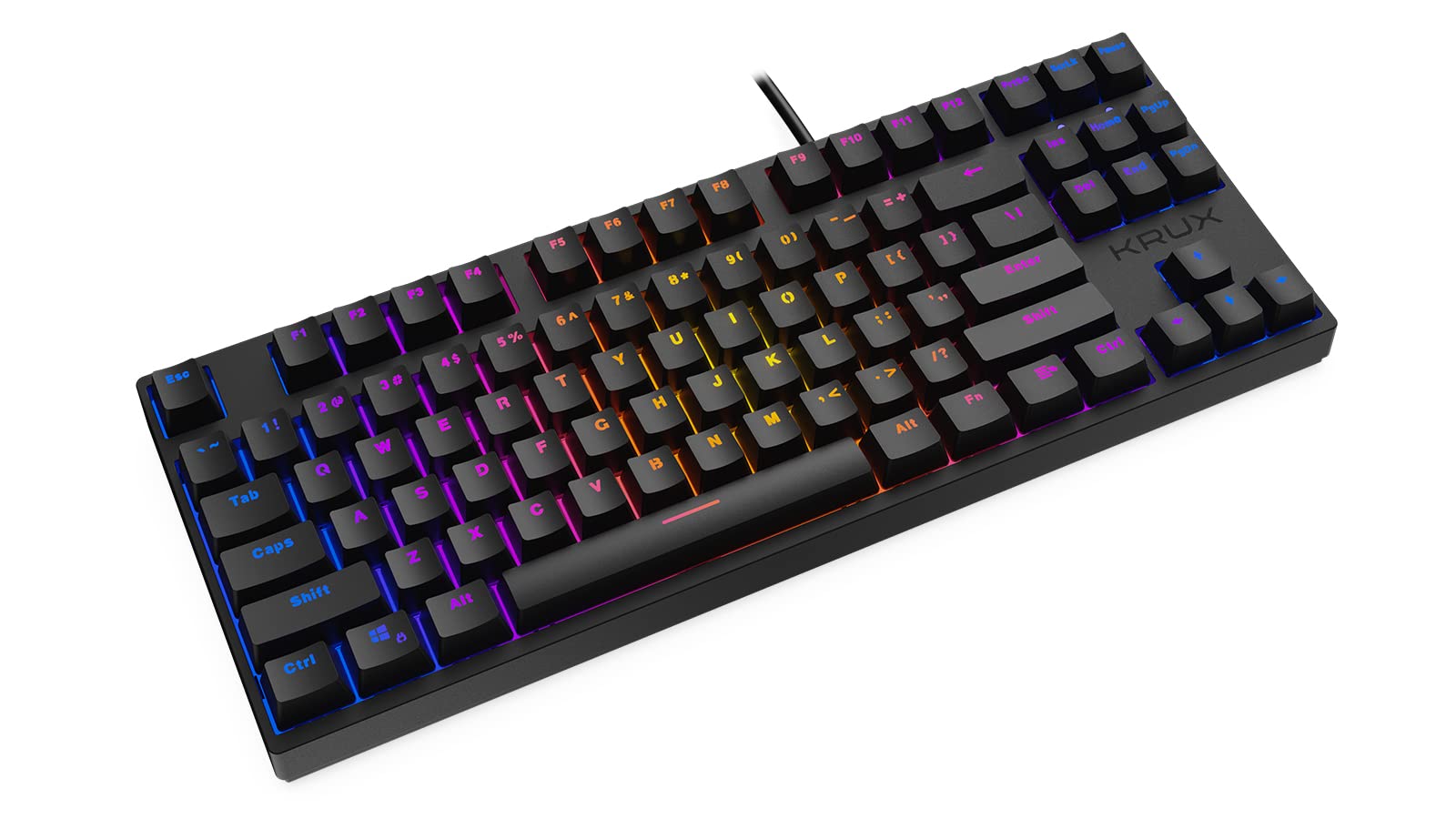
Operating Instructions
The KRUX Atax Pro RGB keyboard offers various functions beyond standard typing:
Basic Key Functions
- Standard Keys: All standard alphanumeric and symbol keys function as expected.
- Function Keys (F1-F12): These keys perform their standard functions.
- Navigation Cluster: Includes Insert, Home, Page Up, Delete, End, Page Down for document navigation.
- Arrow Keys: Standard directional control.
RGB Backlighting Control
The keyboard features customizable RGB backlighting. Use the following key combinations with the Fn key (located near the right Alt key) to control lighting effects:
- Fn + F1-F12: Specific multimedia or system functions (refer to keycap legends for exact functions).
- Fn + PrtSc: Cycle through various RGB lighting modes.
- Fn + Scrlk: Adjust backlight brightness.
- Fn + Pause: Change backlight color or direction in certain modes.

Gaming Features
- N-Key Rollover: The keyboard supports N-key rollover, allowing multiple simultaneous key presses to be registered accurately, which is beneficial for gaming.
- Anti-Ghosting: Prevents unintended key presses from registering when multiple keys are pressed at once.
Maintenance
Proper maintenance ensures the longevity and performance of your keyboard:
- Cleaning the Keycaps: Use a soft, damp cloth with mild soap and water to gently wipe the keycaps. Avoid excessive moisture.
- Cleaning Under Keycaps: For deeper cleaning, you may carefully remove keycaps using a keycap puller (not included) and use compressed air to remove dust and debris from the switches.
- Cleaning the Chassis: Wipe the keyboard chassis with a dry or slightly damp cloth.
- Avoid Liquids: Do not spill liquids on the keyboard. If a spill occurs, immediately unplug the keyboard and allow it to dry completely before reconnecting.
- Storage: Store the keyboard in a cool, dry place away from direct sunlight and extreme temperatures.

Troubleshooting
If you encounter issues with your KRUX Atax Pro RGB keyboard, try the following solutions:
- Keyboard Not Responding:
- Ensure the USB cable is securely plugged into both the keyboard and the computer.
- Try plugging the keyboard into a different USB port.
- Restart your computer.
- Test the keyboard on another computer to rule out a system-specific issue.
- RGB Backlighting Not Working:
- Check if the backlight brightness is turned down (Fn + Scrlk).
- Cycle through lighting modes (Fn + PrtSc) to see if it reactivates.
- Ensure the keyboard is receiving sufficient power from the USB port.
- Specific Keys Not Registering:
- Remove the keycap and check for any debris or obstruction around the switch. Use compressed air to clean.
- If the issue persists, it may indicate a faulty switch.
- Ghosting or Input Lag:
- Ensure your computer's USB drivers are up to date.
- Avoid connecting the keyboard through unpowered USB hubs.
Specifications
| Feature | Detail |
|---|---|
| Brand | KRUX |
| Model Name | Atax PRO RGB Outemu Brown TKL |
| Model Number | KRX0039 |
| Connectivity Technology | USB-A (Wired) |
| Keyboard Description | Mechanical |
| Switch Type | Outemu Brown (Tactile) |
| Number of Keys | 87 |
| Backlight | RGB |
| Color | Black |
| Recommended Uses | Gaming |
| Item Weight | 940 Grams |
| Compatible Devices | Laptop, PC |

Warranty and Support
Warranty: This product comes with a 2-year manufacturer's warranty from the date of purchase. This warranty covers defects in materials and workmanship under normal use. It does not cover damage caused by misuse, accident, modification, or unauthorized repair.
Technical Support: For technical assistance, warranty claims, or further inquiries, please contact KRUX customer support through their official website or the retailer where the product was purchased. Please have your product model number (KRX0039) and proof of purchase ready when contacting support.