1. Product Overview
The NexiGo PJ30 is a native 1080P LCD projector designed for both indoor and outdoor entertainment. It delivers crisp, clear images with 500 ANSI lumens brightness and supports Dolby Sound for an immersive audio experience. Equipped with 5G Wi-Fi and Bluetooth 5.1, it offers versatile connectivity options for various devices.
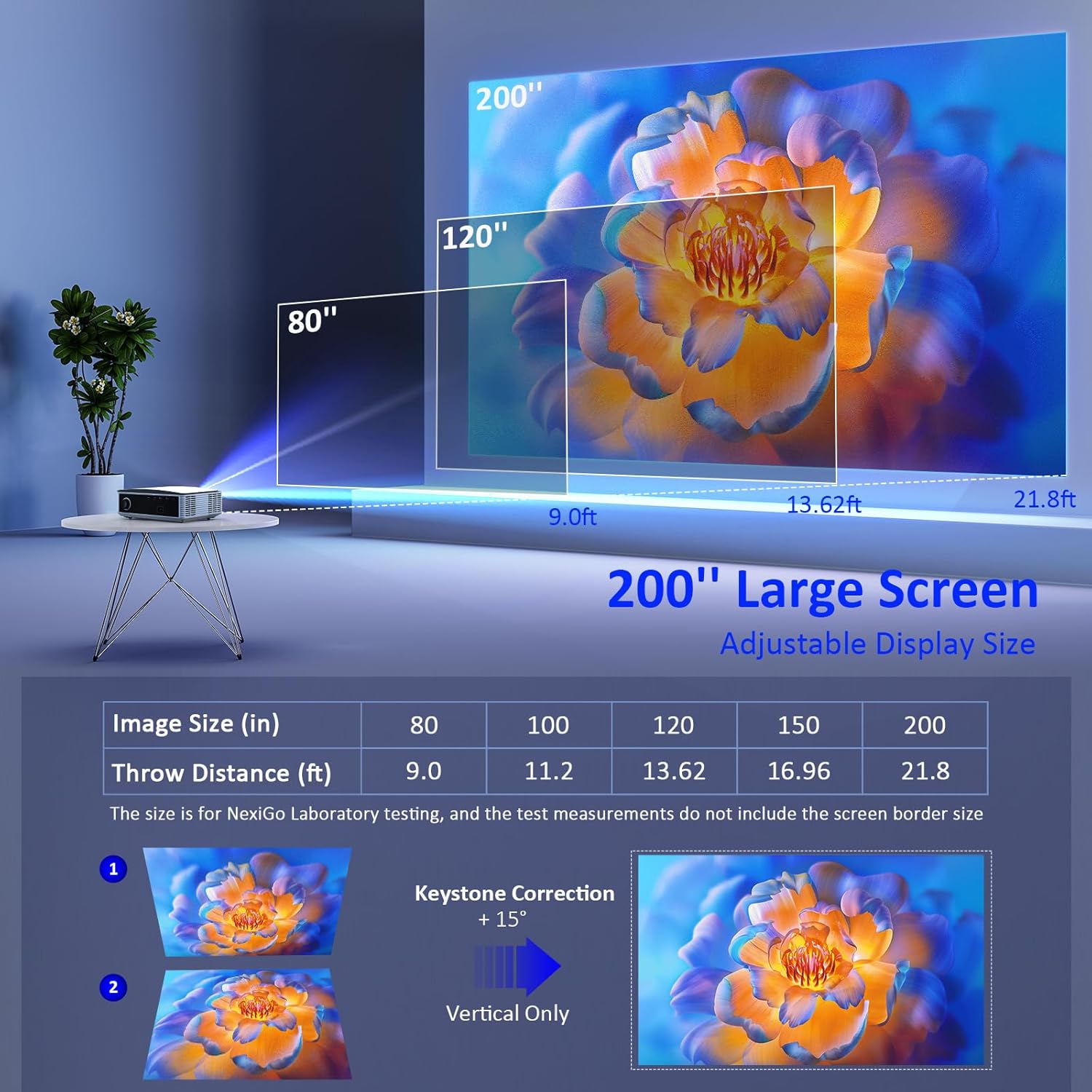
Image: The NexiGo PJ30 projector, a compact white device with a black lens, positioned to project an image.
Key Features:
- Native 1080P Resolution & 500 ANSI Lumens: Provides high-resolution, bright, and clear images.
- Wireless Screen Mirroring: Supports 5G Wi-Fi for seamless mirroring from iOS, Android, and Windows devices.
- Dolby Sound & Bluetooth 5.1: Built-in speaker with lifelike Dolby sound and Bluetooth 5.1 for external audio devices.
- Wide Compatibility: Multiple ports including HDMI, USB, AV, and 3.5mm audio jack for various devices.
- Large Display Size: Adjustable projection from 42" to 200" with a projection distance of 4.8ft to 21.8ft.
- Digital Zoom: Easily adjust screen size with the remote control (available for local video via USB).
2. What's in the Box
Upon unboxing your NexiGo PJ30 projector, ensure all the following items are present:
- NexiGo PJ30 Projector
- Remote Control (2 x AAA batteries not included)
- Power Cable
- AV Cable
- User Manual
- Cleaning Kit (cloth and cotton swabs for lens/screen)
3. Setup
Placement and Installation
The NexiGo PJ30 offers flexible installation options to suit your environment:
- Desktop Mount: Place the projector on a flat surface.
- Ceiling Mount: Install the projector upside down on the ceiling (mounting hardware not included).
- Wall Mount: Secure the projector to a wall shelf (shelf not included).

Image: Diagrams illustrating desktop, ceiling, and wall mounting options for the projector.
Connecting to Power
- Connect the power cable to the projector's power input port.
- Plug the other end of the power cable into a power outlet.
Projection Distance and Screen Size
Adjust the distance between the projector and the screen to achieve your desired display size. The optimal projection distance ranges from 4.8ft to 21.8ft for screen sizes between 42" and 200".

Image: A diagram showing recommended throw distances for various screen sizes (80" at 9.0ft, 120" at 13.62ft, 200" at 21.8ft).
4. Operating Instructions
Power On/Off
- Press the power button on the projector or the remote control to turn the device on or off.
Focus and Keystone Correction
- Adjust the focus ring on the projector lens until the image is clear.
- Use the keystone dial on the rear of the projector to correct any trapezoidal distortion of the image.
Input Source Selection
The projector supports multiple input sources:
- HDMI: Connect devices like TV boxes, gaming consoles (PS5), laptops, or TV sticks via HDMI 1 or HDMI 2 ports.
- USB: Connect USB flash drives for direct media playback.
- AV: Use the provided AV cable to connect older devices.
- Wireless Screen Mirroring: For iOS, Android, and Windows devices.

Image: The rear panel of the NexiGo PJ30 projector highlighting HDMI, USB, AV, and 3.5mm audio jack ports, with icons of compatible devices like iPhones, iPads, laptops, TV boxes, and USB drives.
Wireless Screen Mirroring
The PJ30 supports 5G Wi-Fi for wireless screen mirroring. Navigate to the 'MultiScreen' option in the input source menu.
- For iOS Devices: Connect your iOS device and the projector to the same Wi-Fi network. Open Control Center on your iOS device, tap 'Screen Mirroring', and select the projector's name (e.g., NexiGo-PJ30-XXXX).
- For Android/Windows Devices: Ensure your device supports Miracast or Wi-Fi Display. Connect the projector to Wi-Fi. On your device, open display settings or screen mirroring and select the projector's name.
- Note: Due to copyright protection, streaming services like Netflix, Amazon Prime Video, and Hulu do not support screen mirroring.

Image: The NexiGo PJ30 projector displaying a racing game on a large screen, with icons for 5G WiFi and Bluetooth 5.1, and logos for iOS, Android, and Windows devices, indicating wireless screen mirroring capability.
Bluetooth Audio Connection
Connect external Bluetooth speakers or headphones for an enhanced audio experience.
- Go to 'Settings' on the projector's main menu and select 'Bluetooth'.
- Enable Bluetooth and search for available devices.
- Select your desired Bluetooth speaker or headphones from the list to pair.

Image: The NexiGo PJ30 projector on a coffee table, surrounded by sound waves, with headphones and a Bluetooth speaker, illustrating its immersive Dolby Audio capabilities.
Picture Settings
Access 'Settings' from the main menu to adjust various picture parameters:
- Projection Mode: Adjust based on projector orientation (Normal Front, Normal Back, Invert Front, Invert Back).
- Image Scaling: Scale the image up or down (e.g., 100% to 99%).
- Aspect Ratio: Choose between Auto, 4:3, or 16:9.
- Picture Mode: Select predefined modes (Standard, Soft, Dynamic) or customize your own.
Digital Zoom
Use the remote control to digitally zoom in or out on the projected image.
- Note: Digital zoom functionality is only available when playing local video content via a USB connection.

Image: A person using a remote control to adjust the digital zoom on a projected image of a dolphin, showing 0.5X and 2X zoom levels.
5. Features
The NexiGo PJ30 projector is engineered to provide a versatile and high-quality viewing experience:
- High Brightness: With 500 ANSI lumens, the projector delivers bright images suitable for various lighting conditions.
- Long-lasting LED Lamp: The energy-saving LED light bulb technology ensures a lifespan of up to 30,000 hours, equivalent to approximately 10 years with 8 hours of daily use.
- Versatile Entertainment: Ideal for home theater setups, gaming, outdoor movie nights, and presentations.

Image: A collage of four images depicting different uses for the NexiGo PJ30 projector: home theater, playing games, outdoor movie night, and as a holiday gift.
Official Product Video
Video: An official product video from NexiGo USA showcasing the features and capabilities of the PJ30 Native 1080P Movie Projector, including its brightness, sound, and connectivity options.
6. Maintenance
Cleaning the Dust Filter
To maintain optimal performance and prolong the projector's life, regularly clean the dust filter.
- Locate the dust filter cover on the bottom of the projector.
- Gently press and slide out the dust filter.
- Clean the filter with a soft, dry cloth or a small brush to remove accumulated dust.
- Reinsert the clean filter back into its slot until it clicks into place.
- It is recommended to clean the dust filter monthly.

Image: A close-up view of the NexiGo PJ30 projector showing the removable dust cover at the bottom, with text indicating the importance of regular cleaning.
Lens Cleaning
Use a soft, lint-free cloth to gently wipe the projector lens. Avoid using abrasive cleaners or excessive force.
7. Troubleshooting
- No Picture: Ensure the power cable is securely connected and the projector is turned on. Check the input source selection matches your connected device. Verify HDMI/AV cables are properly connected.
- Blurry Image: Adjust the focus ring on the lens. Ensure the projector is within the recommended projection distance. Use keystone correction to fix distorted images.
- No Sound: Check the volume settings on both the projector and your connected device. If using Bluetooth, ensure it's properly paired and connected. If using external speakers via 3.5mm jack, ensure the cable is fully inserted.
- Screen Mirroring Issues: Ensure both the projector and your device are connected to the same 5G Wi-Fi network. Some streaming apps do not support mirroring due to copyright.
- Overheating: Ensure the projector's vents are not blocked. Clean the dust filter regularly.
8. Specifications
| Feature | Detail |
|---|---|
| Model Number | PJ30 |
| Native Resolution | 1920 x 1080 (1080P) |
| Brightness | 500 ANSI Lumens |
| Connectivity Technology | 5G Wi-Fi, Bluetooth 5.1 |
| Display Size | 42" to 200" |
| Projection Distance | 4.8ft to 21.8ft |
| Audio Support | Dolby Sound, Built-in Speaker, 3.5mm Audio Jack |
| Input Ports | 2x HDMI, 2x USB, AV, 3.5mm Audio Jack |
| Item Weight | 5.51 pounds |
| Product Dimensions | 12.2 x 8.66 x 3.14 inches |
9. Warranty and Support
For warranty information and technical support, please refer to the official NexiGo website or contact their customer service directly. The product was first available on September 1, 2022.
Manufacturer: Nexight INC


