
Benro BR209
Benro Polaris Astro Edition (3-Axis) User Manual
Model: BR209
Introduction
The Benro Polaris Astro Edition (3-Axis) is an advanced smart tripod head designed for precision photography, particularly astrophotography. It integrates intelligent functions for motion timelapses, panoramas, focus stacking, exposure stacking, and long exposures of the night sky. This manual provides essential information for the setup, operation, maintenance, and troubleshooting of your Polaris Astro Edition.

Image: The Benro Polaris Astro Edition (3-Axis) smart tripod head, showcasing its robust design and control knobs.
Package Contents
Upon unboxing, verify that all components are present:
- Benro Polaris Astro Edition (3-Axis) Smart Tripod Head
- Carrying Case
- Various connection cables (USB-C, shutter release cables)
- Quick Release Plate
- User Manual (this document)

Image: All items included in the Benro Polaris Astro Edition package, neatly arranged with the carrying case, tripod head, and various cables.
Setup Guide
1. Charging the Device
The Polaris Astro Edition features an over 24-hour battery life and can be charged during use. Connect the provided USB-C cable to the "Extra" port on the side of the unit and to a compatible USB power source.

Image: A detailed view of the side ports on the Polaris unit, including the "Extra" USB-C port for charging and external connections, and the Flash and Shutter ports.
2. Attaching to a Tripod
Securely mount the Polaris Astro Edition onto a sturdy tripod using the standard 3/8"-16 tripod screw mount located at the base of the unit. Ensure it is tightened to prevent movement during operation.
3. Mounting Your Camera
- Attach the quick release plate to the base of your camera.
- Slide the camera with the attached quick release plate into the receiver on top of the Polaris unit until it clicks securely into place.
- Ensure the camera is balanced on the head for optimal performance.

Image: The quick release plate, designed to securely attach a camera to the Polaris head, featuring anti-slip pads and a mounting screw.
4. Connecting Your Camera
Connect your camera to the Polaris unit using the appropriate shutter release cable and the "Camera" port. This enables the Polaris to control camera functions for advanced shooting modes.

Image: A detailed view of the "Camera" port and "Mini HDMI" port on the side of the Polaris unit, used for connecting to a camera and external display respectively.
5. Powering On
Press and hold the red power button located on the side of the unit until the indicator lights illuminate.
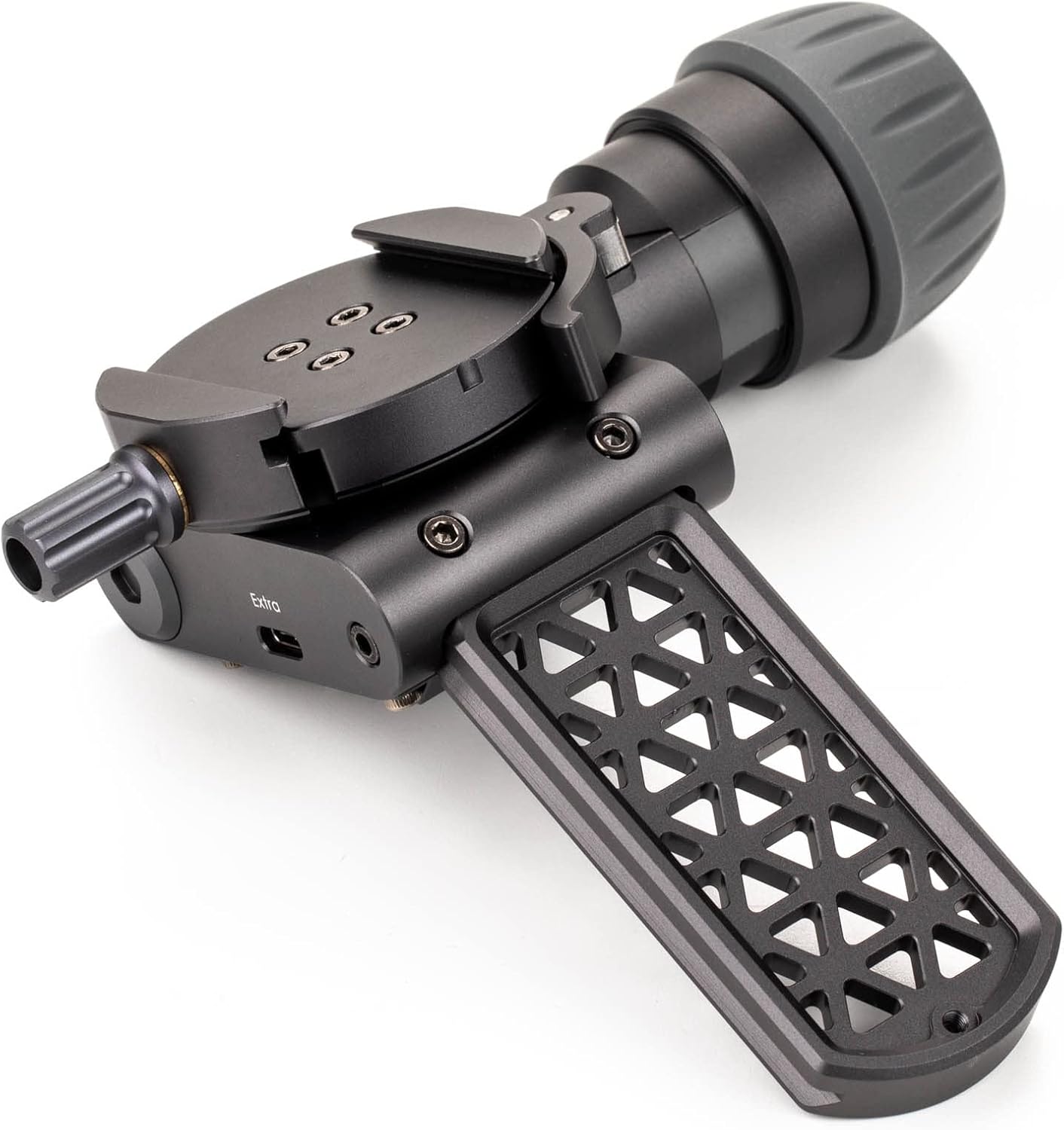
Image: A close-up of the red power button with the universal power symbol, located on the main body of the Polaris unit.
Operating Instructions
All intelligent functions of the Benro Polaris Astro Edition are easily controllable via a companion smartphone application. Download the official Benro Polaris app from your device's app store.
App Connection and Control
- Ensure Bluetooth and Wi-Fi are enabled on your smartphone.
- Open the Polaris app and follow the on-screen instructions to connect to your Polaris unit.
- The app provides an intuitive interface for setting up various shooting modes, including:
- Motion Timelapses: Program complex camera movements over time.
- Panoramas: Capture multiple images for seamless stitching into wide panoramic views.
- Focus Stacking: Combine images taken at different focus points for extended depth of field.
- Exposure Stacking: Merge multiple exposures for improved dynamic range or noise reduction.
- Astrophotography Tracking: Precisely track celestial objects for long-exposure night sky photography.

Image: A smartphone displaying the Benro Polaris app interface, showing a star tracking function with celestial coordinates and a "GOTO" option for precise object targeting.
For detailed instructions on each specific function, refer to the in-app tutorials and help sections.
Maintenance
- Cleaning: Use a soft, dry cloth to clean the exterior of the unit. Avoid abrasive cleaners or solvents.
- Storage: Store the Polaris Astro Edition in its provided carrying case in a cool, dry place when not in use.
- Battery Care: For long-term storage, ensure the battery is charged to approximately 50% to prolong its lifespan.
- Firmware Updates: Regularly check the Benro Polaris app for available firmware updates to ensure optimal performance and access to new features.

Image: The black carrying case for the Benro Polaris Astro Edition, featuring blue accents and a carabiner, designed for protective storage and transport.
Troubleshooting
| Problem | Possible Cause | Solution |
|---|---|---|
| Device does not power on. | Low battery; Power button not held long enough. | Charge the unit for at least 30 minutes. Press and hold the power button for 3-5 seconds. |
| Cannot connect to smartphone app. | Bluetooth/Wi-Fi off; App permissions; Cellular data interference. | Ensure Bluetooth and Wi-Fi are on. Check app permissions. Try disabling cellular data temporarily as per some user reports. Restart both device and app. |
| Camera not responding to Polaris commands. | Incorrect cable; Loose connection; Camera settings. | Verify you are using the correct shutter release cable for your camera model. Ensure all connections are secure. Check camera's remote control settings. |
| Tracking or movement is inaccurate. | Improper calibration; Unstable tripod; Overloaded weight. | Perform a calibration through the app. Ensure the tripod is stable and level. Verify camera rig weight does not exceed 15 lbs (7 kg). |
If issues persist, contact Benro customer support for further assistance.
Specifications
| Model | BR209 |
| Brand | Benro |
| Product Dimensions | 5.71 x 5.47 x 4.29 inches |
| Item Weight | 1.5 Grams (Note: This weight is as per provided data, actual operational weight may vary or be higher) |
| Maximum Weight Recommendation (Payload) | 7 Kilograms (approx. 15 lbs) |
| Battery | 1 x 12V battery (internal) |
| Compatible Devices | Camera, Cellphone |
| Color | Black |
| Country of Origin | China |
| First Available Date | August 31, 2022 |
Warranty and Support
For warranty information and technical support, please refer to the official Benro website or contact their customer service department. Keep your purchase receipt as proof of purchase for warranty claims.
Visit the official Benro Store: Benro Store on Amazon
Related documentsBR209


Ask a question about this manual
Ask about setup, troubleshooting, compatibility, parts, safety, or missing instructions. Manuals+ will review the question and use this page’s manual context to help answer it.