
1. Introduction and Overview
This manual provides essential information for the installation, operation, maintenance, and troubleshooting of your XFX Speedster SWFT309 Radeon RX 6700 Gaming Graphics Card. Designed with AMD RDNA 2 architecture, this graphics card delivers robust performance for gaming and demanding applications.
Key features of your graphics card include:
- Chipset: AMD RX 6700
- Memory: 10GB GDDR6
- Cooling: XFX SWFT 309 Triple Fan design for optimized thermal performance
- Boost Clock: Up To 2425MHz
- Video Output Interface: DisplayPort, HDMI

Figure 1: Front view of the XFX Speedster SWFT309 Radeon RX 6700 Graphics Card, showcasing its triple fan cooling system.
2. Setup and Installation
Before beginning installation, ensure your computer is powered off and unplugged from the wall outlet. It is recommended to work in a static-free environment to prevent damage to components.
2.1 Physical Installation
- Prepare Your System: Power down your computer and disconnect all cables. Open your computer case.
- Locate PCIe Slot: Identify an available PCI-Express x16 slot on your motherboard. Remove any expansion slot covers that may be blocking it.
- Insert Graphics Card: Carefully align the graphics card with the PCIe slot and press down firmly until it is securely seated. You should hear a click from the retention clip.
- Secure the Card: Use screws to secure the graphics card to the computer case at the expansion slot bracket.
- Connect Power Cables: Connect the required 8-pin power connectors from your power supply to the graphics card. This model typically requires two 8-pin power connectors.
- Close Case: Once the card is securely installed and powered, close your computer case.

Figure 2: Rear view of the graphics card, showing the backplate and power connector area.
2.2 Driver Installation
No driver disc is included with this product. You must connect to the internet to download the latest drivers to receive all the latest optimizations and bug fixes. Please visit one of the following websites to download the latest driver package and software:
After installing the physical card, power on your computer. Windows should detect new hardware. Install the drivers downloaded from the official XFX or AMD website. Follow the on-screen instructions to complete the driver installation.
3. Operating Instructions
Once the graphics card is installed and drivers are updated, connect your display(s) to the appropriate ports on the card (DisplayPort or HDMI). Power on your monitor and computer. The system should boot normally, utilizing the new graphics card.
3.1 Software Optimization
For optimal performance and to access advanced features, install the AMD Adrenalin software. This utility allows you to:
- Monitor GPU performance and temperatures.
- Adjust graphics settings for individual games.
- Overclock the GPU (for experienced users).
- Manage display settings, including multi-monitor configurations.
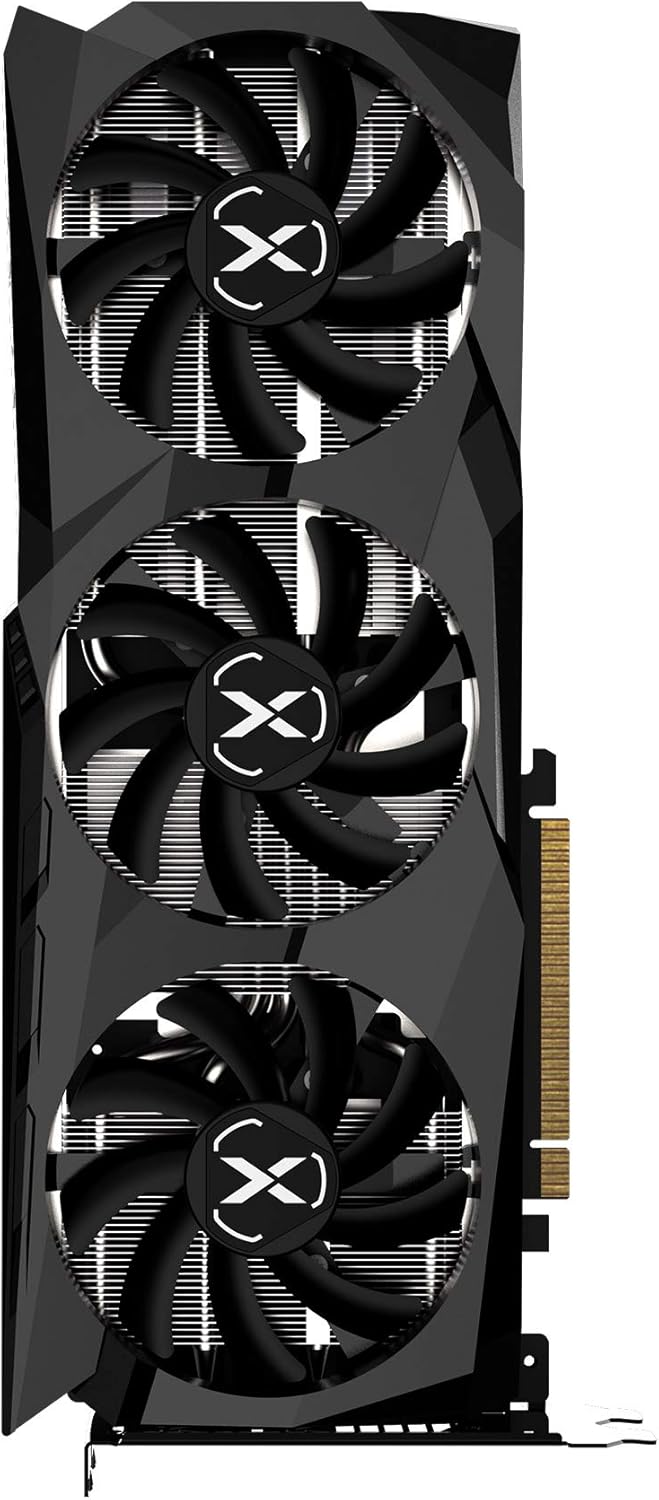
Figure 3: Top view of the graphics card, highlighting the XFX branding and fan design.
4. Maintenance
Proper maintenance ensures the longevity and optimal performance of your graphics card.
- Dust Removal: Regularly clean dust from the fans and heatsink using compressed air. Ensure the computer is powered off and unplugged before cleaning.
- Airflow: Maintain good airflow within your computer case. Ensure case fans are functioning correctly and are not obstructed. The XFX SWFT 309's triple fan design is optimized for efficient cooling.
- Driver Updates: Keep your graphics drivers updated to benefit from performance improvements and bug fixes.
5. Troubleshooting
If you encounter issues with your graphics card, refer to the following common troubleshooting steps:
5.1 No Display / Black Screen
- Check Connections: Ensure all power cables (including the 8-pin PCIe power connectors) are firmly seated. Verify that the display cable is securely connected to both the graphics card and the monitor.
- Monitor Input: Confirm your monitor is set to the correct input source (HDMI, DisplayPort).
- Reseat Card: Power off your PC, unplug it, and reseat the graphics card in its PCIe slot.
- Test with Another Display/Cable: If possible, test with a different monitor or display cable to rule out external issues.
5.2 Performance Issues / Low FPS
- Update Drivers: Ensure you have the latest AMD Radeon drivers installed.
- Check Temperatures: Use AMD Adrenalin software to monitor GPU temperatures. Overheating can lead to performance throttling. Ensure proper case airflow.
- Power Supply: Verify your power supply unit (PSU) meets the recommended wattage for your system, including the graphics card.
- Game Settings: Adjust in-game graphics settings. Lowering demanding settings can improve frame rates.
5.3 Coil Whine
Some users may experience a high-pitched buzzing sound, known as coil whine, under heavy load. This is generally not indicative of a fault and does not affect performance or longevity. It is often related to the power delivery components and can vary between individual units.
6. Specifications
| Feature | Specification |
|---|---|
| Graphics Coprocessor | AMD RX 6700 |
| Brand | XFX |
| Graphics RAM Size | 10 GB |
| Video Output Interface | DisplayPort, HDMI |
| Graphics Processor Manufacturer | XFX |
| Graphics RAM Type | GDDR6 |
| Compatible Devices | Desktop |
| Display Resolution Maximum | 3840x2160 |
| Graphics Card Interface | PCI-Express x16 |
| Number of Fans | 3 |
| Item Dimensions (L x W) | 11.97"L x 4.84"W |
| Item Weight | 1.25 Kilograms |
| Model Name | Radeon RX 6700 |
| UPC | 840191500572 |
7. Warranty and Support
Your XFX Speedster SWFT309 Radeon RX 6700 Graphics Card comes with a 3-year manufacturer warranty. For warranty claims or technical support, please visit the official XFX support website or contact their customer service.
For further assistance, you can visit the XFX support page: http://xfxforce.com/support


