1. Introduction
The ICY BOX IB-DK8801-TB4 is a versatile Thunderbolt 4 docking station designed to expand the connectivity of your laptop or Mac. It offers a 10-in-1 solution, enabling connection of multiple peripherals, external displays, and providing power delivery through a single Thunderbolt 4 cable. This manual provides instructions for setup, operation, and maintenance to ensure optimal performance.

Figure 1: The IB-DK8801-TB4 docking station integrated into a workspace, demonstrating universal PC connectivity.
2. Package Contents
- 1x ICY BOX IB-DK8801-TB4 Thunderbolt 4 Docking Station
- 1x Power Adapter
- 1x Thunderbolt 4 Cable
- 1x User Manual
3. Product Overview
The IB-DK8801-TB4 docking station features a comprehensive array of ports for various connectivity needs. Familiarize yourself with the port layout before connecting devices.

Figure 2: Port layout and daisy-chaining illustration of the docking station.
Front Panel Ports:
- SD 4.0 Card Reader: For high-speed data transfer from SD cards.
- USB 3.1 Type-A Port: Connect USB peripherals.
- USB-C Port: Connect USB-C devices.
- Thunderbolt 4 Upstream Port: Connects to your host laptop/Mac.
- Power Button: To power on/off the docking station.
Rear Panel Ports:
- DC IN: Connect the included power adapter.
- HDMI Port: Connect an external display.
- Ethernet Port: For wired network connection.
- 2x Thunderbolt 4 Downstream Ports: Connect additional Thunderbolt devices or displays, supporting daisy-chaining.
- 3x USB 3.1 Type-A Ports: Connect additional USB peripherals.
4. Setup
Follow these steps to set up your ICY BOX Thunderbolt 4 Docking Station:
- Connect Power: Plug the power adapter into the DC IN port on the rear of the docking station, then connect it to a power outlet.
- Connect to Host Device: Use the provided Thunderbolt 4 cable to connect the Thunderbolt 4 Upstream port on the front of the docking station to a Thunderbolt 4 port on your laptop or Mac.
- Connect Displays:
- For a single 8K@30Hz display, connect it to one of the Thunderbolt 4 downstream ports using a compatible cable.
- For dual 4K@60Hz displays, connect one display to the HDMI port and the other to a Thunderbolt 4 downstream port (using a compatible adapter/cable if necessary).

Figure 3: Connecting external monitors to the docking station.
- Connect Peripherals: Connect your USB devices (keyboard, mouse, external drives) to the available USB 3.1 Type-A or USB-C ports. Insert SD cards into the SD 4.0 card reader as needed.
- Connect Network: For a wired internet connection, connect an Ethernet cable from your router/modem to the Ethernet port on the rear of the docking station.
5. Operating Instructions
Power On/Off:
Press the power button on the front panel to turn the docking station on or off. The LED indicator will illuminate when the device is powered on.
Display Configuration:
Your host device should automatically detect connected displays. You can configure display settings (resolution, orientation, extended/mirrored mode) through your operating system's display settings.
Power Delivery (PD):
The docking station provides up to 96W Power Delivery through the Thunderbolt 4 upstream port to charge your connected laptop or Mac. Ensure your device supports charging via Thunderbolt 4.

Figure 4: The docking station providing 96W Power Delivery to a laptop.
Thunderbolt 4 Capabilities:
The Thunderbolt 4 ports support data transfer speeds of up to 40 Gbit/s. They are compatible with DisplayPort, PCIe, and USB 4, and are backward compatible with previous Thunderbolt versions. This allows for high-speed external storage, external graphics cards, and other high-bandwidth devices.
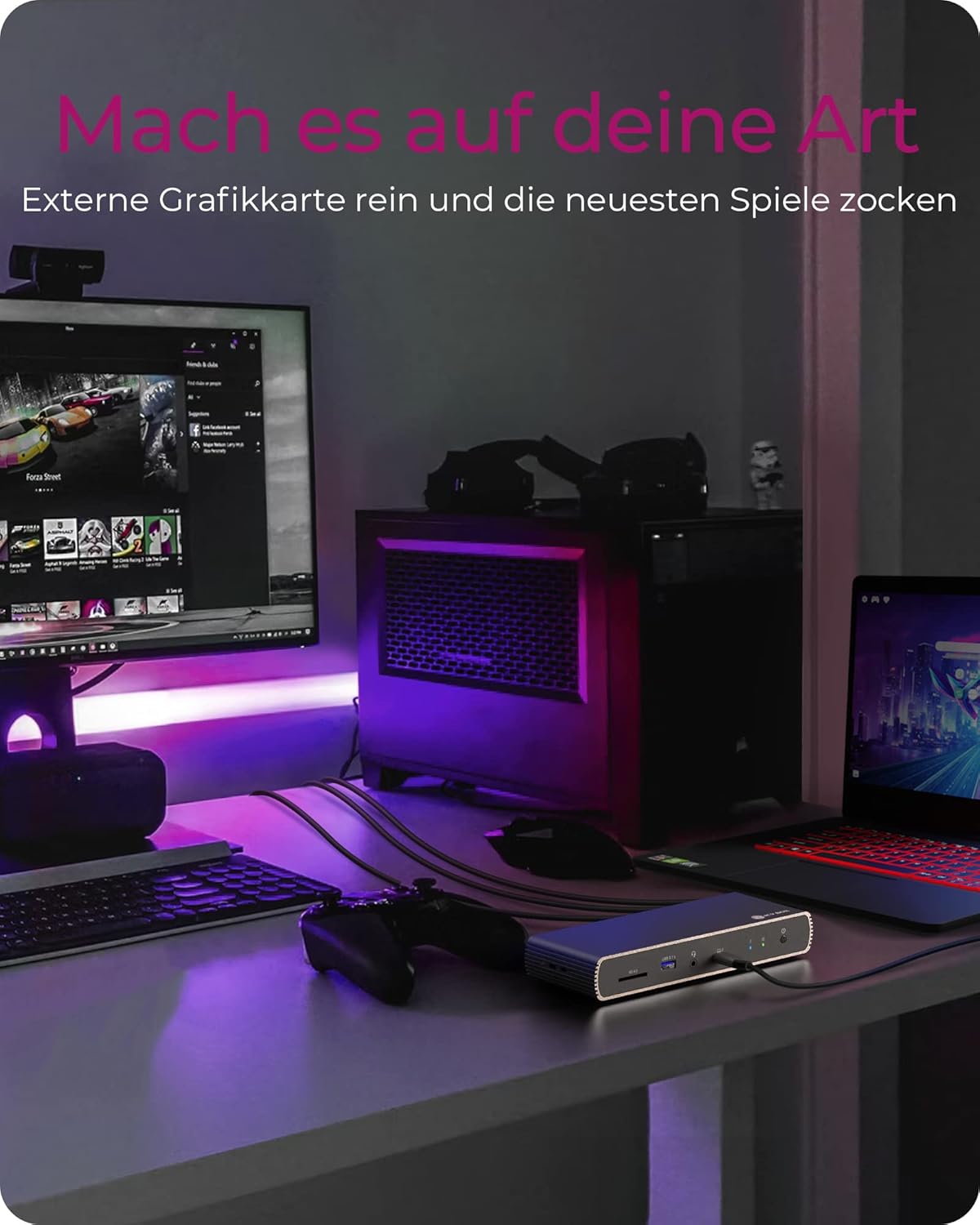
Figure 5: Using the docking station with an external graphics card for enhanced performance.

Figure 6: The docking station facilitating creative workflows with various connected devices.
6. Maintenance
To ensure the longevity and optimal performance of your docking station:
- Keep the device in a dry, well-ventilated area, away from direct sunlight and heat sources.
- Avoid exposing the device to liquids or excessive moisture.
- Clean the exterior with a soft, dry cloth. Do not use harsh chemicals or abrasive cleaners.
- Ensure all cables are securely connected and not under strain.
7. Troubleshooting
If you encounter issues with your docking station, refer to the following common problems and solutions:
| Problem | Possible Solution |
|---|---|
| No power to the docking station. | Ensure the power adapter is securely connected to both the docking station and a working power outlet. Check the power button status. |
| No display on external monitor. | Verify display cables are securely connected. Ensure the docking station is powered on and connected to your host device. Check your host device's display settings. Try a different display cable or port. |
| USB devices not recognized. | Ensure the docking station is powered on and connected to your host device. Try connecting the USB device to a different port on the dock or directly to your host device to rule out device issues. |
| Laptop not charging. | Confirm your laptop supports charging via Thunderbolt 4. Ensure the Thunderbolt 4 upstream cable is correctly connected. Check the power adapter connection. |
| Network connection issues. | Check the Ethernet cable connection. Verify your router/modem is working correctly. Ensure network drivers are up to date on your host device. |
8. Specifications
| Feature | Detail |
|---|---|
| Model Name | IB-DK8801-TB4 |
| Brand | ICY BOX |
| Hardware Interface | DisplayPort, HDMI, Thunderbolt, USB, USB Type C |
| Compatible Devices | MacBook Air, MacBook Pro, Thunderbolt 4 enabled laptops |
| Number of Ports | 10 |
| Total USB Ports | 4 (USB 3.1) + 1 (USB-C) |
| Total HDMI Ports | 1 |
| Thunderbolt 4 Ports | 2x Downstream, 1x Upstream |
| Power Delivery | Up to 96W |
| Video Output | Single 8K@30Hz or Dual 4K@60Hz |
| Ethernet | Yes |
| SD Card Reader | SD 4.0 |
| Product Dimensions | 50 x 50 x 28 cm |
| Item Weight | 440 g |
9. Warranty and Support
ICY BOX products are designed for reliability and performance. For warranty information and technical support, please refer to the official ICY BOX website or contact your local retailer. Keep your proof of purchase for warranty claims.


