
AULA Wireless keyboard
AULA Wireless Mechanical Keyboard Instruction Manual
1. Introduction
This manual provides comprehensive instructions for the AULA Wireless Mechanical Keyboard, Model: Wireless keyboard. It covers setup, operation, maintenance, and troubleshooting to ensure optimal performance and longevity of your device. This keyboard features a transparent design, 3-in-1 wireless connectivity (2.4G, Bluetooth, USB-C), hot-swappable switches, and customizable RGB lighting.
2. Package Contents & Setup
2.1. What's in the Box
- Mechanical gaming keyboard
- Keycap Puller
- USB Cable (Type-C to Type-A)
- 2.4G USB Dongle (stored in keyboard)
- Instruction Manual
- Extra Blue Switches (for replacement)
2.2. Physical Setup
Unpack all components from the box. The keyboard comes with a protective covering. Remove this covering before use.
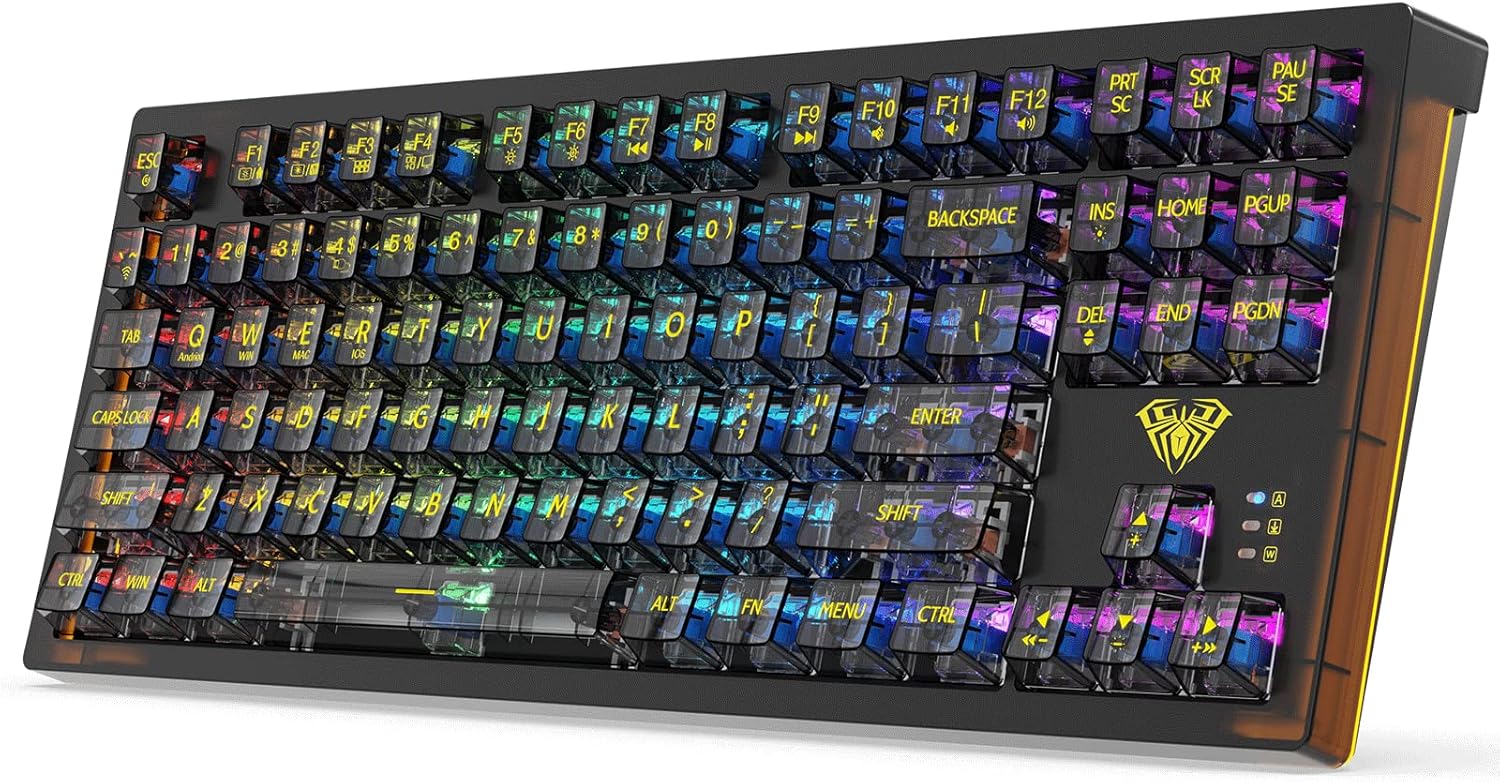
Figure 1: AULA Wireless Mechanical Keyboard with transparent keycaps and vibrant RGB lighting.
The keyboard features adjustable feet on the underside to set your preferred typing angle. There are two height selections available.

Figure 2: Underside of the keyboard showing the two-level adjustable feet for ergonomic comfort.
2.3. Connectivity Options
The AULA keyboard supports three connection modes: 2.4G wireless, Bluetooth, and USB-C wired.

Figure 3: Visual representation of the 3-in-1 mechanical wireless keyboard connectivity options: Wired, 2.4Ghz Wireless, and Bluetooth.
2.3.1. USB-C Wired Connection
Connect the provided USB-C cable to the keyboard's port and the USB-A end to your computer. The keyboard will automatically switch to wired mode. This mode also charges the keyboard's internal battery.
Video 1: Official product video demonstrating the wired USB-C connection and charging capabilities of the AULA keyboard.
2.3.2. 2.4G Wireless Connection
Locate the 2.4G USB dongle stored magnetically on the underside of the keyboard. Plug the dongle into an available USB port on your device. The keyboard will automatically connect. Press Fn + 4 to ensure 2.4G mode is active.

Figure 4: The keyboard operating wirelessly via 2.4G connection, indicating a 10M operating range.
2.3.3. Bluetooth Connection
The keyboard supports up to three Bluetooth devices. To connect, press Fn + 1, Fn + 2, or Fn + 3 to select a Bluetooth channel. The corresponding key will blink rapidly, indicating pairing mode. On your device, search for "AULA Wireless Keyboard" in Bluetooth settings and connect. Once connected, the key will stop blinking and remain lit.

Figure 5: Diagram illustrating the one-click switching system for multiple devices (laptop, tablet, phone) using Fn + 1/2/3 for Bluetooth modes.
To switch between connected Bluetooth devices, simply press Fn + 1, Fn + 2, or Fn + 3.
3. Operating Instructions
3.1. Basic Keyboard Functions
The keyboard features standard 87-key layout with anti-ghosting for all keys. It is ergonomically designed for comfortable use.

Figure 6: The ergonomic design of the AULA keyboard, highlighting the comfortable angle provided by double kickstand feet.
Use the Fn key in combination with other keys to access shortcut functions. Refer to the underside of the keyboard or the included manual for a detailed key map for different operating systems (Android, Windows, Mac, iOS).
3.2. RGB Lighting Control
The keyboard features 17 RGB backlight effects, 5 preset game lighting modes, and 19 types of side light effects. You can adjust light speed and brightness.

Figure 7: Overview of RGB backlit effects, including 17 RGB effects, 8 selectable colors, 5 brightness levels, and 19 side light effects.
- To cycle through 17 RGB lighting effects: Press Fn + INS.
- To change light colors (8 options): Press Fn + DEL.
- To cycle through 19 side light modes: Press Fn + MENU.
- To adjust brightness: Press Fn + Up Arrow (increase) or Fn + Down Arrow (decrease).
- To adjust light speed: Press Fn + Left Arrow (slower) or Fn + Right Arrow (faster).
Video 2: Demonstration of various RGB lighting effects and the tactile feel of the transparent keycaps.
3.3. Hot-Swappable Switches
The keyboard features hot-swappable blue switches, allowing for easy customization and replacement without soldering. Use the provided keycap puller to carefully remove keycaps and switches.

Figure 8: Close-up of the transparent and hot-swappable keycaps, showing the blue switches underneath.
Video 3: Demonstration of removing and replacing keycaps and switches on the AULA keyboard.
4. Maintenance
4.1. Cleaning
To clean the keyboard, gently remove keycaps using the provided puller. Use a soft brush or compressed air to remove dust and debris from between the switches. Wipe keycaps with a damp cloth and mild soap, then dry thoroughly before reattaching.
4.2. Battery Charging
The built-in 2000mAh rechargeable lithium battery provides over 25 hours of continuous use. Connect the USB-C cable to charge the keyboard. The battery indicator light will show charging status.

Figure 9: Visual representation of the 2000mAh battery capacity, providing over 25 hours of continuous use.
5. Troubleshooting
- Connectivity Issues: Ensure the keyboard is powered on. For 2.4G, check the dongle connection. For Bluetooth, ensure the correct channel (Fn + 1/2/3) is selected and the device's Bluetooth is enabled. Try re-pairing if issues persist.
- Lighting Not Working: Check brightness levels (Fn + Up/Down Arrow). Ensure the keyboard is not in a mode with lights off.
- Keys Not Responding: Try reconnecting the keyboard. If a specific key is not working, the switch might need replacement. Use the keycap puller to replace the faulty switch with one of the spares.
- Keyboard Lag: Ensure you are within the 32ft wireless range. Check for interference from other wireless devices.
6. Specifications
| Feature | Detail |
|---|---|
| Product Dimensions | 14.45 x 5.35 x 1.4 inches |
| Item Weight | 1.76 pounds |
| Connectivity Technology | 2.4Ghz & BT5.0 & USB-C |
| Keyboard Description | Hot Swappable Wireless Mechanical Gaming Keyboard |
| Number of Keys | 87 |
| Keyboard Backlighting | RGB |
| Battery Capacity | 2000mAh |
| Compatible Devices | Laptop, Gaming Console, PC, Tablet, Mac |
7. Warranty & Support
The AULA Wireless Mechanical Keyboard comes with a hassle-free 1-year warranty. If you are not satisfied with your purchase, a refund will be provided with no questions asked. AULA is committed to continuous efforts in products and services.
For further support or inquiries, please visit the official AULA store or contact customer service.

AULA was founded in 2002, integrating production, sales, distribution, and after-sales service. They have a strong production workshop and professional R&D team, continuously updating product configurations based on customer needs.
Related documentsWireless keyboard


Ask a question about this manual
Ask about setup, troubleshooting, compatibility, parts, safety, or missing instructions. Manuals+ will review the question and use this page’s manual context to help answer it.