
1. Introduction
Thank you for purchasing the Hobbyant Universal Bluetooth Remote Controller. This versatile device is designed to enhance your experience with VR applications, mobile games, music playback, video control, and even as a selfie remote. Its ergonomic design ensures comfortable use for extended periods. Please read this manual carefully to understand the product's features, setup, and operation.
2. Safety Information
- Keep the device away from water and high humidity.
- Do not expose to extreme temperatures.
- Avoid dropping or subjecting the device to strong impacts.
- Do not attempt to disassemble or repair the device yourself.
- Dispose of batteries according to local regulations.
3. Package Contents
Ensure all items are present in the package:
- 1x Hobbyant Universal Bluetooth Remote Controller (Model AZSb1918)
- 1x Instruction Manual (this document)

Image: The Hobbyant Universal Bluetooth Remote Controller shown with its packaging and included manual.
4. Product Overview
Familiarize yourself with the controller's layout and buttons.

Image: Top view of the controller, highlighting the joystick and main control buttons.

Image: Bottom view of the controller, showing the operating system selection switch (Android/iOS).

Image: Detailed view of the precision joystick for navigation and control.

Image: Close-up of the ergonomically placed side buttons for additional functions.
5. Setup
5.1 Battery Installation
- Locate the battery compartment on the back of the controller.
- Gently slide open the battery cover.
- Insert two AAA 1.5V batteries, ensuring correct polarity (+/-).
- Close the battery cover securely.
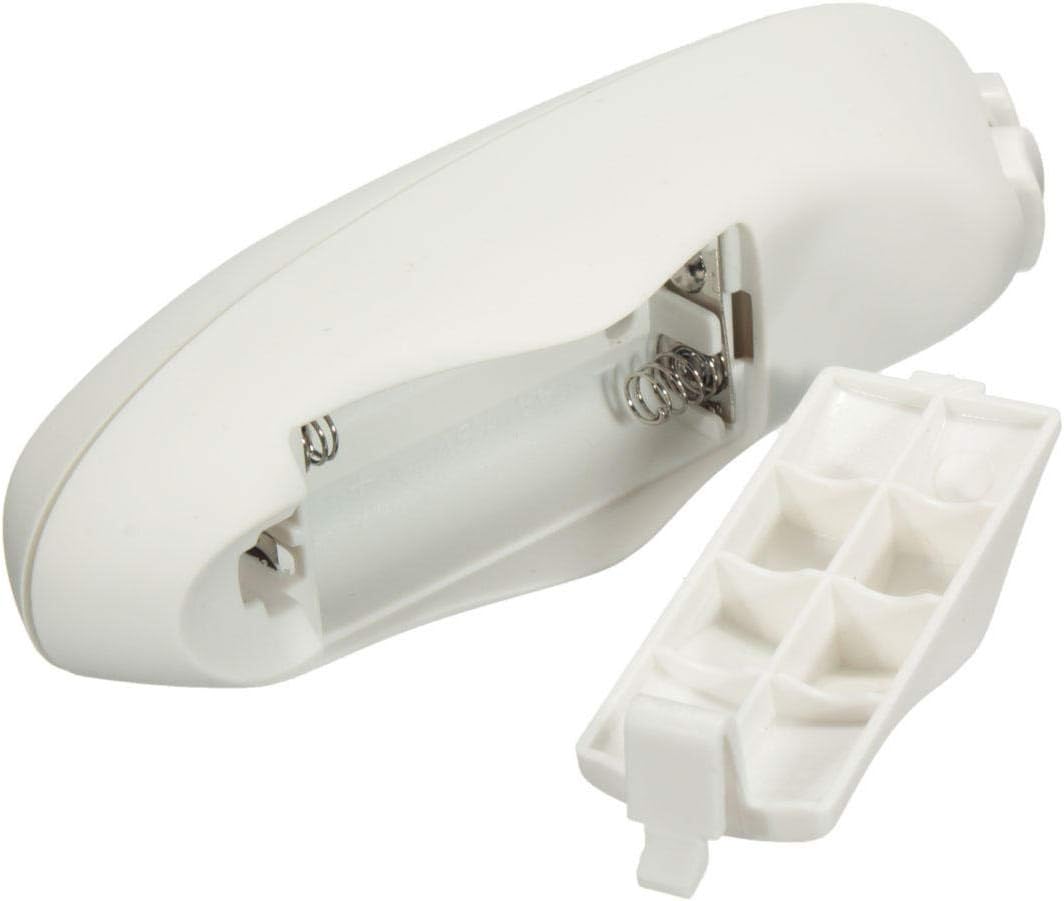
Image: The battery compartment with the cover removed, showing where to insert AAA batteries.
5.2 Power On/Off
- To power on: Press and hold the power button (usually the central button or a dedicated power button) until the indicator light flashes.
- To power off: Press and hold the power button again until the indicator light turns off.
5.3 Bluetooth Pairing
- Select OS Mode: On the side or bottom of the controller, locate the Android/iOS switch. Slide it to the appropriate operating system for your device.
- Activate Pairing Mode: With the controller powered off, press and hold the power button (or a designated pairing button) for a few seconds until the indicator light starts flashing rapidly. This indicates it's in pairing mode.
- Enable Bluetooth on Your Device: Go to the Bluetooth settings on your smartphone, tablet, or PC.
- Search for Devices: Your device will scan for available Bluetooth devices. Look for "VR PARK" or a similar name in the list.
- Connect: Select the controller from the list to initiate pairing.
- PIN Code (for Windows 7): If prompted for a PIN code on Windows 7, enter "0000".
- Confirmation: Once successfully paired, the indicator light on the controller will stop flashing and remain solid or turn off, depending on the model.
6. Operating Modes
The controller supports various modes for different applications:
- Music/Video Mode: Control media playback (play, pause, skip tracks, volume).
- Game Mode (Landscape): Optimized for gaming in landscape orientation.
- VR Mode: Designed for virtual reality applications and navigation.
- Self-timer Mode: Functions as a remote shutter for taking photos.
- Mouse Mode: Allows the joystick to control a cursor on compatible devices.
Specific button functions may vary slightly depending on the selected mode and the application being used. Refer to the application's instructions for detailed control schemes.
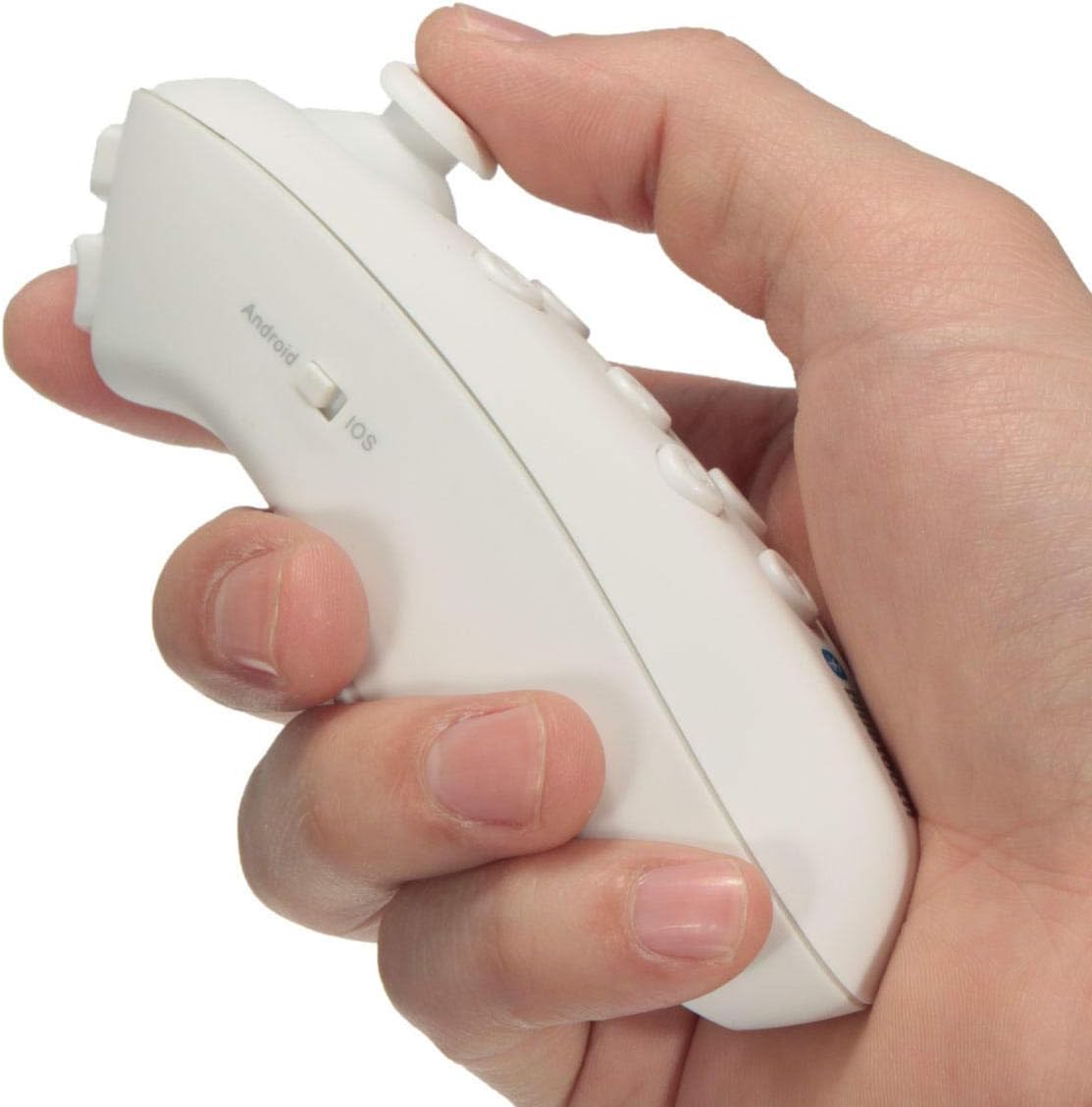
Image: The controller held in hand, demonstrating its ergonomic design for comfortable use during gaming or VR experiences.
7. Maintenance
- Clean the controller with a soft, dry cloth. Do not use liquid cleaners or solvents.
- Store the controller in a cool, dry place when not in use.
- Remove batteries if the device will not be used for an extended period to prevent leakage.
8. Troubleshooting
| Problem | Solution |
|---|---|
| Controller does not power on. | Check battery installation and ensure batteries are not depleted. Replace if necessary. |
| Unable to pair via Bluetooth. | Ensure the controller is in pairing mode (rapidly flashing light). Check that the correct OS mode (Android/iOS) is selected. Make sure Bluetooth is enabled on your device. Try restarting both the controller and your device. |
| Controller disconnects frequently. | Ensure the controller is within the 10-meter control distance. Check for interference from other wireless devices. Ensure batteries have sufficient charge. |
| Buttons or joystick are unresponsive. | Check battery level. Ensure the controller is properly paired. Try resetting the controller (if a reset button is available, or by removing/reinserting batteries). |
9. Specifications
| Feature | Detail |
|---|---|
| Product Name | Bluetooth Remote Controller |
| Model Number | AZSb1918 |
| Brand | hobbyant |
| Compatibility | Android, iOS, Samsung, HTC, PC (Windows 7 requires '0000' pairing PIN) |
| Material | PC + ABS (Environmental Protection) |
| Battery Type | 2x AAA 1.5V Battery |
| Standby Time | Up to 300 hours |
| Control Distance | Up to 10 meters |
| Weight | 45.5g |
| Product Dimensions | 130 x 33 x 44 mm |
| Connectivity | Bluetooth |
| Controller Type | Gamepad, Joystick |
10. Warranty and Support
This product is covered by a standard manufacturer's warranty. For warranty claims or technical support, please contact your retailer or the Hobbyant customer service department. Keep your proof of purchase for warranty validation.
For further assistance, please visit the official Hobbyant website or refer to the contact information provided with your purchase.