Introduction
This manual provides detailed instructions for the installation, operation, and maintenance of your Aigostar Smart LED Strip Light. This smart lighting solution is designed for indoor use, offering versatile color options, music synchronization, and multiple control methods including voice, app, and remote control. Please read this manual thoroughly before use to ensure proper functionality and safety.
What's Included
Verify that all components are present in the package:
- Smart LED RGB Strip Light (32.8 FT)
- Instruction Manual (this document)
- App User Manual
- Double Sided Tape
- Fixed Clips
- Remote Control with battery
- 3-Key Control Box
- Power Plug

Image: The product packaging displaying the Aigostar Smart Low Voltage Strip Light, along with the coiled LED strip, remote control, and smart home devices like Google Assistant and Alexa speakers, indicating compatibility.
Setup Instructions
1. Preparation
- Ensure the installation surface is clean, dry, and smooth.
- Unroll the LED strip light completely before powering on to prevent overheating.
- Identify the desired path for the strip light.
2. Physical Installation
- Connect the LED strip to the 3-Key Control Box.
- Connect the Power Plug to the Control Box.
- Peel off the adhesive backing from the LED strip.
- Carefully press the strip onto the prepared surface, ensuring firm contact. For added security, use the provided fixed clips.
- Mount the control box in a convenient location, ensuring the remote sensor has a clear line of sight if using the IR remote.
- Plug the power adapter into a standard electrical outlet.
3. App Connection (Aigosmart APP)
- Download the "Aigosmart" APP from your device's app store (iOS or Android).
- Register or log in to your Aigosmart account.
- Ensure your mobile device is connected to a 2.4GHz Wi-Fi network.
- Follow the in-app instructions to add your Smart LED Strip Light. This typically involves putting the device into pairing mode (refer to the App User Manual for specific steps).
- Once connected, you can rename the device for easier control.
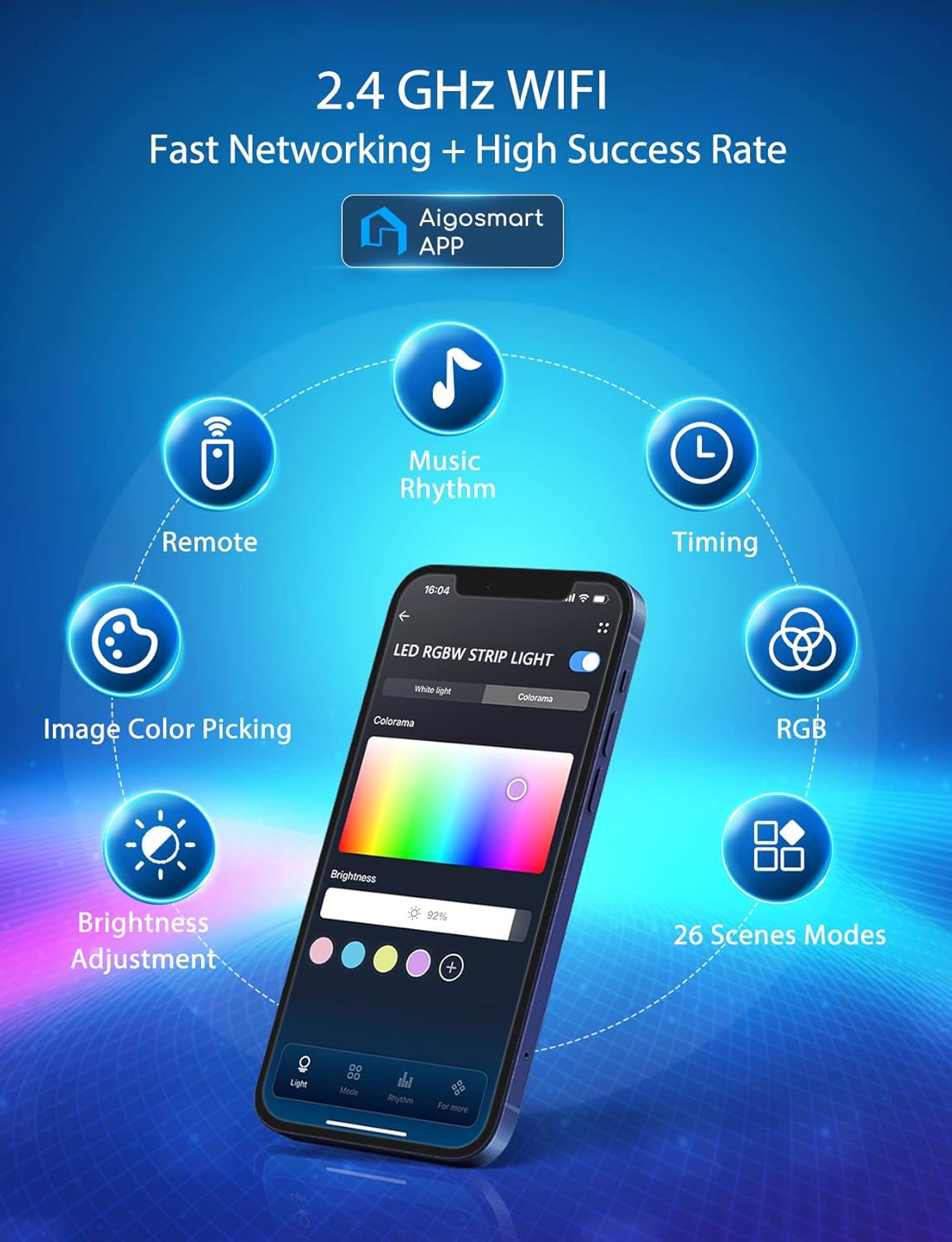
Image: A smartphone screen displaying the Aigosmart app interface, highlighting features like remote control, music rhythm, timing, RGB color selection, image color picking, brightness adjustment, and 26 scene modes, all operating over 2.4 GHz Wi-Fi.
Operating Instructions
1. Control Methods
Your Aigostar Smart LED Strip Light offers multiple ways to control its functions:
- Aigosmart APP Control: Access 16 million colors, 26 mood modes, 64 scene selections, brightness adjustment, and custom lighting effects directly from your smartphone.
- Voice Control: Link with Amazon Alexa or Google Assistant for hands-free control using voice commands.
- Remote Control: Use the included IR remote for basic functions like power, color selection, and brightness.
- 3-Key Control Box: Provides basic on/off, color change, and mode selection directly on the strip.

Image: An illustration demonstrating the four control methods for the Aigostar Smart LED Strip Light: Voice Control (Alexa/Google Assistant), App Control (Aigosmart APP), Remote Control (Physical Remote), and Control Box (3-Way Control Box), shown with children interacting with smart speakers and lights.

Image: A visual summary of the light strip's capabilities, including Remote Control, Voice Control, App Control, Group Control, Music Sync, Timer Function, Multiple Scenes, Color Recognition, Cuttable design, and 16 Million RGB Color options.
2. Music Synchronization
The strip lights can change color and rhythm in sync with music. Activate this feature through the Aigosmart APP and adjust sensitivity settings to match your audio environment.
Video: An official product video titled "Aigostar Smart LED Strip Lights - Let Color Dance" demonstrating the dynamic color changes and music synchronization features of the LED strip lights in various settings, including a living room, gym, and gaming room.

Image: Two individuals enjoying music, with the Aigostar Smart LED Strip Lights illuminating the background in vibrant colors, demonstrating the music sync feature.
3. Customization and Scenes
Utilize the Aigosmart APP to explore 1600 colors, 26 modes, and 64 pre-set scenes. You can also create custom lighting effects and save them for quick access. The strip is cuttable at designated marks to fit specific lengths, allowing for tailored installations.

Image: A television screen displaying vibrant colors from the LED backlight, with a smartphone showing the "Creative Customization" interface of the Aigosmart app, allowing users to design their own light effects.
4. Timer and Schedule Functions
Set schedules for your lights to turn on or off automatically using the Aigosmart APP. This includes modes like Sunrise/Sunset to align with your daily routine.
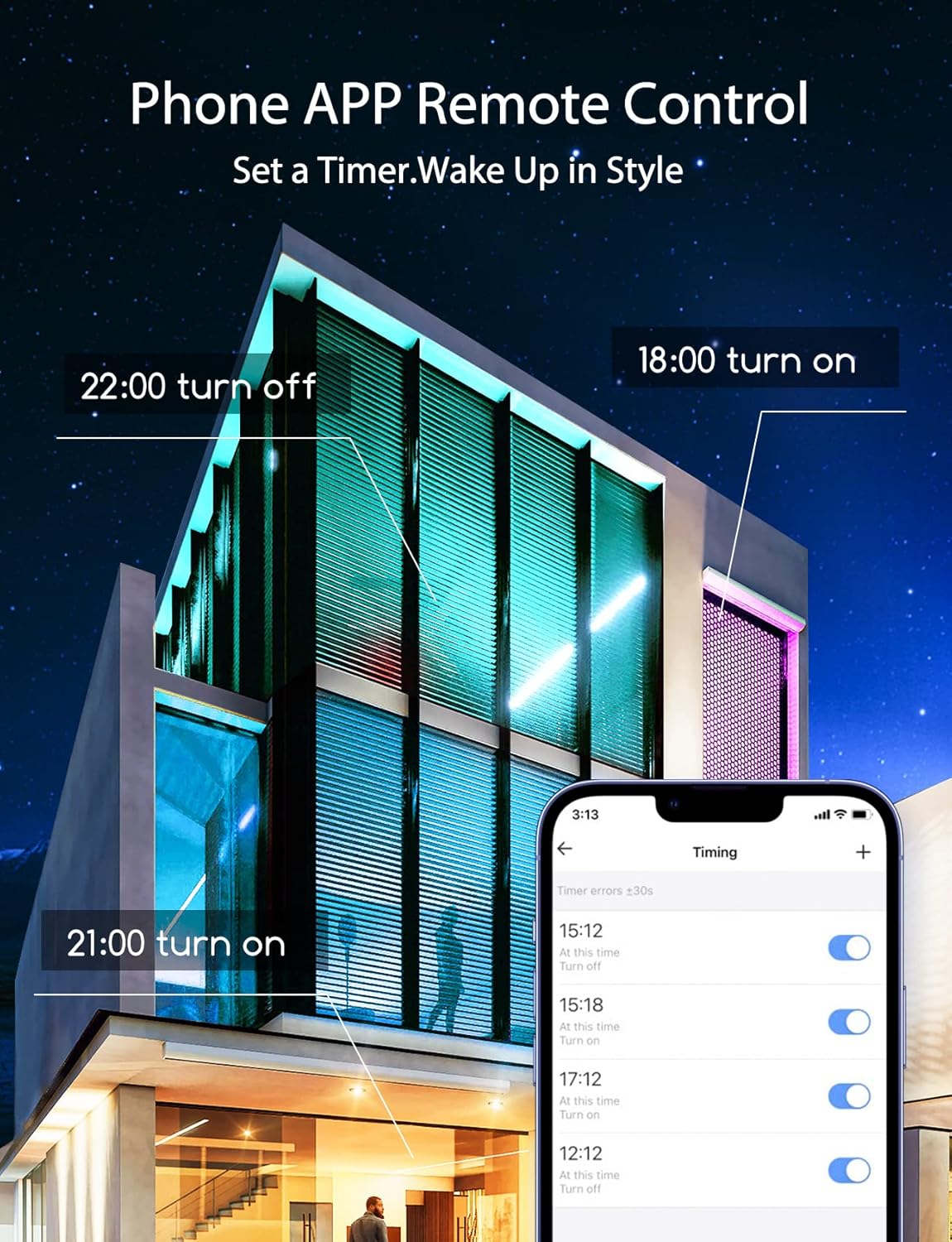
Image: A modern building illuminated by smart LED strip lights, with a smartphone displaying the Aigosmart app's timer and schedule settings, showing options to set specific turn-on and turn-off times.
Maintenance
- Cleaning: Disconnect power before cleaning. Use a soft, dry cloth to wipe the LED strip and control box. Do not use liquid cleaners or abrasive materials.
- Adhesion: If the adhesive weakens over time, use the provided fixed clips or additional double-sided tape to secure the strip.
- Storage: When not in use for extended periods, store the strip light in a cool, dry place, away from direct sunlight and extreme temperatures.
Troubleshooting
| Problem | Possible Cause | Solution |
|---|---|---|
| Light strip does not turn on. | No power connection; loose connection; faulty power adapter. | Check if the power plug is securely connected to the outlet and the control box. Ensure the power outlet is functional. Try a different outlet. |
| Lights are dim or inconsistent. | Insufficient power; strip is not fully unrolled; damaged section. | Ensure the strip is fully unrolled. Check for any physical damage. Verify power supply is adequate. |
| Cannot connect to Wi-Fi/App. | Incorrect Wi-Fi band (not 2.4GHz); incorrect password; device not in pairing mode; Wi-Fi signal too weak. | Ensure your router is broadcasting a 2.4GHz Wi-Fi signal. Re-enter Wi-Fi password carefully. Put the device into pairing mode as per the App User Manual. Move closer to the router. |
| Remote control not working. | Battery depleted; obstruction to IR sensor; remote out of range. | Replace the remote control battery. Ensure there is no obstruction between the remote and the control box's IR sensor. Operate within the specified range. |
| Music sync not responsive. | Microphone sensitivity too low; ambient noise interference. | Adjust the microphone sensitivity in the Aigosmart APP. Reduce background noise for better performance. |
Product Specifications
| Feature | Detail |
|---|---|
| Brand | Aigostar |
| Model Number | AG-DD |
| Light Source Type | LED |
| Light Color | Multicolor (RGB) |
| Number of Light Sources | 300 |
| Length | 32.8 FT |
| Power Source | Corded Electric |
| Indoor/Outdoor Usage | Indoor |
| Special Features | Dimmable, Linkable, Adjustable, Music Sync, Timer, App Control, Voice Control |
| Control Method | App, Remote, Voice (Alexa, Google Assistant) |
| Connectivity Technology | Wi-Fi (2.4GHz) |
| Material | Metal |
| Item Weight | 12.6 ounces |
| Package Dimensions | 7.56 x 6.38 x 2.68 inches |
| Water Resistance Level | Not Water Resistant |
Warranty and Support
For warranty information or technical support, please refer to the contact details provided in the original product packaging or visit the official Aigostar website. Keep your purchase receipt as proof of purchase for any warranty claims.
Aigostar is dedicated to providing quality products and customer satisfaction. For further assistance, please contact Aigostar customer service.


