
WGP WGP Smart Watch GTS2
WGP Smart Watch GTS2 User Manual
Model: GTS2 | Brand: WGP
Introduction
This manual provides detailed instructions for the setup, operation, maintenance, and troubleshooting of your WGP Smart Watch GTS2. Please read this manual carefully before using the device to ensure proper functionality and to maximize your user experience.

Image: Front view of the WGP Smart Watch GTS2, displaying various health and time metrics.
1. Setup
1.1 Charging the Device
Before first use, fully charge your WGP Smart Watch GTS2. Connect the magnetic charging cable to the charging points on the back of the watch and plug the USB end into a compatible power adapter (not included) or a computer USB port. A full charge typically provides up to 12 days of battery life.
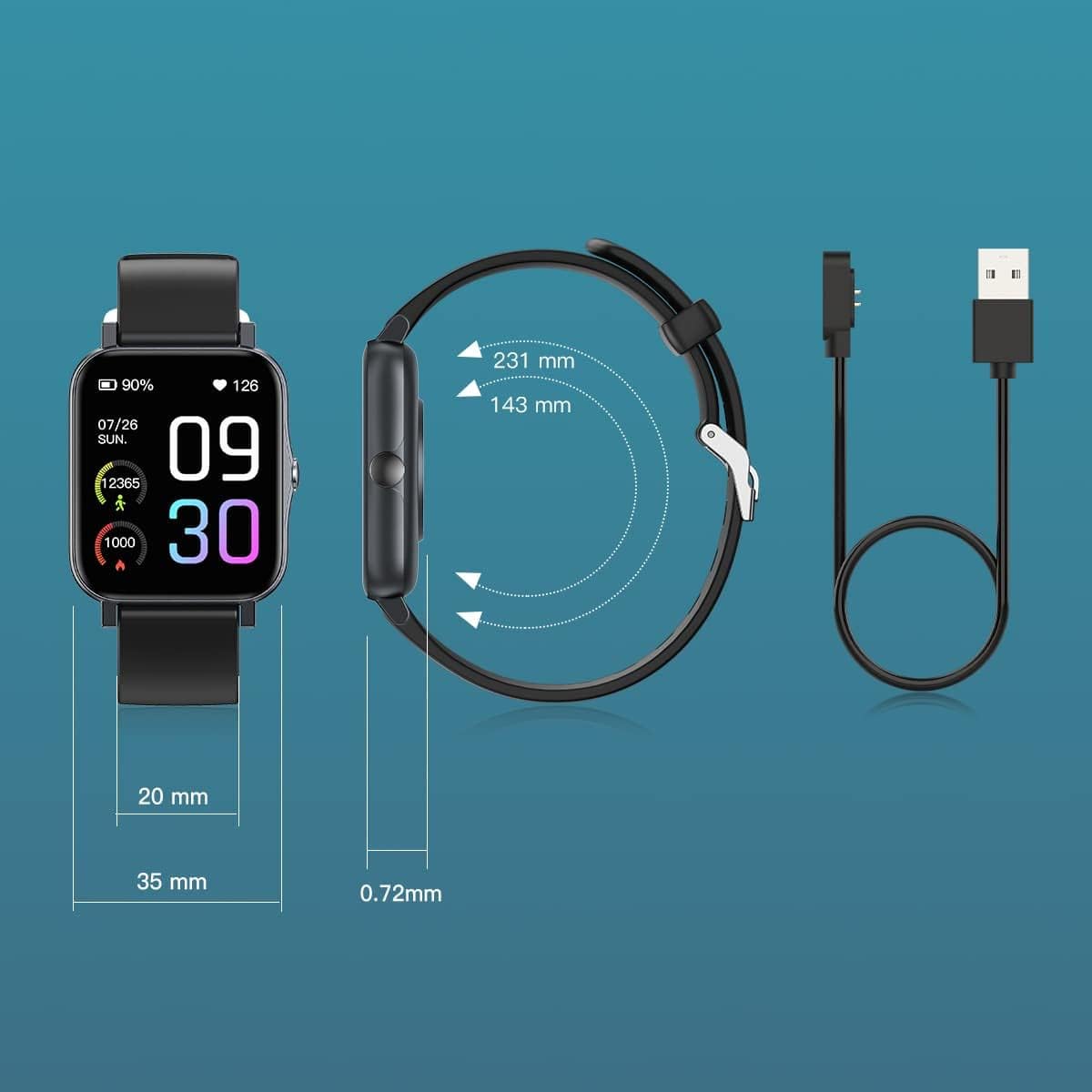
Image: Diagram illustrating the watch dimensions and the magnetic charging cable for power input.
1.2 App Installation and Pairing
To unlock the full features of your smart watch, download the companion application. The recommended application is Runmifit, available on both Android and iOS app stores. Follow these steps:
- Scan the QR code provided in the watch's packaging or search for "Runmifit" in your device's app store.
- Install the application on your smartphone.
- Open the Runmifit app and follow the on-screen instructions to create an account or log in.
- Enable Bluetooth on your smartphone.
- Within the app, navigate to the device pairing section and select "WGP Smart Watch GTS2" from the list of available devices.
- Confirm the pairing request on both your watch and smartphone.

Image: A smartphone screen showing a QR code for pairing the watch with the Runmifit application.
2. Operating the Smart Watch
2.1 Basic Navigation
The WGP Smart Watch GTS2 features a 1.7-inch full-screen display. Navigate through menus and functions by swiping left, right, up, or down, and tap to select options. The side button typically serves as a power button or a back button, depending on the context.
2.2 Sports Modes
The watch supports over 100 built-in sports modes, catering to various indoor and outdoor activities. To access sports modes:
- Swipe on the watch face to find the "Sports" or "Workout" icon.
- Tap to enter the sports mode selection.
- Scroll through the list and select your desired activity (e.g., running, cycling, football, basketball, hiking, yoga, climbing).
- Tap to start the activity tracking. The watch will record relevant data such as duration, calories burned, and heart rate.

Image: Visual representation of the 100+ sports modes supported by the watch.
2.3 Health Monitoring
The WGP Smart Watch GTS2 is equipped with three professional sensors for comprehensive health monitoring, including heart rate, blood oxygen, and sleep tracking. Data can be viewed directly on the watch or in more detail within the Runmifit app.
- Heart Rate Monitoring: The watch continuously monitors your heart rate. Access the heart rate interface on the watch to view real-time data.
- Blood Oxygen Monitoring: Measure your blood oxygen saturation levels.
- Sleep Monitoring: The watch automatically tracks your sleep patterns, including deep sleep, light sleep, and awake times. Review your sleep quality in the app.


Image: Visuals demonstrating heart rate monitoring and an overview of the watch's health and fitness features.
2.4 Notifications
Once paired with your smartphone, the watch can display call and message reminders, as well as notifications from various applications (e.g., text messages, emails, social media). Ensure notification permissions are enabled in both your phone's settings and the Runmifit app.

Image: The watch displaying incoming message notifications from a connected smartphone.
3. Maintenance
3.1 Cleaning
Regularly clean your smart watch to ensure optimal performance and hygiene. Use a soft, lint-free cloth to wipe the screen and watch body. For stubborn dirt, slightly dampen the cloth with water. Avoid using harsh chemicals or abrasive materials.
3.2 Water Resistance
The WGP Smart Watch GTS2 features IP68 waterproof rating, utilizing double-layer waterproof ring technology. This means you can wear it while washing hands or swimming in a pool. However, it is not suitable for hot showers, saunas, or diving. After exposure to water, especially saltwater, rinse the watch with fresh water and dry it thoroughly.

Image: The watch being splashed with water, illustrating its IP68 waterproof rating.
3.3 Storage
When not in use for extended periods, store the watch in a cool, dry place away from direct sunlight and extreme temperatures. It is recommended to charge the watch periodically to maintain battery health.
4. Troubleshooting
If you encounter issues with your WGP Smart Watch GTS2, please refer to the following common solutions:
| Problem | Possible Solution |
|---|---|
| Watch not turning on or charging. | Ensure the charging cable is securely connected to both the watch and the power source. Try a different USB port or power adapter. Allow the watch to charge for at least 30 minutes before attempting to turn it on. |
| Unable to pair with smartphone. | Make sure Bluetooth is enabled on your phone and the watch is within range. Restart both the watch and your phone. Ensure you are using the correct app (Runmifit). Forget the device in your phone's Bluetooth settings and try pairing again. |
| Inaccurate health readings (e.g., heart rate, blood pressure). | Ensure the watch is worn snugly on your wrist, about one finger's width above the wrist bone. Avoid excessive movement during measurements. Note that smart watch health data is for reference only and not intended for medical diagnosis. |
| Notifications not appearing. | Check notification permissions in your phone's settings for the Runmifit app. Also, verify notification settings within the Runmifit app itself. Ensure the app is running in the background. |
| Watch face/skin issues or inability to save multiple faces. | Ensure the Runmifit app is updated to the latest version. Some watch faces may require more memory or specific app versions. Try restarting the app and watch. |
5. Specifications
| Feature | Detail |
|---|---|
| Model | WGP Smart Watch GTS2 |
| Display Size | 1.7 inches (4.3 cm) |
| Battery Capacity | 230 mAh Lithium Ion (included) |
| Battery Life | Up to 12 days (typical usage) |
| Waterproof Rating | IP68 |
| Connectivity | Bluetooth |
| Sensors | Heart Rate Monitor, Blood Oxygen Monitor, Sleep Monitor, Activity Tracker |
| Sports Modes | 100+ modes |
| Compatibility | Android and iOS systems |
| Item Weight | 3.52 ounces (99.8 grams) |
| Package Dimensions | 10.67 x 3.78 x 0.67 inches (27.1 x 9.6 x 1.7 cm) |
| Manufacturer | WGP |
| First Available Date | August 31, 2022 |
6. Warranty and Support
For warranty information and customer support, please refer to the documentation included with your product packaging or contact the retailer from whom you purchased the WGP Smart Watch GTS2. Keep your proof of purchase for warranty claims.
Ask a question about this manual
Ask about setup, troubleshooting, compatibility, parts, safety, or missing instructions. Manuals+ will review the question and use this page’s manual context to help answer it.