
Tiffcofio MH-014
Contents
Tiffcofio Indoor Mechanical Outlet Timer
Instruction Manual
Model: MH-014 | Brand: Tiffcofio
Introduction
The Tiffcofio Indoor Mechanical Outlet Timer is designed to simplify the automation of your indoor electrical devices. With its easy-to-use mechanical dial, you can set precise ON/OFF schedules for lights, appliances, and other electronics, helping to save energy and enhance convenience in your home.

This image displays two white Tiffcofio mechanical timers, each featuring a prominent grey dial with time markings and push-down pins for setting schedules. The timers are designed to plug directly into a wall outlet.
Key Features
- Daily Repeating Light Timer: Offers 48 ON/OFF setting options within a 24-hour cycle. Each pin represents a 30-minute interval, allowing for daily repetition of your customized schedule.
- Compact Design Plug Timer: Engineered to minimize size while maintaining full functionality and safety. The output ports are strategically designed underneath to help save space in your electrical outlets.
- Automate Your Home: Easily set specific times for your devices to turn on and off automatically each day, optimizing energy usage and convenience.
- Easy to Use: No complex programming is required. Simply pull pins up for OFF times and push them down for ON times. The timer will then automatically control your device according to your settings.
- Safe & Reliable: ETL Listed, ensuring compliance with North American safety standards.

This graphic highlights the timer's key features: 24-hour full programmability, 30-minute intervals for settings, and a total of 48 ON/OFF setting options.

This image illustrates the compact design of the Tiffcofio timer, showing how it saves space in an electrical outlet compared to a larger, bulkier timer. The timer is plugged into the bottom socket, leaving the top socket free.
Setup Guide
Initial Setup
- Familiarize yourself with the timer dial: The outer ring represents 24 hours, with each segment representing a 30-minute interval.
- Set current time: Rotate the dial clockwise until the current time aligns with the arrow indicator on the timer's face.
- Set ON/OFF times: For desired ON periods, push the corresponding pins (segments) on the outer ring downwards. For OFF periods, ensure the pins are in the upward position. Each pin controls a 30-minute interval.
- Select operation mode: Ensure the side switch is set to the 'Timer' (clock icon) position for automatic operation. For continuous ON, slide the switch to the 'Light Bulb' icon.
- Plug in: Plug the timer into a standard 3-prong electrical outlet. Then, plug your appliance or light into the outlet located at the bottom of the timer.
This visual guide shows the four steps for setting up the timer: 1. Pull all pins on (up). 2. Set current time. 3. Push down pins for ON times. 4. Switch to timer mode.
Operating Instructions
Once programmed and plugged in, the timer will automatically activate and deactivate the connected device according to your set schedule. The dial will continuously rotate clockwise, indicating the current time.
Manual Override
To manually turn the device ON or OFF outside of the programmed schedule, use the side switch. Sliding it to the 'Light Bulb' icon will keep the device continuously ON, overriding the timer settings. Sliding it to the 'Clock' icon will re-engage the programmed schedule.

This image provides a detailed view of the timer's interface, highlighting the push-down pins for programming 30-minute intervals and the side slide switch for selecting between continuous ON (light bulb icon) and timer mode (clock icon).
Typical Applications
This mechanical timer is versatile and can be used for various indoor appliances and lighting, offering convenience and energy savings.
- Holiday Decorations: Automate Christmas lights, Halloween displays, and other seasonal decorations.
- Home Security: Turn lights on and off at varying times to simulate occupancy when away.
- Aquariums/Terrariums: Control lighting cycles for aquatic or reptile habitats.
- Grow Lights: Manage light schedules for indoor plants.
- Small Appliances: Automate coffee makers, fans, or other devices.

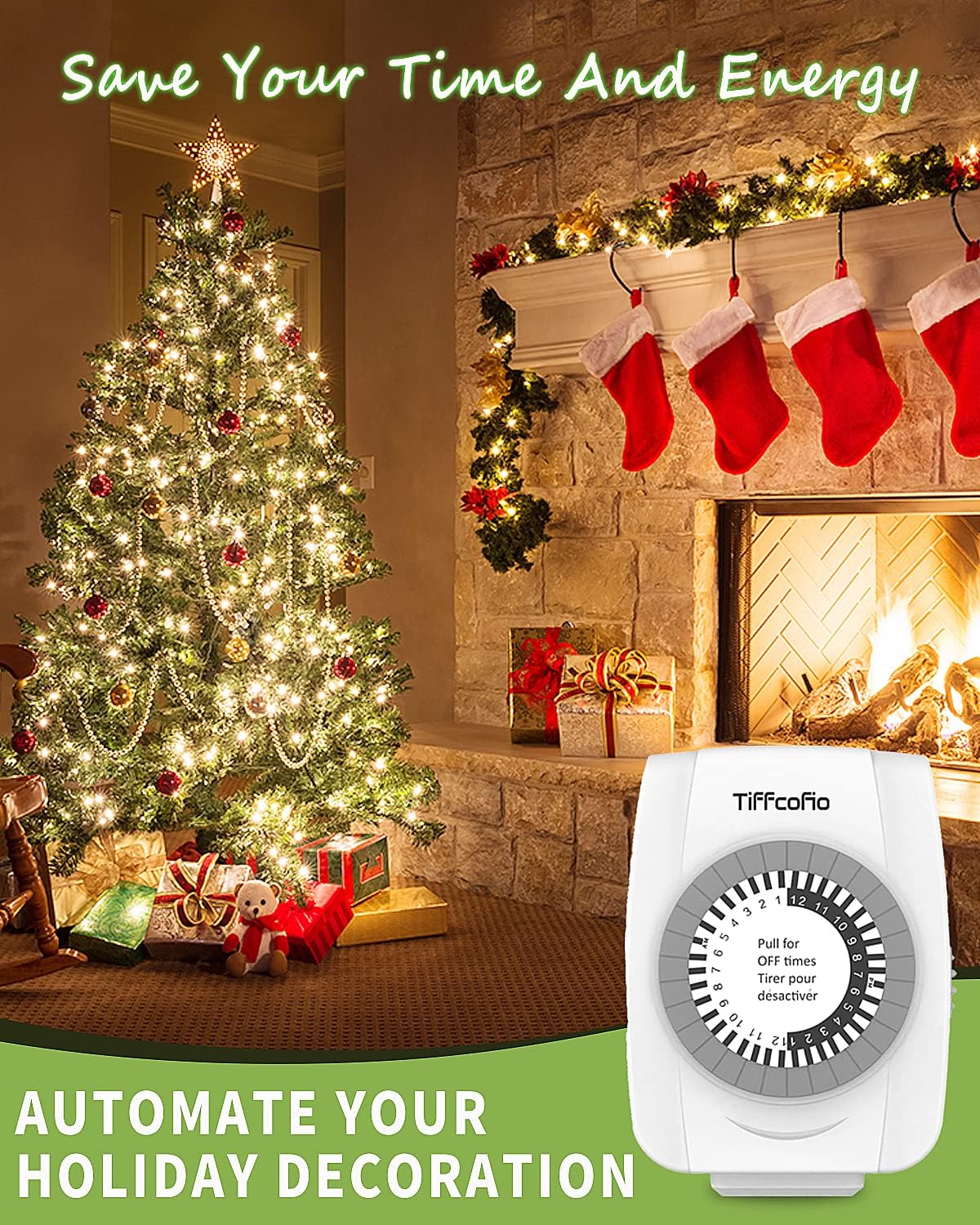
This image shows the Tiffcofio timer plugged into an outlet near a decorated Christmas tree, illustrating its use for automating holiday lighting.

This image demonstrates the timer's ability to control devices with daily repeating settings, showing a lamp turning ON at 8:30 AM and OFF at 9:30 PM, controlled by the timer plugged into the wall.
Troubleshooting
| Issue | Possible Solution |
|---|---|
| Device not turning ON/OFF at set times. | Check if pins are correctly pushed down (ON) or up (OFF). Ensure the side switch is set to 'Timer' mode (clock icon). Verify the current time is correctly aligned with the arrow indicator. |
| Timer dial not moving. | Ensure the timer is properly plugged into a live electrical outlet. The internal clock mechanism requires continuous power to operate. |
| Device is always ON or always OFF. | Check the side switch. It might be set to continuous ON (light bulb icon) overriding the programmed schedule. Adjust to 'Timer' mode if automatic operation is desired. |
Maintenance
- Keep the timer clean and free from dust and debris.
- Do not immerse in water or expose to excessive moisture.
- Store in a cool, dry place when not in use.
Product Specifications
| Attribute | Detail |
|---|---|
| Brand | Tiffcofio |
| Model Number | MH-014 |
| Color | White |
| Material | Plastic |
| Number of Settings | 48 (30-minute intervals) |
| UPC | 797442685369 |
| Manufacturer | Tiffcofio |
| Package Dimensions | 3.86 x 3.78 x 3.43 inches |
| Item Weight | 7.4 ounces |
| Country of Origin | China |
| Certifications | ETL Listed |
Warranty & Support
This Tiffcofio product is ETL Listed, ensuring it meets recognized safety standards. For any questions, concerns, or support needs, please contact Tiffcofio customer service. Our professional and reliable after-sales service team is committed to assisting you within 6 hours.
The product comes with a 30-day refund/replacement return policy.
Ask a question about this manual
Ask about setup, troubleshooting, compatibility, parts, safety, or missing instructions. Manuals+ will review the question and use this page’s manual context to help answer it.