1. Introduction
This manual provides essential information for the proper setup, operation, and maintenance of your ZEBRA DS4608-SR Standard Range 1D/2D Handheld Barcode Scanner. The DS4608-SR is a wired USB imager designed for efficient and accurate barcode scanning in various point-of-sale (POS) environments. It supports a wide array of 1D and 2D barcodes, including QR codes and PDF417, and is engineered for durability and ease of use.

Figure 1: The ZEBRA DS4608-SR Barcode Scanner and its USB connection cable.
2. Product Overview
2.1 Physical Characteristics
- Dimensions: 6.5 in. H x 2.6 in. W x 3.9 in. D (16.5 cm H x 6.7 cm W x 9.8 cm D)
- Weight: 5.7 oz. (161.9 g)
- Color: Twilight Black
- Input Voltage Range: 4.5 to 5.5 VDC Host Powered; 4.5 to 5.5 VDC External Power Supply
- Supported Host Interfaces: USB, RS232, TGCS (IBM) 46XX over RS485
- Keyboard Support: Supports over 90 international keyboards
2.2 Components
The DS4608-SR scanner features a user-friendly design with clearly identifiable components for operation.

Figure 2: Key components of the DS4608-SR scanner, including the trigger for activation, the scan window for barcode capture, and the LED indicator for feedback.
- Trigger: Activates the scanning engine.
- Scan Window: The area through which the barcode is read.
- LED Indicator: Provides visual feedback on scan status (e.g., good decode).
- Beeper: Provides audible feedback (adjustable tone and volume).
3. Setup
Follow these steps to set up your ZEBRA DS4608-SR barcode scanner:
- Connect the USB Cable: Insert the RJ45 connector end of the provided USB cable into the port at the base of the scanner. Ensure it clicks securely into place.
- Connect to Host Device: Plug the USB-A connector end of the cable into an available USB port on your host device (e.g., PC, laptop, POS system).
- Driver Installation (if necessary): In most cases, the scanner will be recognized automatically by your operating system (Windows, macOS, Linux, iOS, Android). If prompted, allow the system to install necessary drivers.
- Test Scanning: Open a text editor or an application that accepts keyboard input. Aim the scanner at a known barcode and press the trigger. The barcode data should appear in your application.
The DS4608-SR is compatible with a wide range of devices and operating systems, ensuring flexible integration into your existing setup.
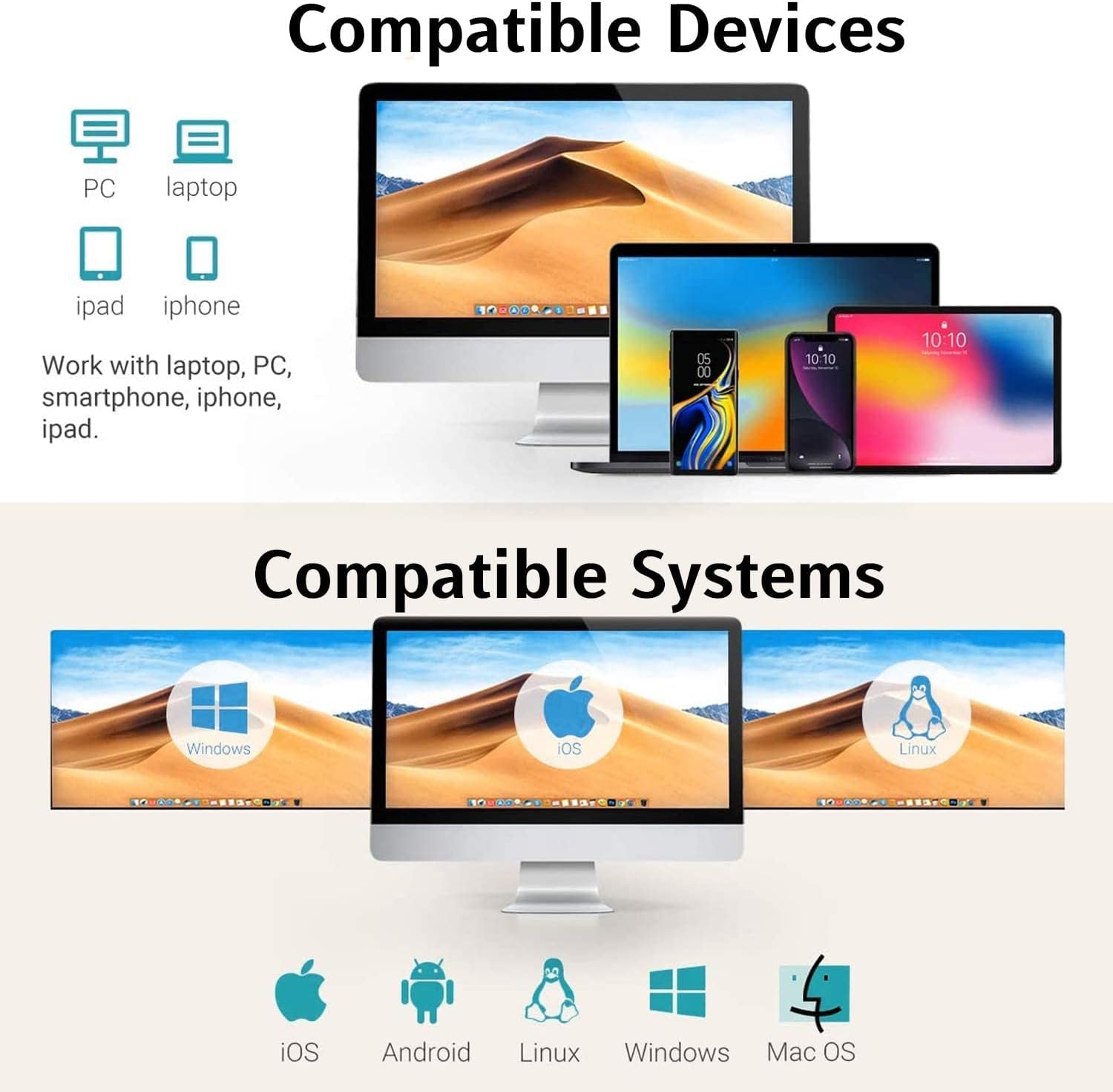
Figure 3: The DS4608-SR scanner is compatible with various devices including PCs, laptops, iPads, and iPhones, and supports operating systems such as Windows, iOS, Linux, Android, and Mac OS.
4. Operating Instructions
4.1 Basic Scanning
- Aim: Point the scan window of the scanner at the barcode you wish to read. The aiming pattern (circular 617nm amber LED) will help you center the barcode.
- Scan: Press and hold the trigger. The illumination LEDs (two 660nm red LEDs) will activate.
- Confirm: A successful scan is indicated by a 'good decode' LED illumination and an audible beep. The barcode data will be transmitted to your connected host device.
The scanner features a 28-inch scan range, allowing for comfortable and safe scanning distances. Its 800 MHz microprocessor and high-resolution megapixel sensor, combined with Zebra’s PRZM Intelligent Imaging technology, ensure smooth and effective capture of even challenging barcodes.
4.2 Decode Capabilities
The DS4608-SR is capable of decoding a wide variety of 1D and 2D barcode symbologies:

Figure 4: The scanner's decoding ability extends to various 1D and 2D barcodes, including those that are damaged, distorted, colorful, fuzzy, or reflective.
- 1D Barcodes: Code 39, Code 128, Code 93, Codabar/NW7, Code 11, MSI Plessey, UPC/EAN, I 2 of 5, Korean 3 of 5, GS1 DataBar, Base 32 (Italian Pharma).
- 2D Barcodes: PDF417, Micro PDF417, Composite Codes, TLC-39, Aztec, DataMatrix, MaxiCode, QR Code, Micro QR, Han Xin, Postal Codes, SecurPharm, DotCode, Dotted DataMatrix.
- OCR: OCR-A, OCR-B, MICR, US Currency.
4.3 Advanced Scanning Features
- Multiple Barcodes: The scanner can be configured to read multiple barcodes with a single trigger pull or to automatically single out and scan one barcode from a field of many.
- Electronic Article Surveillance (EAS): Compatible with Checkpoint EAS deactivation systems.
5. Maintenance
To ensure optimal performance and longevity of your DS4608-SR scanner, follow these maintenance guidelines:
- Cleaning the Scan Window: Regularly clean the scan window with a soft, lint-free cloth dampened with a mild, non-abrasive cleaner. Avoid harsh chemicals or abrasive materials that could scratch the window.
- Cable Inspection: Periodically check the USB cable for any signs of wear, fraying, or damage. Replace the cable if any damage is observed to prevent connectivity issues.
- Storage: When not in use, store the scanner in a clean, dry environment away from extreme temperatures and direct sunlight.
- Durability: The scanner is designed to withstand multiple drops, but excessive force or repeated impacts should be avoided.
6. Troubleshooting
If you encounter issues with your DS4608-SR scanner, refer to the following common troubleshooting steps:
- Scanner Not Responding:
- Ensure the USB cable is securely connected to both the scanner and the host device.
- Try plugging the USB cable into a different USB port on your host device.
- Restart your host device.
- No Good Decode Indication:
- Verify the barcode is clean, undamaged, and within the scanner's field of view.
- Ensure proper distance and angle when aiming the scanner.
- Check if the barcode symbology is supported by the scanner (refer to Section 4.2).
- Clean the scan window as described in Section 5.
- Incorrect Data Transmission:
- Confirm that the correct keyboard layout is configured on your host device if using a non-standard layout.
- Ensure no other applications are interfering with keyboard input.
- Beeper Not Working:
- Check the scanner's configuration for beeper volume and tone settings.
For persistent issues or advanced configuration, please refer to the official Zebra Technologies support documentation or contact their customer service.
7. Specifications
Detailed technical specifications for the ZEBRA DS4608-SR barcode scanner:
| Feature | Specification |
|---|---|
| Model Number | DS4608-SR |
| Dimensions (H x W x D) | 6.5 in. x 2.6 in. x 3.9 in. (16.5 cm x 6.7 cm x 9.8 cm) |
| Weight | 5.7 oz. (161.9 g) |
| Color | Twilight Black |
| Input Voltage Range | 4.5 to 5.5 VDC Host Powered; 4.5 to 5.5 VDC External Power Supply |
| Operating Current (5.0V) | 340 mA (typical) |
| Standby Current (5.0V) | 150 mA (typical) |
| Host Interfaces | USB, RS232, TGCS (IBM) 46XX over RS485 |
| Keyboard Support | 90+ international keyboards |
| Light Source (Aiming) | Circular 617nm amber LED |
| Illumination | (2) 660nm red LEDs |
| Imager Field of View | 36.1° H x 22.6° V nominal |
| Image Sensor | 1280 x 800 pixels |
| Minimum Print Contrast | 15% minimum reflective difference |
| Skew/Pitch/Roll Tolerance | Skew: ± 60°, Pitch: ± 60°, Roll: ± 360° |
| Decode Capabilities | 1D, 2D, OCR (as listed in Section 4.2) |
| EAS Compatibility | Checkpoint EAS deactivation system |
8. Warranty and Support
For information regarding product warranty, technical support, or service, please contact Zebra Technologies directly. You can find their official support channels on the Zebra Technologies Store or their official website.


