
1. Introduction
Thank you for choosing the WIMAXIT Portable Monitor M1560CT3. This 15.6-inch touchscreen monitor is designed to enhance your productivity and entertainment experience on the go. Featuring a Full HD 1920x1080 IPS panel with HDR support and anti-glare technology, it delivers vibrant visuals and comfortable viewing. Its versatile connectivity, including dual USB Type-C and Mini-HDMI ports, ensures compatibility with a wide range of devices such as laptops, smartphones, PCs, and gaming consoles.
2. What's in the Box
Please check the package contents to ensure all items are present:
- 1x WIMAXIT M1560CT3 Portable Monitor (with Smart Cover)
- 1x USB-C to USB-C Cable
- 1x HDMI to Mini HDMI Cable
- 1x USB-A (3.0) to USB-C Cable
- 1x DC Power Adapter
- 1x User Manual
- 1x Cleaning Cloth
- 1x Warranty Card

Image: Contents of the WIMAXIT Portable Monitor M1560CT3 package, showing the monitor, various connection cables (USB-C, HDMI), power adapter, and documentation.
3. Setup Instructions
Follow these steps to connect your WIMAXIT Portable Monitor to your device:
3.1. Powering the Monitor
The monitor can be powered via the included DC Power Adapter or through a compatible USB-C port on your device that supports power delivery.
3.2. Connecting to a Laptop/PC (USB-C for Video & Touch)
For devices with a full-featured USB-C port (supporting DisplayPort Alternate Mode and Power Delivery), a single USB-C to USB-C cable can provide both video, power, and touchscreen functionality.
- Connect one end of the USB-C to USB-C cable to the monitor's USB-C port (labeled USB-C1 or USB-C2).
- Connect the other end of the USB-C to USB-C cable to your laptop's full-featured USB-C port.
- The monitor should automatically detect the signal and display your laptop's screen.
Video: A seller demonstrates connecting the WIMAXIT Portable Monitor to a laptop using a single USB-C cable, showcasing its touchscreen capabilities and various settings.
3.3. Connecting to a Laptop/PC (HDMI for Video, USB for Touch/Power)
For devices without a full-featured USB-C port, or if you prefer HDMI for video, you will need both an HDMI and a USB cable.
- Connect one end of the Mini-HDMI to HDMI cable to the monitor's Mini-HDMI port.
- Connect the other end of the HDMI cable to your laptop's HDMI port.
- For touchscreen functionality and additional power (if needed), connect the USB-A to USB-C cable from your laptop's USB-A port to the monitor's USB-C port.
- If your laptop cannot provide sufficient power, connect the DC Power Adapter to the monitor.
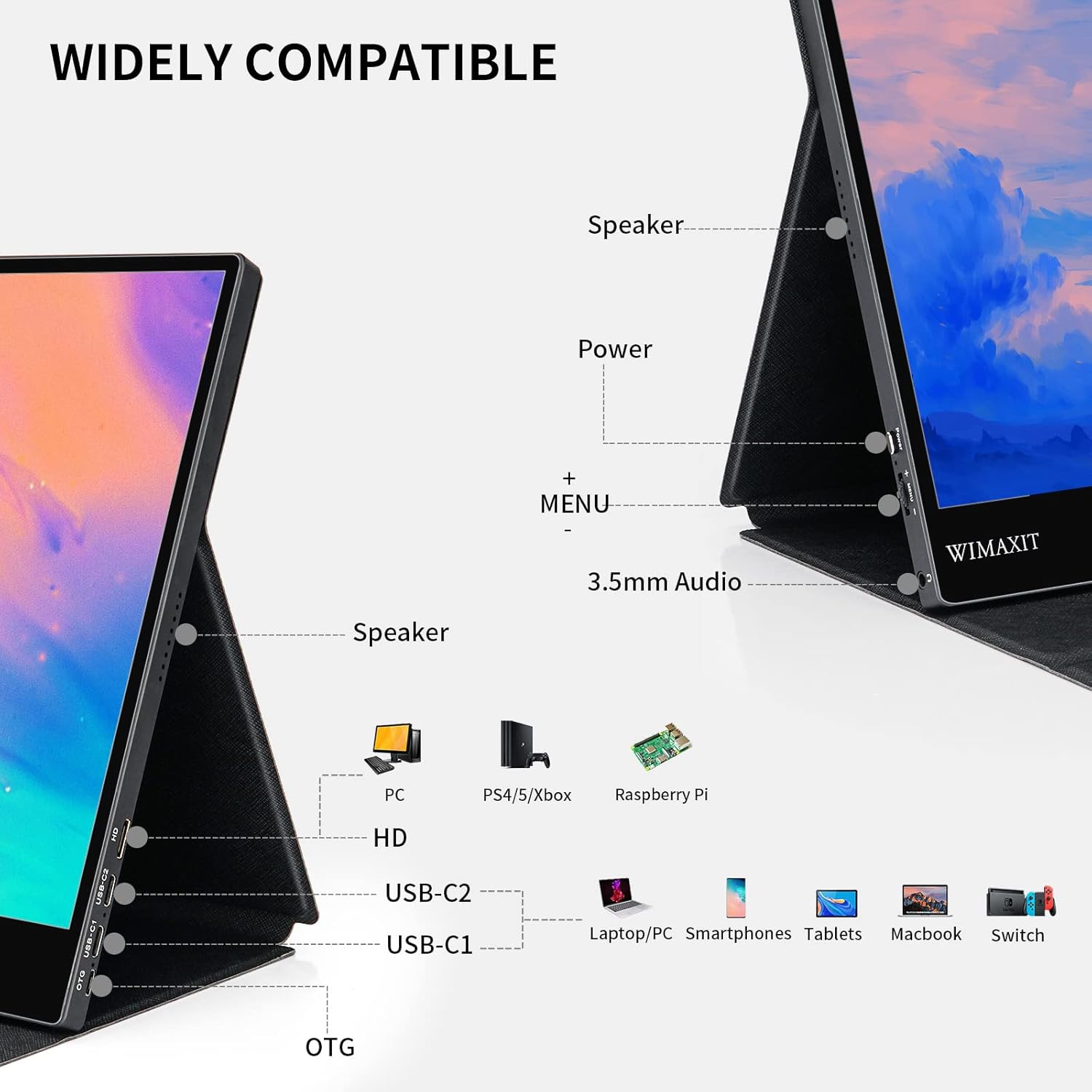
Image: Close-up of the WIMAXIT Portable Monitor's side, highlighting the various ports including Mini-HDMI, USB-C, and the menu control wheel.
3.4. Connecting to Gaming Consoles (e.g., Nintendo Switch, PS4/5, Xbox)
Use the Mini-HDMI to HDMI cable for video and the USB-A to USB-C cable for power. Some consoles may require external power for the monitor.
- Connect the Mini-HDMI to HDMI cable between the monitor and your gaming console.
- Connect the DC Power Adapter to the monitor for stable power.
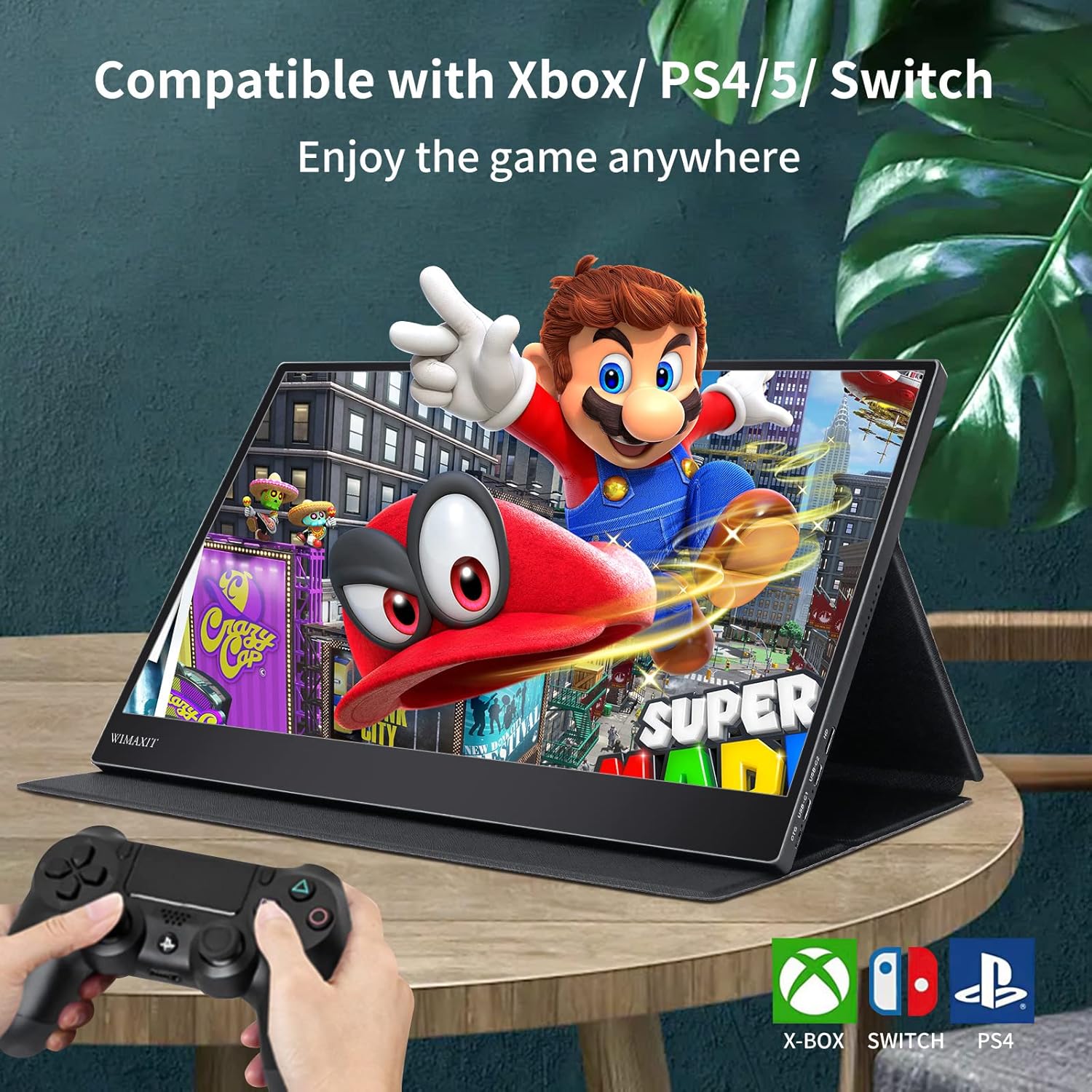
Image: The WIMAXIT Portable Monitor displaying a Nintendo Switch game, demonstrating its use as a portable gaming screen.
4. Operating Instructions
4.1. Basic Controls
- Power Button: Press and hold to turn the monitor On/Off.
- Menu Control Wheel: Press to open the OSD (On-Screen Display) menu. Roll up/down to navigate, press to select.
4.2. OSD Menu Navigation
The OSD menu allows you to adjust various settings:
- Brightness/Contrast: Adjust display brightness and contrast levels.
- Volume: Control the built-in speaker volume.
- Color Settings: Customize color temperature, hue, saturation, etc.
- Input Source: Manually select between USB-C1, USB-C2, or HDMI inputs.
- Image Flip: Adjust screen orientation (e.g., for teleprompter use).
- HDR Mode: Enable or disable High Dynamic Range.
- Language: Select OSD menu language.
Video: A seller demonstrates how to set up dual screens and activate touch functions on the WIMAXIT Portable Monitor, including navigating the OSD menu for brightness and volume adjustments.
4.3. Screen Orientation
The monitor supports both landscape and portrait modes. You can adjust this in your connected device's display settings.

Image: The WIMAXIT Portable Monitor shown in both landscape and portrait orientations, demonstrating its versatility for different viewing needs.
5. Features
- Great Visual Experience: 15.6-inch IPS screen with 1920x1080 native resolution, 16:9 aspect ratio, 250cd/m2 brightness, and 800:1 Contrast Ratio.
- Plug and Play: Equipped with 2 USB Type-C ports and a Mini-HDMI port for easy connection to various devices with a single cable solution.
- Portable Touchscreen: Supports 10-point capacitive touch function for Windows OS and Mac OS (single touch with full functions for 2019 and later MacBook versions via Type-C).
- Boosting Work Efficiency: Easily add extra screen space to your laptop. Connect a keyboard or mouse via the micro USB OTG adapter for enhanced productivity.
- Portable Anti-Glare Monitor: Lightweight and compact design with a premium black metal appearance. Features 2 built-in speakers and a friendly menu control wheel.
6. Specifications
| Feature | Specification |
|---|---|
| Screen Size | 15.6 Inches |
| Resolution | 1920 x 1080 Pixels (FHD 1080p) |
| Aspect Ratio | 16:9 |
| Image Brightness | 250cd/m2 |
| Contrast Ratio | 800:1 |
| Panel Type | IPS |
| Screen Surface | Glossy (Anti-Glare) |
| Touch Function | 10-Point Capacitive Touch |
| Connectivity | 2x USB Type-C, 1x Mini-HDMI, 1x Micro USB OTG, 1x 3.5mm Audio Jack |
| Built-in Speakers | Yes (2 speakers) |
| Item Weight | 1.7 pounds |
| Product Dimensions | 11.81 x 1.97 x 7.87 inches |
| VESA Mountable | Yes (75*75mm design) |
7. Maintenance
- Cleaning: Use the provided cleaning cloth to gently wipe the screen. For stubborn smudges, use a screen-safe cleaning solution applied to the cloth, not directly to the screen.
- Storage: When not in use, fold the magnetic smart cover to protect the screen. Store in a cool, dry place away from direct sunlight and extreme temperatures.
- Handling: Avoid dropping the monitor or subjecting it to strong impacts. Do not place heavy objects on top of it.
8. Troubleshooting
- No Signal: Ensure all cables are securely connected. Verify that your device's output settings are configured to extend or duplicate the display. Try selecting the input source manually via the OSD menu.
- No Touchscreen Functionality: For Windows, ensure the USB-C to USB-C cable is connected to a full-featured USB-C port on your laptop that supports data, video, and power. If using HDMI, ensure a separate USB cable is connected for touch data. For Mac OS, touchscreen functionality is supported for 2019 and later MacBook versions via Type-C.
- Flickering Screen: Check cable connections. Ensure the monitor is receiving adequate power. Try adjusting the refresh rate or resolution on your device.
- No Sound: Check the monitor's volume settings in the OSD menu. Ensure your device's audio output is directed to the monitor. If using an external audio device, ensure it's connected to the 3.5mm audio jack.
- Power Issues: Ensure the power adapter is correctly connected or that your USB-C source provides sufficient power.
9. Warranty and Support
WIMAXIT provides professional support for its products. For any connection issues or technical assistance, please contact the 24/7 professional support team. Refer to the included Warranty Card for detailed warranty information and terms.
Manufacturer: wimaxit