
Introduction
The SmartCoolous F31 2nd Gen Smart Lock provides advanced security and convenient access to your property. This fully automatic smart lock integrates multiple unlocking methods including fingerprint recognition, a touch screen keypad, Bluetooth app control, and traditional mechanical keys. Designed for ease of use and installation, it offers a modern and secure solution for home and office environments.
Safety Information
- Read all instructions carefully before installation and use.
- Do not expose the lock to extreme temperatures or direct water immersion. The lock has an IP54 rating, indicating resistance to dust and splashing water, but it is not fully waterproof.
- Use only recommended battery types (not included).
- Keep mechanical keys in a safe location outside the property to ensure emergency access.
- Ensure proper installation to prevent damage to the lock or door.
Package Contents
Verify that all components are present before beginning installation:
- Smart Lock Assembly (Front and Rear Panels)
- Lock Body/Mortise
- Mounting Hardware (screws, spindle)
- Mechanical Keys (2)
- Installation Manual
- Drilling Diagram
Product Overview
The SmartCoolous F31 Smart Lock consists of an exterior panel with a fingerprint reader, touch keypad, and mechanical keyhole, and an interior panel with a thumb-turn for manual locking/unlocking.

Image: Front panel of the SmartCoolous F31 Smart Lock showing the fingerprint reader, touch keypad, and mechanical keyhole. Below are icons illustrating unlocking via physical key, app, touchscreen keypad, and fingerprint.

Image: A side-by-side view of the SmartCoolous F31 Smart Lock, displaying both the exterior panel with its keypad and fingerprint sensor, and the interior panel with its manual thumb-turn.
Installation
The SmartCoolous F31 Smart Lock is designed for easy DIY installation. A detailed installation video and a drilling diagram are included to guide you through the process. Professional assistance is available if needed.
- Prepare the Door: Use the provided drilling diagram to prepare your door for the lock body and panels. Ensure the door thickness and backset are compatible with the lock's specifications.
- Install the Mortise/Lock Body: Insert the lock body into the door edge and secure it with screws.
- Install the Exterior Panel: Route the cable from the exterior panel through the door. Position the exterior panel and secure it.
- Install the Interior Panel: Connect the cable from the exterior panel to the interior panel. Ensure the spindle is correctly aligned. Secure the interior panel to the door using the provided screws.
- Adjust Handing Switch: Locate the R/L switch on the interior panel. Adjust it according to your door's handing (left or right). If the lock is confused about its open/locked state, this switch may be incorrectly set.
- Install Batteries: Insert the required batteries (not included) into the battery compartment on the interior panel.
- Test Operation: Manually test the lock/unlock mechanism using the thumb-turn and mechanical key to ensure smooth operation before proceeding to smart features setup.
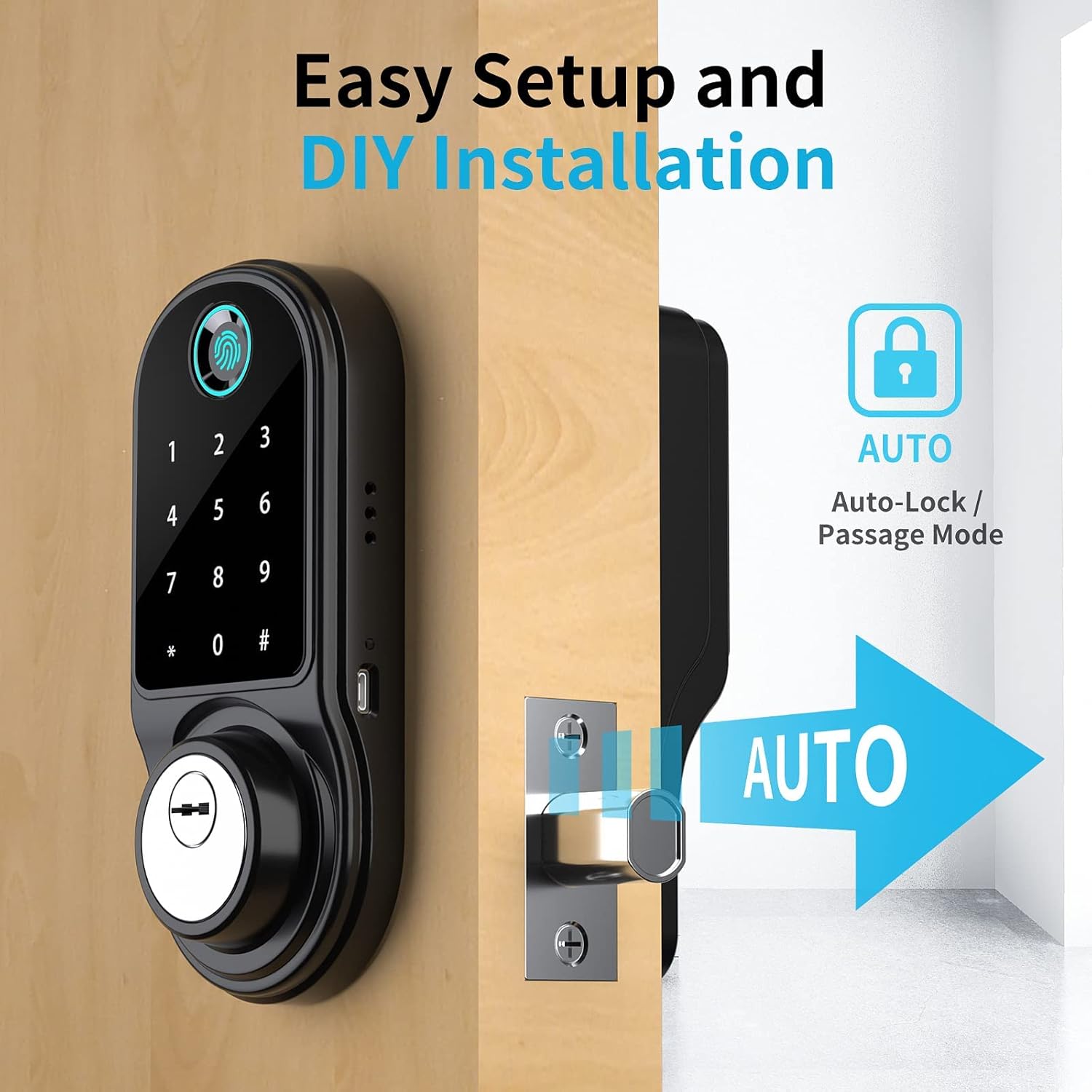
Image: The SmartCoolous F31 Smart Lock installed on a door, highlighting its easy setup and the automatic locking feature.
Initial Setup and Configuration
1. App Installation and Pairing
- Download the Tuya Smart App from your device's app store.
- Create an account or log in.
- Enable Bluetooth and precise location services on your smartphone.
- In the Tuya App, tap the '+' icon to 'Add a device'.
- Select the 'Camera & Lock' category, then choose 'Lock (BLE)'.
- Follow the on-screen prompts to pair the lock via Bluetooth.
2. Adding Fingerprints
The lock supports up to 200 fingerprints.
- Access the lock settings within the Tuya App.
- Select the option to 'Add Fingerprint'.
- Follow the app's instructions to register your fingerprint by placing your finger on the sensor multiple times from different angles.

Image: A hand demonstrating the use of the 360-degree fingerprint ID sensor on the SmartCoolous F31 Smart Lock for quick and accurate recognition.
3. Setting Passcodes
Multiple types of passcodes can be generated via the Tuya App:
- Permanent Passcodes: For regular users.
- Temporary Passcodes: Valid for a limited duration.
- One-Time Passcodes: Valid for a single use.
- Periodic Passcodes: Valid during specific recurring timeframes.
- Cyclic Passcodes: Repeatable for a set number of times within a period.
To set a passcode:
- In the Tuya App, navigate to the 'Passcodes' section.
- Select the desired passcode type and set the parameters (e.g., validity period).
- Generate the passcode and share it with the intended user.
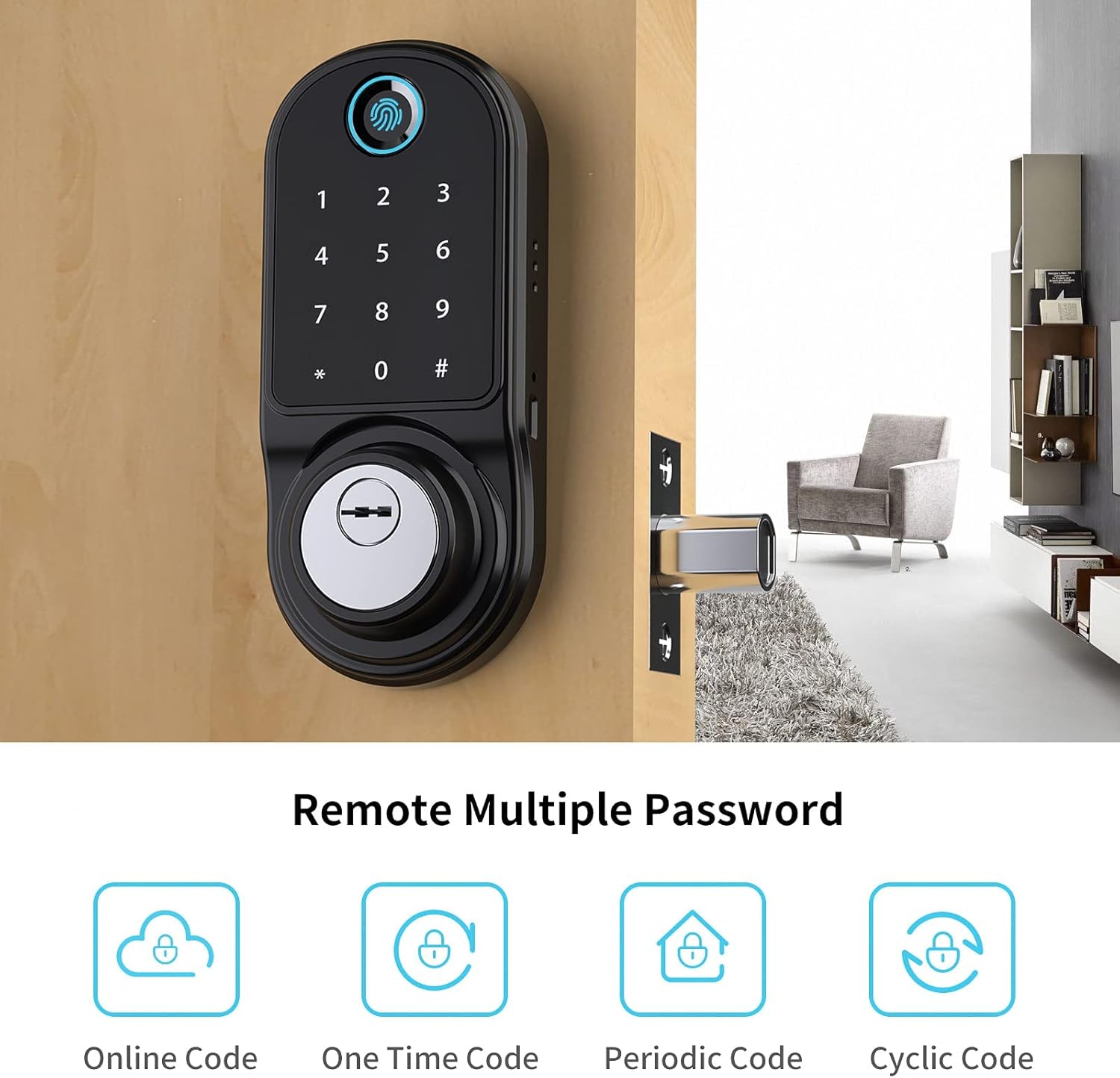
Image: An illustration showing the various remote password options available for the SmartCoolous F31 Smart Lock, including Online Code, One Time Code, Periodic Code, and Cyclic Code.
4. Alexa Compatibility (Optional)
For remote control and voice commands via Alexa, an additional gateway device is required (sold separately). This gateway connects your smart lock to your home Wi-Fi network. Refer to the gateway's manual for pairing instructions.
Operating Instructions
Unlocking Methods
- Fingerprint: Place a registered finger on the fingerprint reader. The lock will unlock upon successful verification.
- Keypad: Enter a valid passcode on the touch screen keypad, then press '#'. The lock will unlock.
- Tuya App: Open the Tuya App on your smartphone. If within Bluetooth range, tap the unlock icon. If connected via a gateway, you can unlock remotely.
- Mechanical Key: Insert the mechanical key into the keyhole and turn to unlock. This is for emergency access or when batteries are depleted.
Locking Methods
- Automatic Locking: The lock can be configured via the Tuya App to automatically lock after a set period once the door is closed.
- Manual Locking: From the interior, turn the thumb-turn to lock the door. From the exterior, if auto-lock is disabled, you may need to press '#' on the keypad or use the app to lock.
Passage Mode
Passage mode allows the door to remain unlocked for continuous access during specific times. This can be configured through the Tuya App.
Maintenance
- Battery Replacement: The lock will provide a low battery alert via the app. Replace all batteries simultaneously with new ones of the same type. Do not mix old and new batteries.
- Cleaning: Wipe the lock's surface with a soft, dry cloth. Avoid using abrasive cleaners or solvents that could damage the finish or electronic components.
- Regular Checks: Periodically check that all screws are tight and the lock operates smoothly.
Troubleshooting
- Lock not responding: Check battery levels. Replace batteries if low. Ensure the lock is properly installed and not jammed.
- Fingerprint not recognized: Ensure your finger is clean and dry. Try re-registering your fingerprint if issues persist.
- Keypad not responding: Ensure the screen is clean. Re-enter the passcode carefully.
- App connection issues: Ensure Bluetooth is enabled on your phone and you are within range. If using a gateway, check its connection to Wi-Fi and the lock.
- Lock confused about open/locked state: Verify the R/L handing switch on the interior panel is set correctly for your door's orientation.
- Mechanical key not working: Ensure the key is fully inserted and turned correctly. Do not force the key.
Specifications
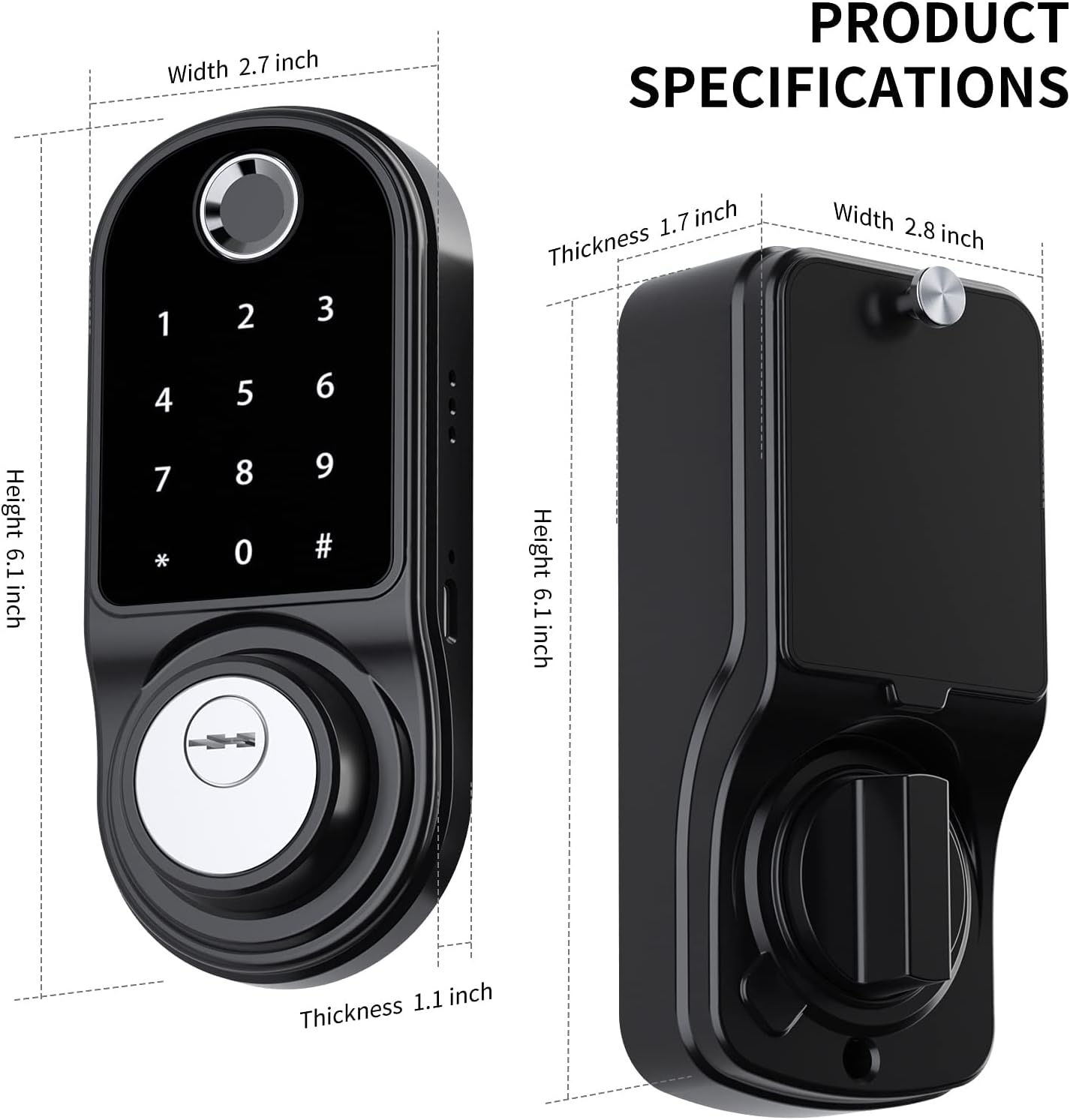
Image: Diagram illustrating the dimensions of the SmartCoolous F31 Smart Lock, including height, width, and thickness of both the exterior and interior panels.
| Feature | Detail |
|---|---|
| Manufacturer | SmartCoolous |
| Model Number | SCNF31US |
| Material | Aluminium, Zinc Alloy |
| Finish Type | Polished |
| Colour | ZINC Black |
| Style | Modern |
| Lock Type | Electronic Lock |
| Special Features | Keyless Entry (Fingerprint, Keypad, App), Auto-Lock |
| Product Dimensions (L x W x H) | 7.62 x 5.08 x 2.54 cm (3 x 2 x 1 inches) |
| Item Weight | 1.55 kg |
| Batteries Required | Yes (not included) |
| IP Rating | IP54 Level Waterproof |
Warranty and Support
SmartCoolous provides customer support for its products. If you encounter any issues during installation or operation, please contact our 24/7 customer service for assistance. Refer to your purchase documentation for specific warranty details.
For further assistance, please visit the official SmartCoolous website or contact the retailer where the product was purchased.