
1. Introduction
The DYMO LetraTag 200B Bluetooth Label Maker is designed for easy and efficient label creation directly from your smartphone or tablet. This compact, lightweight and battery-operated device offers automatic Bluetooth connection, making it highly portable for various labeling needs, from home organization to office tasks. It utilizes authentic DYMO LetraTag labels, available in a variety of colors and types.

Figure 1: DYMO LetraTag 200B Label Maker and accessories.
2. What's in the Box
The DYMO LetraTag 200B Value Pack typically includes:
- DYMO LetraTag 200B Label Maker
- 1 White Paper Label Tape
- 1 White Plastic Label Tape
- 1 Clear Plastic Label Tape
Note: 4 AA batteries are required for operation and are not included with the original purchase.
3. Setup
3.1. Battery Installation
To install batteries:
- Open the battery compartment cover on the underside of the label maker.
- Insert 4 AA batteries, ensuring correct polarity (+/-).
- Close the battery compartment cover securely.

Figure 2: Battery and label cassette compartment.
3.2. Label Cassette Installation
To install a label cassette:
- Open the label maker's top cover.
- Insert the desired LetraTag label cassette into the compartment, ensuring it clicks into place.
- Close the top cover.
3.3. App Download and Connection
The DYMO LetraTag 200B connects wirelessly to your smartphone or tablet via Bluetooth.
- Download the "DYMO LetraTag Connect" app from your device's app store (available for iOS and Android).
- Ensure Bluetooth is enabled on your smartphone/tablet.
- Turn on the label maker by pressing the power button. The indicator light will illuminate.
- Open the "DYMO LetraTag Connect" app. The app will automatically search for and connect to your label maker. No manual Bluetooth pairing is typically required.

Figure 3: App interface for label creation.
3.4. Unboxing and Initial Setup Video
Video 1: An unboxing and initial setup guide for the DYMO LetraTag 200B Label Maker, demonstrating how to open the device and its components.
4. Operating the Label Maker
4.1. Creating Labels
The "DYMO LetraTag Connect" app provides an intuitive interface for designing your labels:
- Text Input: Type your desired text directly into the app.
- Customization: Utilize the app's features to customize your labels, including 5 font sizes, 15 box styles, and over 100 icons. You can also underline text, create multiple text lines, or insert the current date.
- Templates: The app includes 8 pre-saved templates for quick label creation and organization tips. You can also save your own custom labels for future use.

Figure 4: Examples of labels created with the device on different items.
4.2. Printing Labels
Once your label design is complete in the app:
- Ensure the label maker is powered on and connected via Bluetooth.
- Tap the "Print" button within the app. The app will send the data to the label maker.
- The label will print from the side slot of the device.
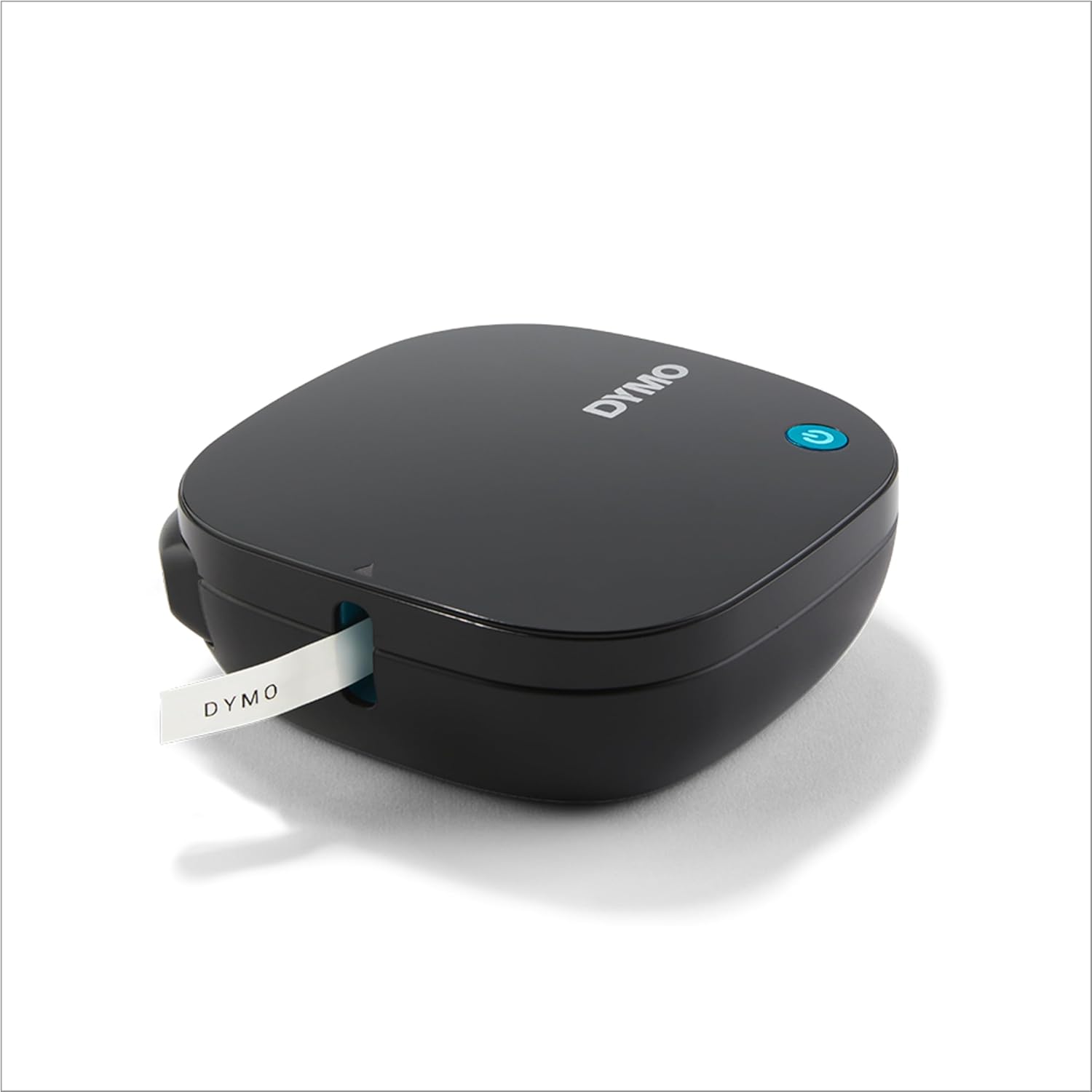
Figure 5: Label exiting the printer after printing.
4.3. Cutting Labels
After printing, you can manually cut the label using the integrated cutter:
- Locate the cutter button on the side of the label maker.
- Press the cutter button firmly to cleanly cut the printed label.
4.4. Label Maker Demonstration Video
Video 2: A demonstration of the DYMO LetraTag 200B Label Maker in use, showcasing the app interface, printing process, and label cutting.
4.5. Portable Labeling Video
Video 3: This video highlights the portability of the DYMO LetraTag 200B, demonstrating its compact size and ease of use for on-the-go labeling.
5. Maintenance
5.1. Replacing Label Cassettes
When a label cassette runs out or you wish to change label types:
- Open the top cover of the label maker.
- Remove the empty or unwanted label cassette.
- Insert a new authentic DYMO LetraTag label cassette, ensuring it is properly seated.
- Close the top cover.

Figure 6: Label cassette housing, made from 80% recycled materials.
5.2. Battery Replacement
Replace the 4 AA batteries when the label maker's performance declines or the power indicator light changes (refer to app for battery status). Follow the steps outlined in Section 3.1.
6. Troubleshooting
If you encounter issues with your DYMO LetraTag 200B, consider the following general troubleshooting steps:
- Connectivity Issues: Ensure Bluetooth is enabled on your device and the label maker is powered on and within range. Try restarting both the app and the label maker.
- Print Quality: Check if the label cassette is correctly installed and if there is sufficient tape. Ensure batteries have enough power.
- Label Jams: Carefully open the label maker and remove any jammed tape. Ensure the tape is properly aligned when re-inserting the cassette.
For more detailed troubleshooting, refer to the official user guide or contact DYMO support.
7. Specifications
| Feature | Specification |
|---|---|
| Model Name | LetraTag 200B |
| Item Model Number | 2177407 |
| Brand | DYMO |
| Connectivity Technology | Bluetooth |
| Printing Technology | Thermal |
| Max Media Size | 12 millimeters |
| Compatible Devices | Smartphones, Tablets (iOS, Android) |
| Power Source | 4 AA Batteries (not included) |
| Item Weight | 11.3 ounces (0.32 Kilograms) |
| Product Dimensions | 7.87 x 7.87 x 3.94 inches |
| Manufacturer | Newell Brands |
| Date First Available | December 12, 2022 |
8. Warranty & Support
8.1. Protection Plans
Optional protection plans may be available for your DYMO LetraTag 200B, including 3-Year and 4-Year protection plans. Please refer to your purchase documentation for details on available plans and coverage.
8.2. User Guide & Support
For a comprehensive user guide and additional support, please refer to the official PDF user guide provided by DYMO:
You can also visit the official DYMO website or contact their customer support for further assistance.