
1. Introduction
Thank you for choosing the Meetion C4120 2.4G Wireless Mouse and Keyboard Combo. This manual provides essential information for setting up, operating, and maintaining your new wireless peripheral set. Please read it thoroughly before use to ensure optimal performance and longevity.
This combo includes a full-size wireless keyboard and a wireless optical mouse, designed for efficient and comfortable use across various operating systems.
2. Package Contents
- Meetion 2.4G Wireless Keyboard
- Meetion 2.4G Wireless Mouse
- USB Nano Receiver (typically stored inside the mouse battery compartment)
- User Manual (this document)
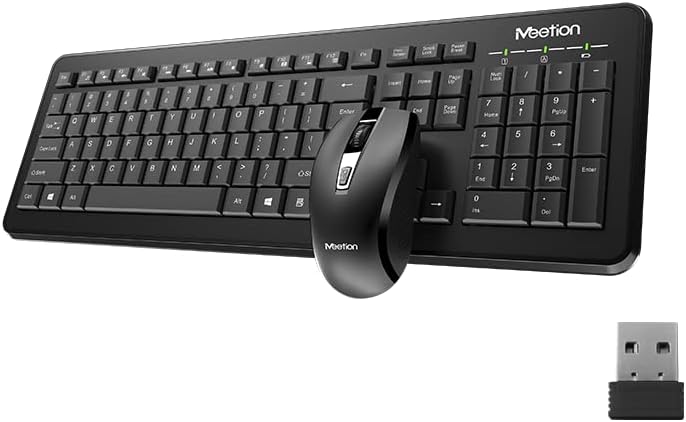
Image Description: This image displays the Meetion C4120 wireless keyboard, the wireless mouse, and the compact USB nano receiver, which is essential for connecting both devices to your computer.
3. Setup Guide
3.1. Installing Batteries
Keyboard Battery Installation
- Locate the battery compartment on the underside of the keyboard.
- Open the battery compartment cover.
- Insert the required batteries (e.g., 2 x AAA alkaline batteries), ensuring correct polarity (+/-).
- Close the battery compartment cover securely.
Mouse Battery Installation
- Locate the battery compartment on the underside of the mouse.
- Open the battery compartment cover.
- Remove the USB Nano Receiver from its storage slot.
- Insert the required battery (e.g., 1 x AA alkaline battery), ensuring correct polarity (+/-).
- Close the battery compartment cover securely.
3.2. Connecting to Your Computer
- Ensure batteries are correctly installed in both the keyboard and mouse.
- Turn on the power switch on the underside of the mouse (if present).
- Plug the USB Nano Receiver into an available USB port on your computer.
- Your computer should automatically detect and install the necessary drivers. This process may take a few moments.
- Once drivers are installed, the keyboard and mouse should be ready for use.

Image Description: This image shows the top view of the wireless keyboard and mouse, along with the USB receiver, illustrating their compact design and how they appear together.
4. Operating Instructions
4.1. Keyboard Functions
The Meetion C4120 keyboard features a standard layout with a numeric keypad for efficient data entry.
Indicator Lights:
- Num Lock Indicator: Illuminates when the numeric keypad is active.
- Caps Lock Indicator: Illuminates when Caps Lock is engaged.
- Scroll Lock Indicator: Illuminates when Scroll Lock is active.
- Battery Indicator: May flash or illuminate to indicate low battery power. Replace batteries when this occurs.
4.2. Mouse Functions
The Meetion C4120 wireless mouse is equipped with a 1200 DPI optical sensor for precise tracking and smooth cursor movement.
Buttons:
- Left Click Button: Standard selection and activation.
- Right Click Button: Accesses contextual menus.
- Scroll Wheel: Scrolls documents and web pages. Can also function as a middle click button.
- DPI Adjustment Button: Located below the scroll wheel, this button allows you to cycle through different DPI settings for varying cursor speeds.
DPI (Dots Per Inch): The mouse operates at 1200 DPI, providing accurate and smooth cursor movement suitable for general computing tasks.

Image Description: This image provides a detailed view of the Meetion C4120 wireless mouse, highlighting its ergonomic design and the USB nano receiver.
5. Troubleshooting
5.1. Keyboard or Mouse Not Responding
- Check Batteries: Ensure batteries are correctly inserted and have sufficient charge. Replace if necessary.
- Check USB Receiver: Make sure the USB Nano Receiver is securely plugged into a working USB port on your computer. Try a different USB port.
- Power Switch: Ensure the mouse's power switch (if applicable) is in the "ON" position.
- Re-establish Connection: Unplug the USB receiver, wait a few seconds, and plug it back in.
- Interference: Move the keyboard and mouse closer to the USB receiver. Avoid placing the receiver near other wireless devices or large metal objects that could cause interference.
- Restart Computer: Sometimes a simple computer restart can resolve connectivity issues.
5.2. Lagging or Intermittent Connection
This can often be caused by wireless interference. Try the suggestions above regarding proximity and interference sources.
5.3. Mouse Cursor Jumps or is Inaccurate
Ensure the mouse optical sensor is clean and free from dust or debris. Use the mouse on a clean, non-reflective surface.
6. Maintenance
To ensure the longevity and optimal performance of your Meetion C4120 wireless combo, follow these maintenance guidelines:
- Cleaning:
- Keyboard: Use a soft, dry cloth to wipe the surface. For deeper cleaning, use compressed air to remove debris from between keys. Avoid liquid cleaners directly on the keys.
- Mouse: Use a soft, dry cloth to clean the exterior. Ensure the optical sensor on the underside is free of dust and lint.
- Battery Replacement: Replace batteries promptly when the low battery indicator appears or performance degrades. Dispose of old batteries responsibly according to local regulations.
- Storage: When not in use for extended periods, remove batteries and store the devices in a cool, dry place away from direct sunlight and extreme temperatures.
- Avoid Liquids: Keep the keyboard and mouse away from liquids to prevent damage.
7. Product Specifications
| Feature | Detail |
|---|---|
| Model | C4120 (MT-C4120) |
| Brand | MEETION |
| Connectivity | 2.4G Wireless |
| Mouse DPI | 1200 DPI Optical |
| Compatibility | Windows, Mac, Linux |
| Keyboard Type | Full-size with Numeric Keypad |
| Battery Type (Keyboard) | Alkaline (e.g., 2x AAA*) |
| Battery Type (Mouse) | Alkaline (e.g., 1x AA*) |
| Color | Black |
*Note: Battery types are typical for such devices; please refer to the product packaging for exact requirements.
8. Warranty and Support
8.1. Manufacturer's Warranty
The Meetion C4120 Wireless Mouse and Keyboard Combo comes with a 1 Year Manufacturer's Warranty from the date of purchase. This warranty covers defects in materials and workmanship under normal use.
The warranty does not cover damage caused by misuse, accident, unauthorized modification, or external causes such as liquid damage.
8.2. Customer Support
For technical assistance, warranty claims, or further inquiries, please contact Meetion customer support through their official website or the retailer where the product was purchased.
Please have your product model number (C4120 or MT-C4120) and proof of purchase ready when contacting support.


