
1. Introduction
The MUBVIEW Indoor Security Camera 2K, Model PK320, is designed to provide reliable and high-quality surveillance for your home. Featuring 2K Full HD video, two-way audio, human detection, and motion tracking, this camera allows you to monitor your indoor spaces with ease and peace of mind. It supports both 2.4GHz and 5GHz Wi-Fi networks for stable connectivity and offers flexible storage options.

Figure 1: MUBVIEW Indoor Security Camera 2K (Model PK320)
2. What's in the Box
Please verify that all components are present before proceeding with installation:
- Indoor Camera with 1.7M Power Cable
- Pet Camera Mounting Bracket
- Dog Camera Screw Kit
- Security Camera Indoor User Manual
- Pet Camera Indoor With Phone App Charger
3. Setup Guide
3.1 Initial Setup
Follow these steps for a quick and easy setup:
- Download the MUBVIEW APP: Search for "MUBVIEW" in your mobile device's app store (iOS or Android) and download the official application.
- Power On and Connect to Wi-Fi: Plug the camera into a power outlet using the provided charger. The camera will power on. Open the MUBVIEW app and follow the on-screen instructions to connect the camera to your 2.4GHz or 5GHz Wi-Fi network. Ensure your Wi-Fi password is correct.
- Enjoy Monitoring: Once connected, you can begin monitoring your space, adjust settings, and utilize all camera features through the app.

Figure 2: Quick and Easy Setup Process
3.2 Network Connection
The MUBVIEW PK320 supports both 2.4GHz and 5GHz dual-band Wi-Fi for fast and stable connectivity. Ensure your router is configured to allow connections on these frequencies. For optimal performance, place the camera within a reasonable range of your Wi-Fi router.
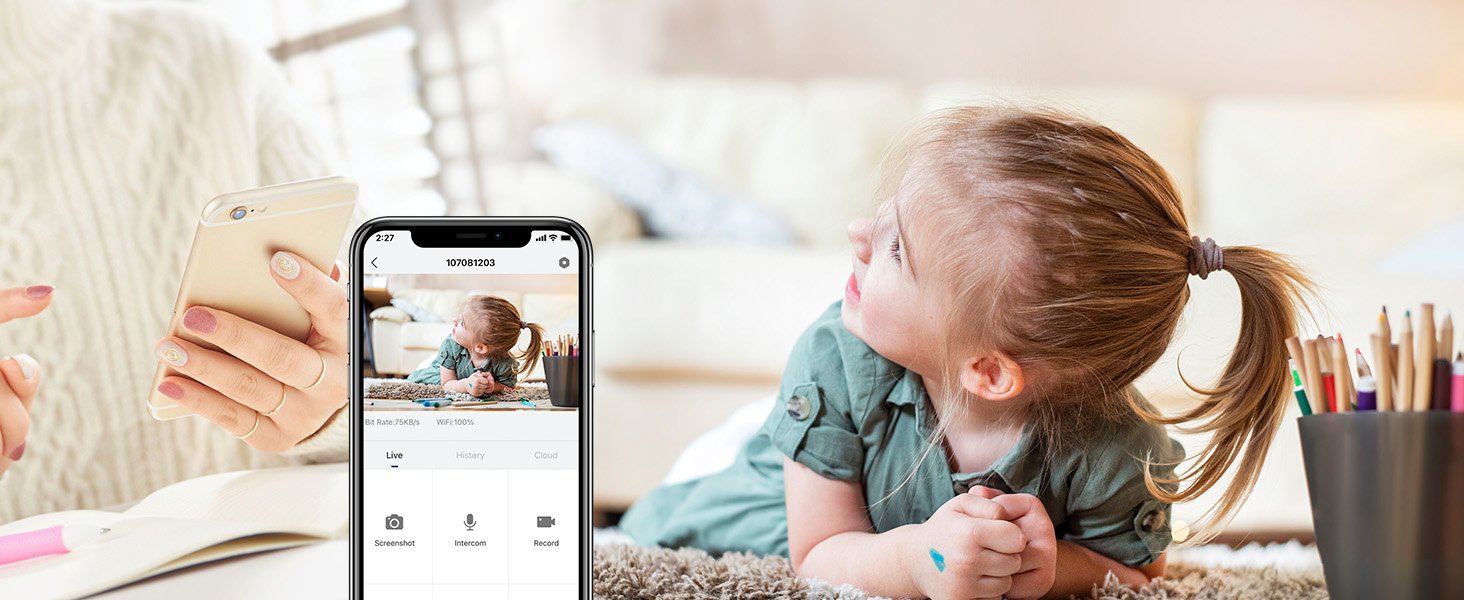
Figure 3: Dual-band Wi-Fi Support
3.3 SD Card Installation (Optional)
For local storage of recordings, you can install a Micro SD card (up to 128GB, not included). The SD card slot is typically located near the camera lens or on the side. Gently insert the card until it clicks into place. Format the SD card through the MUBVIEW app settings after insertion.
Figure 4: Location of SD Card Slot and Reset Button
4. Operating the Camera
4.1 Live View and 2K FHD Quality
Access the live feed from your camera anytime, anywhere through the MUBVIEW app. The 2K Full HD resolution provides clear and detailed video, allowing you to see every important moment.

Figure 5: Key Features of PK320 Smart Camera
4.2 Pan, Tilt, and Zoom (PTZ)
Control the camera's viewing angle directly from your phone. Swipe on the live view screen to pan (355 degrees horizontally) and tilt (80 degrees vertically) the camera, ensuring comprehensive coverage of your room. The digital zoom allows you to focus on specific details.

Figure 6: Camera Pan and Tilt Capabilities
4.3 Two-Way Audio
The built-in microphone and speaker enable clear two-way communication. You can listen to what's happening in the room and speak through the camera to comfort a pet, soothe a baby, or communicate with family members.

Figure 7: Two-Way Audio in Use
4.4 Motion Detection and Tracking
The camera features smart human detection and motion tracking. When motion is detected, the camera can automatically track the moving object and send instant alerts to your phone. This ensures you are always informed of activity in your monitored area.

Figure 8: Auto Tracking in Action

Figure 9: Human Detection Capability
4.5 Night Vision
Equipped with 4 IR lights, the camera provides clear night vision, allowing you to monitor your space even in low-light or complete darkness. You can see every movement of your baby or pet at night.
4.6 Storage Options
The camera offers flexible storage solutions for your recordings:
- Cloud Storage: Securely save your footage to the cloud. MUBVIEW offers a free 7-day cloud service, with options for extended plans.
- Local Storage: Store recordings directly on a Micro SD card (up to 128GB, not included).

Figure 10: Cloud and SD Card Storage Options
4.7 Multi-Device Viewing and Sharing
The MUBVIEW app allows simultaneous viewing of up to four cameras. You can also easily share camera access with trusted individuals, granting them either 'view only' or 'allow control' permissions. This is ideal for family members or security personnel.

Figure 11: Sharing Camera Access with Multiple Users

Figure 12: Multi-Device Sharing Options in App
4.8 Privacy Protection
The MUBVIEW app includes privacy protection features, allowing you to set schedules for when the camera's lens should be off or to manually turn off the lens for privacy. This ensures your personal moments remain private.
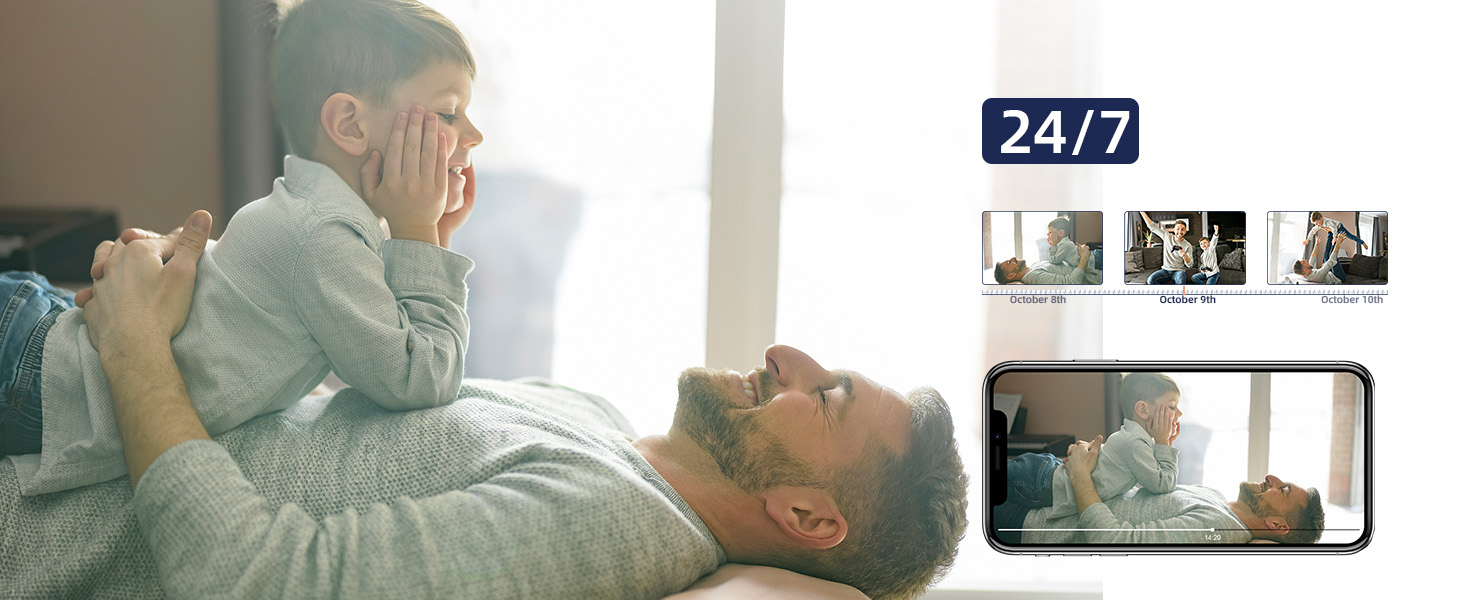
Figure 13: Privacy Protection Features
5. Maintenance
To ensure optimal performance and longevity of your MUBVIEW camera, consider the following maintenance tips:
- Cleaning: Gently wipe the camera lens and body with a soft, dry cloth. Avoid using harsh chemicals or abrasive materials that could scratch the surface.
- Firmware Updates: Regularly check the MUBVIEW app for available firmware updates. Updates often include performance improvements, new features, and security enhancements.
- Power Supply: Use only the original power adapter provided with the camera to prevent damage.
- Placement: Ensure the camera is placed in a stable, dry indoor environment, away from direct sunlight, extreme temperatures, and high humidity.
6. Troubleshooting
If you encounter issues with your MUBVIEW camera, try the following solutions:
- Camera Not Connecting to Wi-Fi:
- Ensure your Wi-Fi network is 2.4GHz or 5GHz.
- Check your Wi-Fi password for accuracy.
- Move the camera closer to your Wi-Fi router.
- Restart your router and the camera.
- Perform a factory reset on the camera using the reset button (refer to Figure 4 for location) and try connecting again.
- Poor Video Quality:
- Check your internet connection speed. A stable and fast connection is crucial for 2K streaming.
- Ensure the camera lens is clean and free from dust or smudges.
- Adjust the camera's position to avoid glare or backlighting.
- No Audio or Two-Way Talk Issues:
- Check the volume settings in the MUBVIEW app and on your phone.
- Ensure the microphone and speaker on the camera are not obstructed.
- Verify app permissions for microphone access on your mobile device.
- Motion Detection Not Working:
- Ensure motion detection is enabled in the MUBVIEW app settings.
- Adjust the motion detection sensitivity.
- Check the camera's field of view for any obstructions.
- SD Card Not Recording:
- Ensure the SD card is correctly inserted.
- Format the SD card through the MUBVIEW app.
- Verify the SD card is not full or corrupted.
- Ensure continuous recording or event recording is enabled in app settings.
7. Specifications
| Feature | Detail |
|---|---|
| Model Name | PK320 |
| Indoor/Outdoor Usage | Indoor |
| Video Capture Resolution | 3MP (2K FHD) |
| Connectivity Protocol | Wi-Fi (2.4GHz & 5GHz) |
| Power Source | Corded Electric (5V AC, 5 watts) |
| Controller Type | CloudEdge, iOS, Mubview, Android App |
| Mounting Type | Surface Mount, Ceiling Mount, Wall Mount |
| Viewing Angle | 355 Degrees (Pan), 80 Degrees (Tilt) |
| Night Vision Range | 8 Meters |
| Frame Rate | 15-20fps |
| Material | Acrylonitrile Butadiene Styrene (ABS) |
| Item Dimensions (L x W x H) | 3 x 5 x 3 inches |
| Item Weight | 10.88 ounces |
| Max Flash Memory Supported Size | 128 GB |
| Special Features | Smart Tracking, Human Detection, 2-Way Audio, Night Vision, Privacy Protection |
8. Warranty and Support
MUBVIEW is committed to providing excellent customer service and product reliability:
- Lifetime Service/Warranty: Your MUBVIEW camera comes with a lifetime service and warranty, ensuring long-term support and confidence in your purchase.
- Quick Response: MUBVIEW aims for quick responses to all customer inquiries.
- 24/7 Professional Technical Support: Access professional technical support around the clock for any assistance you may need.
For further assistance, please refer to the MUBVIEW app's support section or visit the official MUBVIEW website.


