
1. Introduction
The Xinfrared T2S Plus is a compact, high-performance USB-C infrared thermal camera designed for precise temperature measurement and thermal imaging. Featuring an 8mm adjustable macro lens, it is ideal for detailed inspections such as PCB alignment, industrial maintenance, and electrical fault detection. This manual provides essential information for the safe and effective use of your T2S Plus thermal camera.
2. Safety Information
- Do not point the camera directly at the sun or other strong heat sources, as this may damage the sensor.
- Avoid exposing the device to extreme temperatures, humidity, or corrosive environments.
- Handle the camera with care. Do not drop or subject it to strong impacts.
- This device is not intended for medical diagnosis or applications requiring certified precision.
- Keep the lens clean using a soft, lint-free cloth. Do not use abrasive cleaners.
3. Package Contents
Verify that all items are present in the package:
- Xinfrared T2S Plus Thermal Camera
- English Instruction Manual (this document)
- USB Type-C Cable
- Handle
- Protective Case
4. Product Overview
Key Features
- High Resolution: 256x192 IR resolution (49,152 pixels) for clear thermal images.
- Fast Frame Rate: 25Hz frame rate ensures smooth, no-freeze thermal video.
- Wide Temperature Range: Measures temperatures from -20°C to +450°C.
- High Accuracy: Measurement accuracy of ±2°C or ±2% (whichever is greater).
- 8mm Adjustable Macro Lens: Allows for close-range inspection of small components, such as 0201 resistors on PCBs.
- Low Power Consumption: Operates with less than 350mW, drawing power directly from your smartphone.
- Smartphone Compatibility: Supports Android 6.0 and above via USB-C connection.
Components
The T2S Plus features a compact design with a USB-C connector for direct attachment to compatible smartphones. The adjustable macro lens is located at the front of the device.

Figure 1: Xinfrared T2S Plus connected to a smartphone, showing its temperature detection capabilities.

Figure 2: The 8mm Macro Adjustable Lens, highlighting its design for precise focusing.
5. Setup
5.1 App Installation
- Ensure your smartphone runs Android 6.0 or above.
- Download the official 'Xtherm' application from the Google Play Store. Search for "Xtherm" and install.
- Grant necessary permissions to the Xtherm app when prompted.
5.2 Connecting the Camera
- Carefully connect the USB-C connector of the T2S Plus camera to your smartphone's USB-C port.
- The Xtherm app should automatically launch or prompt you to open it.
- If the app does not launch, open it manually. The camera will draw power from your phone.
6. Operating Instructions
6.1 Basic Operation
- Once connected and the Xtherm app is open, the thermal image will appear on your smartphone screen.
- Point the camera at the object or area you wish to inspect.
- Adjust the 8mm macro lens by rotating it to achieve a clear and focused thermal image. This is crucial for detailed inspections, especially at close range.

Figure 3: Using the 8mm macro lens for clear observation of small components like 0201 resistors.
6.2 Temperature Measurement Modes
The Xtherm app provides various temperature measurement and analysis tools:
- Full-Screen Temperature Measurement: Displays maximum, minimum, and central point temperatures across the entire thermal image.
- Point/Line/Area Measurement: Allows you to select specific points, lines, or areas for detailed temperature statistics and analysis.
- Palette Selection: Choose from multiple color palettes (e.g., white-hot, black-hot) to visualize temperature differences effectively.
- PIP Mode (Picture-in-Picture): Integrates a visible light image with the thermal image for enhanced context.

Figure 4: Example of Image Mode and PIP Mode displaying temperature analysis on an electrical panel.
6.3 Temperature Correction Modes
For accurate temperature readings, especially in varying environments, utilize the temperature correction settings within the Xtherm app:
- Correction: Adjusts the overall temperature offset.
- Reflection: Compensates for reflected temperatures from surrounding objects.
- Ambient Temperature (Amb temp): Input the ambient air temperature.
- Humidity: Input the relative humidity of the environment.
- Emissivity: Adjust based on the material properties of the target object. Different materials emit infrared energy differently.
- Distance: Input the distance between the camera and the target object.
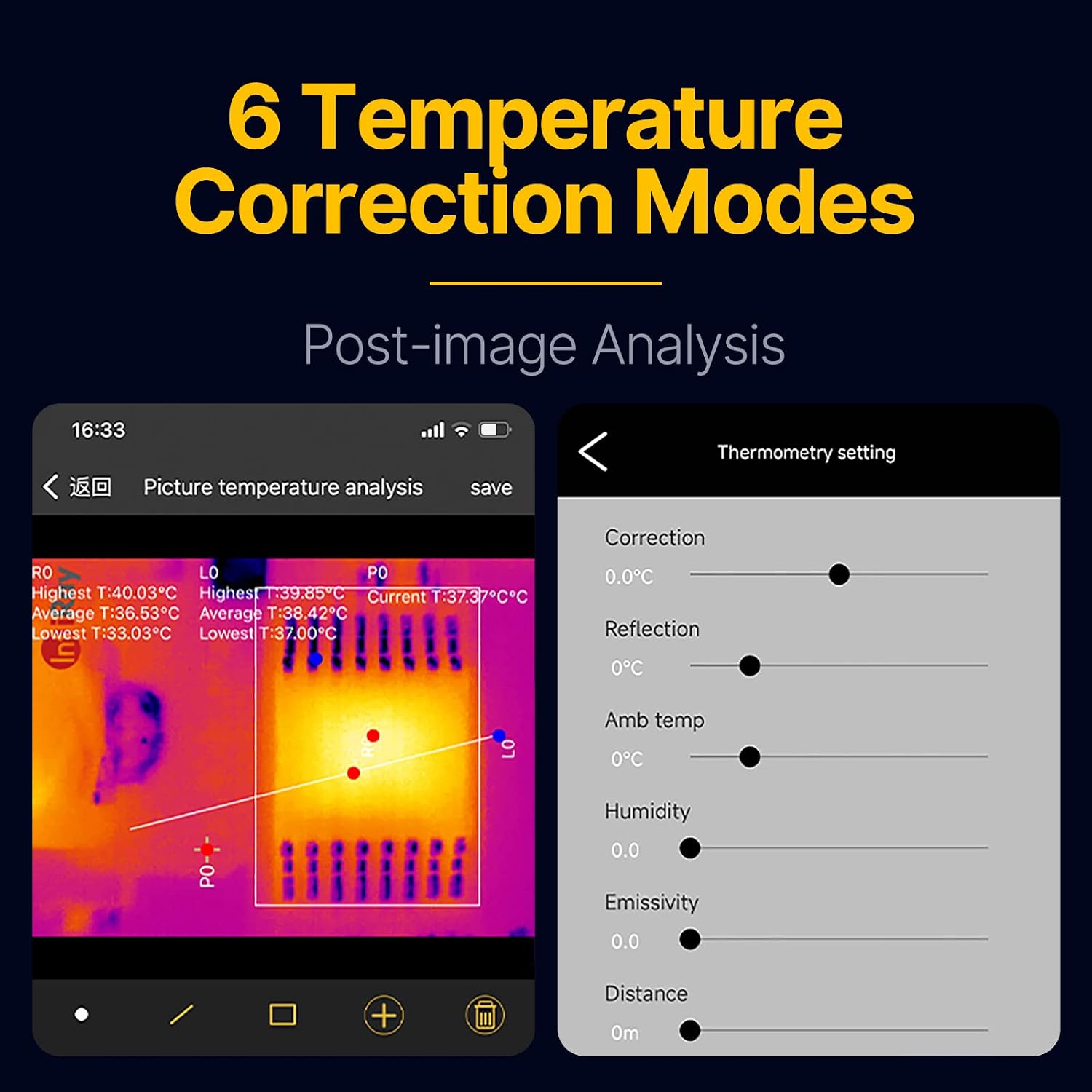
Figure 5: Temperature correction settings for post-image analysis in the Xtherm app.
6.4 Image and Video Storage
The Xtherm app allows you to capture and store both thermal photos and videos directly on your smartphone for later analysis and reporting.
7. Maintenance
- Cleaning the Lens: Use a soft, clean, lint-free cloth to gently wipe the lens. For stubborn smudges, a small amount of lens cleaning solution designed for optics can be applied to the cloth, not directly to the lens.
- Cleaning the Device Body: Wipe the camera body with a dry or slightly damp cloth. Do not use harsh chemicals or solvents.
- Storage: When not in use, store the T2S Plus in its protective case in a cool, dry place, away from direct sunlight and extreme temperatures.
8. Troubleshooting
Common Issues and Solutions
| Problem | Possible Cause | Solution |
|---|---|---|
| Camera not detected by phone/app. | Loose connection, app not installed, phone not compatible, USB-C port issue. | Ensure camera is securely connected. Verify Xtherm app is installed and updated. Check phone's Android version (6.0+). Try another USB-C port or phone if available. |
| Thermal image is blurry or out of focus. | Lens not adjusted, dirty lens. | Rotate the 8mm macro lens to focus. Clean the lens if necessary. |
| Inaccurate temperature readings. | Incorrect emissivity, distance, or environmental settings. | Adjust emissivity, distance, ambient temperature, and humidity settings in the Xtherm app for the specific target and environment. |
| App crashes or freezes. | Outdated app, software conflict, low phone resources. | Update the Xtherm app to the latest version. Close other background applications. Restart your smartphone. |
9. Specifications
| Feature | Specification |
|---|---|
| Product Model | T2S Plus |
| Macro Lens | 8mm |
| Resolution | 256x192 pixels |
| Pixel Pitch | 12µm |
| FOV (Field of View) | 44.9°x 33.4° |
| Image Frame Rate | 25Hz |
| NETD (Noise Equivalent Temperature Difference) | ≤60mK@25°C, F#1.0 |
| MRTD (Minimum Resolvable Temperature Difference) | ≤500mK@25°C, F#1.0 |
| Operating Temperature | -20°C to +50°C |
| Temperature Measurement Range | -20°C to +450°C |
| Measurement Accuracy | ±2°C or ±2% of the measuring range (the greater shall prevail) |
| Correction | Manual/Automatic |
| Power Consumption | <350mW |
| Weight | <18g |
| Dimensions | 26 x 26 x 24.2mm |
| System Compatibility | Android 6.0 and above |
| Image Enhancement | Digital detail enhancement |
| Image Correction | Manual |
| Palette Options | White-hot, Black-hot, Multiple palettes |
| Secondary Development | SDK available |
| Video Storage | Photo and video storage via app |
| App Update | Online update (App Name: Xtherm) |
10. Warranty and Support
Warranty Information
The Xinfrared T2S Plus thermal camera comes with a 2-year warranty from the date of purchase. Please retain your proof of purchase for warranty claims.
Customer Support
For technical assistance, warranty claims, or inquiries regarding the SDK for secondary development, please contact Xinfrared customer support through their official channels. Refer to the product packaging or official website for contact details.
Ensure your Xtherm app is always updated to the latest version for optimal performance and access to new features.
