
1. Introduction
The ORDRO EP8 is a 4K head-mounted camcorder designed for hands-free video recording. It features a SONY STARVIS CMOS sensor, 2-axis gimbal stabilization, Wi-Fi connectivity for app control, and a wide-angle lens. This manual provides detailed instructions for setting up, operating, and maintaining your EP8 camcorder.

Image 1.1: The ORDRO EP8 4K Head-Mounted Camcorder and included accessories.
2. What's in the Box
Verify that all items listed below are included in your package.
- EP8 Head Camera x1
- Bracelet Remote Control x1
- Fast Charger x1
- USB Cable x1
- Set Screw x1
- Head Band x1
- Rubber cap x1
- Hook x2
- User Manual x1

Image 2.1: All components included in the ORDRO EP8 product package.
3. Product Overview
Familiarize yourself with the main components of the ORDRO EP8 camcorder.

Image 3.1: Key features of the ORDRO EP8, including the 1/2.8 inch high-quality sensor, 4K high definition video record capabilities, and FHD optical lens.
- Camera Body: Contains the lens, sensor, and control buttons.
- Headband: Adjustable strap for comfortable head-mounting.
- 2-Axis Gimbal Stabilizer: Internal mechanism for reducing video shake.
- Micro SD Card Slot: For inserting memory cards (up to 128GB supported).
- USB-C Port: For charging and data transfer.
- Remote Control: Wearable bracelet for convenient operation.
4. Setup
4.1 Charging the Battery
The EP8 camcorder uses a built-in Lithium Ion battery.
- Connect the provided USB cable to the camcorder's USB-C port.
- Connect the other end of the USB cable to the fast charger.
- Plug the fast charger into a power outlet.
- A full charge takes approximately 70 minutes. The camera can be used while charging.
4.2 Inserting a Micro SD Card
A Micro SD card (not always included, check package contents) is required to store recordings. The EP8 supports cards up to 128GB.
- Locate the Micro SD card slot on the camcorder.
- Insert the Micro SD card with the gold contacts facing down until it clicks into place.
- To remove, gently push the card in until it clicks, then release. The card will eject slightly.
- It is recommended to format the SD card using the camera's settings via the mobile app for optimal performance.
4.3 Attaching the Headband
The camcorder attaches to the headband for hands-free operation.
- Align the camcorder with the mounting point on the headband.
- Secure the camcorder using the provided set screw.
- Adjust the headband for a comfortable and stable fit on your head.

Image 4.1: The ORDRO EP8 features a 1/4" standard screw hole, allowing it to be mounted on the headband, tripods, or other brackets.
5. Operating Instructions
5.1 Power On/Off
- Power On: Long press the power button on the camcorder.
- Power Off: Long press the power button again until the device shuts down.
5.2 Recording Video
You can start and stop recording using either the camcorder's button or the remote control.
- Start Recording: Press the record button once. A voice prompt will indicate "start recording" (note: voice volume may be low outdoors).
- Stop Recording: Press the record button once again. A voice prompt will indicate "stop recording".
- Important Note: Avoid pressing the record button on the camera for too long, as this may inadvertently switch the image orientation from 16:9 to 9:16. Use the remote control for consistent recording initiation.
5.3 Video Resolutions and Modes
The EP8 supports various recording resolutions and modes:
- 4K (3840x2160p) at 60FPS: For highest quality and smoothness.
- 2.7K at 30FPS
- 1080P at 60FPS
- Vertical Screen (1920P) at 30fps/60fps: Ideal for social media platforms. This mode can be activated by a long press on the record button or via the mobile app.

Image 5.1: The ORDRO EP8 features an upgraded 2-axis gimbal for stability, hands-free recording, a 130° wide-angle lens, and a vertical shooting mode for social media content.
5.4 Wi-Fi and Mobile App Control (OD Cam)
The EP8 features an upgraded Wi-Fi system for stable connection to the "OD Cam" mobile application. The app allows for real-time preview, settings adjustment, video editing, and direct sharing.
- Download the App: Search for "OD Cam" in your smartphone's app store and install it.
- Enable Wi-Fi on Camera: Two fast clicks on the power button will enable Bluetooth (which is part of the Wi-Fi connection process).
- Connect to Camera Wi-Fi:
- Go to your phone's Wi-Fi settings.
- Locate a Wi-Fi network starting with "EP8_".
- Connect to this network. The default password is 12345678.
- Open OD Cam App: Once connected, open the "OD Cam" app to control the camcorder, view live footage, and manage settings.
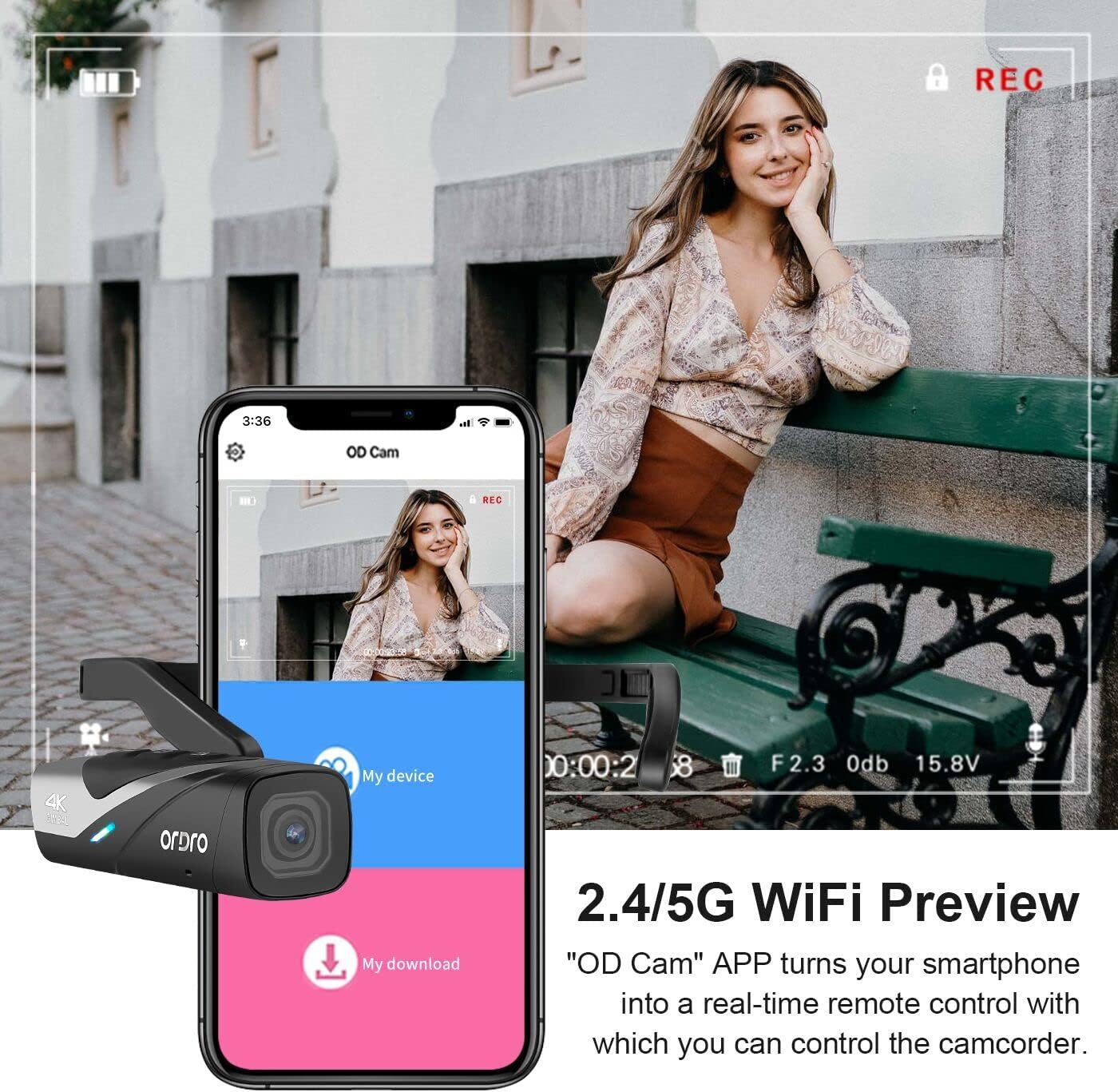
Image 5.2: The "OD Cam" app provides a real-time remote control interface for the ORDRO EP8 camcorder via 2.4/5G Wi-Fi.
5.5 Advanced Features
- 2-Axis Gimbal Stabilization: The built-in gimbal automatically stabilizes footage, reducing shakiness during movement.
- 130° Wide-Angle View & Distortion Calibration: The spherical wide-angle glass lens captures a broad field of view. Enable distortion calibration via the app to correct image distortion.
- Time Lapse, Loop Record, Slow Motion: These modes can be accessed and configured through the OD Cam app.
6. Maintenance
- Cleaning the Lens: Use a soft, lint-free cloth specifically designed for camera lenses. Avoid abrasive materials or harsh chemicals.
- Cleaning the Body: Wipe the camcorder body with a dry or slightly damp soft cloth.
- Storage: Store the camcorder in a cool, dry place away from direct sunlight and extreme temperatures.
- Battery Care: For long-term storage, charge the battery to about 50% every few months to maintain its health.
7. Troubleshooting
| Problem | Possible Cause | Solution |
|---|---|---|
| Camera does not power on. | Low battery. | Charge the battery fully. |
| Cannot connect to Wi-Fi app. | Incorrect Wi-Fi password; Wi-Fi not enabled on camera; App not installed. | Ensure Wi-Fi is enabled (two fast clicks on power button). Verify password 12345678. Reinstall "OD Cam" app. |
| Recording voice prompts are too low. | Environmental noise; fixed volume level. | Move to a quieter environment or rely on visual indicators. Volume is not adjustable. |
| Camera gets hot during use. | Normal operation, especially during extended 4K recording. | This is expected. If it becomes excessively hot, discontinue use and allow it to cool. |
| Video orientation changes unexpectedly. | Record button on camera pressed too long. | Use the bracelet remote control for starting/stopping recordings to avoid accidental mode changes. |
| Footage appears shaky despite gimbal. | Extreme movement; gimbal limits exceeded. | While the 2-axis gimbal provides stabilization, very rapid or jerky movements may still result in some shake. Try to maintain smoother movements. |
8. Specifications
| Feature | Detail |
|---|---|
| Brand | ORDRO |
| Model Number | EP8 |
| Sensor | SONY STARVIS CMOS (8.0 Megapixel) |
| Video Resolution | 4K (3840x2160p) 60FPS, 2.7K 30FPS, 1080P 60FPS, 1920P 30/60FPS (Vertical) |
| Photo Resolution | 20MP |
| Image Stabilization | 2-Axis Gimbal |
| Lens | 130° Wide-Angle (adjustable 130°-90°), FHD Optical Lens, 1.8 f Maximum Aperture |
| Connectivity | Wi-Fi (2.4/5G), USB-C |
| Storage | Micro SD (up to 128GB) |
| Battery | 1 Lithium Ion battery (included) |
| Charging Time | Approx. 70 minutes for full charge |
| Item Weight | 3.17 ounces |
| Special Features | 1/4 screw mount-shoe, Time Lapse, Wireless, Mobile App Control |
9. Warranty and Support
For warranty information and technical support, please refer to the official ORDRO website or contact their customer service directly. Keep your purchase receipt as proof of purchase.


