
Introduction
This manual provides comprehensive instructions for the FUWANG Magnetic Detachable 7-Color Backlit Folio Cover Keyboard Case. This accessory is designed to enhance your iPad experience by offering protection, versatile viewing angles, and a comfortable typing solution. Please read this manual thoroughly before using the product to ensure proper operation and longevity.
Compatibility
This keyboard case is specifically designed for the following iPad models:
- iPad (A16) 11th Generation 11-inch 2025 (Model Numbers: A3354, A3355, A3356)
- iPad 10th Generation 10.9 inch 2022 (Model Numbers: A2696, A2757, A2777, A3162)
To confirm your iPad model number, please check the back of your tablet for the 'AXXXX' designation. This case is not compatible with any other iPad models.
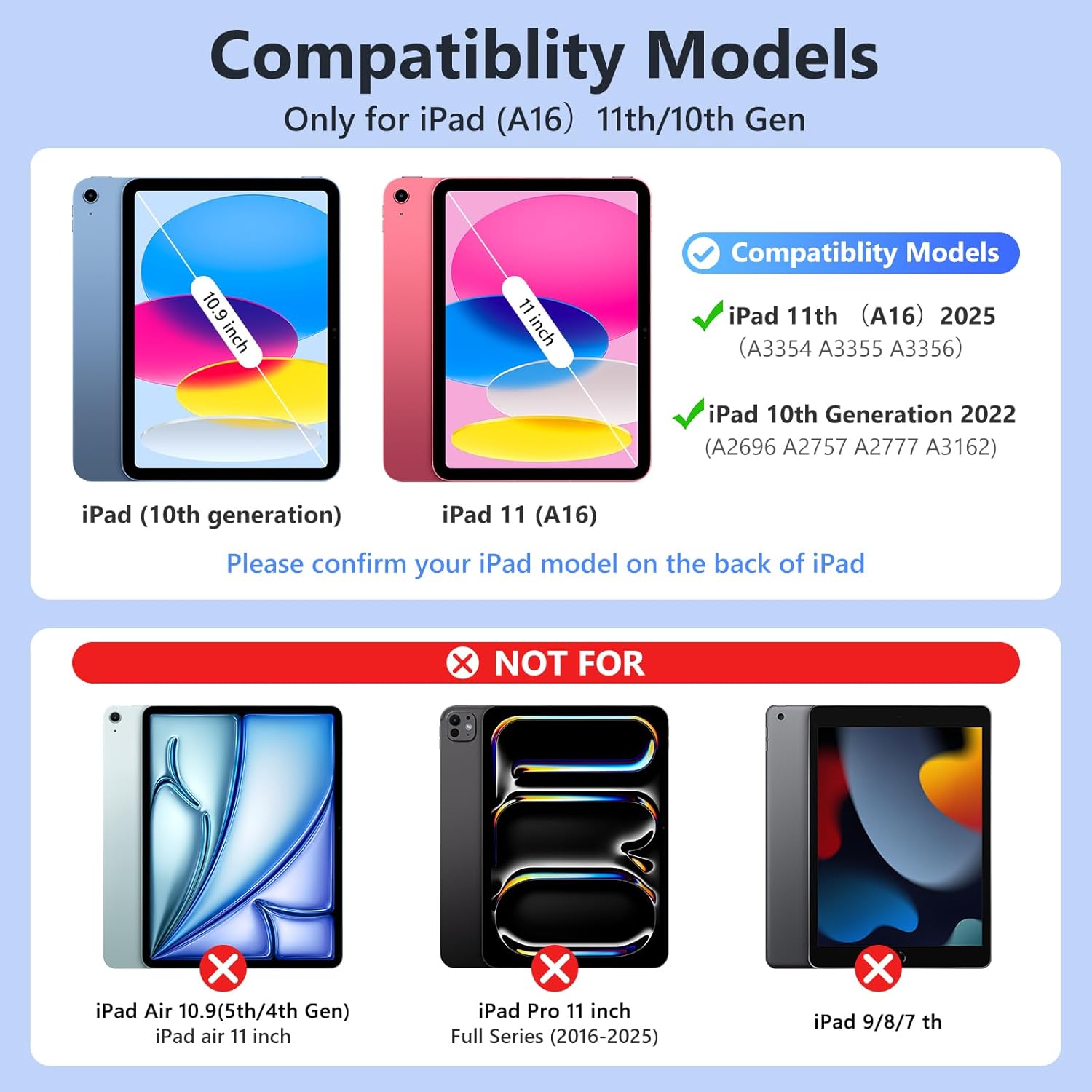
Image: Compatibility chart illustrating compatible iPad models (10th and 11th generation) and incompatible models (iPad Air, iPad Pro, older iPads).
What's in the Box
Upon opening your package, please ensure all the following items are present:
- 1 x FUWANG Keyboard Case for iPad (A16) 11th/10th Generation
- 1 x Wireless Backlit Keyboard
- 1 x Type-C Charging Cable
- 1 x User Manual (this document)
Note: The iPad tablet and stylus are not included with this product.

Image: Visual representation of the package contents, including the keyboard case, wireless keyboard, Type-C charging cable, and user manual.
Setup Instructions
1. Installing Your iPad into the Case
- Gently align your iPad with the protective shell of the case.
- Press the iPad firmly into the case, ensuring all corners and edges are securely fitted. The precise cutouts should align with your iPad's camera, speakers, and buttons.

Image: Step-by-step visual guide for inserting the iPad into the case.
2. Charging the Keyboard
Before initial use, fully charge the wireless keyboard. Connect the provided Type-C charging cable to the keyboard's charging port and a suitable USB power source. The Charge LED (Red) will light up during charging and turn off when fully charged. A full charge typically takes 2-3 hours.

Image: Detailed view of the Type-C charging port on the keyboard.
3. Pairing the Keyboard via Bluetooth
- Turn on the keyboard by sliding the 'ON/OFF' switch to the 'ON' position. The Power LED (Blue) will light up for 2 seconds.
- Press the 'CONNECT' button on the keyboard. The BT LED (Blue) will start flashing, indicating it's in pairing mode.
- On your iPad, go to 'Settings' > 'Bluetooth' and turn Bluetooth 'On'.
- Look for 'Bluetooth Keyboard' in the 'MY DEVICES' list and tap to connect. The BT LED will turn off automatically once paired.

Image: Visual guide for Bluetooth pairing process, including keyboard buttons and iPad settings screen.
Video: Demonstrates the unboxing, iPad installation, and Bluetooth pairing process for the FUWANG keyboard case.
Operating Instructions
1. Adjusting Viewing Angles
The case features multiple grooves to securely hold your iPad at various viewing angles, allowing for comfortable typing, drawing, or media consumption. Simply adjust the iPad's position within the grooves to find your preferred angle.

Image: Illustrates various usage modes: drawing, work, typing, and reading, showcasing the case's flexibility.
2. Using the Backlit Keyboard
The keyboard features 7 backlight colors and 3 brightness levels. To cycle through the backlight colors, press the Light Bulb key. To adjust brightness, press the Sun key (often combined with the Light Bulb key or a dedicated brightness key).

Image: User interacting with the backlit keyboard, highlighting the 7-color and 3-level brightness features.
Video: Demonstrates the various backlight colors and brightness settings of the keyboard.
3. Keyboard Shortcut Keys
The keyboard includes a row of dedicated shortcut keys for increased productivity. These keys provide quick access to common functions such as volume control, media playback, and screen lock.

Image: Detailed view of the keyboard's shortcut key row, highlighting their functions.
4. Auto Sleep/Wake Function
The case supports the iPad's auto sleep/wake function, which helps conserve battery life. When you close the case, your iPad will automatically go to sleep, and when you open it, the iPad will wake up. For optimal performance of this feature, it is recommended to remove the wireless Bluetooth keyboard from the case, as the keyboard's internal magnets may interfere with the case's magnetic attraction to the iPad.

Image: Illustration of the auto sleep/wake feature, showing the iPad entering sleep mode when the case is closed and waking when opened.
Maintenance
1. Cleaning the Case and Keyboard
- Case: Wipe the PU leather exterior with a soft, damp cloth. Avoid harsh chemicals or abrasive cleaners.
- Keyboard: Use a soft, dry cloth to clean the keys. For stubborn dirt, a slightly damp cloth can be used, ensuring no moisture enters the keyboard. Do not immerse the keyboard in water.
2. Storage
When not in use for extended periods, store the keyboard case and keyboard in a cool, dry place. Ensure the keyboard is turned off to preserve battery life.
3. Battery Care
To maintain optimal battery health, avoid fully discharging the keyboard battery frequently. Recharge the keyboard when the battery level is low.
Troubleshooting
Keyboard Not Connecting via Bluetooth
- Check Keyboard Power: Ensure the keyboard is turned on and has sufficient battery charge.
- iPad Bluetooth: Verify that Bluetooth is enabled on your iPad (Settings > Bluetooth).
- Forget Device: If the keyboard was previously paired but is not connecting, go to your iPad's Bluetooth settings, tap the 'i' icon next to 'Bluetooth Keyboard', and select 'Forget This Device'. Then, attempt to pair again following the 'Pairing the Keyboard via Bluetooth' steps.
- Restart Devices: Turn off both your iPad and the keyboard, then restart them and attempt pairing again.
- Interference: Ensure there are no other Bluetooth devices causing interference nearby.
Backlight Not Working/Changing
- Check Battery: Low battery can affect backlight functionality. Ensure the keyboard is charged.
- Press Light Bulb Key: Repeatedly press the Light Bulb key to cycle through colors and ensure the backlight is active.
- Adjust Brightness: Use the Sun key to adjust brightness levels.
Specifications
| Product Dimensions | 10.24 x 8.23 x 1.06 inches |
| Item Weight | 1.76 ounces |
| Manufacturer | FUWANG |
| Compatible Devices | iPad A16 11th Generation 11-inch 2025 (Model: A3354, A3355, A3356), iPad 10th Generation 10.9inch 2022 (Model: A2696, A2757, A2777, A3162) |
| Battery Type | 1 Lithium Ion battery (included) |
| Battery Capacity | 500mAh |
| Charging Time | Approx. 2-3 hours |
| Working Time | Approx. 120 hours |
| Standby Time | Over 130 days |
| Connectivity | Bluetooth |
| Keyboard Backlight | 7 colors, 3 brightness levels |
| Material | Flexible TPU inner shell, PU leather exterior |
Warranty and Support
FUWANG is committed to providing high-quality products and customer satisfaction. This product comes with attentive customer service. If you encounter any questions or issues regarding your keyboard case, please do not hesitate to contact FUWANG customer service. We aim to provide support within 24 hours.

