1. Introduction
This manual provides essential information for the safe and efficient use of your ASUS E410MA 14-inch Laptop Computer. Please read this guide thoroughly before operating your device to ensure proper setup, operation, and maintenance. Keep this manual for future reference.
2. Package Contents
Upon unpacking your ASUS E410MA laptop, please verify that all items listed below are present and in good condition. If any item is missing or damaged, contact your retailer immediately.
- ASUS E410MA 14-inch Laptop Computer
- AC Power Adapter and Power Cord
- User Documentation (Quick Start Guide, Warranty Card)
3. Laptop Overview
Familiarize yourself with the various components of your ASUS E410MA laptop.
3.1 Front View (Open)
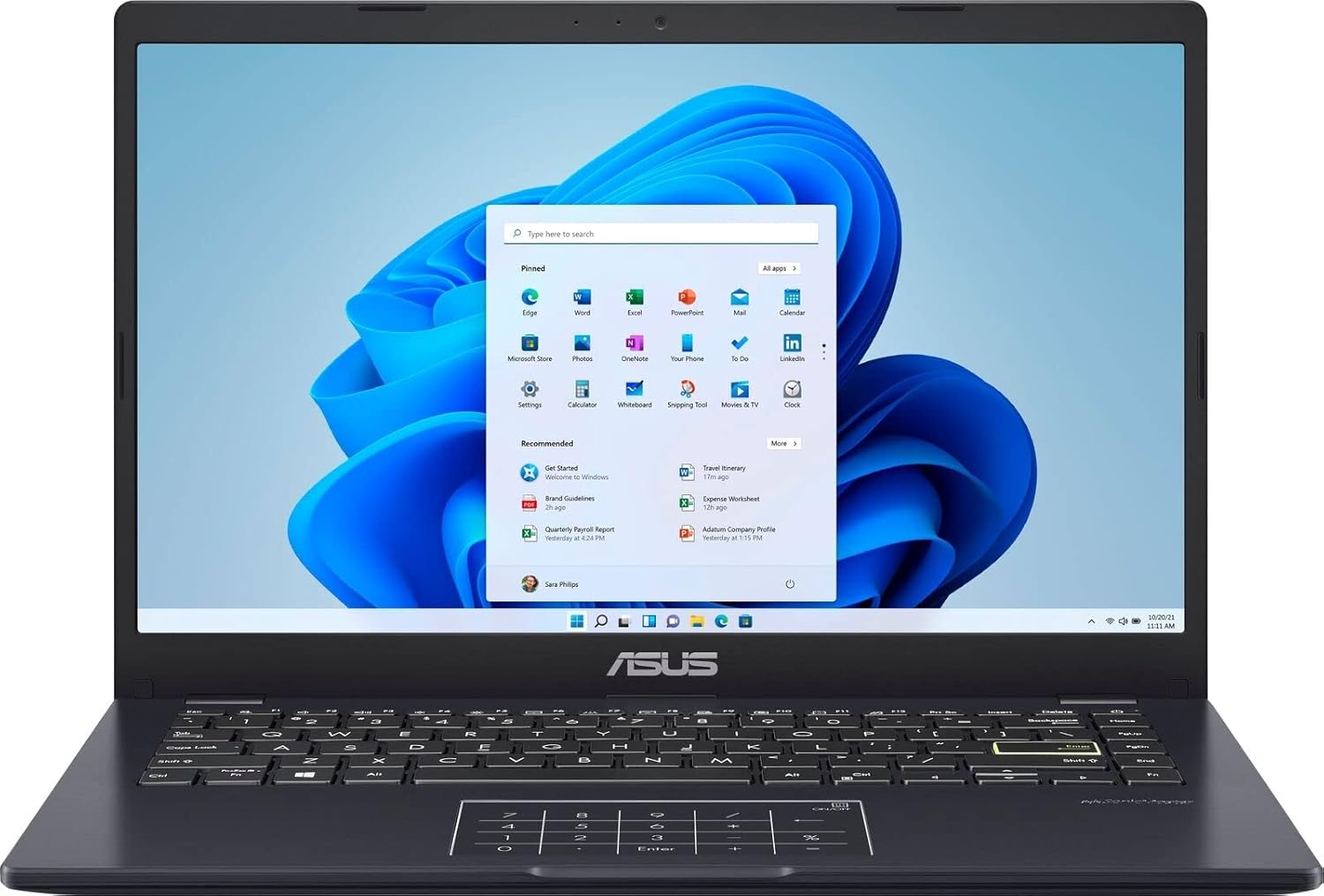
Image 3.1: The ASUS E410MA laptop shown open, displaying the Windows 11 operating system interface on its 14-inch screen. The keyboard and touchpad are visible below the screen.
3.2 Keyboard and Touchpad

Image 3.2: A top-down perspective of the ASUS E410MA laptop's keyboard and touchpad. The touchpad features an integrated NumberPad, indicated by illuminated numeric keys.
3.3 Side View (Open)
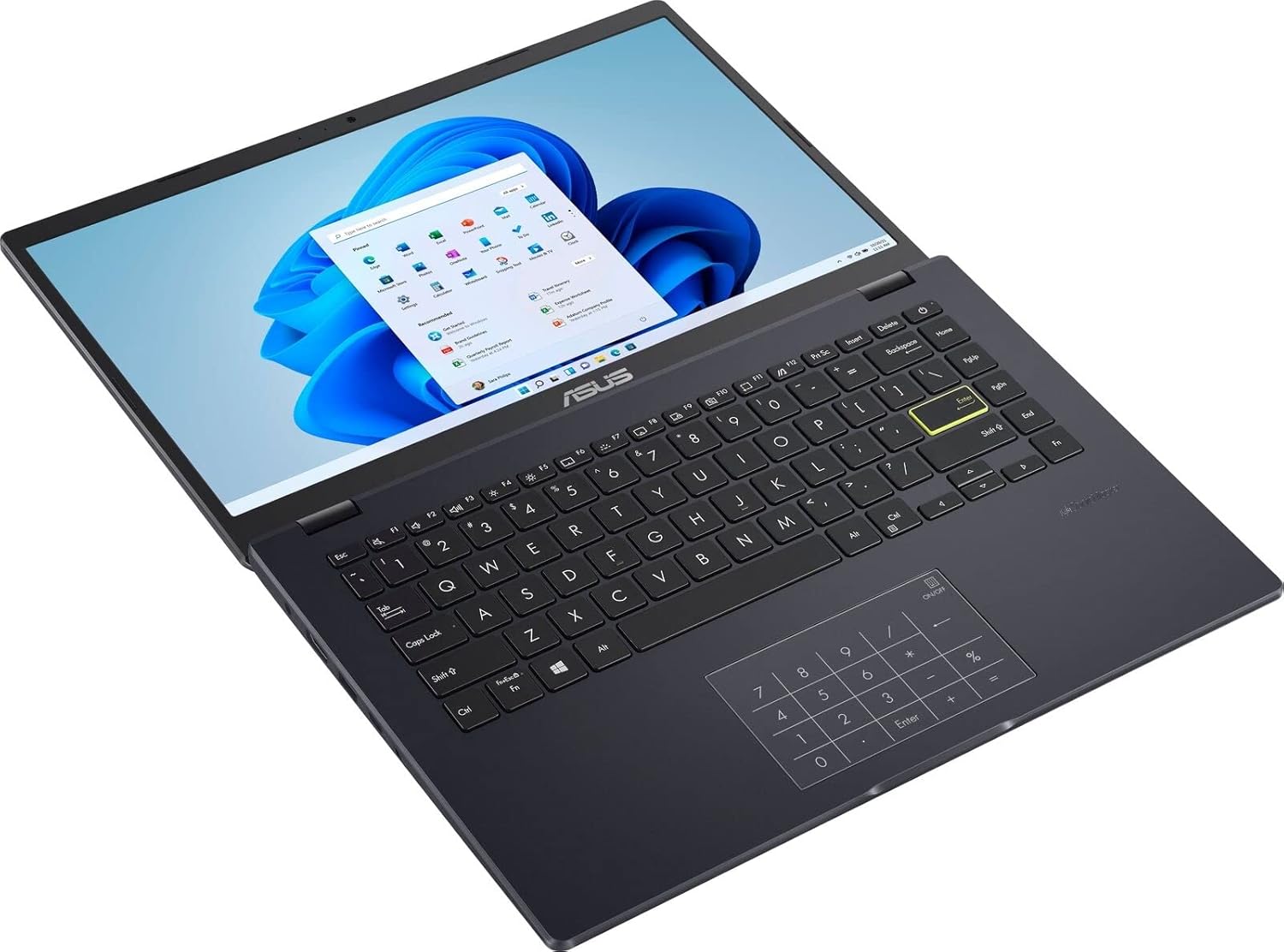
Image 3.3: An angled view of the ASUS E410MA laptop in an open position, highlighting the keyboard layout and the display screen.
3.4 Rear View (Closed)

Image 3.4: The rear view of the ASUS E410MA laptop in a closed state, featuring the ASUS logo prominently on the lid.
3.5 Angled Rear View (Closed)

Image 3.5: An angled rear view of the ASUS E410MA laptop when closed, showcasing the ASUS logo on the lid and a glimpse of the side ports.
3.6 Overall View (Open and Closed)
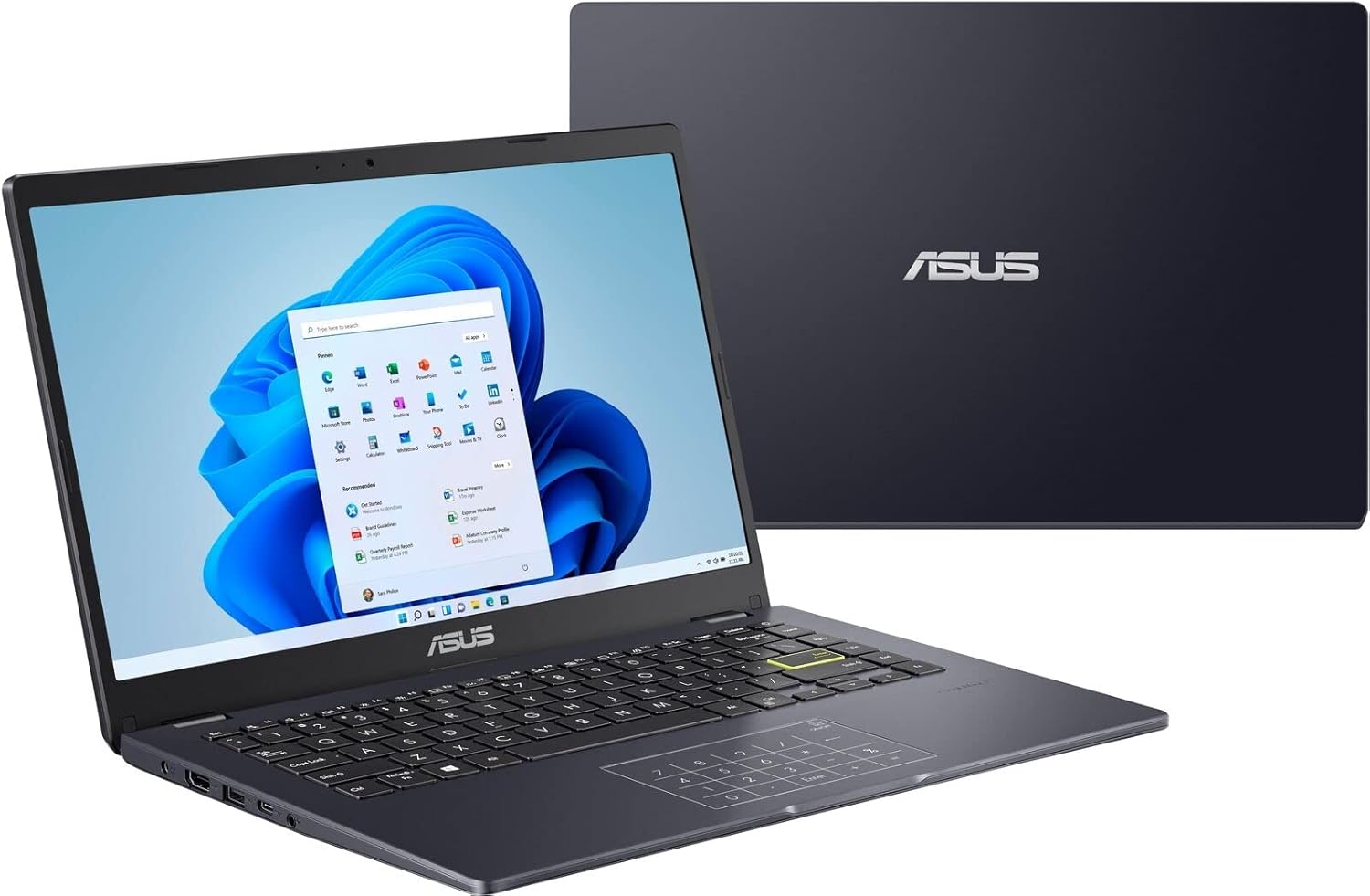
Image 3.6: A composite view showing the ASUS E410MA laptop in an open, operational state in the foreground, with a closed unit visible in the background.
4. Setup
Follow these steps to set up your ASUS E410MA laptop for the first time.
4.1 Charging the Battery
- Connect the AC power adapter to the laptop's power input port.
- Plug the power cord into a wall outlet.
- Allow the battery to charge fully before initial use. The battery indicator light will change to show charging status.
4.2 Initial Power-On
- Open the laptop lid.
- Press the power button, typically located on the top-right of the keyboard or on the side.
- The laptop will boot up and guide you through the Windows 11 initial setup process.
4.3 Windows 11 Setup
Follow the on-screen instructions to complete the Windows 11 setup, which includes:
- Selecting your region and keyboard layout.
- Connecting to a Wi-Fi network.
- Signing in with or creating a Microsoft account.
- Setting up privacy settings.
5. Operating Your Laptop
This section covers basic operations and features of your ASUS E410MA laptop.
5.1 Using the Keyboard and Touchpad
- Keyboard: The laptop features a full-sized keyboard. Use the Function (Fn) key in combination with the F-keys (F1-F12) for special functions like adjusting brightness, volume, or enabling/disabling Wi-Fi.
- Touchpad: The touchpad supports multi-touch gestures for navigation. Refer to Windows settings for customizing touchpad gestures.
- NumberPad: Your laptop's touchpad integrates an ASUS NumberPad. To activate or deactivate it, press and hold the NumberPad icon on the top-right corner of the touchpad.
5.2 Connecting Peripherals
Your laptop is equipped with various ports for connecting external devices:
- USB Ports: Connect USB devices such as external hard drives, mice, or keyboards.
- HDMI Port: Connect to an external monitor or TV for video output.
- Audio Jack: Connect headphones or external speakers.
5.3 Power Management
To conserve battery life and manage performance:
- Adjust screen brightness.
- Utilize Windows power modes (e.g., Balanced, Power Saver).
- Close unused applications.
6. Maintenance
Proper maintenance ensures the longevity and optimal performance of your laptop.
6.1 Cleaning the Laptop
- Use a soft, lint-free cloth slightly dampened with water or a specialized screen cleaner for the display.
- For the keyboard and chassis, use a soft cloth. Avoid harsh chemicals or abrasive materials.
- Ensure the laptop is powered off and unplugged before cleaning.
6.2 Battery Care
- Avoid fully discharging the battery frequently.
- Store the laptop in a cool, dry place if not used for extended periods.
- Do not expose the battery to extreme temperatures.
6.3 Software Updates
Regularly update your operating system and drivers to ensure security and performance:
- Windows Updates: Go to Settings > Windows Update to check for and install updates.
- Driver Updates: Visit the official ASUS support website for the latest drivers for your model.
6.4 Storage Management
With 64GB eMMC storage, efficient management is crucial:
- Regularly delete unnecessary files and applications.
- Utilize cloud storage services (e.g., OneDrive, Google Drive) for documents and media.
- Consider an external hard drive or USB flash drive for additional storage.
7. Troubleshooting
This section addresses common issues you might encounter with your ASUS E410MA laptop.
7.1 Laptop Will Not Turn On
- Ensure the AC adapter is securely connected to both the laptop and a working power outlet.
- Verify the power outlet is functional by plugging in another device.
- If the battery is completely drained, it may take a few minutes of charging before the laptop can power on.
7.2 Slow Performance
- Close unnecessary applications running in the background.
- Check for and install any pending Windows updates.
- Ensure you have sufficient free storage space on your eMMC drive.
- Run a virus and malware scan.
7.3 Wi-Fi Connectivity Issues
- Ensure Wi-Fi is enabled on your laptop (check Function key shortcuts).
- Restart your router and modem.
- Forget the Wi-Fi network in Windows settings and reconnect.
- Update your wireless network adapter drivers from the ASUS support website.
7.4 Display Problems
- Adjust screen brightness using the keyboard function keys.
- If connected to an external monitor, ensure the display output settings are correct (e.g., duplicate, extend).
- Update your Intel UHD Graphics 600 drivers.
8. Specifications
Detailed technical specifications for the ASUS E410MA-TB.CL464 laptop.
| Feature | Specification |
|---|---|
| Model Name | E410MA-TB.CL464 |
| Screen Size | 14 inches |
| Screen Resolution | 1366 x 768 pixels |
| Processor | Intel Celeron N4020 (1.1GHz, up to 2.8GHz burst) |
| RAM | 4 GB DDR4 (Onboard) |
| Memory Speed | 2400 MHz |
| Storage | 64 GB eMMC |
| Graphics Coprocessor | Intel UHD Graphics 600 (Integrated) |
| Operating System | Windows 11 |
| Wireless Type | Bluetooth, Wi-Fi (specific standard not detailed, typically 802.11ac or newer) |
| USB 2.0 Ports | 1 |
| USB 3.0 Ports | 1 |
| HDMI Port | 1 |
| Item Weight | 4.64 pounds (approx. 2.1 kg) |
| Product Dimensions | 9 x 14 x 0.78 inches (approx. 22.86 x 35.56 x 1.98 cm) |
| Color | Black |
| Special Feature | Anti Glare Coating |
9. Warranty and Support
Your ASUS E410MA laptop comes with a limited warranty. Please refer to the warranty card included in your package for specific terms and conditions, including coverage duration and limitations.
9.1 Technical Support
For technical assistance, driver downloads, or further information, please visit the official ASUS support website. You can typically find support resources by searching for your specific model number (E410MA-TB.CL464).
Before contacting support, ensure you have:
- Your laptop's serial number.
- A clear description of the issue.
- Any troubleshooting steps you have already performed.


