
ASHATA
ASHATA 60% RGB DIY Mechanical Keyboard Kit User Manual
Model: 61-Key Hot Swappable Keyboard Kit
Introduction
This manual provides comprehensive instructions for the assembly, operation, and maintenance of your ASHATA 60% RGB DIY Mechanical Keyboard Kit. This kit allows for full customization, including hot-swappable switches and keycaps, to create a personalized typing experience.
The keyboard supports multiple connectivity options: Bluetooth 5.0, USB-C wired, and 2.4GHz wireless, ensuring broad compatibility across various operating systems.
What's in the Box
Upon unboxing, please verify that all components are present:
- ASHATA 60% Mechanical Keyboard PCB/Case Assembly
- USB-C to USB-A Cable
- Keycap Puller
- Switch Puller (often integrated with keycap puller or as a separate tool)
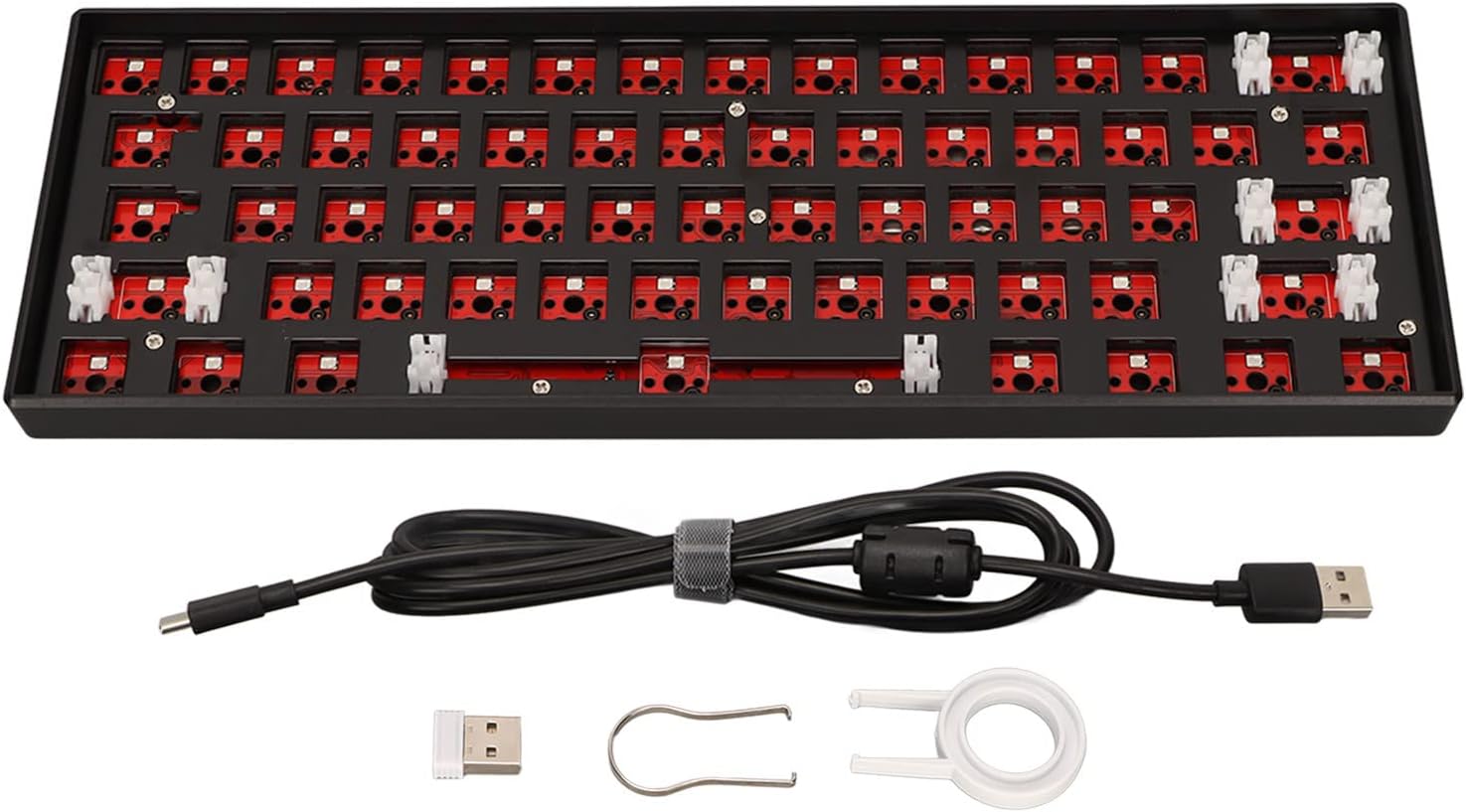
Image: The keyboard kit components, including the barebones keyboard, USB cable, and tools.
Setup Guide
1. Installing Switches
The ASHATA keyboard kit features hot-swappable sockets, allowing for easy installation and removal of mechanical switches without soldering. It supports both 3-pin and 5-pin switches.
- Align the pins of the mechanical switch with the corresponding holes on the PCB. Ensure the pins are straight and not bent.
- Gently push the switch into the socket until it clicks into place. Apply even pressure.
- Repeat for all desired keys.

Image: Detail of the hot-swappable sockets, ready for switch installation.
Important Note:
Before inserting a switch, carefully inspect its pins. If any pins are bent, gently straighten them with tweezers to prevent damage to the switch or the PCB socket. Insert switches vertically to avoid bending pins.
2. Installing Keycaps
Once all switches are installed, you can attach your preferred keycaps.
- Align the keycap stem with the cross-shaped stem on the mechanical switch.
- Press the keycap firmly onto the switch until it is securely seated.
- Use the provided keycap puller to remove keycaps if needed, by hooking it onto the keycap and pulling upwards gently.
Operating Instructions
Connectivity Options
Your ASHATA keyboard supports three modes of connection:
- USB-C Wired: Connect the provided USB-C cable to the keyboard's port and the USB-A end to your computer. The keyboard will be recognized automatically.
- Bluetooth 5.0:
- Ensure the keyboard's power switch (located on the bottom) is in the ON position.
- Activate Bluetooth pairing mode on the keyboard (refer to specific key combination if available, e.g., Fn + 1/2/3).
- On your device (computer, tablet, smartphone), search for Bluetooth devices and select "ASHATA Keyboard" (or similar name).
- Follow any on-screen prompts to complete pairing.
- 2.4GHz Wireless:
- Ensure the keyboard's power switch (located on the bottom) is in the ON position.
- Insert the 2.4GHz USB receiver into an available USB port on your computer.
- The keyboard should automatically connect to the receiver.
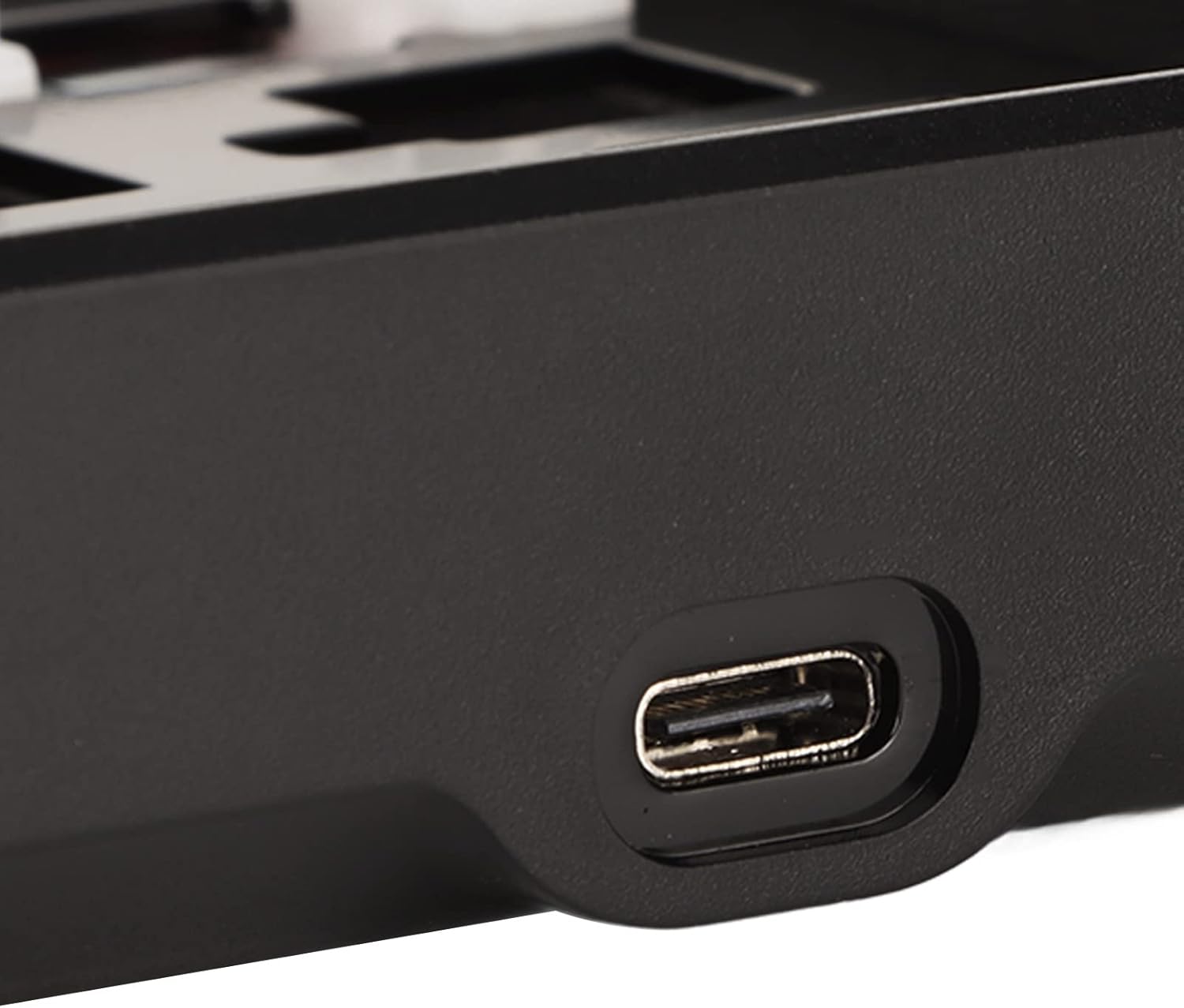

Image: USB-C port for wired connection and charging, and the power switch for wireless modes.

Image: Visual representation of the keyboard's multi-mode connectivity.

Image: The keyboard's compatibility with various devices and operating systems.
RGB Lighting Control
The keyboard features RGB backlighting. Specific key combinations (often involving the Function key, Fn) are used to cycle through lighting modes, adjust brightness, and change colors. Refer to the quick start guide or product page for detailed key combinations for RGB control.

Image: The keyboard showcasing its RGB lighting capabilities.
Maintenance
Regular maintenance ensures the longevity and optimal performance of your keyboard.
- Cleaning Keycaps: Use the keycap puller to remove keycaps. Clean them with a mild soap solution and a soft cloth. Ensure they are completely dry before reattaching.
- Cleaning the PCB/Case: Use compressed air to remove dust and debris from between switches and from the PCB. A soft brush can also be used. Avoid liquid cleaners directly on the PCB.
- Switch Maintenance: If a switch feels inconsistent, it can be removed using a switch puller and inspected. Some switches can be lubricated for smoother operation, but this requires specialized tools and knowledge.
Troubleshooting
| Problem | Possible Cause | Solution |
|---|---|---|
| Keyboard not responding (wired) | Loose cable connection, faulty USB port, driver issue. |
|
| Keyboard not responding (wireless) | Keyboard off, low battery, not paired, receiver issue. |
|
| Specific keys not working | Switch not properly seated, faulty switch, bent switch pin. |
|
| RGB lighting not working or inconsistent | Software glitch, incorrect settings, hardware issue. |
|
Specifications
| Feature | Detail |
|---|---|
| Model | 61-Key DIY Mechanical Keyboard Kit |
| Keys Layout | 61 Keys (60% Layout) |
| Switch Compatibility | Hot-swappable, supports 3-pin and 5-pin mechanical switches |
| Connectivity | Bluetooth 5.0, USB-C Wired, 2.4GHz Wireless |
| Backlighting | RGB |
| Shell Material | ABS One-piece Shell |
| Internal Structure | Metal plate, sandwiching soundproof silicone, bottom sound absorbing cotton |
| Compatible Systems | Windows 2000/ME/XP/Vista/7/8/10, HarmonyOS, Android, OS X |
| Dimensions | Approximately 13.39 x 5.91 x 1.97 inches |
| Item Weight | Approximately 1.33 pounds |
Warranty and Support
For warranty information and technical support, please refer to the ASHATA official website or contact their customer service directly. Keep your purchase receipt as proof of purchase for warranty claims.
Manufacturer: ASHATA
ASIN: B0BC2BPDF8
Ask a question about this manual
Ask about setup, troubleshooting, compatibility, parts, safety, or missing instructions. Manuals+ will review the question and use this page’s manual context to help answer it.