
CHiQ L32G7P
CHiQ 32 Inch Smart TV User Manual
Model: L32G7P (2022 Model)
Introduction
This manual provides comprehensive instructions for the setup, operation, maintenance, and troubleshooting of your new CHiQ 32 Inch LED Smart TV. Please read this manual thoroughly before operating the television and retain it for future reference. Proper use and care will ensure optimal performance and longevity of your device.
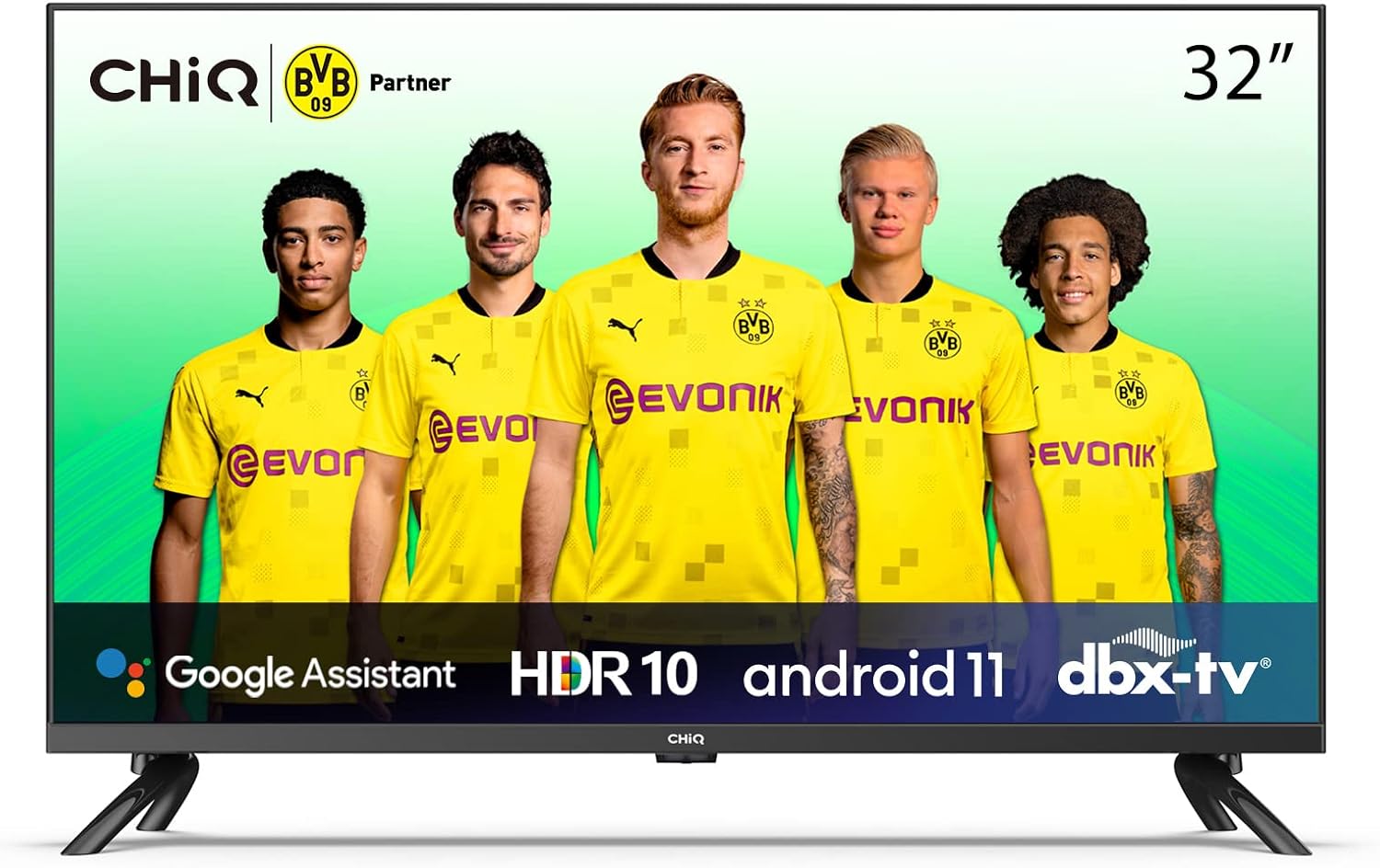
Image: Front view of the CHiQ 32 Inch Smart TV, showcasing its sleek design and display.
Safety Information
Always observe the following safety precautions to avoid electric shock, fire, or damage to the television.
- Do not expose the TV to rain or moisture.
- Do not block ventilation openings. Ensure adequate space around the TV for proper airflow.
- Do not place the TV on an unstable cart, stand, tripod, bracket, or table.
- Protect the power cord from being walked on or pinched.
- Unplug the TV during lightning storms or when unused for long periods.
- Refer all servicing to qualified service personnel.
Package Contents
Please check to ensure all items are included in your package:
- CHiQ 32 Inch Smart TV (L32G7P)
- Remote Control
- Power Cord
- TV Stand (2 pieces)
- Screws for TV Stand
- User Manual (this document)
Setup
1. Installing the TV Stand
Carefully place the TV face down on a soft, flat surface to prevent screen damage. Align the stand pieces with the mounting holes on the bottom of the TV and secure them with the provided screws.

Image: The CHiQ 32 Inch Smart TV displayed with its dimensions (724.3mm width, 480.4mm height) for placement planning.
2. Connecting Peripherals
Your CHiQ Smart TV offers various connectivity options:
- HDMI Ports (x2): Connect Blu-ray players, game consoles, or set-top boxes.
- USB Port: For connecting USB storage devices to play media.
- Antenna/Cable Input: For connecting an external antenna or cable TV.
- Ethernet Port: For a wired internet connection.
- Audio Output: For connecting external sound systems.
Ensure all cables are securely connected before powering on the TV.
3. Initial Power-On and Configuration
Plug the power cord into a wall outlet. Press the power button on the remote control or on the TV. Follow the on-screen prompts to complete the initial setup, including language selection, network connection (Wi-Fi or Ethernet), and Google account sign-in for Android TV features.
Operating Your TV
1. Remote Control Overview
The included remote control allows you to navigate the TV's functions. Key buttons include:
- Power: Turns the TV on/off.
- Navigation Pad (Up/Down/Left/Right/OK): For menu navigation and selection.
- Back: Returns to the previous screen.
- Home: Accesses the Android TV home screen.
- Volume +/-: Adjusts volume.
- Channel +/-: Changes channels.
- Google Assistant: Activates voice control.
- Input: Selects input source (HDMI, USB, etc.).
2. Navigating Android TV
The Android 11.0 operating system provides a user-friendly interface. From the home screen, you can access installed apps, recommended content, and settings. Use the navigation pad on your remote to move between sections and select items.

Image: The CHiQ Smart TV displaying the Google Assistant interface, showing weather and daily schedule.

Image: The CHiQ Smart TV displaying the Android 11 home screen with various streaming apps and content recommendations.
3. Smart Features
- Google Assistant: Press the Google Assistant button on your remote to use voice commands for searching content, controlling smart home devices, or getting information.
- Built-in Chromecast: Cast content from your compatible smartphone or tablet directly to the TV.
- App Store: Download and install a wide range of apps from the Google Play Store.

Image: A smartphone screen being mirrored or cast to the CHiQ TV, demonstrating the casting feature.
4. Picture and Sound Settings
Access the settings menu to customize your viewing and listening experience.
- Picture Modes: Choose from standard, vivid, movie, sport, or custom settings.
- HDR10 Support: Experience enhanced contrast and color with HDR10 content.
- Sound Modes: Select from standard, music, movie, sport, or user-defined audio profiles.
- dbx-tv Audio: Enjoy immersive audio quality with dbx-tv sound technology.

Image: A visual representation of HDR10 technology, showing enhanced detail and color in bright and dark areas of an image.

Image: A split image demonstrating the difference between a conventional image and one with High Dynamic Range (HDR), highlighting improved contrast and detail.

Image: An illustration representing DTS Studio Sound, indicating enhanced audio experience for viewers.

Image: A side-by-side comparison showing the difference between conventional color and PurColor technology, demonstrating richer and more vibrant colors.

Image: A vibrant image showcasing the Pure Color display, emphasizing the rich and accurate color reproduction of the TV.
Maintenance
To ensure the longevity and optimal performance of your CHiQ Smart TV, follow these maintenance guidelines:
- Cleaning the Screen: Gently wipe the screen with a soft, lint-free cloth. For stubborn marks, slightly dampen the cloth with water or a specialized screen cleaner. Avoid harsh chemicals or abrasive materials.
- Cleaning the Cabinet: Use a soft, dry cloth to wipe the TV cabinet. Do not use liquid or spray cleaners directly on the TV.
- Ventilation: Ensure the ventilation openings on the back of the TV are not blocked. Dust accumulation can lead to overheating.
- Power Cord: Regularly check the power cord for any damage. If damaged, replace it immediately with an authorized replacement.
Troubleshooting
If you encounter issues with your TV, refer to the following common problems and solutions:
| Problem | Possible Cause / Solution |
|---|---|
| No power | Check if the power cord is securely plugged into the TV and the wall outlet. Try a different outlet. |
| No picture, but sound is present | Ensure the correct input source is selected. Check cable connections (HDMI, antenna). |
| No sound, but picture is present | Check volume level and mute status. Verify audio cable connections. Check TV sound settings. |
| Remote control not working | Replace batteries. Ensure no obstructions between remote and TV. Point remote directly at the TV's IR sensor. |
| Cannot connect to Wi-Fi | Ensure Wi-Fi is enabled on the TV. Check router status and distance. Re-enter Wi-Fi password. Restart router and TV. |
| Apps are slow or crashing | Close unused apps. Clear app cache. Ensure sufficient internet speed. Restart the TV. |
If the problem persists after trying these solutions, please contact customer support.
Specifications
| Feature | Detail |
|---|---|
| Brand | CHiQ |
| Model Number | L32G7P |
| Screen Size | 32 Inches |
| Display Technology | LED |
| Resolution | 1366x768 (HD) |
| Aspect Ratio | 16:9 |
| Refresh Rate | 60 Hz |
| Operating System | Android 11.0 |
| Special Features | HDR10, Smart TV, Google Assistant, Built-in Chromecast, dbx-tv |
| Connectivity | Bluetooth, Wi-Fi, USB, HDMI (x2) |
| Product Dimensions (D x W x H) | 10D x 78W x 47H centimeters |
| Weight | 6 kg |
| Included Components | 32" Chiq TV with Remote |
Warranty and Support
Your CHiQ 32 Inch Smart TV (Model L32G7P) comes with a 1 Year Warranty from the date of purchase. This warranty covers manufacturing defects and malfunctions under normal use.
What is not covered:
- Damage caused by improper installation or use.
- Damage caused by accidents, natural disasters, or power surges.
- Unauthorized repairs or modifications.
- Normal wear and tear.
For warranty claims or technical support, please contact CHiQ customer service. Have your product model number (L32G7P) and proof of purchase ready when contacting support.
For the most up-to-date support information, please visit the official CHiQ website or refer to the contact details provided in your warranty card.
Related documentsL32G7P


Ask a question about this manual
Ask about setup, troubleshooting, compatibility, parts, safety, or missing instructions. Manuals+ will review the question and use this page’s manual context to help answer it.