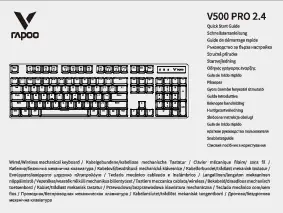
1. Setup Instructions
Follow these steps to connect your Rapoo GK500 Gaming Mechanical Backlit Keyboard to your computer.
- Unpack the Keyboard: Carefully remove the keyboard from its packaging.
- Connect to PC: Locate an available USB-A port on your computer. Insert the USB-A connector of the keyboard cable into the USB-A port.
- Driver Installation: The keyboard is plug-and-play. Your operating system (PC) should automatically detect and install the necessary drivers. No additional software installation is typically required for basic functionality.
- Verify Connection: Once connected, the keyboard's backlight should illuminate, indicating it is powered on and ready for use.
2. Operating the Keyboard
The Rapoo GK500 keyboard offers various features to enhance your typing and gaming experience.
2.1 Mechanical Switches
The keyboard features mechanical switches with a key travel distance of 4.0 (±0.4) mm. These switches are designed for durability, offering a lifespan of up to 60 million keystrokes for fast and precise input.
2.2 Conflict-Free Design
The GK500 incorporates a non-conflict design for all 104 keys. This ensures that every command is registered accurately and rapidly, even when multiple keys are pressed simultaneously.

Image: The Rapoo GK500 keyboard highlighting its compact and conflict-free design, ensuring all 104 keys register simultaneously.
2.3 Backlighting Features
The keyboard is equipped with individually backlit keys, offering multi-color illumination. The backlighting enhances visibility and aesthetics. The keycaps are made with double-color injection moulding for durability.
- Adjustable RGB Backlight: The keyboard features an adjustable RGB backlight with 6 distinct modes. Refer to the keyboard's function keys for cycling through these modes.

Image: Close-up of the Rapoo GK500 keyboard displaying its adjustable RGB backlight with various color patterns.
2.4 Media Control Keys
The keyboard includes dedicated or function-integrated media control keys, allowing you to manage audio playback and volume directly from the keyboard.

Image: A section of the Rapoo GK500 keyboard highlighting the media control keys, typically located on the function row.
3. Maintenance
Proper maintenance ensures the longevity and optimal performance of your keyboard.
3.1 Spill-Resistant Design
The GK500 features a spill-resistant design. In case of accidental liquid spills, the keyboard is protected against splash damage. For best results, immediately disconnect the keyboard, gently wipe off any liquid, and allow it to air dry completely before reconnecting.

Image: The Rapoo GK500 keyboard with water droplets, illustrating its spill-resistant feature.
3.2 General Cleaning
- Dust Removal: Use a soft brush or compressed air to remove dust and debris from between the keys.
- Surface Cleaning: Wipe the keyboard surface with a soft, damp cloth. Avoid using harsh chemicals or abrasive materials.
- Keycap Cleaning: For deeper cleaning, keycaps can be carefully removed using a keycap puller (if available) and cleaned separately. Ensure they are completely dry before reattaching.
4. Troubleshooting
If you encounter issues with your keyboard, refer to the following common solutions.
- Keyboard Not Responding:
- Ensure the USB-A cable is securely connected to both the keyboard and the computer.
- Try connecting the keyboard to a different USB-A port on your computer.
- Test the keyboard on another computer to determine if the issue is with the keyboard or the computer's port/drivers.
- Backlight Not Working/Incorrect:
- Check if the backlight is enabled using the designated function keys (refer to keyboard markings).
- Cycle through the backlight modes to see if it responds.
- Note that RGB LEDs are fixed to 6 modes and are not individually programmable or compatible with system RGB software.
- Keys Not Registering:
- Ensure no debris is lodged under the keycap.
- If a specific key is consistently failing, contact customer support for assistance.
5. Specifications
Detailed technical specifications for the Rapoo GK500 Gaming Mechanical Backlit Keyboard.
| Feature | Detail |
|---|---|
| Brand | Rapoo |
| Model Name | GK500 |
| Model Number | GK-500-BL |
| Connectivity Technology | USB-A (Wired) |
| Compatible Devices | PC |
| Keyboard Description | Gaming |
| Recommended Uses | Gaming & Office |
| Product Features | Backlit, Spill Proof |
| Keyboard Backlighting | RGB (6 fixed modes) |
| Switch Type | Mechanical |
| Key Travel Distance | 4.0 (±0.4) mm |
| Keystroke Lifespan | Up to 60 million |
| Keyboard Layout | QWERTY |
| Number of Keys | 104 |
| Water Resistance Level | Water Resistant |
| Colour | Black |
| Enclosure Material | Aluminium |
| Item Weight | 850 Grams |
6. Warranty and Support
6.1 Warranty Information
The Rapoo GK500 Gaming Mechanical Backlit Keyboard comes with a 2-year warranty from the date of purchase. Please retain your proof of purchase for warranty claims.

Image: A shield graphic indicating a 2-year warranty, along with Rapoo support contact details.
6.2 Customer Support
For technical assistance, warranty claims, or any product-related inquiries, please contact Rapoo customer support:
- Email: support.india@rapoo.com
- Toll-Free Number: 84678-77770