
1. Introduction
This manual provides detailed instructions for the setup, operation, maintenance, and troubleshooting of your AULA F812 Wired Gaming Mouse. Please read this manual thoroughly to ensure proper use and to maximize your gaming experience.
The AULA F812 is a high-performance wired gaming mouse featuring 7 customizable macro keys, adjustable DPI settings up to 4800, and vibrant RGB backlit effects. It is designed for precision and responsiveness in gaming environments.
2. Package Contents
- AULA F812 Wired Gaming Mouse
- User Manual (this document)
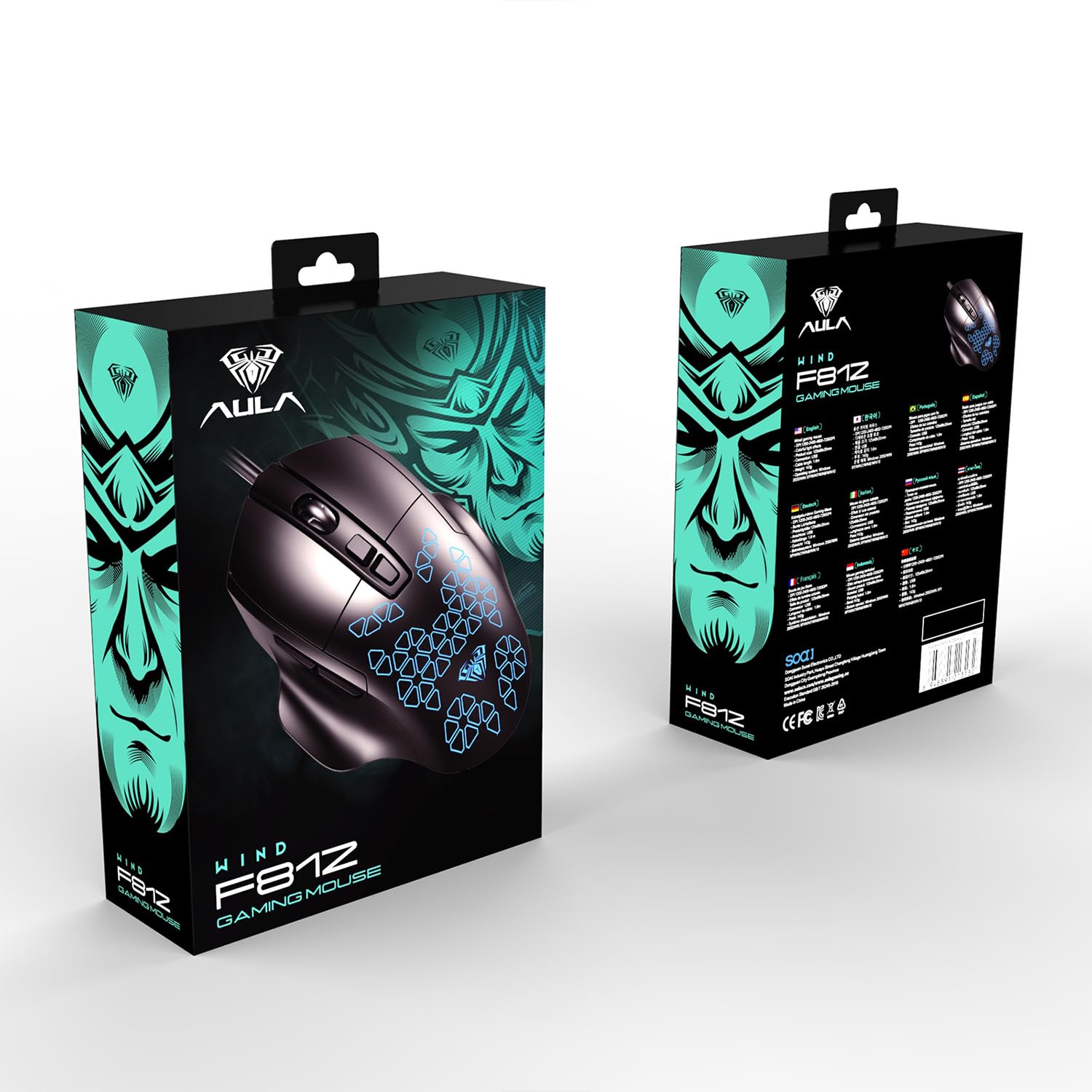
Image: Retail packaging of the AULA F812 Wired Gaming Mouse, showing the product box.
3. Product Overview
Familiarize yourself with the various parts of your AULA F812 Gaming Mouse.

Image: Top-down view of the AULA F812 Gaming Mouse with key buttons labeled. Labels include Left Button, Right Button, Scroll Wheel, DPI+, DPI-, Forward Button, and Back Button.
- Left Button: Standard left-click function.
- Right Button: Standard right-click function.
- Scroll Wheel: Scrolls content up/down, also functions as a middle-click button.
- DPI + Button: Increases DPI sensitivity.
- DPI - Button: Decreases DPI sensitivity.
- Forward Button: Navigates forward in web browsers or file explorers.
- Back Button: Navigates backward in web browsers or file explorers.
4. Setup Instructions
- Connect the Mouse: Plug the USB connector of the AULA F812 Gaming Mouse into an available USB port on your computer.
- Driver Installation: The mouse is typically plug-and-play. Your operating system (Windows XP, Windows 7, Linux, etc.) should automatically detect and install the necessary drivers. If prompted, follow the on-screen instructions.
- Software Installation (Optional): For advanced customization, including macro programming and detailed RGB lighting control, dedicated software may be available from the AULA website. Refer to the official AULA support resources for software downloads and instructions.
5. Operating Instructions
5.1. DPI Adjustment
The AULA F812 mouse features adjustable DPI settings to change cursor sensitivity. There are 4 preset DPI levels, ranging from 800 to 4800 DPI.
- Press the DPI + button to increase the DPI level.
- Press the DPI - button to decrease the DPI level.
- The current DPI level is often indicated by a change in the mouse's LED lighting color or pattern (refer to software for specific indications).
5.2. RGB Backlit Lighting
The mouse features RGB gradient lighting with various effects. The lighting can be controlled directly on the mouse or through dedicated software.
- Specific instructions for cycling through lighting modes or turning off the backlight are typically found in the accompanying software or through specific button combinations (e.g., a combination of DPI and another button). Consult the software manual for detailed control.
5.3. Macro Key Programming
The AULA F812 includes 7 customizable macro keys. These keys can be programmed to perform complex actions or sequences of commands with a single press.
- Macro programming requires the installation of the official AULA gaming software.
- Once the software is installed, open it to access the macro editor.
- Select the desired key (e.g., Forward, Back, or other programmable buttons).
- Record or input the sequence of keystrokes and mouse clicks for your macro.
- Save the macro to the selected key.
- Refer to the software's help section for detailed instructions on macro creation and assignment.
6. Maintenance
Proper maintenance ensures the longevity and optimal performance of your gaming mouse.
- Cleaning:
- Disconnect the mouse from your computer before cleaning.
- Use a soft, dry cloth to wipe the surface of the mouse.
- For stubborn dirt, slightly dampen the cloth with water or a mild cleaning solution. Avoid harsh chemicals.
- Use a cotton swab or compressed air to clean around the scroll wheel and sensor area.
- Storage:
- Store the mouse in a cool, dry place away from direct sunlight and extreme temperatures.
- Avoid placing heavy objects on the mouse or its cable.
- Cable Care:
- Do not sharply bend or twist the USB cable.
- Avoid pulling the cable forcefully when disconnecting the mouse; always grasp the USB connector.
7. Troubleshooting
| Problem | Possible Cause | Solution |
|---|---|---|
| Mouse not responding. |
|
|
| DPI adjustment not working. |
|
|
| RGB lighting not functioning. |
|
|
| Macro keys not working. |
|
|
8. Specifications
| Feature | Detail |
|---|---|
| Brand | AULA |
| Model | F812 |
| Connectivity Technology | USB Wired |
| Movement Detection Technology | Optical |
| DPI Levels | Adjustable (800-4800 DPI) |
| Number of Buttons | 7 (Customizable Macro Keys) |
| Special Feature | RGB LED Backlit |
| Color | Black |
| Product Dimensions (LxWxH) | 12.5 x 6.8 x 3.5 cm |
| Item Weight | 143 g |
| Operating System Compatibility | Linux, Windows 7, Windows XP (and newer Windows versions) |
| Manufacturer | Dongguan Suoai Electronics Co., Ltd |
9. Warranty and Support
9.1. Warranty Information
The AULA F812 Wired Gaming Mouse typically comes with a manufacturer's warranty. Please refer to the warranty card included with your product or visit the official AULA website for detailed warranty terms and conditions. Keep your purchase receipt as proof of purchase for warranty claims.
9.2. Customer Support
For technical assistance, troubleshooting, or warranty inquiries, please contact AULA customer support:
- Importer Contact: Odio Zone Private Limited, S-4/63, 2nd Floor, Agasthya Complex, Shettihalli Main Road, Jalahalli West, Bengaluru 560015, Karnataka, India.
- Email Support: support@odiozone.com
- Manufacturer Contact: Dongguan Suoai Electronics Co., Ltd, info@aulapro.in
- Online Resources: Visit the official AULA website for FAQs, driver downloads, and additional support resources.


