
1. Introduction and Overview
Thank you for choosing the Oakcastle CD100 Portable Bluetooth CD Player. This device is designed to provide a high-quality, portable audio experience, allowing you to enjoy your favorite CDs with modern convenience. Featuring Bluetooth 5.3 connectivity, a long-lasting rechargeable battery, and robust anti-skip technology, the CD100 is perfect for use at home, on the go, or even in your car.
This manual provides detailed instructions on how to set up, operate, and maintain your CD100 player to ensure optimal performance and longevity.
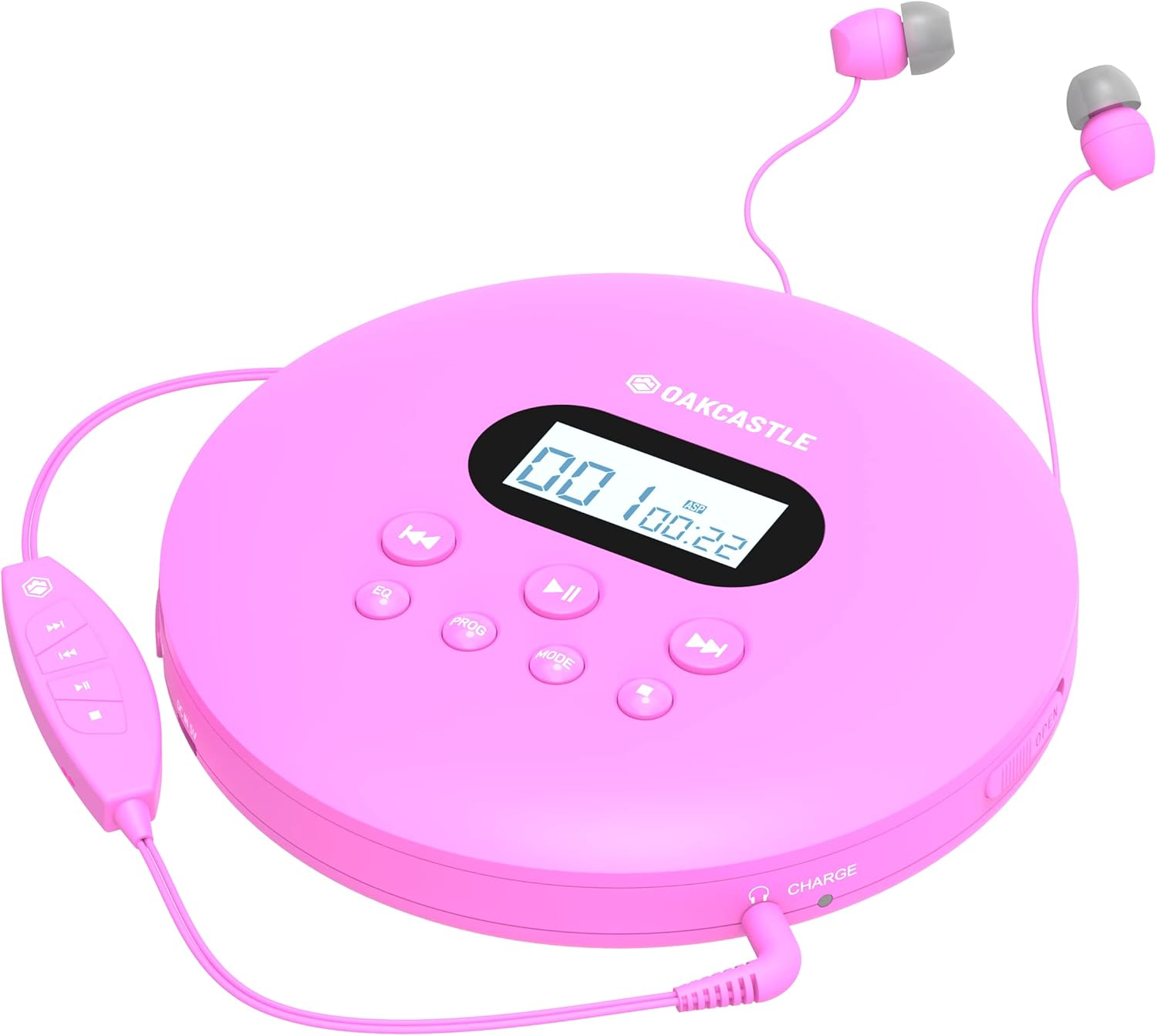
Image: The Oakcastle CD100 portable CD player in pink, shown with its wired headphones connected. The player features a central display and control buttons.
2. What's in the Box
Please check the contents of your package to ensure all items are present and in good condition:
- 1 x Oakcastle CD100 Portable Bluetooth CD Player
- 1 x Pair of Headphones
- 1 x Micro-USB Charging Cable
- 2 x 3.5mm Auxiliary Cables
- 1 x User Manual
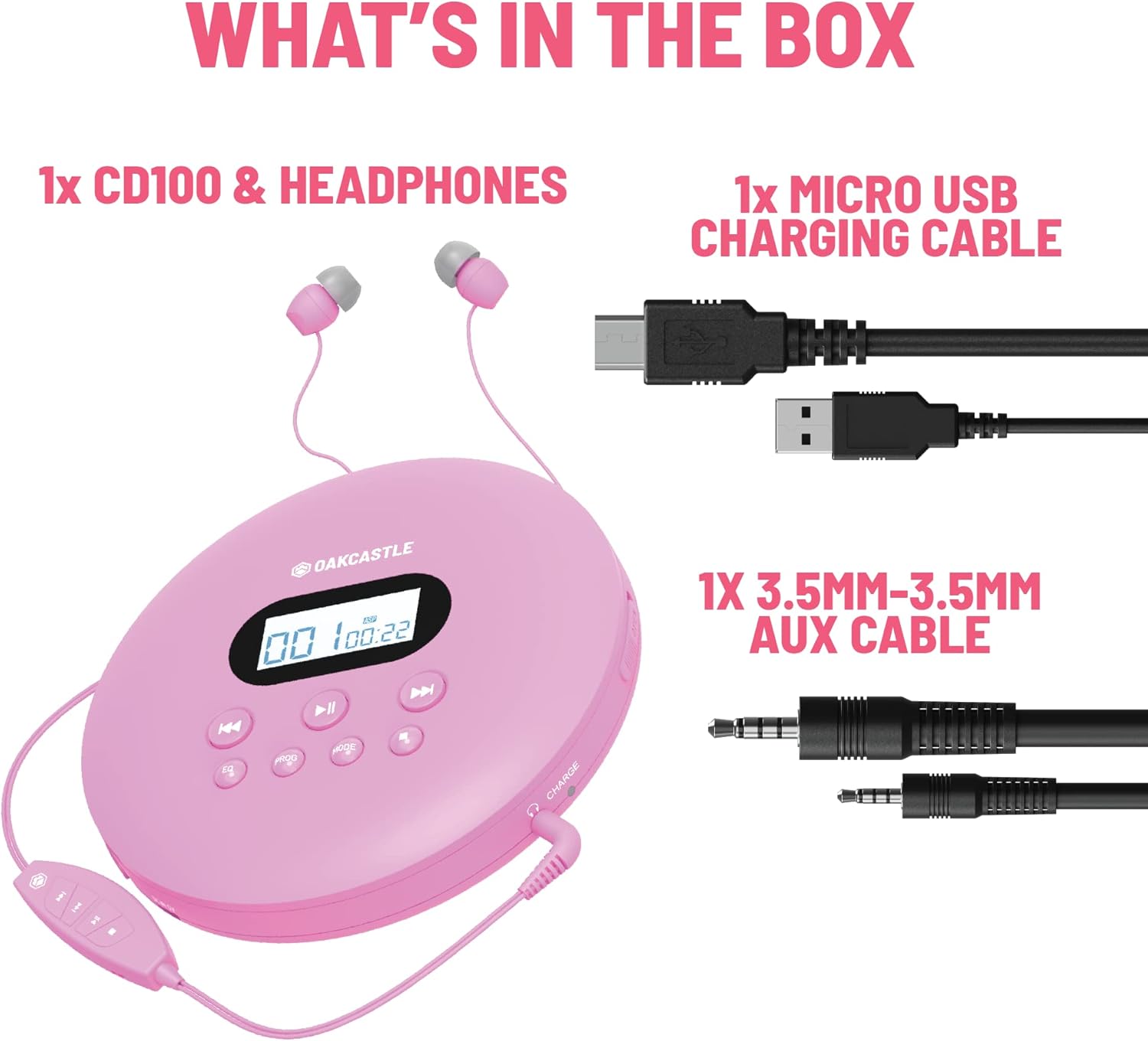
Image: A visual representation of the Oakcastle CD100 package contents, showing the pink CD player, headphones, a micro-USB charging cable, and two 3.5mm auxiliary cables.
3. Product Features
The Oakcastle CD100 is equipped with several features designed to enhance your listening experience:
- Bluetooth 5.3 Connectivity: Seamlessly connect to wireless headphones or speakers for a cable-free experience.
- 12-Hour Battery Life: Enjoy extended playback on a single charge, perfect for long journeys or daily use.
- Anti-Skip Technology: Designed with shock-resistant materials to ensure uninterrupted playback, even during movement.
- Car Compatibility: Easily integrate with your car's audio system using the included auxiliary cable.
- Fast Disc Reading: Provides quick access to your music without delay.
- Custom Equalizer: Adjust audio settings to your preference.

Image: The pink Oakcastle CD100 player with text overlay emphasizing its Bluetooth, Auxiliary, and Rechargeable capabilities, along with portable anti-skip technology.

Image: The Oakcastle CD100 player with text indicating its battery life of up to 12 hours, and a Bluetooth logo.

Image: The Oakcastle CD100 player with text highlighting its ability to connect to a car or be used on the go, emphasizing superior disc reading speed.
4. Setup
4.1 Charging the Device
- Locate the Micro-USB port on the side of the CD100 player.
- Connect the included Micro-USB cable to the player and the other end to a USB power adapter (not included) or a computer USB port.
- The charging indicator light will illuminate, typically red, while charging. It will turn off or change color (e.g., green) when fully charged.
- A full charge takes approximately 3-4 hours.
4.2 Inserting a CD
- Gently slide the OPEN switch on the side of the player to open the CD compartment lid.
- Place a CD onto the spindle with the label side facing up. Ensure the CD is seated correctly.
- Close the CD compartment lid firmly until it clicks into place.
4.3 Powering On/Off
- To Power On: Press the PLAY/PAUSE (►▮) button. The display will light up.
- To Power Off: Press and hold the STOP (■) button for a few seconds until the display turns off. The device will also power off automatically after a period of inactivity.
5. Operating Instructions
5.1 Basic Playback
- Play/Pause: Press the PLAY/PAUSE (►▮) button to start or pause playback.
- Next Track: Press the NEXT (►►) button to skip to the next track.
- Previous Track: Press the PREVIOUS (◄◄) button to go back to the beginning of the current track. Press it again to go to the previous track.
- Stop: Press the STOP (■) button to stop playback.
5.2 Volume Control
Adjust the volume using the volume dial or buttons, typically located on the side or front of the player.
5.3 Equalizer (EQ) Settings
Press the EQ button repeatedly to cycle through different equalizer presets (e.g., Bass, Pop, Jazz, Rock, Classic, etc.) to customize your audio experience.
5.4 Bluetooth Pairing
- Ensure your Bluetooth headphones or speaker are in pairing mode.
- On the CD100, press the MODE button until the Bluetooth indicator flashes, indicating it is searching for devices.
- Once connected, the Bluetooth indicator will become solid.
5.5 Auxiliary (AUX) Connection
To connect to an external audio system (e.g., car stereo, home speakers) using the auxiliary cable:
- Connect one end of the 3.5mm auxiliary cable to the AUX OUT port on the CD100.
- Connect the other end to the AUX IN port on your external audio system.
- Ensure your external audio system is set to the correct AUX input.
6. Maintenance
6.1 Cleaning the Device
- Use a soft, dry cloth to wipe the exterior of the player.
- Do not use abrasive cleaners, waxes, or solvents as they may damage the finish.
- For the CD lens, use a specialized CD lens cleaning kit. Do not touch the lens directly.
6.2 Battery Care
- To prolong battery life, avoid fully discharging the battery frequently.
- If storing the device for a long period, charge it to about 50% every few months.
- Avoid exposing the device to extreme temperatures.
6.3 Storage
Store the CD100 in a cool, dry place away from direct sunlight and excessive dust. When not in use, ensure the CD compartment is closed.
7. Troubleshooting
| Problem | Possible Cause | Solution |
|---|---|---|
| Player does not turn on. | Low battery; Power button not pressed correctly. | Charge the player; Press and hold the PLAY/PAUSE button. |
| CD does not play. | CD inserted incorrectly; CD is scratched/dirty; CD compartment not closed. | Reinsert CD correctly; Clean or replace CD; Close lid firmly. |
| No sound. | Volume too low; Headphones/speakers not connected; Bluetooth not paired. | Increase volume; Check connections; Re-pair Bluetooth device. |
| Bluetooth not connecting. | Device not in pairing mode; Out of range; Interference. | Ensure both devices are in pairing mode; Move closer; Reduce interference. |
| Skipping during playback. | CD is scratched/dirty; Excessive vibration. | Clean or replace CD; Ensure player is on a stable surface or use anti-skip feature. |
8. Specifications
| Feature | Detail |
|---|---|
| Brand | Oakcastle |
| Model Name | CD100 |
| Color | Pink |
| Connectivity Technology | Bluetooth |
| Special Features | Bluetooth, USB Port, Portable |
| Compatible Devices | Headphones, Speakers |
| Battery Type | Lithium-ion |
| Rechargeable Battery | Yes |
| Supported Audio Format | MP3, WMA |
| Connector Type | 3.5mm Jack |
| Specific Uses | Home, Vehicle |
| Product Dimensions | 14.2 x 14.2 x 3 cm |
| Product Weight | 230 g |
9. Warranty and Support
The Oakcastle CD100 comes with an extended 3-year warranty, providing peace of mind and assurance of quality. For any technical support, warranty claims, or further inquiries, please refer to the contact information provided in your product packaging or visit the official Oakcastle website.
Please retain your proof of purchase for warranty purposes.


