
Moultrie MCG-14048
Contents
Moultrie Mobile Exo Cellular Trail Camera User Manual
Model: MCG-14048
Brand: Moultrie
1. Introduction
The Moultrie Mobile Exo Cellular Trail Camera is designed for remote monitoring, game scouting, and property security. This manual provides detailed instructions for setting up, operating, and maintaining your camera to ensure optimal performance.

Image 1.1: Front view of the Moultrie Mobile Exo Cellular Trail Camera, showcasing its robust design and integrated antenna.

Image 1.2: The Moultrie Mobile Exo Cellular Trail Camera highlighting its 0.75 second trigger speed, 18MP image resolution, 70 ft invisible flash range, and 70 ft detection range.
2. Package Contents
Verify that all items are present in your package:
- Moultrie Mobile Exo Cellular Trail Camera
- Cellboost Antenna
- Mounting Strap
- Quick Start Guide (not included in this manual)
Note: 12 AA batteries and an SD card (up to 32 GB) are required for operation and are not included.
3. Setup Guide
3.1. Battery Installation
The camera requires 12 AA batteries for power. For optimal performance and extended battery life, it is recommended to use high-quality alkaline or lithium batteries.
- Open the camera housing by unlatching the side clips.
- Locate the battery compartment.
- Insert 12 AA batteries, ensuring correct polarity (+/-) as indicated inside the compartment.
- Close the battery compartment securely.
3.2. SD Card Installation
A formatted SD card (up to 32 GB) is required to store images and videos.
- With the camera housing open, locate the SD card slot.
- Insert a formatted SD card into the slot until it clicks into place. Ensure the card is inserted in the correct orientation.
- To remove, gently push the SD card until it springs out.

Image 3.1: The camera with its side compartment open, revealing the battery slots and SD card slot for installation.
3.3. Antenna Attachment
Attach the included Cellboost antenna to the camera for cellular connectivity.
- Screw the Cellboost antenna onto the antenna port located at the top of the camera.
- Tighten securely by hand.
3.4. Moultrie Mobile App and Subscription
The Moultrie Mobile Exo operates on the Verizon 4G LTE network and requires a separate subscription plan purchased directly from Moultrie Mobile. Download the Moultrie Mobile app to activate your camera and manage settings.
- Download the Moultrie Mobile app from your device's app store (iOS or Android).
- Create an account or log in.
- Follow the in-app instructions to add your camera and select a subscription plan.
3.5. Mounting the Camera
Use the provided mounting strap to secure the camera to a tree or post.
- Thread the mounting strap through the slots on the back of the camera.
- Wrap the strap around the desired mounting location (e.g., tree, fence post).
- Securely fasten the strap, ensuring the camera is stable and pointed in the desired direction.
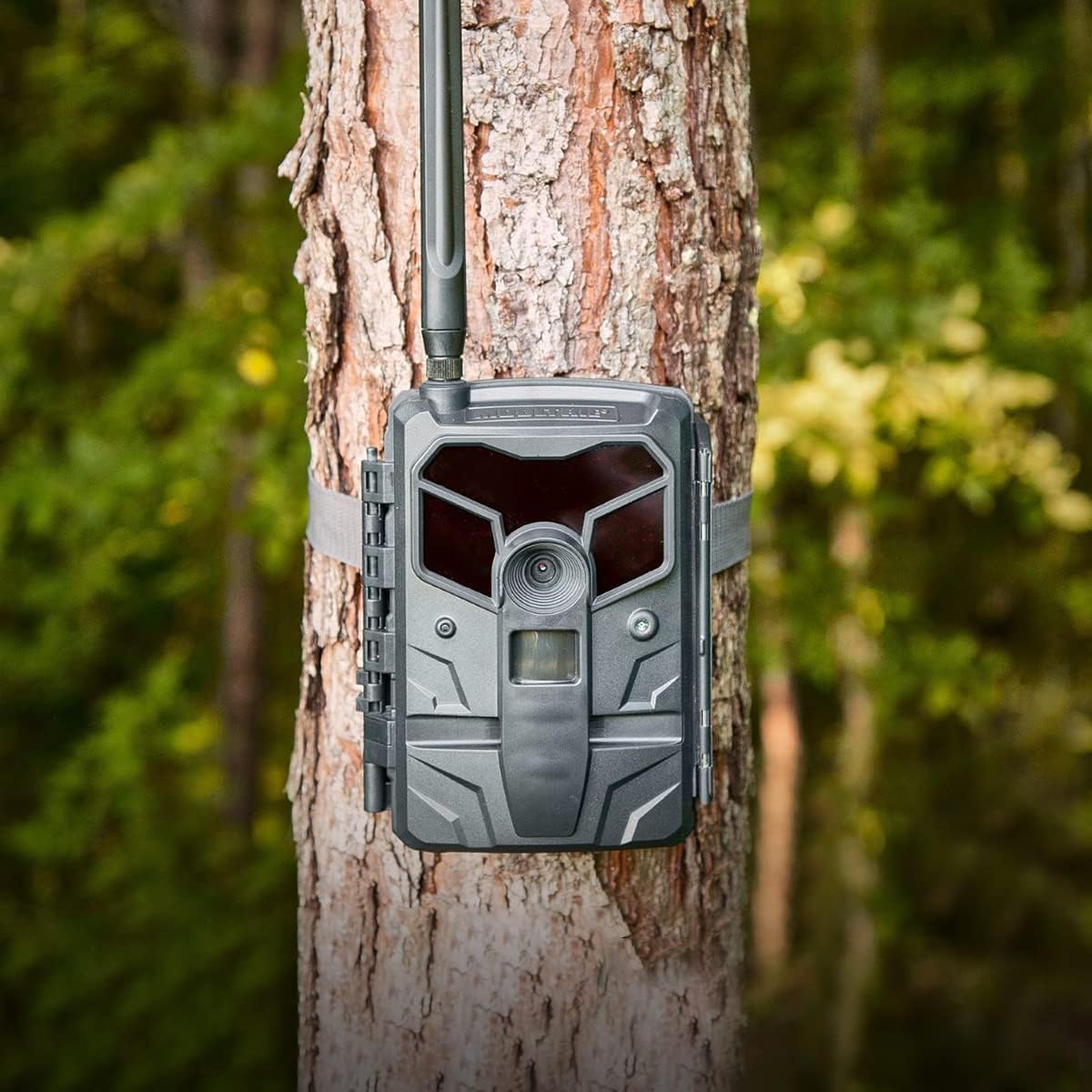
Image 3.2: The Moultrie Mobile Exo Cellular Trail Camera securely mounted to a tree using the provided strap, ready for deployment.

Image 3.3: The camera mounted on a fence, demonstrating its versatility for security and property monitoring applications.
4. Operating Instructions
4.1. Powering On/Off
Once batteries and SD card are installed, close the camera housing. The camera will automatically power on or can be manually switched on via an internal switch (refer to the camera's internal labels for exact switch location).
4.2. Camera Settings
Camera settings are primarily managed remotely through the Moultrie Mobile app. This allows for adjustments without disturbing the camera's location.
- Resolution: The camera captures images at 18 Megapixel resolution, with an effective still resolution up to 24 MP.
- Trigger Speed: Features a 0.75-second trigger speed to capture fast-moving subjects.
- Detection Range: Detects motion up to 70 feet.
- Invisible Flash Range: Provides an invisible IR flash range of 70 feet for discreet night imaging.
- Field of View: Offers a 42-degree field of view.
4.3. Using the Moultrie Mobile App
The Moultrie Mobile app provides comprehensive control and monitoring capabilities.
- Remote Settings: Adjust camera settings (e.g., photo delay, capture mode) from your mobile device.
- Image Viewing & Cloud Storage: View captured images and videos directly on your phone. All plans include free, unlimited cloud storage.
- Activity Charting: Analyze game activity based on time of day, temperature, and moon phase to identify optimal hunting times.
- Species Recognition (Smart Tag A.I.): Automatically tags images for various species (buck, doe, deer, turkey, person, vehicle, hog, bear, bobcat, coyote) for easy filtering and notifications.
- Interactive Maps: Plan and manage your property by dropping pins for treestands, food plots, blinds, and other points of interest.
- Weather Forecast: Access hourly and daily weather forecasts, including wind direction, relevant for outdoor activities.
- Real-time Alerts: Receive instant notifications for detected motion or other events.

Image 4.1: Screenshots illustrating the Moultrie Mobile App's interface, showing features like activity charting, image gallery, and weather data.
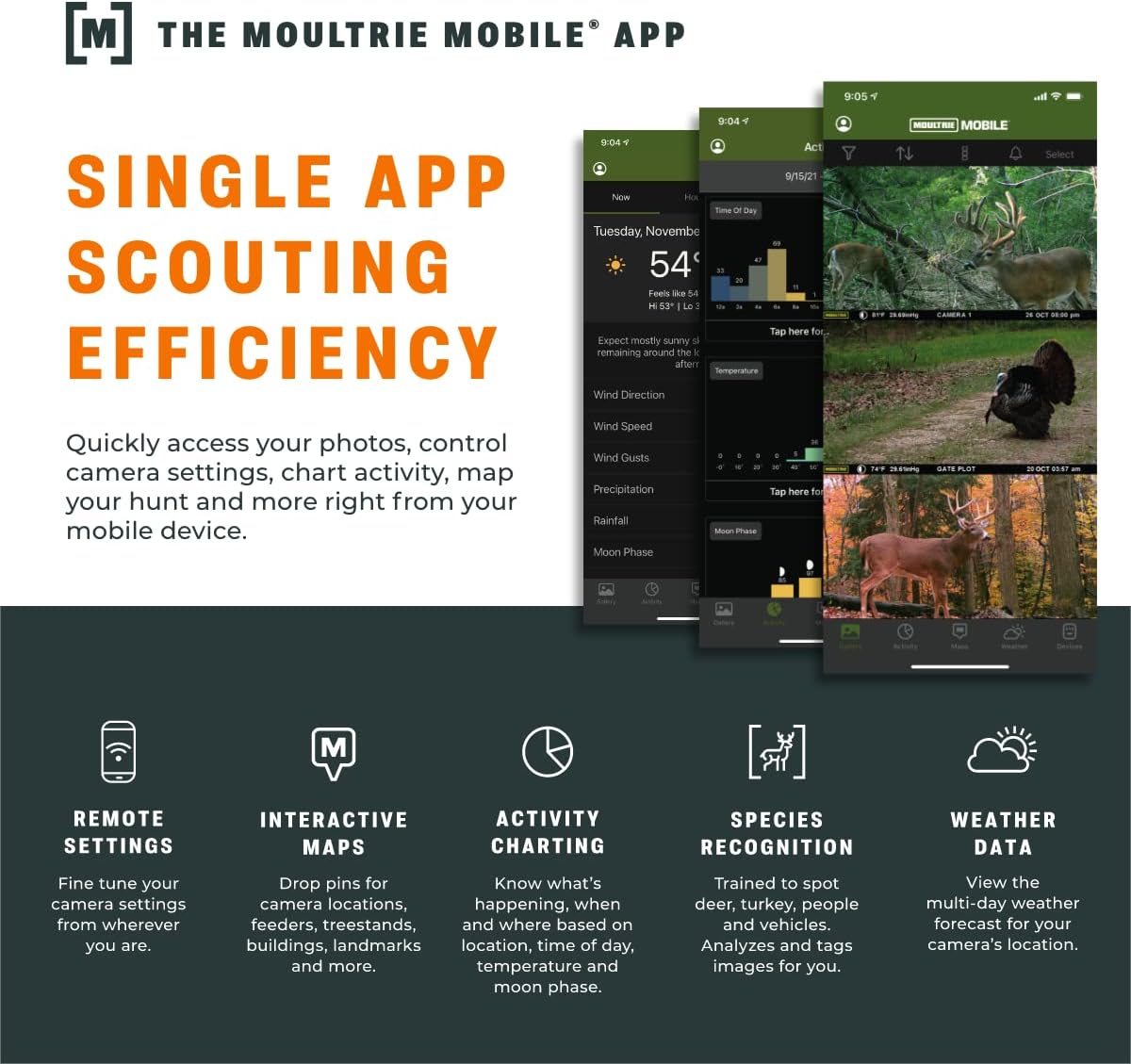
Image 4.2: Examples of images captured by a trail camera, demonstrating both daytime clarity and effective nighttime infrared capture of wildlife.

Image 4.3: Examples of remote property monitoring, showing images of a lakefront property and a garage interior captured by a trail camera.
5. Maintenance
5.1. Battery Replacement
Regularly check battery levels via the Moultrie Mobile app. Replace all 12 AA batteries simultaneously to ensure consistent power and prevent issues.
5.2. SD Card Management
Although images are stored in the cloud, the SD card is crucial for camera operation. Periodically format the SD card (using the camera's internal menu or a computer) to maintain optimal performance and prevent data corruption. Ensure all desired images are backed up before formatting.
5.3. Cleaning the Camera
Keep the camera lens, IR sensors, and motion sensor clear of dirt, dust, and debris. Use a soft, dry cloth for cleaning. Avoid abrasive materials or harsh chemicals.
6. Troubleshooting
- Camera not powering on: Ensure batteries are correctly installed with proper polarity and are not depleted. Check that the SD card is inserted correctly.
- No images being sent to app: Verify cellular signal strength in the camera's location. Confirm an active Moultrie Mobile subscription plan. Check SD card for errors or if it's full. Ensure camera settings are configured to send images.
- Poor image quality: Clean the camera lens. Ensure the camera is not too close or too far from the subject. Check for obstructions in front of the lens or IR sensors.
- Short battery life: Use high-quality alkaline or lithium batteries. Reduce the frequency of image transmission or adjust camera settings (e.g., photo burst, video length) if applicable. Consider using an external 12-volt solar power source.
- Connectivity issues: Ensure the Cellboost antenna is securely attached. Confirm the camera is within Verizon 4G LTE coverage. If issues persist, contact Moultrie Mobile customer support.
7. Specifications
| Feature | Detail |
|---|---|
| Model Name | Moultrie Mobile EXO Cellular Trail Camera | Verizon |
| Model Number | MCG-14048 |
| Resolution | 18 Megapixel (Effective Still Resolution: 24 MP) |
| Trigger Speed | 0.75 seconds |
| Detection Range | 70 feet |
| Invisible Flash Range | 70 feet |
| Field of View | 42 degrees |
| Power Requirements | 12 AA batteries (not included) |
| External Power Port | 12-volt (for external solar power) |
| SD Card Support | Up to 32 GB (not included) |
| Cellular Network | Verizon 4G LTE |
| Connectivity Technology | Wireless (Wi-Fi for app communication, Cellular for data) |
| Indoor/Outdoor Usage | Outdoor |
| International Protection Rating | IP54 |
| Material | Plastic |
| Color | Gray |
| UPC | 053695140483 |
8. Warranty and Support
8.1. Product Warranty
The Moultrie Mobile Exo Cellular Trail Camera comes with a 2-year manufacturer's warranty.
8.2. Customer Support
For technical assistance, troubleshooting, or warranty claims, please contact Moultrie Mobile customer service. Their U.S.-based team is available 7 days a week, from 7 AM to 7 PM CST, via phone, chat, and email.
Refer to the Moultrie Mobile website for current contact information.
Ask a question about this manual
Ask about setup, troubleshooting, compatibility, parts, safety, or missing instructions. Manuals+ will review the question and use this page’s manual context to help answer it.