Introduction
This manual provides comprehensive instructions for the Carista OBD2 Bluetooth Scanner (Model COBD-BT25). It covers device setup, operational procedures, maintenance guidelines, troubleshooting common issues, and detailed product specifications. The Carista OBD2 Scanner is designed to provide access to vehicle diagnostics, customizations, service tools, and live data through a compatible mobile application.
Product Overview
The Carista OBD2 Scanner is a compact Bluetooth device that connects to your vehicle's On-Board Diagnostics (OBD-II) port. When paired with the Carista mobile application (available for Android and iOS), it enables users to perform various functions related to vehicle health and customization.

Image: The Carista OBD2 Scanner device shown alongside a smartphone displaying the Carista app interface, highlighting its compact design and digital integration.
Key Features
- Comprehensive Diagnostics: Read and clear fault codes from various vehicle systems.
- Customizations: Modify vehicle settings such as interior lighting, engine parameters, and more (requires subscription).
- Service Tools: Perform maintenance tasks like service indicator resets and electronic parking brake service (requires subscription).
- Live Data Monitoring: View real-time engine parameters and sensor readings.
- Bluetooth Connectivity: Wireless connection to your smartphone or tablet.
- Wide Compatibility: Supports various car brands and models, including Toyota, Nissan, Lexus, Infiniti, VW, Audi, SEAT, Skoda, BMW, and Mini.
Setup Guide
Step 1: Locate the OBD-II Port
The OBD-II port is typically located under the dashboard on the driver's side, often near the steering column. Refer to your vehicle's owner's manual if you have difficulty locating it.

Image: A hand plugging the Carista OBD2 Scanner into the vehicle's OBD port, demonstrating the first step of installation.
Step 2: Plug in the Carista OBD2 Scanner
Firmly insert the Carista OBD2 Scanner into the vehicle's OBD-II port. Ensure it is securely seated. Once plugged in, turn your vehicle's ignition to the "ON" position (do not start the engine).
Step 3: Download and Install the Carista App
Download the official Carista App from the Apple App Store (for iOS devices) or Google Play Store (for Android devices). Search for "Carista OBD2" to find the correct application.
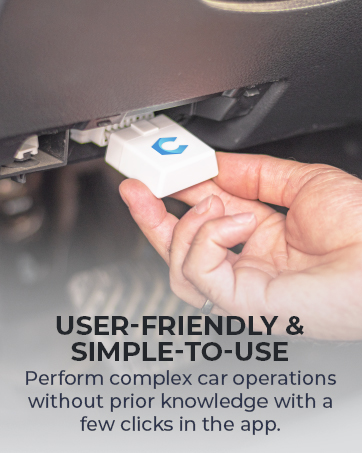

Image: Icons representing the availability of the Carista app on both Google Play Store and Apple App Store.
Step 4: Pair the Device via Bluetooth
Enable Bluetooth on your mobile device. Open the Carista App. The app will guide you through the process of connecting to the Carista OBD2 Scanner. You may need to create an account within the app.

Image: A smartphone screen showing the Carista app interface with a "Connect" button, indicating the process of pairing the device via Bluetooth.
Step 5: Explore Features and Activate Subscription (Optional)
Once connected, you can explore the basic OBD2 features. For advanced diagnostics, customizations, service tools, and live data, a paid subscription to the Carista App is required. Follow the in-app prompts to choose a subscription plan (1-month or 12-month).
Operating Instructions
The Carista App provides a user-friendly interface to access the scanner's functionalities. Ensure your device is connected to the Carista OBD2 Scanner and your vehicle's ignition is on before performing any operations.
Diagnostics
This section allows you to read and clear fault codes (DTCs) from various electronic control units (ECUs) in your vehicle. This includes engine, ABS, airbags (SRS), transmission, and more.
- To perform a diagnostic scan: Navigate to the "Diagnose" section in the app and initiate a scan.
- To clear fault codes: After reviewing the codes, select the option to clear them. Ensure you understand the cause of the fault before clearing.

Image: A smartphone screen displaying the Carista app's diagnostics section, showing the number of ECUs scanned and faults detected.
Customizations
This feature allows you to personalize various settings in your vehicle, such as lighting behavior, door lock/unlock options, instrument cluster displays, and more. Availability of customizations depends on your vehicle's make, model, and year.
- To access customizations: Go to the "Customize" section.
- To apply a customization: Select the desired setting and follow the on-screen prompts to apply the change.
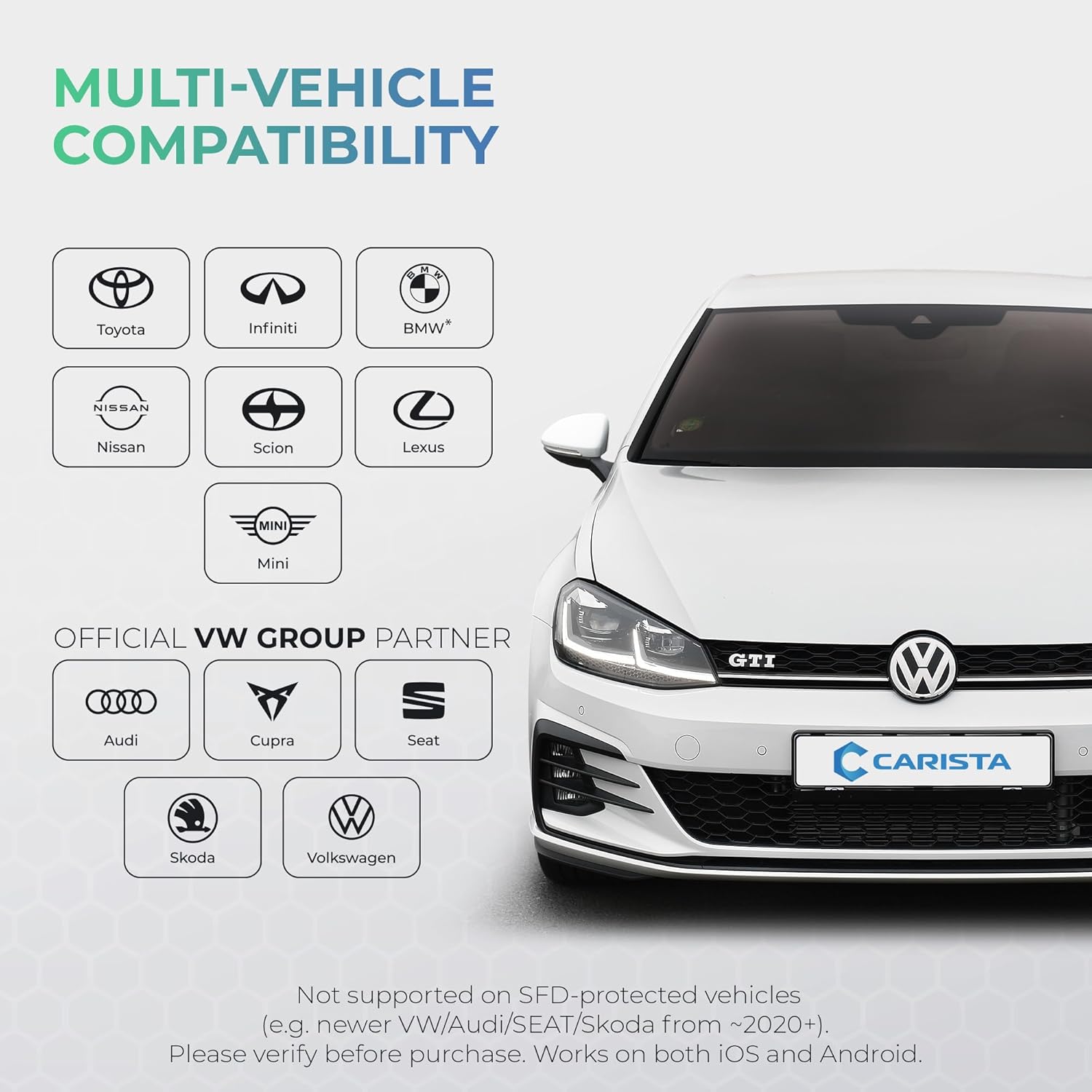
Image: A smartphone screen showing the Carista app's customization menu, listing various categories for vehicle settings.
Service Tools
The service tools enable you to perform maintenance procedures that typically require a visit to a workshop. Examples include resetting service indicators, electronic parking brake service, and battery registration.
- To use a service tool: Select the "Service" section and choose the required procedure.
- Follow all on-screen instructions carefully to avoid errors.
Live Data
Monitor real-time parameters from your vehicle's sensors and ECUs. This can include engine RPM, coolant temperature, vehicle speed, oxygen sensor readings, and more. Live data is useful for diagnosing intermittent issues or monitoring vehicle performance.
- To view live data: Access the "Live Data" section in the app and select the parameters you wish to monitor.
Maintenance
The Carista OBD2 Scanner requires minimal maintenance. Follow these guidelines to ensure its longevity and optimal performance:
- Storage: Store the device in a cool, dry place away from direct sunlight and extreme temperatures when not in use.
- Cleaning: Wipe the device with a soft, dry cloth. Do not use liquid cleaners or solvents.
- Handling: Avoid dropping the device or subjecting it to strong impacts.
- Firmware Updates: Periodically check the Carista App for firmware updates for the scanner. Updates can improve performance and add new features.
Troubleshooting
| Problem | Possible Cause | Solution |
|---|---|---|
| Device not connecting to app. | Bluetooth is off; device not properly seated; ignition not on; app permissions. | Ensure Bluetooth is enabled on your phone. Re-insert the scanner firmly into the OBD-II port. Turn vehicle ignition to "ON". Check app permissions for Bluetooth access. Restart the app or your phone. |
| App shows "Not Supported" for a feature. | Vehicle incompatibility; feature requires subscription. | Verify your vehicle's compatibility on the Carista website or using the Amazon Confirmed Fit tool. Ensure you have an active subscription for advanced features. |
| Fault codes reappear after clearing. | Underlying mechanical or electrical issue. | Clearing codes only resets the warning light; it does not fix the problem. Address the root cause of the fault. Consult a qualified mechanic if necessary. |
| Slow data readings or app response. | Weak Bluetooth signal; outdated app/firmware; phone performance. | Ensure your phone is close to the scanner. Update the Carista App and scanner firmware. Close other apps on your phone. |
Specifications
| Attribute | Detail |
|---|---|
| Model Number | COBD-BT25 |
| Connectivity | Bluetooth |
| Supported Operating Systems | Android, iOS |
| Dimensions (L x W x H) | 3.94 x 2.76 x 1.57 inches |
| Weight | 2.46 ounces |
| Manufacturer | Carista |
| Supported Protocols | Standard OBD-II protocols, HS-CAN (specific to some features) |
Warranty and Support
Warranty Information
The Carista OBD2 Scanner includes a 2-year assurance plan. For specific warranty terms and conditions, please refer to the official Carista website or contact Carista customer support directly.
Customer Support
If you encounter issues or have questions not covered in this manual, please contact Carista customer support through the following channels:
- In-App Reporting: Use the support features within the Carista App.
- Email: Refer to the Carista official website for their support email address.
- Social Media: Carista often provides support through their official social media channels.

Image: A laptop screen illustrating various channels for Carista customer support, including email, social media, and in-app reporting.