Introduction
The BTXETUEL 12 Key Mechanical Gaming Keyboard is a compact, programmable one-handed keypad designed for gaming, productivity, and custom shortcut applications. Featuring Outemu Red Speed Switches and USB-C wired connectivity, this device offers a responsive and customizable experience across various operating systems.
Package Contents
- 1 x BTXETUEL 12 Key Mechanical Gaming Keyboard
- 1 x USB Cable
Product Features
- Equipped with 12 Outemu Red Speed Switches for responsive keystrokes.
- Functions as a standard HID keyboard, offering plug-and-play compatibility without requiring drivers.
- Compatible with Windows, Linux, MacOS, Android, and Raspberry Pi operating systems.
- Supports extensive custom key programming, including shortcut keys, multi-step operations, multi-key combinations, copy/paste, cut, undo, redo, select all, media controls (play, pause, volume, switch song, forward, backward), and custom scripts.
- Each button can be configured with a unique function mode independently.
- Advertised as hot-swappable, allowing for switch customization.
Setup
1. Hardware Connection
Connect the provided USB-C cable to the port on the back of the 12-key keyboard and the other end to an available USB port on your computer. The keyboard is plug-and-play and should be recognized automatically by your operating system.

Figure 1: USB-C Interface for connection.
2. Software Configuration
To program the keys and customize settings, use the dedicated configuration software. This software is primarily designed for Windows systems, but a web-based interface is available for Windows, MacOS, and Linux users.
- Windows Software Download: An upgraded software version can be downloaded from https://dl.sayobot.cn/setting_v2.zip. During installation, Windows Firewall may issue a warning; this software is safe to use.
- Web-based Configuration: For cross-platform compatibility, access the configuration tool via SayoDevice.com. It is recommended to use a Google Chrome browser for optimal performance.

Figure 2: Software and Web-based configuration options.
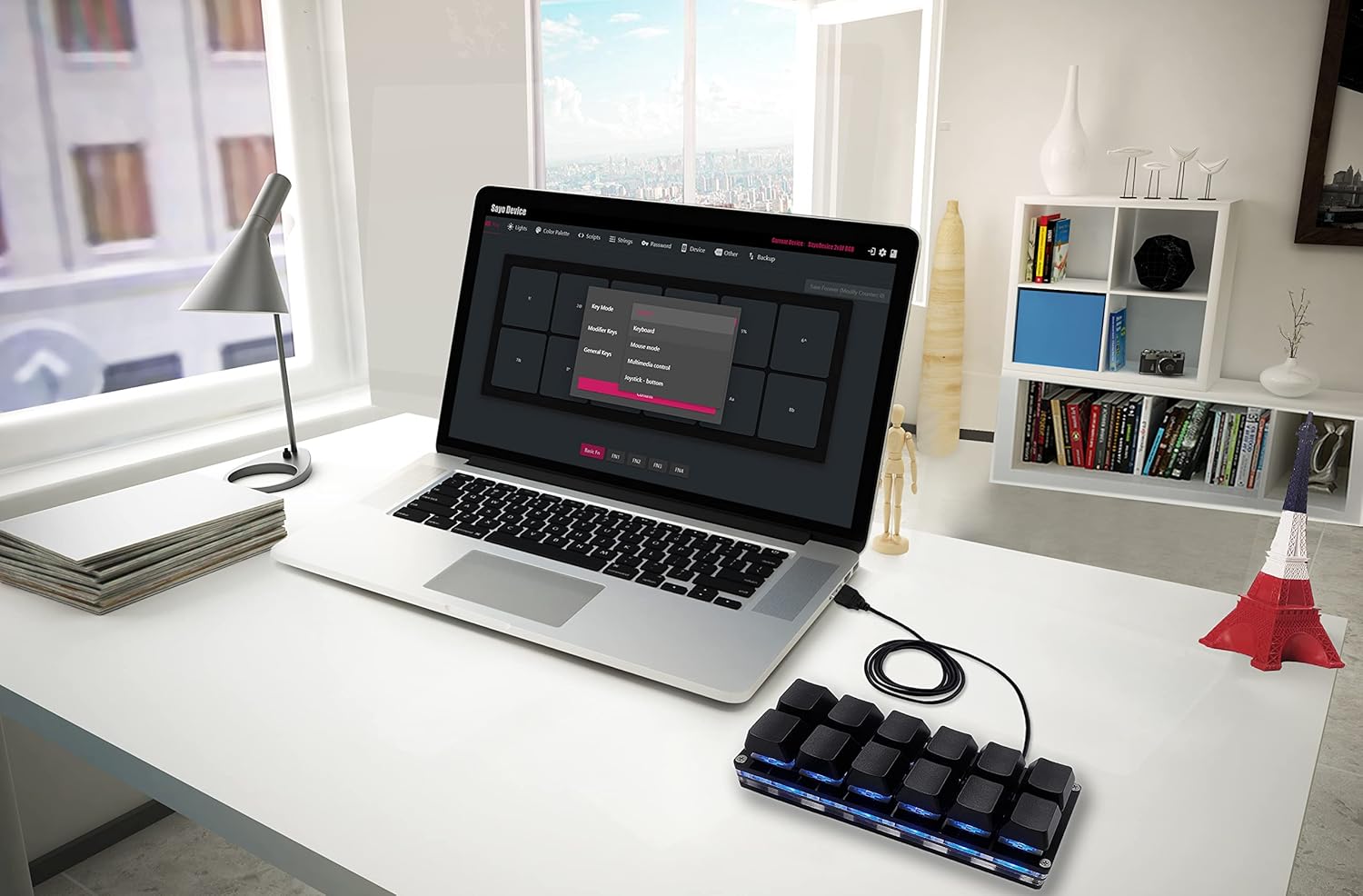
Figure 3: SayoDevice web interface for key programming.
Operating Instructions
1. Key Programming
Utilize the configuration software or web interface to assign functions to each of the 12 keys. The software allows for a wide range of customizations:
- Single Key/Shortcut: Assign a single key press or a combination (e.g., Ctrl+C).
- Multi-step Operation/Macros: Create sequences of key presses and releases. Ensure to define both press and release actions for each step in a macro.
- Media Controls: Assign functions like play, pause, volume up/down, next/previous track.
- Custom Scripts: Implement more complex actions.
Important: After making any changes to key assignments or settings, always click the "Save Settings" button within the software or web interface to ensure your configurations are stored on the device.
2. RGB Lighting Customization
The keyboard features RGB backlighting with a custom color palette. Use the configuration software to adjust lighting effects, colors, and brightness to personalize your device.

Figure 4: RGB backlighting in operation.
Maintenance
1. Cleaning
To clean the keyboard, disconnect it from your computer. Use a soft, dry cloth to wipe down the keycaps and casing. For deeper cleaning, you may carefully remove keycaps and use compressed air to clear debris from beneath them.
2. Key Switch Information
The keyboard comes with Outemu Red Speed Switches. While the product is advertised as "hot swappable," some user reports indicate that the switches may be soldered. Please verify the switch type and mounting method on your specific unit before attempting to remove or replace switches to avoid damage.

Figure 5: Outemu Red Switches.
Troubleshooting
- Keyboard Not Responding: Ensure the USB-C cable is securely connected to both the keyboard and your computer. Try a different USB port or cable.
- Settings Not Saving: Always click the "Save Settings" button in the configuration software/web interface after making changes. If issues persist, try restarting the software or your computer.
- Software/Web Interface Issues: Some users have reported occasional bugs or partial translations in the software. Ensure you are using the latest version of the software or a recommended browser (Google Chrome) for the web interface. If the web interface shows "running..." or a black page, try closing and reopening your browser or the local server process if applicable.
- Unexpected Disconnections: If the keyboard frequently disconnects, check the USB-C cable for damage or try connecting to a different USB port.
- Key Functions Incorrect: Re-open the configuration software and verify your key assignments. Ensure macros are correctly defined with both press and release actions.
If you encounter persistent issues not covered here, please refer to the Warranty and Support section for assistance.
Specifications
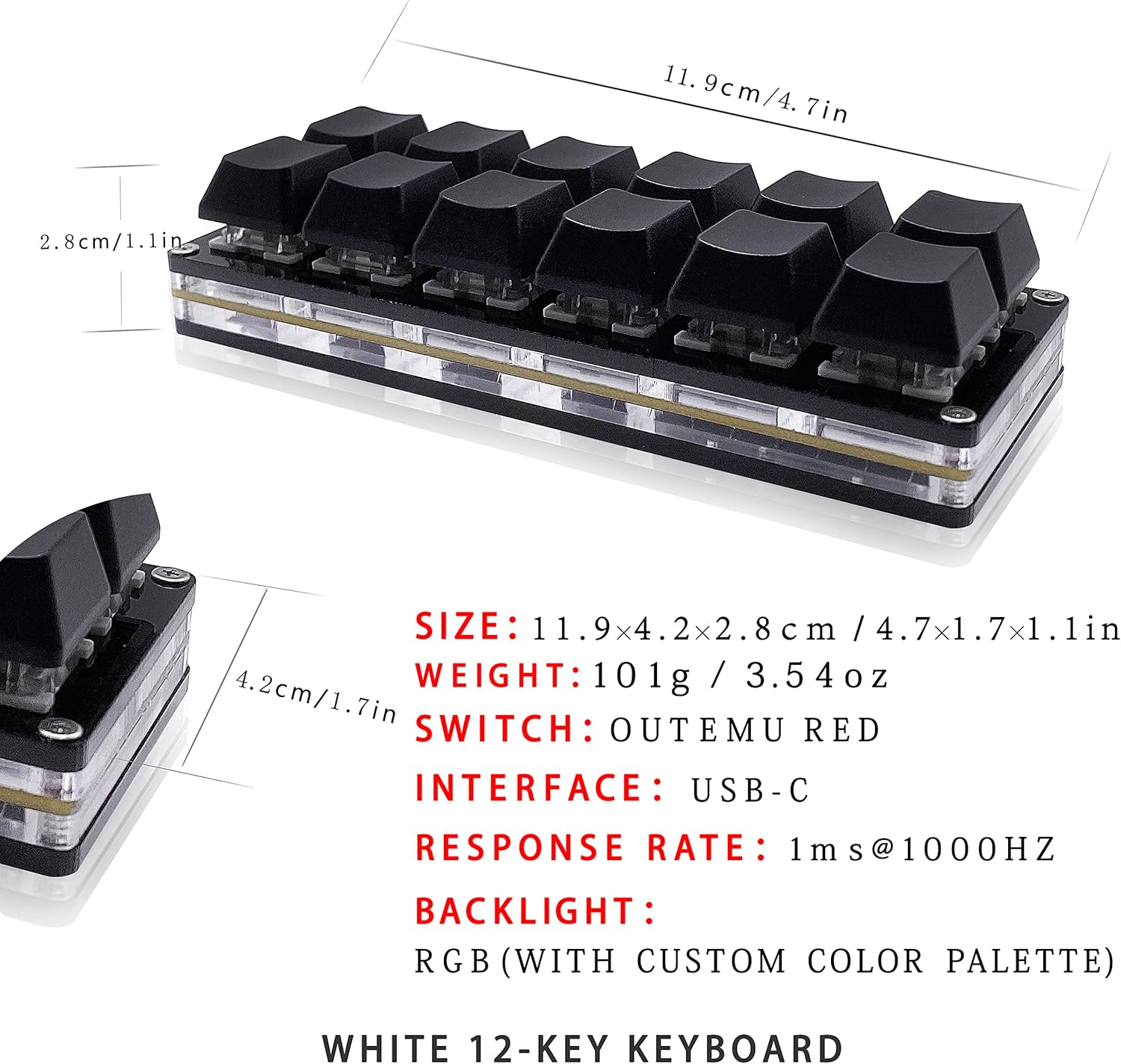
Figure 6: Product dimensions and key specifications.
| Feature | Detail |
|---|---|
| Product Dimensions | 4.6 x 1.7 x 1.1 inches (11.9 x 4.2 x 2.8 cm) |
| Item Weight | 4 ounces (101g) |
| Switches | Outemu Red Speed Switches |
| Connectivity Technology | USB-C Wired |
| Response Rate | 1ms@1000Hz |
| Backlight | RGB (with custom color palette) |
| Compatible Devices | PC (Windows, Linux, MacOS, Android, Raspberry Pi) |
| Material | Acrylonitrile Butadiene Styrene |
| Special Feature | Programmable, Hot Swappable (as advertised) |
Warranty and Support
For any product-related issues, technical support, or warranty inquiries, please contact BTXETUEL customer service. Refer to your purchase documentation or the BTXETUEL official website for specific contact information and warranty terms.


