
XTRONS Android12 10-inch Car Navigation System
User Manual - Model: TIE Series + JT2HD
Brand: XTRONS
1. Introduction
This manual provides detailed instructions for the installation, operation, and maintenance of your XTRONS Android12 10-inch Car Navigation System. This advanced 2DIN unit integrates a powerful 8-core processor, 2GB RAM, 32GB ROM, a DVD player, 4G communication, full-seg digital TV tuner, and supports both Apple CarPlay and Android Auto. Please read this manual thoroughly before use to ensure proper operation and to maximize your driving experience.

Figure 1.1: XTRONS Android12 Car Navigation System with included accessories.
2. Safety Information
Always prioritize safety. Improper installation or operation can lead to accidents or damage. Adhere to all local traffic laws and regulations.
- Do not operate the system while driving. Distracted driving can cause serious injury or death.
- Ensure professional installation to prevent electrical issues or damage to your vehicle.
- Keep the unit away from water and excessive moisture.
- Do not attempt to disassemble or modify the unit. This will void the warranty and may cause damage.
- Use only specified power voltage (DC 12V, operable within 10.8V to 16V).
3. Package Contents
Verify that all items are present in the package:
- XTRONS Android12 Head Unit
- Digital TV Tuner (JT2HD)
- Remote Control
- Power Cables (ISO Power Cable)
- USB Cables (2x)
- GPS Antenna
- 4G Antenna
- RCA Cables (Audio/Video Input/Output)
- Microphone
- User Manual (PDF version available online)
- Mounting Hardware (screws, brackets)
4. Setup and Installation
Professional installation is highly recommended. Refer to the wiring diagram for proper connections.
4.1 Wiring Connections
Connect all necessary cables according to the provided wiring diagram. Ensure secure connections for power, speakers, antennas, and external devices.

Figure 4.1: Main Wiring Diagram. Refer to this for all electrical connections.

Figure 4.2: RCA and IR Connection for Digital TV Tuner. Connect the red/yellow/white RCA terminals from the main unit to the tuner via the conversion cable. Connect the black touch linkage terminal to the tuner's IR receiving terminal (3.5mm black connector). Note: Using this method, the JT2HD remote control will not operate the TV; only touch operation will be available.
- ISO Power Cable: Connect Yellow to Battery Positive, Black to Battery Negative, Red to ACC Power, Orange to Illumination.
- Speaker Connections: Ensure correct polarity for all speakers (Front Left/Right, Rear Left/Right).
- Antennas: Connect 4G and GPS antennas to their respective ports.
- USB Ports: Two USB ports are available for data transfer and device connection.
- Micro SD Slot: Supports up to 64GB.
- External Microphone: Connect for improved call quality.
- Backup Camera Input: Connect your backup camera for automatic display when reversing.
- Steering Wheel Control: Connect to your vehicle's steering wheel control wires (KEY1, KEY2) for integrated control.
4.2 Initial Power On
After completing all connections, turn on your vehicle's ignition. The unit should power on automatically. Follow the on-screen prompts for initial setup.
4.3 Network Connection
The unit supports 4G communication, Wi-Fi, and USB tethering for internet access.
- 4G SIM: Insert a micro SIM card into the designated slot. The unit will automatically connect to the 4G network. (Supports NTT Docomo and Softbank lines; au lines are not supported).
- Wi-Fi: Go to Settings > Network & Internet > Wi-Fi to connect to an available Wi-Fi network.
- USB Tethering: Connect your smartphone via USB and enable USB tethering on your phone to share its internet connection.

Figure 4.3: 4G LTE and Tethering Options. Max download speed up to 300Mbps.
4.4 Bluetooth Pairing
Enable Bluetooth on your smartphone and on the XTRONS unit (Settings > Connected devices > Bluetooth). Search for available devices on your phone and select the XTRONS unit to pair. This enables hands-free calling and Bluetooth music streaming.

Figure 4.4: Bluetooth 5.0 Interface. Enjoy faster and more stable connections for calls and music.
5. Operating Instructions
5.1 Basic Operations
The unit features a responsive 10.1-inch touchscreen for intuitive control. You can also use the included remote control or your vehicle's steering wheel controls (if connected).

Figure 5.1: Steering Wheel Control. Operate the unit easily without taking your eyes off the road.
5.2 DVD Player
Insert a DVD or CD into the disc slot. The unit will automatically detect and play the media. The monitor angle can be adjusted for optimal viewing.

Figure 5.2: Built-in DVD Player and Adjustable Monitor Angle.
5.3 Digital TV (Full-Seg)
The integrated 4x4 high-sensitivity full-seg tuner allows you to enjoy digital TV. You can operate the TV functions directly on the touchscreen or via a dedicated DTV app (if installed and configured for touch linkage).

Figure 5.3: Digital TV Touch Operation.
5.4 Apple CarPlay & Android Auto
Connect your iPhone for wireless CarPlay or your Android phone for wired/wireless Android Auto. This allows seamless integration of your smartphone's features like navigation, calls, and music onto the unit's display. (Note: Video apps may not be supported via CarPlay/Android Auto).
- CarPlay: Connect wirelessly via Bluetooth.
- Android Auto: Connect wirelessly via Bluetooth or via USB cable.
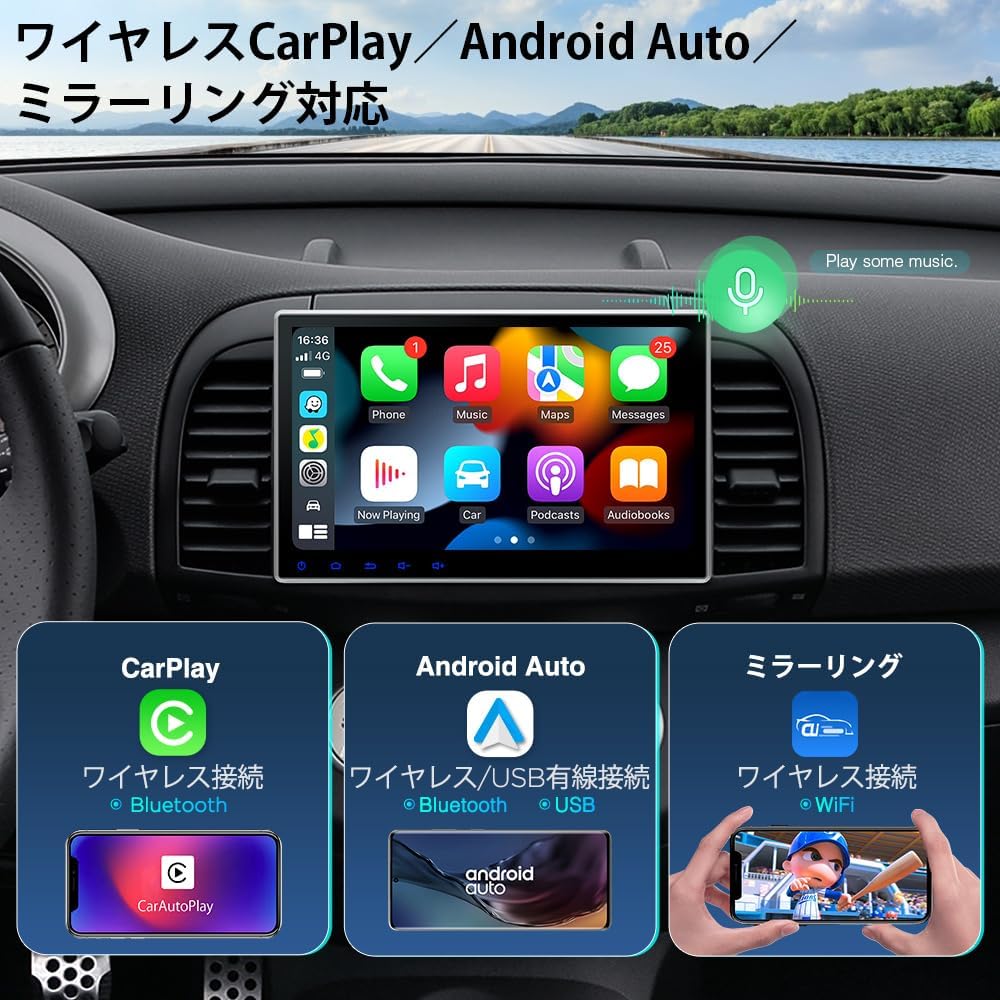
Figure 5.4: Wireless CarPlay / Android Auto / Mirroring Compatibility.

Figure 5.5: CarPlay and Android Auto Interfaces.
5.5 Screen Mirroring
Use the built-in "Carbilink" app to mirror your smartphone's screen onto the unit. This allows you to display photos, music, and videos from your phone directly on the large screen.

Figure 5.6: Screen Mirroring Functionality.
5.6 GPS Navigation
The unit comes with a GPS antenna for accurate positioning. You can download and use your preferred navigation apps (e.g., Google Maps) from the built-in Play Store once connected to the internet.
5.7 Multi-Window Display
The multi-window feature allows you to run two applications simultaneously on the screen, enhancing multitasking convenience. (Compatibility may vary with certain apps).
5.8 Audio/Video Output
Utilize the USB to RCA converter to output all screen content, including DVD video and online video apps, to external monitors (e.g., rear seat displays).

Figure 5.7: Full Screen Output to External Monitor.
6. Maintenance
To ensure the longevity and optimal performance of your XTRONS unit, follow these maintenance guidelines:
- Clean the screen regularly with a soft, lint-free cloth. Do not use abrasive cleaners or solvents.
- Keep the unit free from dust and debris.
- Avoid exposing the unit to extreme temperatures or direct sunlight for prolonged periods.
- Ensure proper ventilation around the unit to prevent overheating.
7. Troubleshooting
If you encounter issues with your unit, refer to the following common problems and solutions:
| Problem | Possible Cause / Solution |
|---|---|
| Unit does not power on. | Check power cable connections (Yellow, Red, Black). Ensure vehicle ignition is on. Check vehicle's fuse box. |
| No sound. | Check speaker connections. Ensure volume is not muted or too low. Verify audio output settings. |
| GPS signal lost or inaccurate. | Ensure GPS antenna is properly connected and has a clear view of the sky. Move vehicle to an open area. |
| Bluetooth connection issues. | Ensure Bluetooth is enabled on both devices. Delete previous pairings and re-pair. Restart both devices. |
| Touchscreen unresponsive. | Restart the unit. If problem persists, contact customer support. |
| Digital TV not receiving channels. | Ensure TV antenna is properly connected. Perform a channel scan. Check signal strength in your area. |
For further assistance, please contact XTRONS customer support.
8. Specifications
| Feature | Specification |
|---|---|
| Model Number | TIE Series + JT2HD |
| Operating System | Android 12 |
| CPU | 8-Core (2.0-2.5Ghz, 14nm, 32/64bit app compatible) |
| RAM | 2GB |
| ROM | 32GB |
| Display Size | 10.1 inches |
| Display Type | IPS LCD |
| Resolution | 1024x600 |
| Connectivity | 4G (SIM slot), Wi-Fi, Bluetooth 5.0, USB, AUX |
| DVD Player | Built-in, supports commercial DVDs/CDs |
| Digital TV Tuner | 4x4 Full-Seg |
| CarPlay | Wireless (iPhone) |
| Android Auto | Wireless/Wired |
| USB/TF Support | Up to 64GB |
| Audio Output | 4*45W |
| Operating Voltage | DC 12V (10.8V ~ 16V) |
| Dimensions (W×D×H) | 17.9 × 15.8 × 10 cm |
| Weight | 2.2 kg |
9. Warranty and Support
Your XTRONS Car Navigation System comes with a 1-year warranty. For any questions or issues, please contact XTRONS customer support via email. A PDF version of the Japanese user manual is available for download at: https://xtrons.com/community/index.php/user-manuals-japanese/.