
1. Introduction
Thank you for choosing the AULA F3050 Wireless Mechanical Keyboard. This full-size keyboard offers a versatile experience with its dual-mode connectivity, hot-swappable mechanical switches, and customizable PBT keycaps. Designed for both gaming and productivity, it provides a responsive and comfortable typing experience. This manual will guide you through the setup, operation, and maintenance of your new keyboard.

2. Package Contents
Please verify that all items are present in your package:
- AULA F3050 Wireless Mechanical Keyboard
- USB-C to USB-A Cable
- 2.4G USB Receiver
- Keycap Puller
- Switch Puller
- Additional PBT Keycaps (10 pieces)
- Extra Mechanical Switches (4 pieces)
- User Manual (this document)
3. Setup Guide
3.1 Wired Connection
- Locate the USB-C port on the keyboard, typically on the top edge.
- Connect the provided USB-C cable to the keyboard.
- Connect the USB-A end of the cable to an available USB port on your computer.
- The keyboard will automatically be recognized by your system and is ready for use.
3.2 Wireless Connection (2.4G)
- Locate the 2.4G USB receiver. It may be stored in a magnetic slot on the keyboard, usually near the ESC key.
- Insert the 2.4G USB receiver into an available USB port on your computer.
- On the underside of the keyboard, locate the small black switch. Slide this switch to the 'ON' position to activate wireless mode.
- The keyboard should automatically connect to the receiver. If not, ensure the receiver is properly inserted and the keyboard is sufficiently charged.


4. Operating Instructions
4.1 Power On/Off and Charging
- To power on or off the keyboard, use the small black switch located on the underside of the keyboard.
- Connect the USB-C cable to the keyboard and a power source (e.g., computer USB port, wall adapter) to charge. The charging indicator light is located under F12.
- The keyboard has a 2000mAh battery, providing approximately 10 hours of service time and requiring about 4 hours for a full charge.

4.2 Backlight Modes and Adjustment
The AULA F3050 features 8 distinct backlighting modes. Use the designated function keys to cycle through modes and adjust brightness.
- Fn + INS: Cycle through different backlight effects (e.g., Streamer, Raindrop, Instant Touch, Breathing, Lighting, Snow Treading, Serpentine Runner, Following The Shadow).
- Fn + ↑ / ↓: Adjust backlight brightness.

4.3 Multimedia Shortcuts
Access 20 multimedia shortcuts by pressing the Fn key in combination with the corresponding function key (F1-F12) or other designated keys.

4.4 Metal Scroll Wheel
The metal scroll wheel located on the top right of the keyboard provides quick access to various functions:
- Volume Control: Rotate to adjust system volume.
- Backlight Adjustment: In certain modes, it can adjust backlight brightness.
- Picture Zoom: In specific picture modes, it can control image zoom.

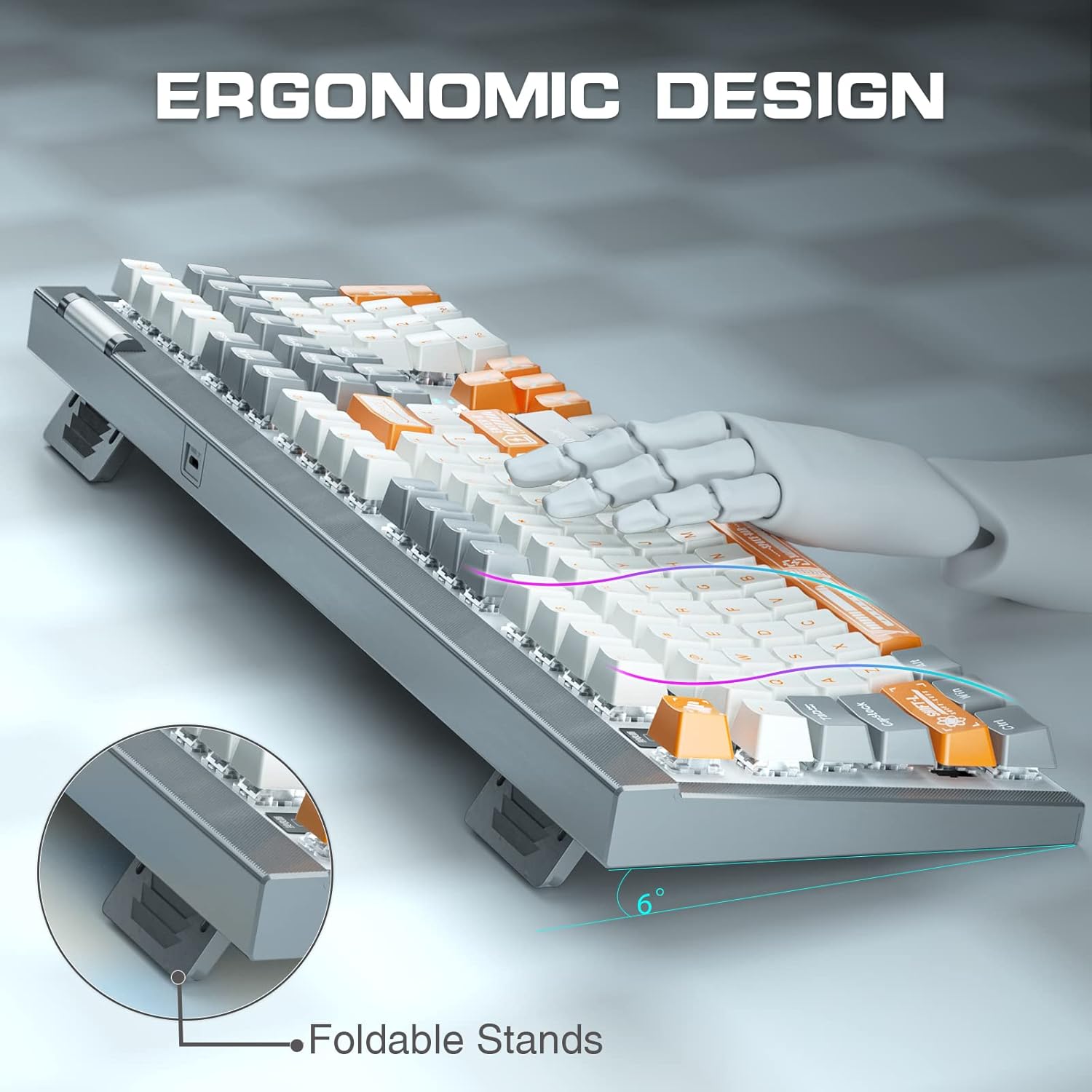
4.5 Ergonomic Design
The keyboard is designed with foldable stands on the underside, allowing you to adjust the typing angle for improved comfort and ergonomics.
4.6 Macro Programming
The AULA F3050 supports full key macro programming, allowing users to customize key functions and create complex command sequences. Refer to the official AULA software for detailed instructions on macro setup and management.
Video 4.1: This video demonstrates the AULA F3050 Hot Swappable Mechanical Wireless & Wired Keyboard, showcasing its features including dual-mode connectivity, hot-swappable switches, and macro programming capabilities.
5. Keycap and Switch Replacement
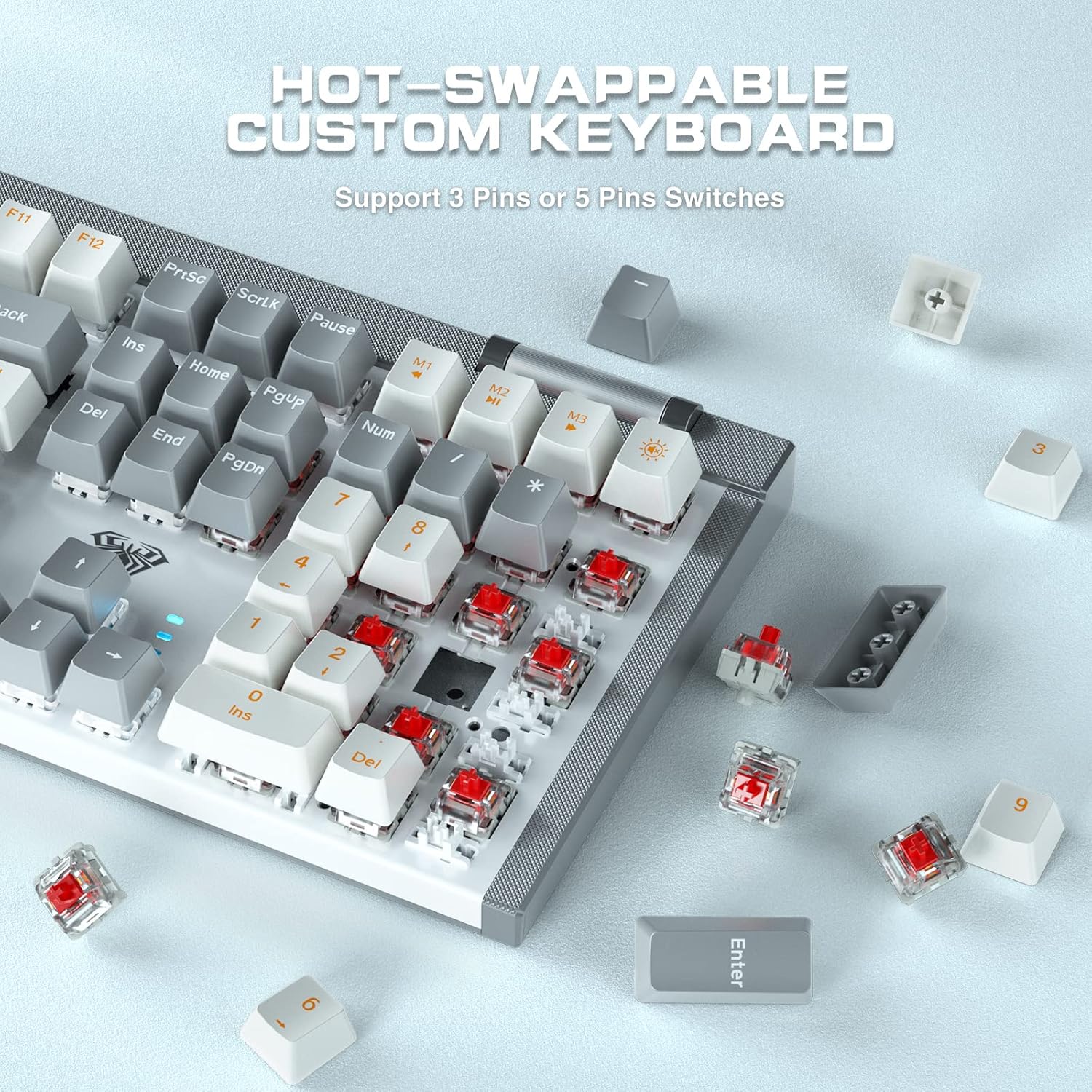
The AULA F3050 features hot-swappable sockets, allowing you to easily change mechanical switches without soldering. It supports both 3-pin and 5-pin switches.
5.1 Removing Keycaps
- Use the provided keycap puller. Place the two loops of the puller under the keycap you wish to remove.
- Gently pull upwards until the keycap detaches from the switch stem.
5.2 Removing Switches
- After removing the keycap, use the provided switch puller.
- Align the prongs of the switch puller with the two clips on the top and bottom sides of the switch housing.
- Squeeze the clips and gently pull the switch upwards until it detaches from the PCB socket.
5.3 Installing New Switches
- Ensure the pins on the new switch are straight. If bent, carefully straighten them with tweezers.
- Align the switch pins with the holes on the PCB socket.
- Gently press the switch down until it clicks into place. Ensure it is seated firmly and evenly.
- Test the switch to ensure it registers correctly.
5.4 Installing New Keycaps
- Align the new keycap with the stem of the installed switch.
- Gently press down until the keycap is securely attached.


6. Maintenance
6.1 General Cleaning
- Regularly clean your keyboard to prevent dust and debris buildup.
- Use a soft brush or compressed air to remove dust from between the keycaps.
- For stubborn dirt, dampen a microfiber cloth with a small amount of isopropyl alcohol and gently wipe the keycaps and keyboard surface. Avoid excessive moisture.
- Ensure the keyboard is powered off and disconnected before cleaning.
6.2 Keycap and Switch Care
- When removing keycaps or switches, do so gently to avoid damaging the components.
- Store spare keycaps and switches in a safe, dry place.
7. Troubleshooting
If you encounter issues with your AULA F3050 keyboard, please refer to the following common solutions:
| Problem | Possible Cause | Solution |
|---|---|---|
| Keyboard not responding (Wired) | Loose USB-C cable connection; Faulty USB port. | Ensure the USB-C cable is securely connected to both the keyboard and the computer. Try a different USB port or cable. |
| Keyboard not responding (Wireless) | Keyboard powered off; Low battery; 2.4G receiver not connected or faulty; Keyboard not in wireless mode. | Ensure the power switch on the underside of the keyboard is ON. Charge the keyboard. Ensure the 2.4G USB receiver is properly inserted into a working USB port. Verify the keyboard is switched to wireless mode. |
| Backlight not working or dim | Backlight turned off; Brightness set too low; Low battery. | Press Fn + INS to cycle through modes. Press Fn + ↑ to increase brightness. Charge the keyboard. |
| Keys not registering or double-typing | Loose or faulty switch; Bent switch pins (if recently replaced); Software issue. | Carefully remove the keycap and switch. Inspect switch pins for bends and straighten if necessary. Reinsert the switch firmly. If the issue persists, try replacing the switch with one of the spares. Update keyboard drivers if available. |
| Keyboard goes to sleep too quickly | Power saving settings. | Adjust power saving settings through the keyboard's software or your operating system's power management options. |
8. Specifications
| Feature | Detail |
|---|---|
| Product Dimensions | 17.83 x 5.67 x 1.54 inches (45.29 x 14.40 x 3.91 cm) |
| Item Weight | 2.55 pounds (1.16 kg) |
| Connectivity Technology | 2.4G Wireless, USB-C Wired |
| Switch Type | Tactile Mechanical Red Switch (Hot-swappable 3-pin/5-pin) |
| Keycaps | PBT Keycaps |
| Backlight | Ice Blue LED, 8 Modes |
| Number of Keys | 108 |
| Battery Capacity | 2000 mAh |
| Compatible Devices | PC (Windows, Mac compatible) |
| Water Resistance Level | Water Resistant |
9. Warranty and Support
For warranty information, technical support, or service inquiries, please refer to the warranty card included with your product or contact your retailer. You may also visit the official AULA website for the latest support resources and contact details.


