
Aigital B0BBQ8MZSS
Contents
Aigital 300Mbps WiFi Extender User Manual
Model: B0BBQ8MZSS
Introduction
This manual provides detailed instructions for the installation, operation, and maintenance of your Aigital 300Mbps WiFi Extender. This device is designed to extend the range of your existing wireless network, eliminate Wi-Fi dead zones, and provide stable internet access throughout your home or office. It supports multiple operating modes including Repeater, Router, and Access Point.

Image: Front view of the Aigital WiFi Extender, showing its compact design, two external antennas, and LED indicators for WLAN, WAN, LAN, Power, and WPS button.
Key Features
- High Speed: Up to 300Mbps data transfer rate, ideal for streaming, gaming, and browsing.
- Wide Coverage: Equipped with 2x3dBi external antennas for improved range and stable signal.
- Multiple Modes: Supports Repeater Mode, Router Mode, and Access Point Mode for versatile use.
- Ethernet Ports: Includes Fast Ethernet ports (RJ45) for wired connections to devices like gaming consoles, Smart TVs, and PCs.
- Easy Setup: One-button WPS setup for quick and convenient connection to your existing router.
- Compatibility: Works with most standard routers and devices.
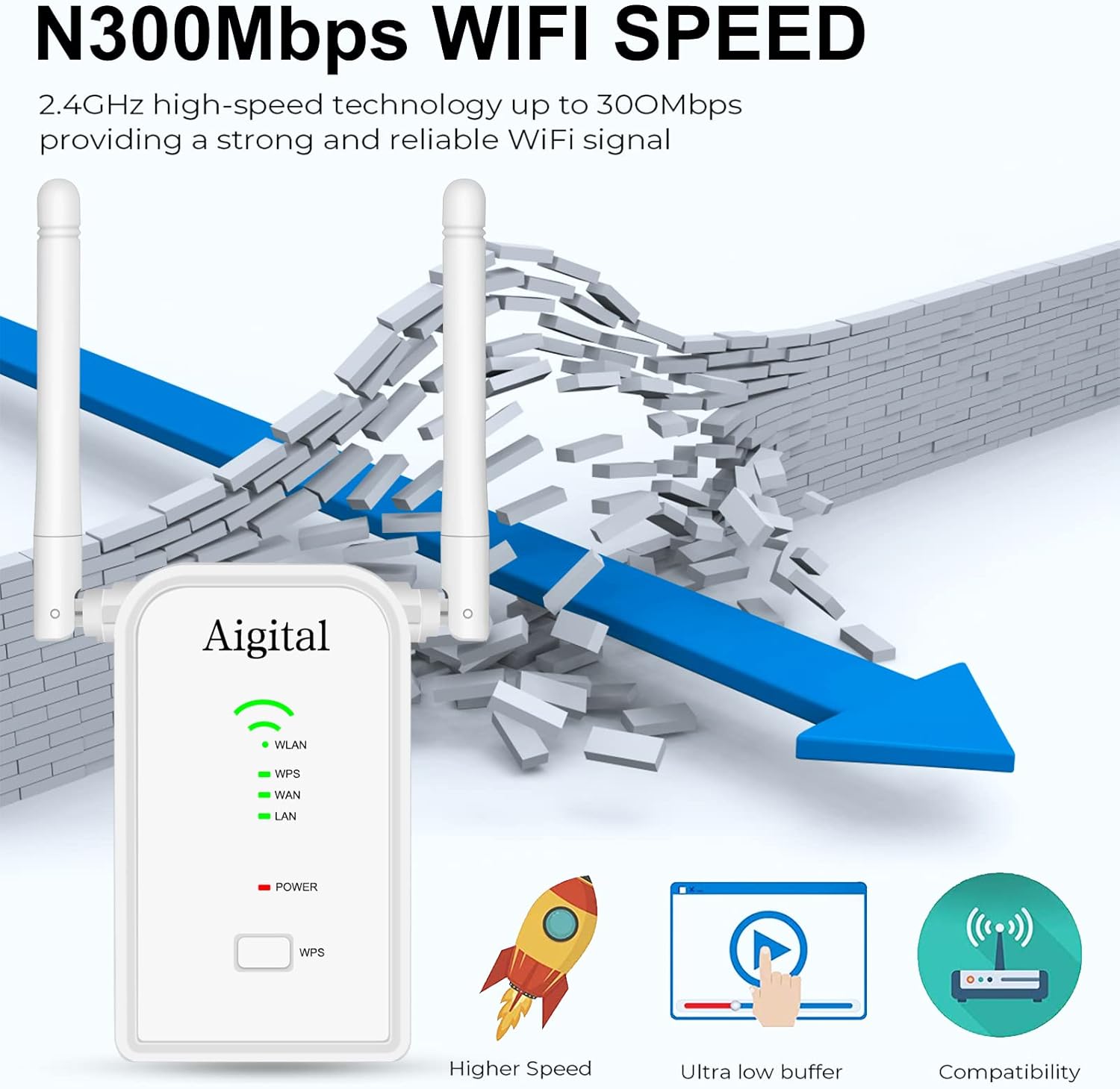
Image: Visual representation of the N300Mbps WiFi speed, illustrating its ability to provide a strong and reliable signal, breaking through barriers, and highlighting benefits like higher speed and ultra-low buffering.
Package Contents
Please verify that all items are present in your package:
- Aigital 300Mbps WiFi Extender
- Ethernet Cable
- Quick Installation Guide

Image: The contents of the product package, showing the Aigital WiFi Extender, an Ethernet cable, and the quick installation guide booklet.
Setup
1. WPS (Wi-Fi Protected Setup) Method
The WPS method allows for a quick and easy connection to your existing router without manual configuration.
- Plug the Aigital WiFi Extender into an electrical outlet near your router.
- Wait for the Power LED to turn solid.
- Press the WPS button on the Aigital WiFi Extender.
- Within 2 minutes, press the WPS button on your main router.
- The WLAN LED on the extender will turn solid, indicating a successful connection.
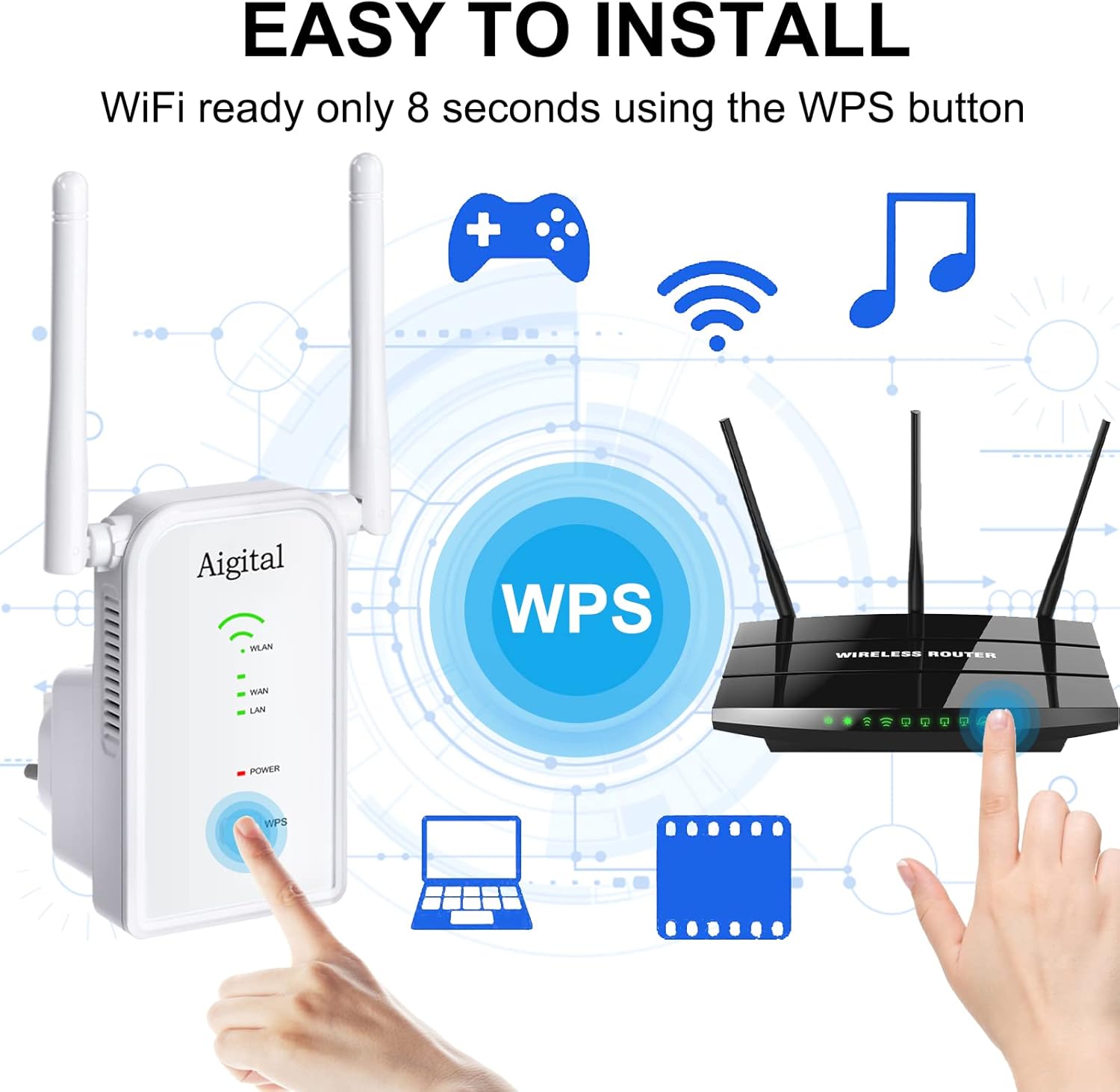
Image: A visual guide demonstrating the WPS setup process, showing a hand pressing the WPS button on the Aigital extender and another hand pressing the WPS button on a wireless router, indicating an 8-second setup time.
2. Web Browser Method (Manual Setup)
If your router does not support WPS or you prefer manual configuration, follow these steps:
- Plug the Aigital WiFi Extender into an electrical outlet.
- Connect your computer or mobile device to the extender's default Wi-Fi network (e.g., "Aigital_Ext"). No password is required initially.
- Open a web browser and type
192.168.10.1oraigital.wifiinto the address bar. - Log in using the default username and password (usually
adminfor both). - Follow the on-screen instructions to select your desired operating mode (Repeater, Router, or Access Point) and configure network settings.
Operating Modes
The Aigital WiFi Extender offers three distinct operating modes:
1. Repeater Mode
In Repeater Mode, the extender wirelessly connects to your existing router and amplifies its signal, extending Wi-Fi coverage to areas with weak or no signal. This is the most common mode for eliminating dead zones.
2. Router Mode
In Router Mode, the extender acts as a primary router, creating a new private wireless network. This mode is suitable if you have a modem but no router, or if you want to create a separate network.
3. Access Point (AP) Mode
In Access Point Mode, the extender connects to your existing wired network (e.g., via an Ethernet cable from your router) and broadcasts a new wireless signal. This is useful for adding Wi-Fi capability to a wired-only network or improving Wi-Fi coverage in a specific area by converting a wired connection to wireless.
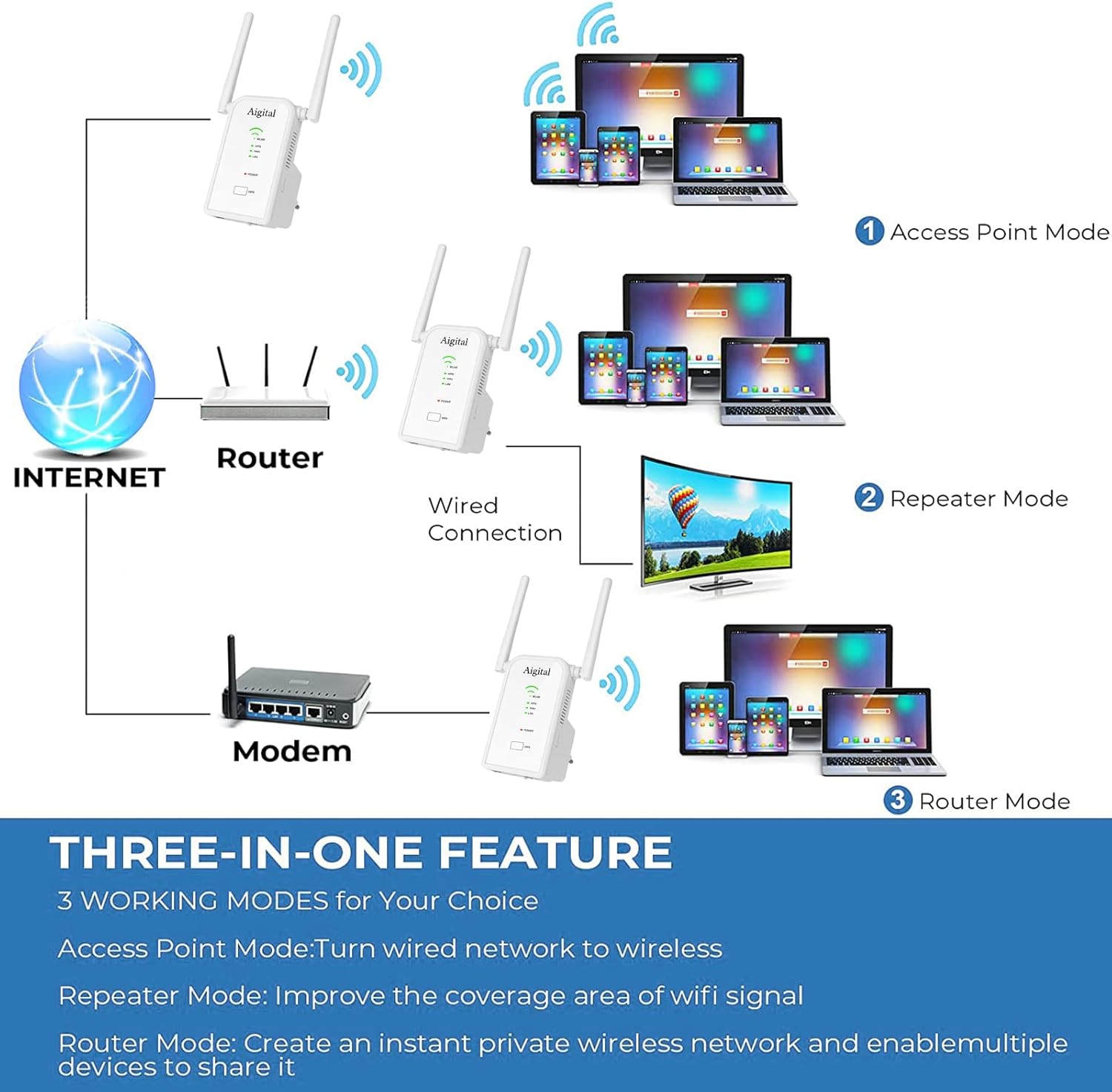
Image: A diagram titled 'THREE-IN-ONE FEATURE' illustrating the three working modes: Access Point Mode (wired network to wireless), Repeater Mode (improving WiFi signal coverage), and Router Mode (creating a private wireless network).
Operating Instructions
Connecting Devices
Once the extender is set up in your desired mode, you can connect your wireless devices (smartphones, tablets, laptops) to the extended Wi-Fi network. The network name (SSID) will typically be your original network name followed by "_EXT" or similar, unless you configured a new name in Router or AP mode.
- Wireless Connection: Search for available Wi-Fi networks on your device and select the extender's network name. Enter the password if prompted (this will be the same as your main router's password in Repeater mode, or a new one you set in Router/AP mode).
- Wired Connection: For devices like gaming consoles, Smart TVs, or desktop PCs, connect an Ethernet cable from the device to one of the RJ45 ports on the extender. This provides a stable, high-speed wired connection.

Image: The Aigital WiFi Extender plugged into a wall outlet, with an Ethernet cable connecting it to a gaming console, illustrating its use of Fast Ethernet Ports for wired devices like gaming consoles, 4K HDTVs, PCs, and printers.
Maintenance
To ensure optimal performance and longevity of your Aigital WiFi Extender, consider the following maintenance tips:
- Placement: Place the extender in a central location between your router and the area where you need extended coverage. Avoid placing it near large metal objects, concrete walls, or other electronic devices that may cause interference.
- Cleaning: Gently wipe the exterior of the device with a soft, dry cloth. Do not use liquid cleaners or aerosols.
- Firmware Updates: Periodically check the Aigital support website for firmware updates. Keeping your device's firmware up-to-date can improve performance, security, and add new features.
- Ventilation: Ensure the ventilation holes on the device are not blocked to prevent overheating.
Troubleshooting
If you encounter issues with your Aigital WiFi Extender, refer to the following common problems and solutions:
| Problem | Possible Solution |
|---|---|
| No internet access after setup. |
|
| Weak signal or slow speed from the extender. |
|
| Cannot access the web management page (192.168.10.1). |
|
| WPS connection fails. |
|
Specifications
| Feature | Detail |
|---|---|
| Model | B0BBQ8MZSS |
| Wireless Communication Standard | 802.11bgn |
| Data Transfer Rate | 300 Megabits Per Second |
| Frequency Bands Supported | 2.4 GHz |
| Antennas | 2 x 3dBi External Antennas |
| Connector Type | RJ45 (Ethernet Ports) |
| Item Weight | 7 ounces |
| Package Dimensions | 4.06 x 3.94 x 3.9 inches |
Warranty and Support
Aigital products come with a standard manufacturer's warranty. For specific warranty terms and conditions, please refer to the warranty card included in your product packaging or visit the official Aigital support website.
If you require technical assistance, troubleshooting, or have questions about your Aigital WiFi Extender, please contact Aigital customer support through their official channels. Support contact information can typically be found on the Aigital website or in the quick installation guide.
Online Resources:
- Visit the Aigital Store on Amazon for product information and updates.
Documents and downloads
Ask a question about this manual
Ask about setup, troubleshooting, compatibility, parts, safety, or missing instructions. Manuals+ will review the question and use this page’s manual context to help answer it.