1. Introduction
Thank you for choosing the realme TechLife Portable Room Air Purifier. This manual provides essential information for the safe and efficient operation, maintenance, and troubleshooting of your device. Please read this manual thoroughly before use and retain it for future reference.
2. Safety Instructions
To reduce the risk of electric shock, fire, or injury, please observe the following safety precautions:
- Always unplug the air purifier before cleaning, performing maintenance, or when not in use.
- Do not operate the unit with a damaged cord or plug. If the cord or plug is damaged, contact customer support.
- Do not block air inlets or outlets. Ensure adequate space around the unit for proper airflow.
- Do not use the air purifier in wet or damp environments, such as bathrooms or laundries.
- Keep the unit away from heat sources, direct sunlight, and flammable materials.
- This appliance is not intended for use by persons (including children) with reduced physical, sensory or mental capabilities, or lack of experience and knowledge, unless they have been given supervision or instruction concerning use of the appliance by a person responsible for their safety.
- Only use genuine realme replacement filters.
3. Package Contents
Verify that all items are present in the package:
- realme TechLife Portable Room Air Purifier Unit
- HEPA H12 Filter (pre-installed or separate)
- Power Adapter
- User Manual
4. Product Overview
4.1 Components
The image below illustrates the main components of the realme TechLife Portable Room Air Purifier.
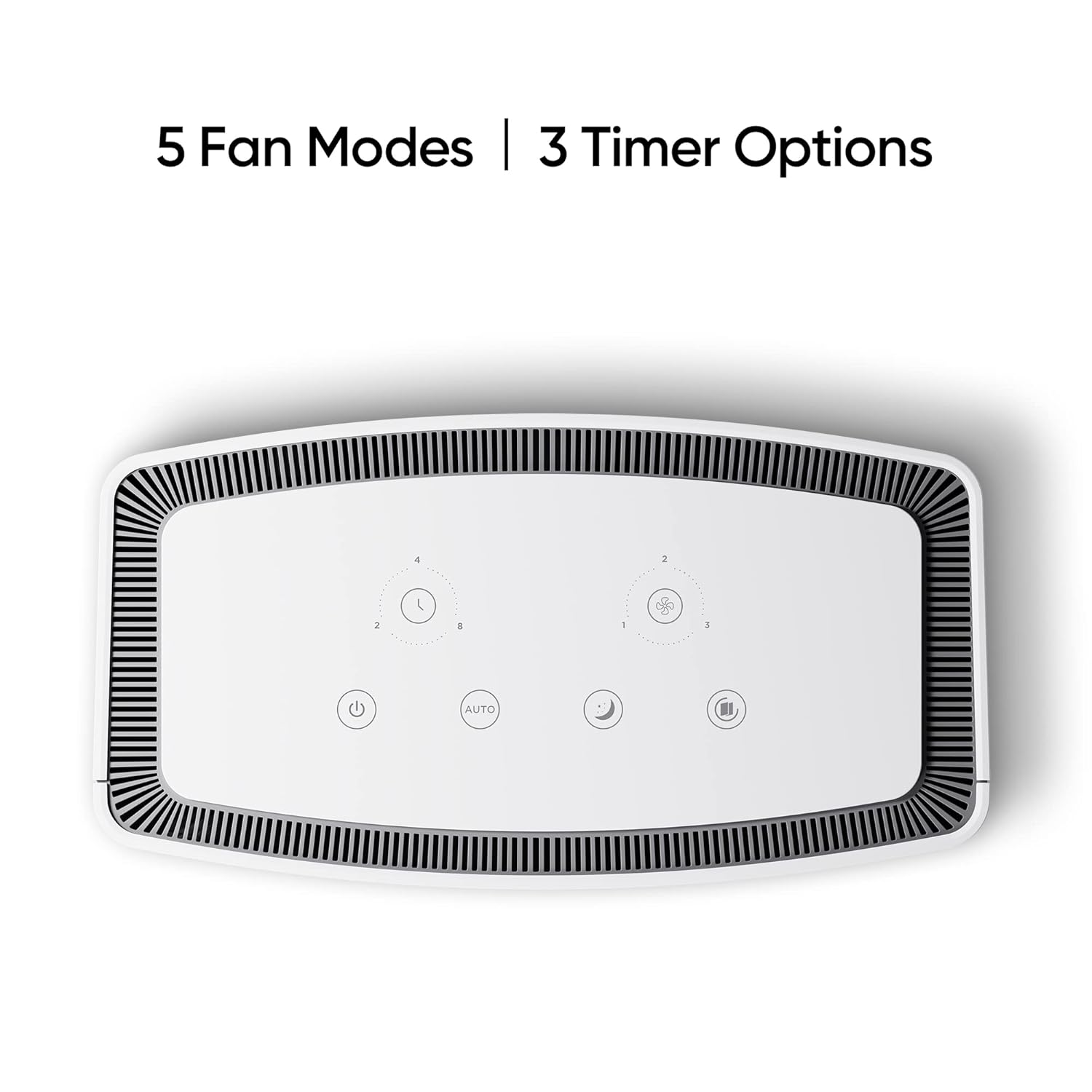
Figure 1: Front view of the realme TechLife Portable Room Air Purifier. The unit is white with a sleek, minimalist design.
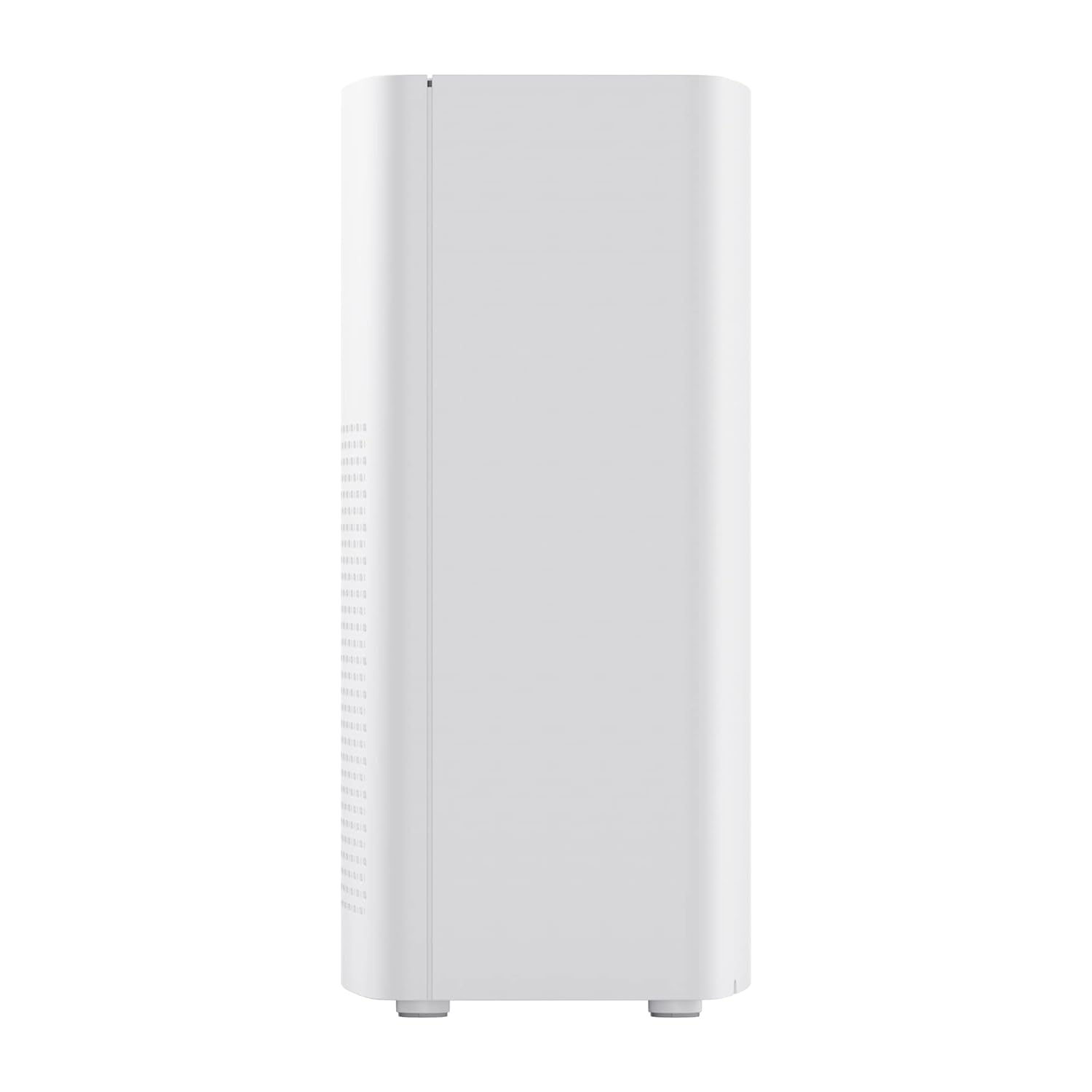
Figure 2: Side view of the realme TechLife Portable Room Air Purifier, showing its compact and lightweight profile.
4.2 Control Panel
The control panel is located on the top of the air purifier and features touch-sensitive buttons for various functions.

Figure 3: Top-down view of the control panel, displaying touch buttons for power, auto mode, sleep mode, fan speed, and timer settings.
- Power Button: Turns the unit on or off.
- AUTO Mode Button: Activates automatic fan speed adjustment based on air quality.
- Sleep Mode Button: Sets the fan to its lowest speed for quiet operation.
- Fan Speed Button: Cycles through manual fan speed settings (e.g., Level 1, 2, 3).
- Timer Button: Sets the operating duration (e.g., 2, 4, 8 hours).
- Air Quality Indicator: Displays current air quality (color-coded).
5. Setup
5.1 Filter Installation
The HEPA filter may be pre-installed or require installation before first use.
- Unpack the air purifier and place it on a stable, flat surface.
- Locate the filter compartment cover, usually at the bottom or rear of the unit.
- Open the cover and remove any plastic packaging from the HEPA filter.
- Insert the filter into the compartment, ensuring it is seated correctly.
- Close the filter compartment cover securely.
5.2 Placement
For optimal performance, place the air purifier in a location with good air circulation, away from walls or furniture that might obstruct airflow. Avoid placing it near windows or vents.
5.3 Power Connection
Connect the power adapter to the air purifier's power port, then plug the adapter into a standard electrical outlet.
6. Operating Instructions
6.1 Power On/Off
Press the Power Button once to turn the air purifier on. Press it again to turn the unit off.
6.2 Fan Speed Modes
- AUTO Mode: Press the AUTO Button. The purifier will automatically adjust its fan speed based on the detected air quality.
- Sleep Mode: Press the Sleep Mode Button. The fan operates at its lowest speed for quiet purification, ideal for nighttime use.
- Manual Fan Speed: Press the Fan Speed Button repeatedly to cycle through different fan speed levels (e.g., Level 1, Level 2, Level 3).
6.3 Timer Settings
Press the Timer Button repeatedly to set the desired operating duration (e.g., 2 hours, 4 hours, 8 hours). The unit will automatically turn off after the set time expires.
6.4 Air Quality Indicator
The air quality indicator light changes color to reflect the current air quality:
- Green: Good air quality
- Yellow/Orange: Moderate air quality
- Red: Poor air quality
7. Maintenance
7.1 Filter Replacement
The HEPA filter has a limited lifespan and needs regular replacement to maintain purification efficiency. The filter life depends on usage and air quality. A filter replacement indicator light will typically illuminate when replacement is due.
- Unplug the air purifier from the power outlet.
- Open the filter compartment cover.
- Remove the old filter and dispose of it properly.
- Insert a new, genuine realme HEPA H12 replacement filter.
- Close the filter compartment cover securely.
- Plug in the air purifier and reset the filter life indicator (refer to specific model instructions if available, usually by pressing and holding the filter button for a few seconds).
Note: Replacement filters may need to be purchased separately. Ensure availability of replacement filters for continued use of the product.
7.2 Cleaning the Unit
Regular cleaning helps maintain performance and appearance.
- Wipe the exterior of the unit with a soft, dry cloth.
- Do not use abrasive cleaners, waxes, or solvents.
- Gently vacuum the air inlet and outlet grilles to remove dust accumulation.
8. Troubleshooting
If you encounter issues with your air purifier, refer to the table below for common problems and solutions.
| Problem | Possible Cause | Solution |
|---|---|---|
| Unit does not turn on | No power supply; Power adapter not connected; Unit damaged. | Check power cord and outlet; Ensure adapter is securely connected; Contact customer support if damaged. |
| Weak airflow | Air inlets/outlets blocked; Filter clogged; Filter not installed correctly. | Clear obstructions; Replace filter; Reinstall filter correctly. |
| Unusual noise | Foreign object inside; Unit not on a flat surface; Filter not seated correctly. | Unplug and check for obstructions; Place on a stable surface; Reinstall filter. |
| Air quality indicator always red/orange | High pollution level; Sensor dirty; Sensor malfunction. | Allow more time for purification; Clean the sensor area (if accessible); Contact customer support. |
If the problem persists after trying these solutions, please contact realme customer support.
9. Specifications
Technical specifications for the realme TechLife Portable Room Air Purifier:
| Feature | Specification |
|---|---|
| Brand | realme |
| Model | TechLife Portable Room Air Purifier |
| Color | White |
| Filter Type | HEPA H12 |
| Contaminant Filtration | 99.97% |
| Controller Type | Touch Control |
| Special Features | High Precision Air Quality Sensor, Lightweight |
| Item Weight | 5 kg 780 g |
| Power Source | Battery Powered (Please refer to product label for specific power input) |
10. Warranty and Support
The realme TechLife Portable Room Air Purifier comes with a limited warranty. Please refer to the warranty card included with your product for detailed terms and conditions, including warranty period and coverage.
For technical support, service, or to purchase genuine replacement parts and filters, please visit the official realme website or contact realme customer service through the contact information provided in your warranty documentation.
Keep your purchase receipt as proof of purchase for warranty claims.


