
1. Product Overview
The ECHTPower T-50 is a wired vertical ergonomic mouse designed for right-handed users, aiming to provide a comfortable computing experience and reduce wrist strain. It features 9 programmable buttons, 6 adjustable DPI levels, and customizable RGB lighting, making it suitable for both general use and gaming on PC computers.
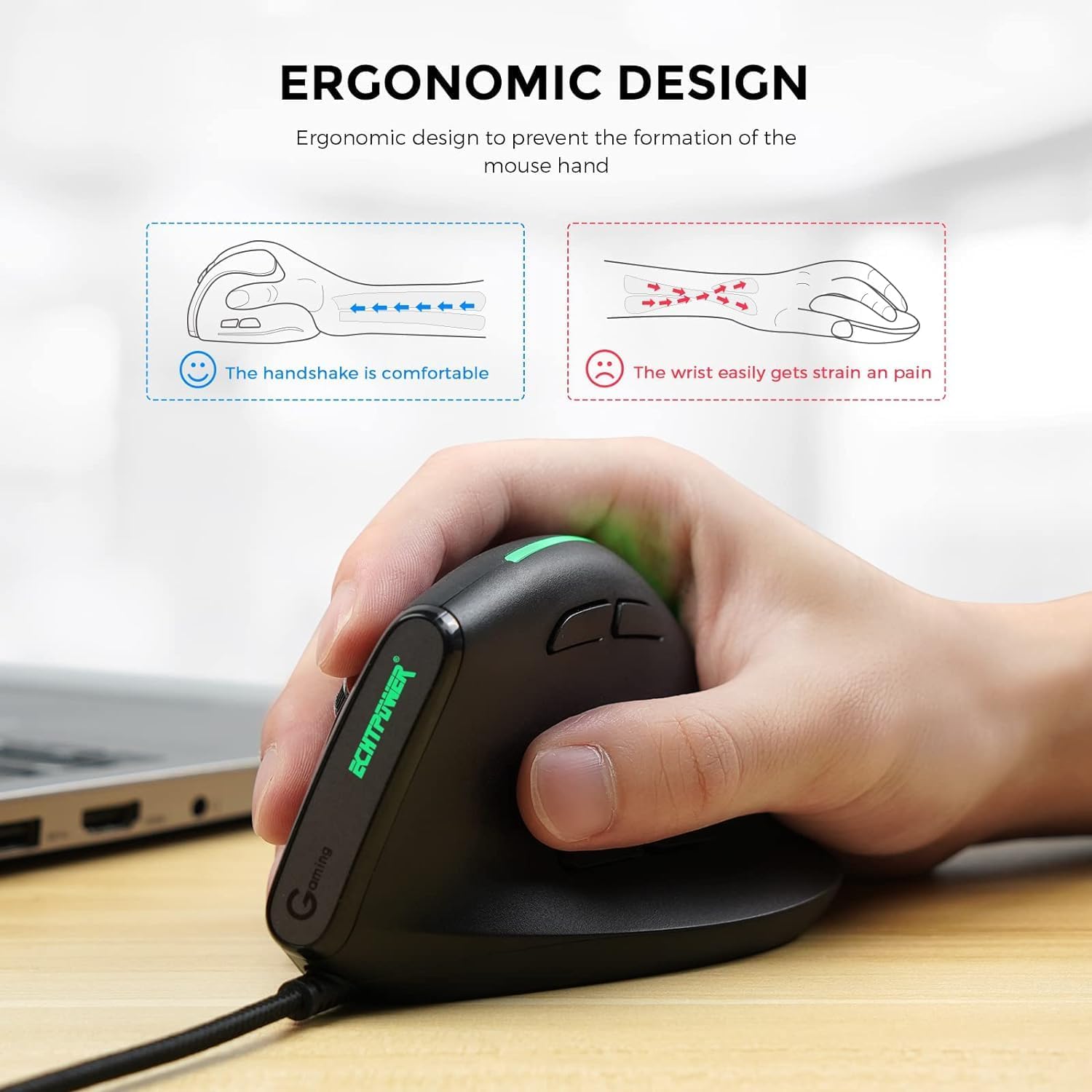
Figure 1: Ergonomic Design Principle. This image illustrates how the vertical design promotes a natural 'handshake' grip, which can help prevent wrist strain compared to the flat grip of a conventional mouse.

Figure 2: Mouse Button Layout and Dimensions. This diagram labels the Left, Right, Scroll Wheel, DPI Switch, LED Light Switch, Light Button, Forward, and Back buttons. It also indicates the mouse dimensions as 12 cm (height) and 6.5 cm (width) with a base height of 7.3 cm.
2. Setup Instructions
The ECHTPower T-50 vertical ergonomic mouse is a plug-and-play device, requiring no additional drivers for basic functionality on most operating systems.
2.1 Connecting the Mouse
- Locate an available USB port on your computer.
- Insert the USB connector of the ECHTPower T-50 mouse into the USB port.
- The computer will automatically detect and install the necessary drivers. This process may take a few moments.
- Once installed, the mouse will be ready for use.
For advanced customization of programmable buttons, specific software may be required. Please refer to the manufacturer's website for any available software downloads.
3. Operating Instructions
Familiarize yourself with the various buttons and features of your ECHTPower T-50 mouse to optimize your user experience.
3.1 Button Functions
- Left Button: Standard left-click function.
- Right Button: Standard right-click function.
- Scroll Wheel: Scroll up/down documents and web pages. Can also be pressed for middle-click functionality.
- DPI Switch Button: Cycles through DPI sensitivity levels.
- Forward Button: Navigates forward in web browsers or file explorers.
- Back Button: Navigates backward in web browsers or file explorers.
- Light Button: Controls RGB lighting modes or turns the lighting on/off.
- LED Light Switch: An additional switch to control the LED lighting.
3.2 DPI Adjustment
The mouse features 6 adjustable DPI (Dots Per Inch) levels, allowing you to change cursor speed and precision on the fly. Press the DPI Switch Button to cycle through the following settings:
- 1000 DPI
- 1600 DPI
- 2400 DPI
- 3200 DPI
- 4800 DPI
- 12800 DPI
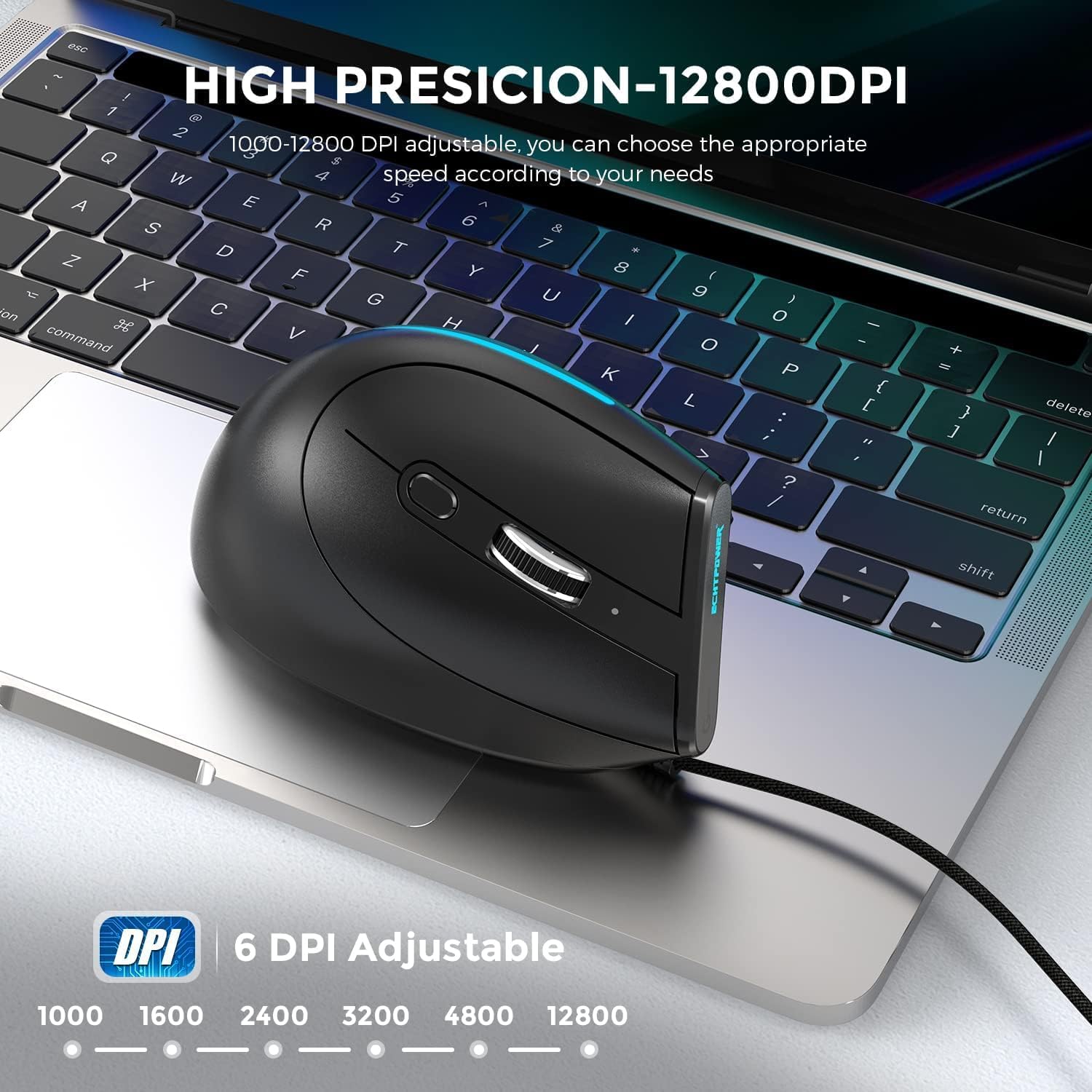
Figure 3: High Precision DPI Adjustment. This image shows the mouse in use and highlights the 6 available DPI settings (1000, 1600, 2400, 3200, 4800, 12800) for precise control.
3.3 RGB Lighting
The ECHTPower T-50 mouse features a programmable RGB lighting strip. Use the Light Button or LED Light Switch to change lighting modes or turn the lighting on/off according to your preference. The lighting can be customized from 16 million colors.

Figure 4: Programmable RGB Lighting Strip. This image showcases the vibrant, customizable RGB lighting integrated into the mouse design.
4. Maintenance
Proper maintenance ensures the longevity and optimal performance of your ECHTPower T-50 mouse.
4.1 Cleaning
- Disconnect the mouse from your computer before cleaning.
- Use a soft, dry, lint-free cloth to wipe the surface of the mouse.
- For stubborn dirt, slightly dampen the cloth with water or a mild, non-abrasive cleaner. Avoid excessive moisture.
- Do not use harsh chemicals, solvents, or abrasive cleaners, as these can damage the mouse's finish.
- Use a can of compressed air to clear dust from around buttons and the optical sensor.
4.2 Storage
- Store the mouse in a cool, dry place away from direct sunlight and extreme temperatures.
- Avoid placing heavy objects on the mouse or its cable.
5. Troubleshooting
If you encounter issues with your ECHTPower T-50 mouse, refer to the following common troubleshooting steps.
5.1 Mouse Not Responding
- Check USB Connection: Ensure the USB cable is securely plugged into a working USB port on your computer. Try a different USB port.
- Restart Computer: Sometimes a simple computer restart can resolve connectivity issues.
- Test on Another Computer: If possible, test the mouse on another computer to determine if the issue is with the mouse or your computer's setup.
5.2 DPI Not Changing
- Press DPI Button Firmly: Ensure you are pressing the DPI switch button firmly.
- Cycle Through All Settings: Continue pressing the DPI button to cycle through all 6 settings to confirm if any change occurs.
5.3 RGB Lights Not Working
- Check Light Button/Switch: Press the dedicated Light Button or toggle the LED Light Switch on the mouse to ensure the lighting is not simply turned off.
- USB Power: Ensure the mouse is receiving sufficient power from the USB port. Try a different USB port.
6. Specifications
Detailed technical specifications for the ECHTPower T-50 Wired Vertical Ergonomic Mouse.
| Feature | Specification |
|---|---|
| Brand | ECHTPower |
| Model Number | T-50 |
| Connectivity Technology | Wired (USB) |
| Movement Detection Technology | Optical |
| Number of Buttons | 9 |
| DPI Levels | 1000, 1600, 2400, 3200, 4800, 12800 |
| Hand Orientation | Right |
| Compatible Devices | Personal Computer |
| Product Dimensions | 7 x 6.7 x 12 cm |
| Item Weight | 190 g |
7. Warranty and Support
For warranty information and technical support, please refer to the documentation included with your purchase or visit the official ECHTPower website. Keep your proof of purchase for warranty claims.
If you experience any issues not covered in this manual, please contact ECHTPower customer support for assistance.