
1. Introduction
This manual provides essential information for the safe and effective operation of your AOPUTTRIVER T4-TI003-R Infrared Thermal Camera. Please read this manual thoroughly before using the device and retain it for future reference. This thermal camera is designed for professional use in various applications, including electrical cabinet inspection, motor and bearing analysis, HVAC diagnostics, and building inspections.
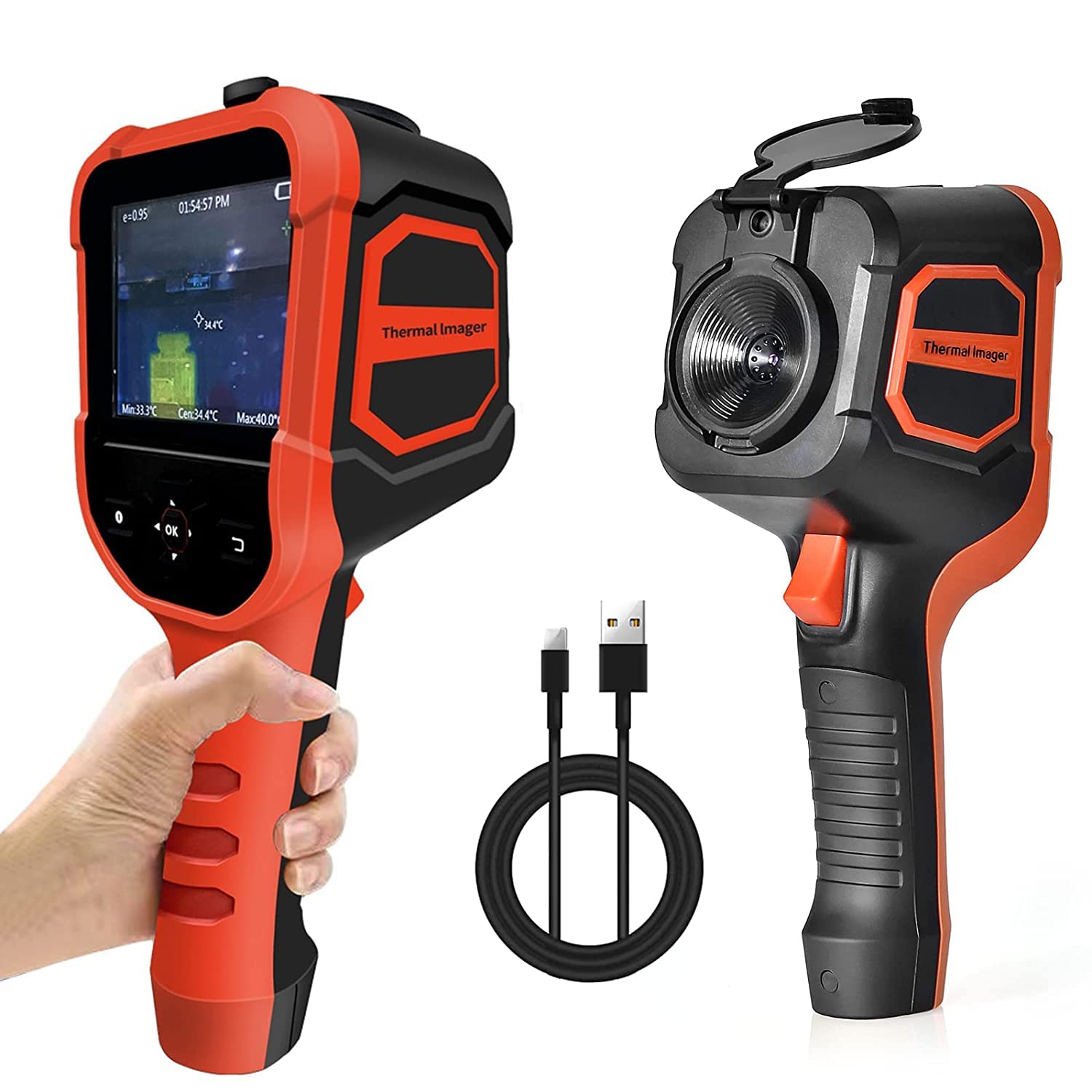
Figure 1.1: AOPUTTRIVER T4-TI003-R Infrared Thermal Camera, front and side view, with USB cable.
2. Safety Information
To ensure safe operation and prevent damage to the device, observe the following safety precautions:
- Do not point the thermal camera directly at intense heat sources, such as the sun or lasers, as this may damage the infrared sensor.
- Avoid exposing the device to extreme temperatures, humidity, or corrosive environments.
- Do not disassemble or modify the device. Repairs should only be performed by authorized personnel.
- Use only the provided USB cable for charging and data transfer.
- Keep the device away from strong electromagnetic fields.
- Ensure the lens is clean before use for accurate readings.
3. Product Overview
3.1 Components and Controls
Familiarize yourself with the various parts of your thermal camera:

Figure 3.1: Labeled diagram of the thermal camera's display and lens components.
- Thermal Imager Screen: 3.5-inch LCD for displaying thermal images and data.
- On/Off Button: Powers the device on or off.
- Up/Down/Left/Right Buttons: Navigation controls for menus and settings.
- OK Button: Confirms selections.
- Return Button: Navigates back in menus.
- Lens Cap: Protects the lenses when not in use.
- Digital Camera Lens: Captures visible light images.
- Infrared Lens: Captures thermal images.
- Trigger / Shortcut Key: Used for capturing images or activating specific functions.
3.2 Package Contents
Verify that all items are present in the package:
- AOPUTTRIVER T4-TI003-R Infrared Thermal Camera
- USB Cable
- User Manual (this document)

Figure 3.2: The thermal camera, USB cable, and user manual included in the product box.
4. Setup
4.1 Charging the Device
Before initial use, fully charge the thermal camera. Connect the provided USB cable to the camera's USB port and to a standard USB power adapter (not included) or a computer's USB port. The charging indicator on the device will show the charging status. A full charge typically provides 4-6 hours of continuous operation.
4.2 Powering On/Off
- To Power On: Press and hold the On/Off button until the screen illuminates.
- To Power Off: Press and hold the On/Off button until the screen shuts down.
5. Operation
5.1 Basic Thermal Measurement
Once powered on, the camera will display a live thermal image. Point the infrared lens towards the object or area you wish to inspect. The screen will show temperature readings, including minimum, maximum, and center point temperatures. The device automatically tracks hot and cold spots.

Figure 5.1: The thermal camera automatically identifies and tracks hot and cold spots within the image.
5.2 Palette Selection
The camera offers four color palettes to visualize temperature differences. To change the palette, navigate through the menu using the Up/Down/Left/Right buttons and select the desired option. The available palettes are:
- Iron Red: High contrast, good for general inspection.
- Rainbow: Provides a wide range of colors for detailed temperature gradients.
- White Hot: Hotter areas appear white, colder areas appear black.
- Black Hot: Hotter areas appear black, colder areas appear white.

Figure 5.2: Examples of the four available color palettes for thermal imaging.
5.3 Temperature Alarm Settings
You can set high and low temperature alarms. When the detected temperature exceeds or falls below the set thresholds, an alarm will be triggered on the display. Access the alarm settings through the device menu to configure your desired temperature limits.

Figure 5.3: The device displays a high temperature alarm when a set threshold is exceeded.
5.4 Brightness Adjustment
Adjust the screen brightness to suit your environment. The brightness can be set to 0%, 25%, 50%, 75%, or 100% via the device's menu.
5.5 Image Capture and Storage
Press the Trigger/Shortcut Key to capture a thermal image. Images are saved to the internal 6GB Micro SD card. The camera supports real-time image transmission to a PC.
5.6 Data Transfer to PC
Connect the thermal camera to a computer using the provided USB cable. The device will appear as a removable storage device, allowing you to access and transfer captured images for analysis.
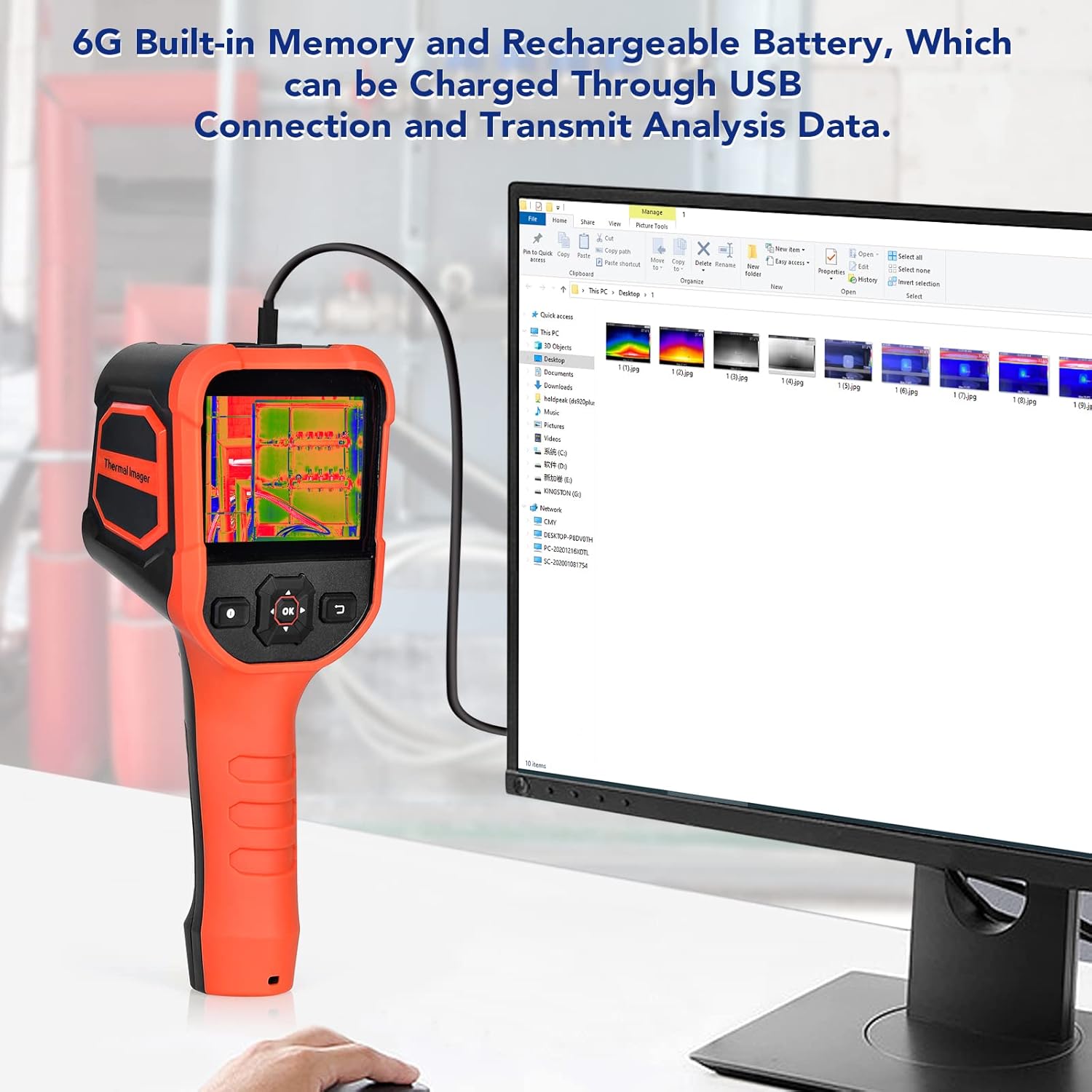
Figure 5.4: The thermal camera connected to a computer via USB for charging and data transfer.
6. Maintenance
6.1 Cleaning
- Lenses: Gently clean the infrared and digital camera lenses with a soft, lint-free cloth. For stubborn smudges, use a lens cleaning solution designed for optics.
- Device Body: Wipe the exterior of the camera with a soft, damp cloth. Do not use abrasive cleaners or solvents.
6.2 Storage
When not in use, store the thermal camera in a cool, dry place, away from direct sunlight and extreme temperatures. Ensure the lens cap is in place to protect the lenses.
7. Troubleshooting
If you encounter issues with your AOPUTTRIVER T4-TI003-R, refer to the following table:
| Problem | Possible Cause | Solution |
|---|---|---|
| Device does not power on. | Low battery. | Charge the device using the provided USB cable. |
| Image is blurry or unclear. | Dirty lens. | Clean the infrared and digital camera lenses. |
| Inaccurate temperature readings. | Incorrect emissivity setting (if adjustable) or environmental factors. | Ensure the lens is clean. Check the emissivity setting if your model allows adjustment. Avoid strong air currents or reflective surfaces. |
| Cannot transfer data to PC. | Incorrect USB connection or driver issue. | Ensure the USB cable is securely connected. Try a different USB port or computer. |
If the problem persists after attempting these solutions, please contact customer support.
8. Specifications
The following table outlines the technical specifications of the AOPUTTRIVER T4-TI003-R Infrared Thermal Camera:
| Feature | Specification |
|---|---|
| Model Number | UK-AP-T4-TI003-R |
| IR Resolution | 220 x 160 pixels |
| Display | 3.5-inch LCD Color Screen |
| Temperature Range | -20°C to 330°C (-4°F to 626°F) |
| Thermal Sensitivity | 0.07°C |
| Frame Rate | 9 Hz |
| Color Palettes | Iron Red, Rainbow, White Hot, Black Hot |
| Storage | 6GB Built-in Micro SD Card |
| Connectivity | Micro USB (for charging and data transfer) |
| Battery Life | 4-6 hours (continuous operation) |
| Ingress Protection (IP) Rating | IP54 |
| Drop Resistance | 6.5 feet (shatter-resistant) |
| Dimensions | 240mm (H) x 95mm (W) x 42mm (D) (approx.) |
| Weight | 400 grams (approx.) |

Figure 8.1: Key specifications and dimensions of the AOPUTTRIVER T4-TI003-R.

Figure 8.2: The device features IP54 dust and water resistance and is shatter-resistant up to 6.5 feet.
9. Warranty and Support
AOPUTTRIVER provides a warranty for this product. Please refer to the warranty card included with your purchase or visit the official AOPUTTRIVER website for detailed warranty terms and conditions. For technical support, troubleshooting assistance, or service inquiries, please contact AOPUTTRIVER customer service through the contact information provided on the product packaging or official website.