
KUU YEPBOOK
KUU YEPBOOK 15.6-inch Laptop User Manual
Model: YEPBOOK | Brand: KUU
1. Introduction
This manual provides essential information for setting up, operating, and maintaining your KUU YEPBOOK 15.6-inch laptop. Please read it thoroughly to ensure proper use and to maximize the lifespan of your device.
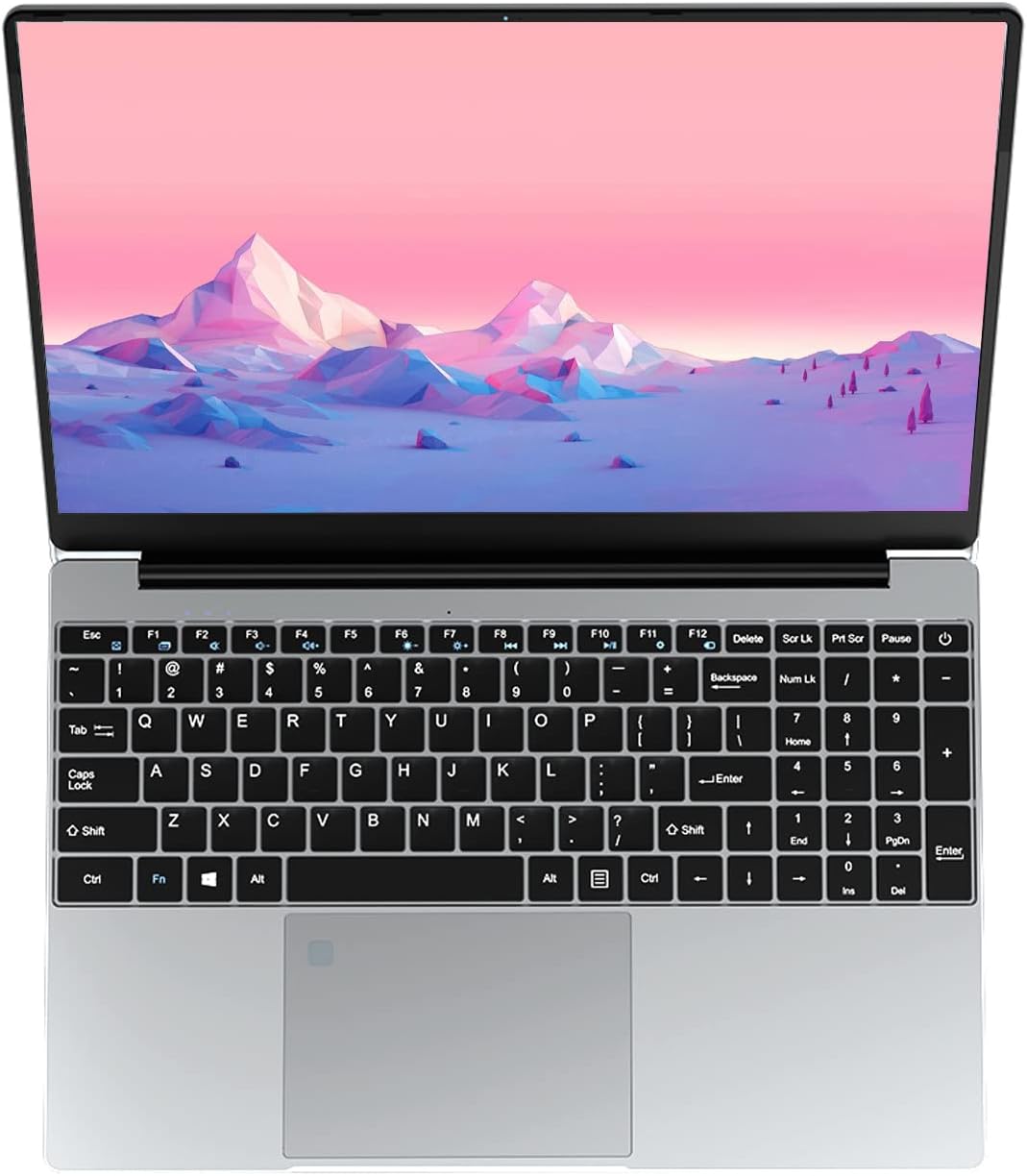
Image: The KUU YEPBOOK 15.6-inch laptop with its display open, showcasing the keyboard and screen.
2. Initial Setup
2.1 Unpacking and First Power On
- Carefully remove the laptop and all accessories from the packaging.
- Connect the power adapter to the laptop's DC 3.5 charging port and then to a power outlet.
- Open the laptop lid. The laptop may power on automatically, or you may need to press the power button.
- Follow the on-screen instructions to complete the Windows 11 Pro initial setup, including language selection, network connection, and user account creation.
2.2 Keyboard Layout and Language
Your KUU YEPBOOK laptop comes with a full-size backlit keyboard. To accommodate different language layouts, keyboard protector films are included. Place the appropriate language film over the keyboard if needed.
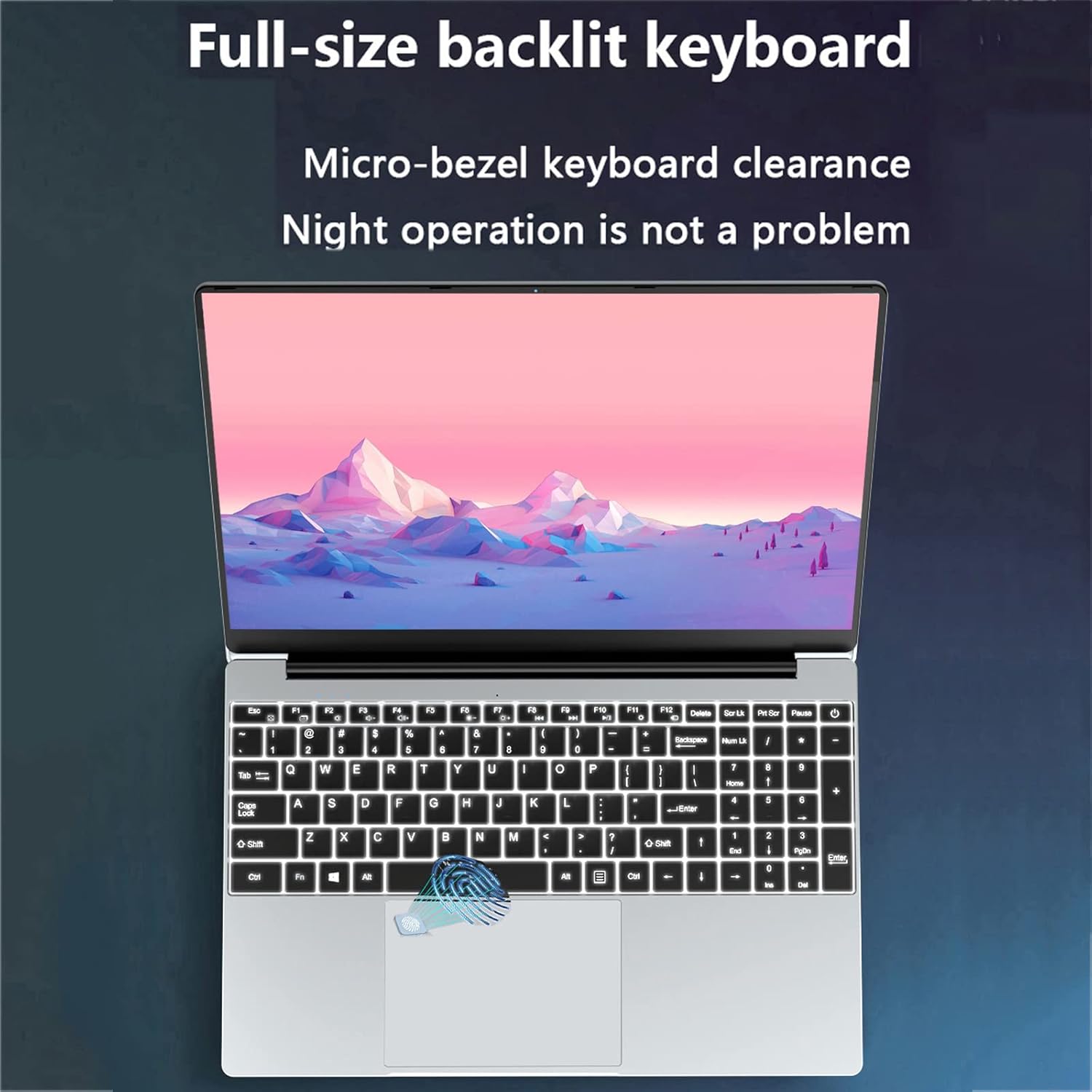
Image: Close-up of the KUU YEPBOOK's full-size backlit keyboard, highlighting the key layout and backlighting.
3. Operating Your Laptop
3.1 Display and 180° Flip Function
The KUU YEPBOOK features a 15.6-inch Full HD (1920x1080) IPS display. The laptop's hinge allows for a 180-degree rotation, enabling various viewing angles for different tasks.

Image: The KUU YEPBOOK laptop shown with its screen rotated 180 degrees, demonstrating its flexible hinge design.
3.2 Fingerprint Unlock
For enhanced security and quick access, your laptop is equipped with a fingerprint sensor. During Windows setup or via Windows Settings, you can configure your fingerprint for login.
3.3 Connectivity
The laptop offers various ports and wireless connectivity options:
- USB 3.0 Ports: Two ports for connecting external devices such as USB drives, mice, or keyboards.
- Mini HDMI Port: For connecting to external displays or projectors.
- 3.5mm Headphone Jack: For audio output to headphones or external speakers.
- Mini SD/TF Card Slot: For expanding storage or transferring data from memory cards.
- DC 3.5 Charging Port: For connecting the power adapter.
- Wi-Fi: Dual-band Wi-Fi for wireless internet access.
- Bluetooth 4.2: For connecting wireless peripherals like headphones or speakers.

Image: Side view of the KUU YEPBOOK laptop, illustrating the various input/output ports including USB 3.0, mini SD, earphone jack, DC 3.5 charging, and mini HDMI.
4. Maintenance and Care
4.1 General Cleaning
- Use a soft, lint-free cloth to clean the screen and exterior surfaces.
- Avoid using harsh chemicals, solvents, or abrasive cleaners.
- For stubborn marks, lightly dampen the cloth with water or a screen-safe cleaner.
4.2 Battery Care
- To prolong battery life, avoid fully discharging the battery frequently.
- Store the laptop in a cool, dry place when not in use for extended periods.
- It is recommended to fully charge the battery before first use.
5. Troubleshooting
This section addresses common issues you might encounter with your KUU YEPBOOK laptop.
5.1 Laptop Does Not Power On
- Ensure the power adapter is securely connected to both the laptop and a working power outlet.
- Verify that the power outlet is functional by plugging in another device.
- If the battery is completely drained, allow it to charge for at least 30 minutes before attempting to power on again.
5.2 Battery Not Charging
- Check the power adapter and cable for any visible damage.
- Ensure the charging port on the laptop is clean and free of debris.
- Try a different power outlet.
- If the issue persists, contact customer support.
5.3 Peripherals Not Recognized (USB, etc.)
- Ensure the peripheral is correctly connected to the appropriate port.
- Try connecting the peripheral to a different USB port.
- Restart the laptop.
- Check the device manager in Windows to see if there are any driver issues.
5.4 Wi-Fi Connectivity Issues
- Ensure Wi-Fi is enabled on your laptop (check Windows settings).
- Restart your router and modem.
- Ensure you are within range of your Wi-Fi network.
- Verify that the Wi-Fi password is entered correctly.
6. Product Specifications
| Feature | Detail |
|---|---|
| Model Name | YEPBOOK |
| Operating System | Windows 11 Pro |
| CPU | Intel Celeron N5095 (4 Cores, 4 Threads, Base 2.00 GHz, Burst 2.90 GHz) |
| Graphics | Intel UHD Graphics |
| RAM | 12GB LPDDR4 |
| Storage | 512GB SSD |
| Display | 15.6-inch Full HD (1920x1080) IPS LCD |
| Battery | 7.6V, 4500mAh Lithium Polymer |
| Camera | Front 0.3 Megapixel |
| Speakers | Built-in Stereo Speakers (8R/1.0W*2) |
| Wireless Connectivity | Dual-frequency Wi-Fi (802.11a/b/g/n/ac), Bluetooth 4.2 |
| Ports | 2x USB 3.0, 1x Mini HDMI, 1x 3.5mm Headphone Jack, 1x Mini SD/TF Card Slot, 1x DC 3.5 Charging Port |
| Keyboard | Full-size Backlit Keyboard with Fingerprint Reader |
| Material | Metal Casing |
| Dimensions | 358mm x 210mm x 23mm |
| Weight | 1.7 kg (Product), 2.3 kg (Packaging) |
7. Warranty and Support
The KUU YEPBOOK laptop comes with a one-year warranty. For any questions or support needs, please contact KUU customer service through the Amazon platform. We aim to respond within 24 hours on business days.
What's in the Box:
- KUU YEPBOOK 15.6-inch Laptop
- Power Adapter
- User Manual (this document)
- Keyboard Protector Films (multi-language)