
Introduction
Thank you for choosing the NIXIUKOL Backlit Bluetooth Keyboard. This manual provides essential information for setting up, operating, and maintaining your keyboard. This wireless keyboard is designed for compatibility with Mac OS and iOS systems, supporting devices such as MacBook, MacBook Air, MacBook Pro, iMac, Mac Pro/Mini, iPad, and iPhone.
Please read this manual thoroughly before using the product to ensure optimal performance and longevity.

Image: The NIXIUKOL Backlit Bluetooth Keyboard showcasing its 7 backlight color options.
Package Contents
Ensure all items are present in the package:
- 1 x NIXIUKOL Backlit Bluetooth Keyboard
- 1 x Type-C Charging Cable
- 1 x User Manual (this document)
Specifications
| Bluetooth Version | Bluetooth 5.1 |
| Working Range | Up to 10 meters (33 feet) |
| Battery Capacity | 1500 mAh |
| Total Keys | 102 keys |
| Multimedia & Shortcut Keys | 12 keys |
| Working Current (without backlight) | 5mA |
| Working Hours (without backlight) | Up to 320 hours |
| Working Current (brightest backlight) | 120mA |
| Working Time (brightest backlight) | Up to 12 hours |
| Charging Time | Approximately 3.5 hours |
| Standby Time | Up to 3000 hours |
| Backlight Sleep Mode | After 2 minutes of inactivity |
| Keyboard Sleep Mode | After 30 minutes of inactivity |
| Dimensions | 14.84 x 6.02 x 1.26 inches (approx.) |
| Item Weight | 1.57 pounds (approx.) |
| Compatible Devices | Laptop, Tablet (Mac OS, iOS, MacBook, iMac, iPad, iPhone) |
| Connectivity Technology | Bluetooth |
| Special Features | Backlit, Hotkeys and Media Keys, Rechargeable |
| Backlight Colors | 7 Colors (RGB support) |
Setup
1. Charging the Keyboard
Before first use, fully charge the keyboard. Connect the supplied Type-C charging cable to the keyboard's charging port and the other end to a USB power source (e.g., computer USB port, USB wall adapter).
- The charging indicator light will illuminate during charging.
- A full charge takes approximately 3.5 hours.
- When fully charged, the indicator light will change or turn off.
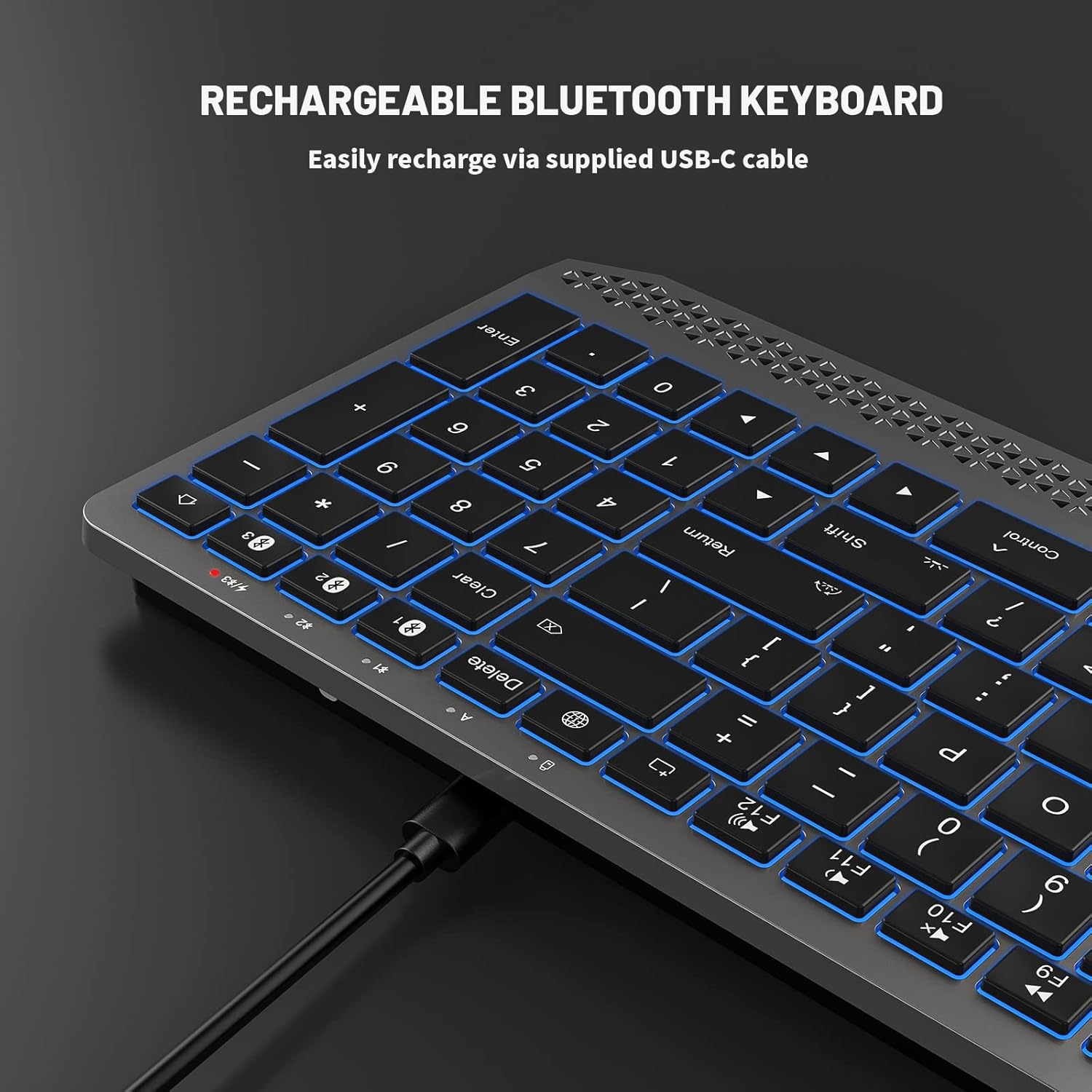
Image: The keyboard's USB-C port connected to a charging cable.
2. Powering On/Off
Locate the ON/OFF switch on the keyboard. Slide it to the 'ON' position to power on the keyboard. Slide it to the 'OFF' position when not in use to conserve battery.
3. Bluetooth Pairing (Multi-Device Connection)
This keyboard supports connecting up to three devices simultaneously. Follow these steps to pair your devices:
- Turn on the keyboard using the ON/OFF switch.
- Press and hold the Fn key and one of the Bluetooth channel keys (BT1, BT2, or BT3) for 3-5 seconds until the corresponding indicator light starts blinking rapidly. This indicates the keyboard is in pairing mode.
- On your device (MacBook, iPad, iPhone, etc.), go to System Preferences (Mac) or Settings (iOS) > Bluetooth.
- Search for available Bluetooth devices. You should see "NIXIUKOL Keyboard" or a similar name appear in the list.
- Select the keyboard from the list to connect. The indicator light on the keyboard will stop blinking and remain solid for a few seconds, then turn off, indicating successful pairing.
- Repeat these steps for up to two additional devices using the other BT channels (BT2 and BT3).

Image: The keyboard demonstrating multi-device connectivity with a MacBook, iPad, and iPhone.
Operating Instructions
1. Switching Between Connected Devices
Once multiple devices are paired, you can easily switch between them by pressing the Fn key simultaneously with the corresponding Bluetooth channel key (BT1, BT2, or BT3) that your device is paired to. For example, to switch to the device paired with BT1, press Fn + BT1.
2. Backlight Control
The keyboard features 7 backlight colors and 3 adjustable brightness levels.
- Press Fn + ↑ (Up Arrow) to increase backlight brightness.
- Press Fn + ↓ (Down Arrow) to decrease backlight brightness or turn it off.
- Press Fn + ← (Left Arrow) to cycle through the 7 backlight colors.
- The backlight will automatically enter sleep mode after 2 minutes of inactivity to save power.
3. Multimedia and Shortcut Keys
The top row of keys (F1-F12) functions as multimedia and shortcut keys when pressed in combination with the Fn key. These keys provide quick access to functions such as volume control, media playback, and screen brightness.
Note: Specific functions of multimedia keys may vary slightly depending on the operating system and application.
4. Sleep Mode
To conserve battery life, the keyboard will enter sleep mode after a period of inactivity:
- Backlight Sleep Mode: After 2 minutes of inactivity, the backlight will turn off.
- Keyboard Sleep Mode: After 30 minutes of inactivity, the entire keyboard will enter sleep mode. Press any key to wake it up.
Maintenance
- Cleaning: Use a soft, dry cloth to clean the keyboard. For stubborn dirt, slightly dampen the cloth with water or a mild cleaning solution. Avoid excessive moisture.
- Storage: Store the keyboard in a cool, dry place away from direct sunlight and extreme temperatures.
- Battery Care: To prolong battery life, avoid fully discharging the keyboard frequently. Charge it regularly, especially if it will be stored for an extended period.
- Avoid Liquids: Do not expose the keyboard to liquids, as this can cause damage.
- Handle with Care: Avoid dropping or subjecting the keyboard to strong impacts.
Troubleshooting
Keyboard Not Connecting/Pairing
- Ensure the keyboard is powered on and fully charged.
- Make sure Bluetooth is enabled on your device.
- Ensure the keyboard is within the 10-meter working range of your device.
- Put the keyboard into pairing mode again by pressing Fn + BT1/BT2/BT3 for 3-5 seconds.
- On your device, try forgetting the keyboard from the Bluetooth device list and then re-pairing it.
- Restart both the keyboard (turn off and on) and your device.
Keys Not Responding
- Check if the keyboard is connected to the correct device channel (Fn + BT1/BT2/BT3).
- Ensure the keyboard has sufficient battery charge.
- If the keyboard is in sleep mode, press any key to wake it up.
- Try reconnecting the keyboard to your device.
Backlight Not Working
- Ensure the keyboard is powered on.
- Press Fn + ↑ to increase brightness. The backlight may be set to the lowest brightness or off.
- The backlight automatically turns off after 2 minutes of inactivity. Press any key to reactivate it.
- Charge the keyboard; low battery may affect backlight functionality.
Warranty and Support
For warranty information, technical support, or further assistance, please refer to the official NIXIUKOL website or contact their customer service directly. Details can typically be found on the product packaging or the manufacturer's website.