
1. Product Overview
The Insta360 X3 is a waterproof 360 action camera designed for capturing immersive video and high-resolution photos. This bundle includes the Insta360 X3 camera, an Invisible Selfie Stick, a Bullet Time Handle/Tabletop Tripod, and a Lens Cap.
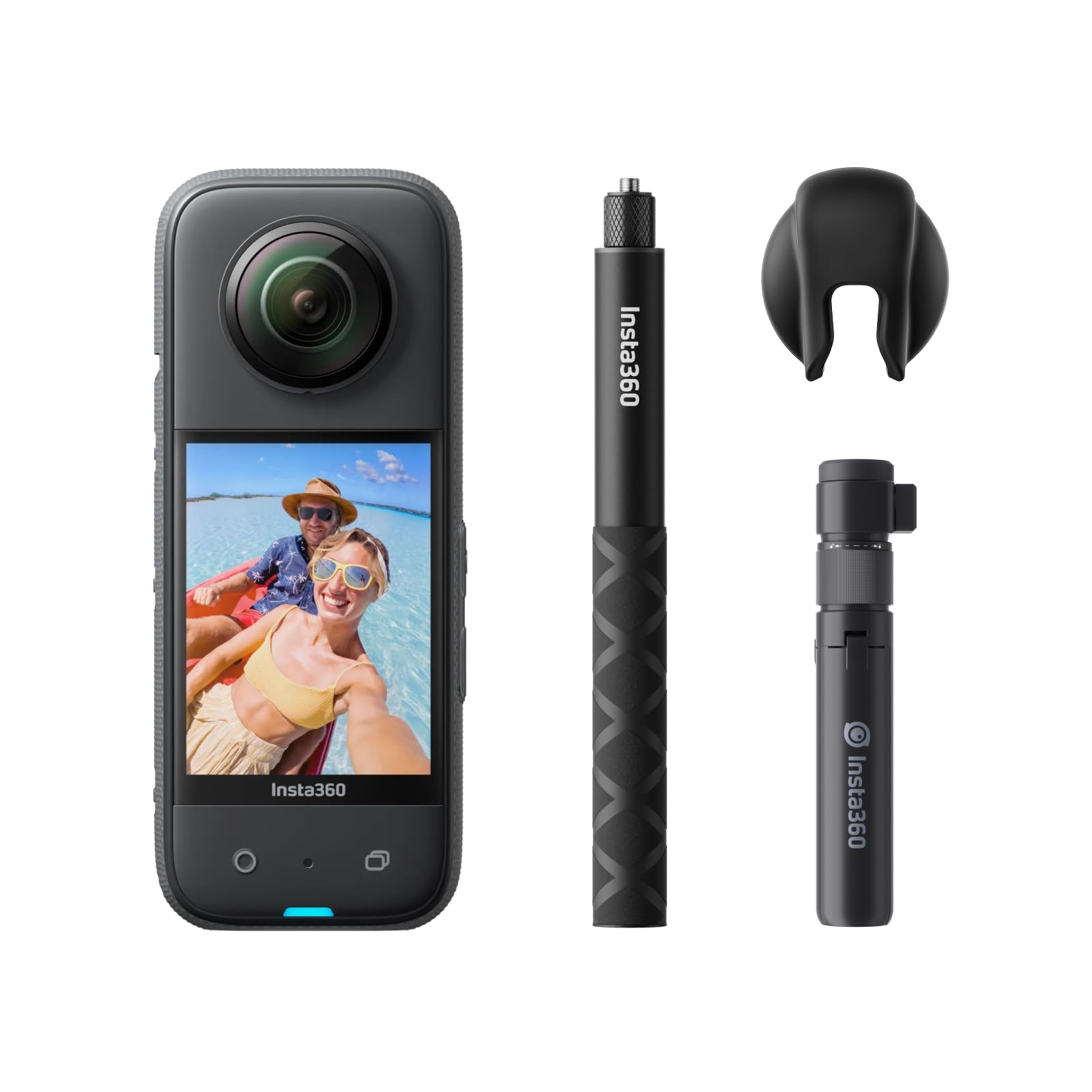
Image: The Insta360 X3 camera with the included Bullet Time Kit accessories.
2. Setup
2.1 Unboxing and Initial Inspection
Carefully remove all components from the packaging. Verify that the following items are present:
- Insta360 X3 Camera
- Invisible Selfie Stick
- Bullet Time Handle/Tabletop Tripod
- Lens Cap
- USB-C Charging Cable
- Battery (pre-installed or separate)
2.2 Battery Installation and Charging
- Ensure the camera is powered off.
- Locate the battery compartment on the side of the camera.
- Insert the included Lithium Ion battery, ensuring correct orientation.
- Close the battery compartment securely.
- Connect the camera to a power source using the USB-C charging cable. The charging indicator will illuminate.
2.3 Micro SD Card Insertion
The Insta360 X3 requires a Micro SD card (not included in all bundles) for storing footage. Use a V30 or higher speed Micro SD card for optimal performance.
- With the camera powered off, open the Micro SD card slot cover.
- Insert the Micro SD card with the contacts facing the front of the camera until it clicks into place.
- Close the slot cover securely.
2.4 Initial Power On and App Connection
- Press and hold the power button to turn on the camera.
- Follow the on-screen prompts for initial setup.
- Download the Insta360 app on your smartphone.
- Enable Wi-Fi and Bluetooth on your smartphone and connect to the camera via the app for full control and features.
3. Operating the Camera
3.1 Basic Controls
The Insta360 X3 features a 2.29-inch touchscreen and physical buttons for intuitive control.
- Power Button: Press and hold to power on/off. Short press to wake/sleep.
- Shutter Button: Press to start/stop recording or take a photo.
- Quick Menu (Q) Button: Customizable button for quick access to frequently used settings or modes.
- Mode Button: Switch between different shooting modes.
- Touchscreen: Swipe and tap to navigate menus, change settings, and preview footage.

Image: The large touchscreen display of the Insta360 X3, showing menu navigation.
3.2 Shooting Modes
The X3 offers various modes to capture your adventures:
- 5.7K 360 Active HDR Video: Captures a full 360-degree view with enhanced dynamic range. Reframing can be done in the Insta360 app after recording.
- 72MP 360 Photo: High-resolution 360-degree still images.
- 4K Single-Lens Mode: Use one lens to shoot traditional wide-angle footage at 4K30fps or 2.7K MaxView for an ultra-wide 170° field of view.
- 60fps Me Mode: Records footage that keeps you in the center of the frame, making the selfie stick invisible.
- 8K 360 Timelapse: Create dynamic timelapse videos in 360 degrees.
- 4K Bullet Time: Utilizes the Bullet Time Handle to create cinematic slow-motion shots where the camera rotates around you.

Image: The Insta360 X3 in action, demonstrating its 360-degree capture capability.
3.3 Stabilization and Horizon Lock
The X3 features FlowState Stabilization and 360 Horizon Lock algorithms to ensure smooth and level footage, even in dynamic environments.

Image: Visual representation of the camera's advanced stabilization technology.
3.4 Waterproof Usage
The Insta360 X3 is waterproof to 10 meters (33 feet) without a dive case. Ensure all port covers are securely closed before exposing the camera to water.

Image: The Insta360 X3 submerged in water, highlighting its waterproof design.
3.5 Invisible Selfie Stick
When using the Invisible Selfie Stick, the camera's software automatically removes the stick from your 360-degree footage, creating a drone-like perspective.

Image: A demonstration of the invisible selfie stick feature, showing the camera appearing to float.
4. Maintenance
4.1 Cleaning
- Lenses: Use a soft, lint-free cloth specifically designed for camera lenses. Avoid abrasive materials.
- Screen: Wipe gently with a microfiber cloth.
- Body: Use a soft, damp cloth to clean the camera body. Ensure all ports are closed before cleaning with moisture.
4.2 Storage
Store the camera in a cool, dry place away from direct sunlight and extreme temperatures. When storing for extended periods, ensure the battery is partially charged (around 50%) to prolong its lifespan.
4.3 Firmware Updates
Regularly check for firmware updates via the Insta360 app or the official Insta360 website. Firmware updates can improve performance, add new features, and fix bugs.
5. Troubleshooting
5.1 Camera Overheating
The camera may become warm during prolonged use, especially in high-resolution modes or direct sunlight. If the camera overheats, it may automatically shut down to prevent damage. Allow the camera to cool down before resuming use. Avoid direct sunlight exposure during extended recording sessions.
5.2 App Connection Issues
If the camera fails to connect to the Insta360 app:
- Ensure Wi-Fi and Bluetooth are enabled on your smartphone.
- Restart both the camera and your smartphone.
- Ensure the Insta360 app is updated to the latest version.
- Try resetting the camera's Wi-Fi settings.
5.3 Stitching Artifacts in 360 Footage
Minor stitching artifacts can occur, especially if objects are very close to the camera's lenses or if the camera is not positioned optimally. Ensure the camera is mounted straight and that the selfie stick is aligned correctly to minimize visibility in the final footage.
5.4 Incorrect Color Balance
In certain extreme lighting conditions (e.g., bright snow or highly reflective surfaces), the camera's automatic white balance may struggle. Adjusting color profiles in the Insta360 app during post-production can correct these issues.
5.5 Camera Not Responding
If the camera becomes unresponsive, press and hold the power button for 10-15 seconds to force a restart.
6. Specifications
| Feature | Specification |
|---|---|
| Brand | Insta360 |
| Model Name | X3 |
| Model Number | CINSAAQ/B-CREN |
| Video Capture Resolution | 5.7K, 4K |
| Effective Still Resolution | 72 MP |
| Photo Sensor Technology | CMOS |
| Image Stabilization | FlowState |
| Water Resistance Level | Waterproof (to 10 meters) |
| Screen Size | 2.29 Inches |
| Connectivity Technology | Wi-Fi |
| Flash Memory Type | Micro SD |
| Number of Batteries | 1 Lithium Ion (included) |
| Item Dimensions (D x W x H) | 1.3"D x 1.8"W x 4.5"H |
7. Warranty Information
The Insta360 X3 Bullet Time Bundle comes with a 1-year manufacturer's warranty. Please retain your proof of purchase for warranty claims. For detailed terms and conditions, refer to the official Insta360 website or contact customer support.
8. Support
For further assistance, technical support, or to access additional resources such as tutorials and FAQs, please visit the official Insta360 support website. You can also find help within the Insta360 mobile application.


