
1. Introduction
Thank you for choosing the Gantch WiFi Smart Touch Wall Light Switch. This device allows you to control your lighting with a touch, via a smartphone app, or through voice commands using smart assistants like Alexa and Google Home. This manual provides essential information for safe installation, setup, and operation of your new smart switch.
2. Safety Information
- Electrical Hazard: Installation involves high voltage. Always ensure the power is turned off at the circuit breaker before beginning any electrical work. If you are unsure about electrical wiring, consult a qualified electrician.
- Neutral Wire Required: This smart switch requires a neutral wire for proper operation. Verify that your electrical box has a neutral wire before installation.
- Indoor Use Only: This device is designed for indoor use in dry locations.
- Operating Voltage: 110 Volts. Do not exceed the specified voltage or current rating (10 Amps).
- 2.4GHz WiFi Only: The switch is only compatible with 2.4GHz WiFi networks. It does not support 5GHz WiFi.
3. Product Overview
The Gantch WiFi Smart Touch Wall Light Switch features a sleek 2.5D curved tempered glass panel, offering a delicate feel and easy cleaning. Its design is durable, scratch-resistant, and fire-resistant. The switch integrates seamlessly into standard US electrical boxes.

Image: Front view of the Gantch Smart Touch Wall Light Switch alongside a smartphone showing the control application.

Image: Rear view of the smart switch, highlighting the wiring terminals and the product information label.
4. Specifications
| Specification | Value |
|---|---|
| Item Model Number | GC-MWF-1 |
| Brand | Gantch |
| Operation Mode | Automatically, Off, Smart Switch |
| Current Rating | 10 Amps |
| Operating Voltage | 110 Volts |
| Contact Type | Normally Closed |
| Connector Type | Screw |
| Terminal | Through Hole |
| Item Dimensions (L x W x H) | 4.72 x 2.8 x 2.9 inches |
| Circuit Type | 1-way |
| Actuator Type | Push Button |
5. Installation
Important: Ensure electricity is cut off at the circuit breaker before installation. This switch requires a neutral wire. If you are unsure, please consult a qualified electrician.
- Turn off power at the circuit breaker for the switch location.
- Remove the existing wall plate and switch.
- Identify the Live (L), Neutral (N), and Load (L1, L2, etc.) wires. This switch is a 1-gang model, so it will typically have one load wire.
- Connect the wires from your wall box to the corresponding terminals on the Gantch smart switch. The switch features large-diameter wiring ports for easier installation.
- Secure the switch into the wall box.
- Attach the glass touch panel.
- Restore power at the circuit breaker.
- Wait approximately 10 seconds after restoring power before testing the switch. This allows the switch to initialize properly.

Image: Wiring diagram illustrating the connection of the smart switch to the household electrical system, including Live, Neutral, and Load wires to a light fixture.
6. App Setup and Connectivity
The Gantch Smart Touch Wall Light Switch connects to your home WiFi network (2.4GHz only) and can be controlled via the Smart Life or Tuya App.
- Download the App: Download the 'Smart Life' or 'Tuya Smart' app from your smartphone's app store (available on iOS and Android).
- Register/Log In: Open the app and register for a new account or log in if you already have one.
- Add Device: Follow the in-app instructions to add a new device. Typically, you will select 'Electrical Switch' or 'Wall Switch' and then follow the pairing mode instructions (often involves pressing and holding the switch button until an indicator light blinks).
- Connect to WiFi: Enter your 2.4GHz WiFi network name and password when prompted by the app.
- Rename Device: Once connected, you can rename your switch (e.g., 'Living Room Light') for easier control.
Voice Control Integration (Alexa & Google Home)
To enable voice control, link your Smart Life/Tuya account with Amazon Alexa or Google Home:
- Open the Alexa or Google Home app.
- Navigate to the 'Skills & Games' (Alexa) or 'Works with Google' (Google Home) section.
- Search for 'Smart Life' or 'Tuya Smart' and enable the skill/service.
- Link your Smart Life/Tuya account using your credentials.
- Discover devices. Your smart switch should now appear and be controllable via voice commands.
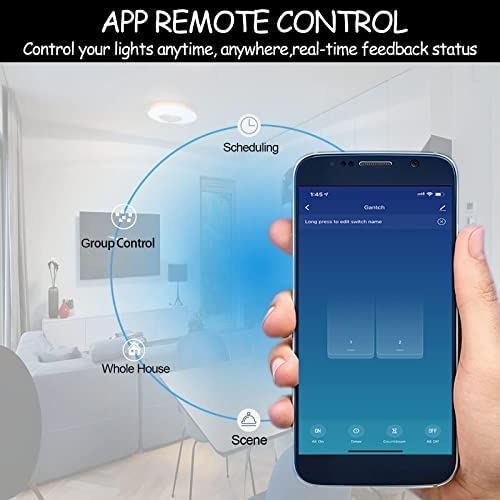
Image: A smartphone screen showing the Smart Life app, illustrating remote control capabilities including scheduling, group control, and scene management for smart lighting.
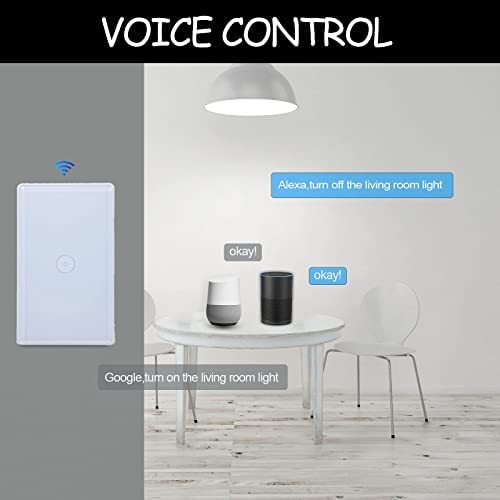
Image: The smart switch positioned near Google Home and Amazon Echo devices, indicating compatibility with voice control commands.
7. Operating Instructions
Manual Control
Simply touch the designated area on the glass panel to turn the connected light on or off.
App Remote Control
Using the Smart Life/Tuya App, you can control your lights from anywhere with an internet connection. The app provides real-time feedback on the light's status.
- On/Off: Tap the switch icon in the app to toggle the light.
- Scheduling: Set specific times for lights to turn on or off automatically.
- Timers & Countdown: Configure timers (e.g., 1/5/30 minutes, 1 hour) or countdowns for automatic light control.
- Scene Control: Create custom scenes (e.g., 'Sleep Mode', 'Dining Mode', 'Reading Mode') to adjust lighting with a single tap.
- Group Control: Group multiple smart switches to control them simultaneously.
- Share Control: Share device control with family members through the app.
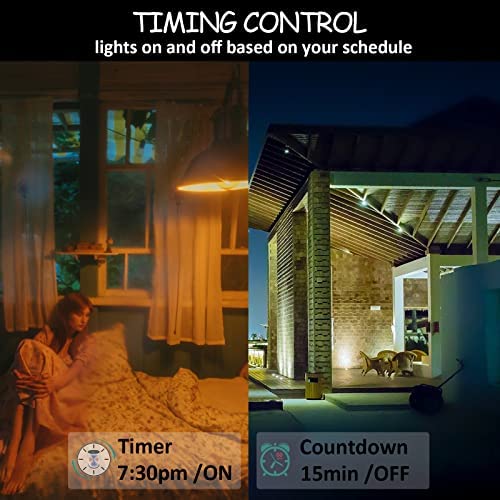
Image: Examples of timing control, showing a timer set for lights to turn on at 7:30 PM and a countdown for lights to turn off after 15 minutes.
Voice Control
Once integrated with Alexa or Google Home, use simple voice commands to control your lights. For example:
- "Alexa, turn on the living room light."
- "Hey Google, turn off the kitchen light."
8. Maintenance
The 2.5D curved tempered glass panel is designed for easy cleaning. Use a soft, damp cloth to wipe the surface. Avoid abrasive cleaners or harsh chemicals that could damage the finish. Ensure the switch is dry before use.
9. Troubleshooting
- Switch Not Responding: Ensure power is on at the circuit breaker. If recently installed, wait 10 seconds after power restoration before testing.
- No WiFi Connection: Verify your WiFi network is 2.4GHz. Check your router and ensure the switch is within range. Try restarting your router and the switch.
- App Control Issues: Ensure your phone has an internet connection. Check if the Smart Life/Tuya app is updated to the latest version. Try unpairing and re-pairing the device in the app.
- Voice Control Not Working: Confirm that your Smart Life/Tuya account is correctly linked to Alexa or Google Home. Ensure your smart assistant device is online and within listening range. Try rediscovering devices in the Alexa/Google Home app.
- Neutral Wire Requirement: This switch requires a neutral wire. If your installation lacks a neutral wire, the switch will not function correctly.
10. Warranty and Support
Gantch provides a 30-day hassle-free return policy for this WiFi smart light switch. If you encounter any questions regarding installation, connection, or operation, please contact Gantch customer support via Amazon mail. We are committed to assisting you and resolving any issues you may experience.