
1. Introduction
The Autel MaxiVCI V200 is a state-of-the-art Vehicle Communication Interface (VCI) designed to facilitate wireless communication between a vehicle's onboard diagnostic (OBD) system and compatible Autel diagnostic tablets. This device supports advanced protocols such as DoIP and CAN FD, ensuring broad vehicle compatibility and high-speed data transfer for efficient diagnostic operations.
It is an essential component for professional technicians and enthusiasts utilizing Autel MaxiSYS MS906 MAX/PRO/PRO-TS, MaxiCOM MK906 Pro/PRO-TS/S PRO-TS, KM100/X/E, BT608/609, and ITS600 diagnostic tools.
2. Product Overview
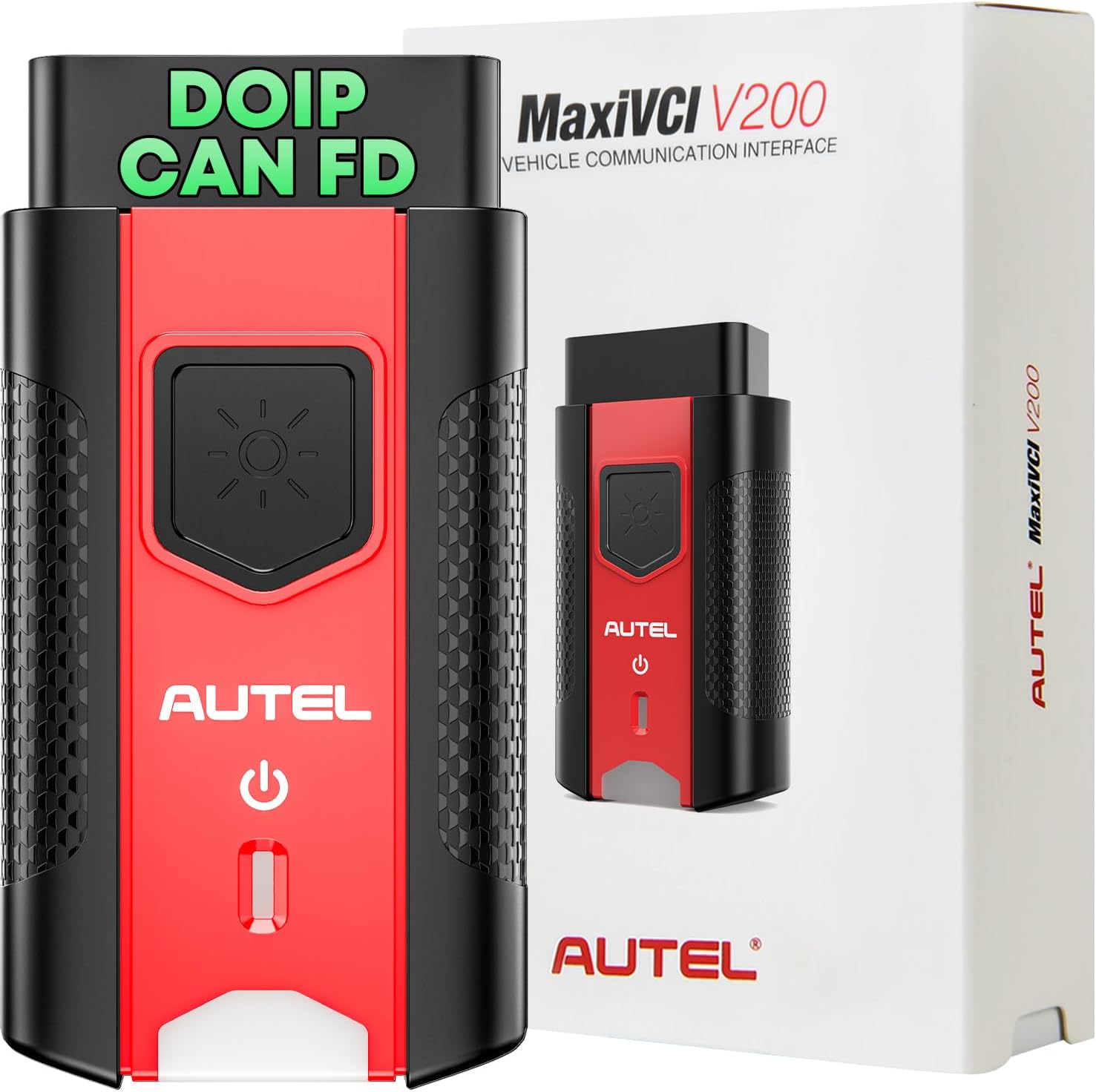
Figure 2.1: Autel MaxiVCI V200 device and packaging, highlighting DoIP and CAN FD protocol support.

Figure 2.2: Detailed diagram of the MaxiVCI V200 showing its components: Flashlight Button, Power LED, Connection LED, Vehicle Data Connector (16-Pin), and USB Port.
2.1. Key Features
- Compatibility: Works with Autel MaxiSYS MS906 MAX/PRO/PRO-TS, MaxiCOM MK906 Pro/PRO-TS/S PRO-TS, KM100/X/E, BT608/609, ITS600.
- Protocol Support: Supports CAN FD and DoIP protocols for faster data transfer and broader vehicle coverage.
- Wireless Connectivity: Bluetooth connectivity allows for diagnostic operations up to 75 feet (approximately 23 meters) from the vehicle.
- Plug & Play: Simple 3-step connection process for quick setup.
- OBDII & Non-OBDII Support: Compatible with standard OBDII ports and non-OBDII ports using an appropriate adapter (sold separately).

Figure 2.3: Autel MaxiVCI V200 compatibility with various Autel diagnostic scanners.
3. Setup and Connection
Follow these steps to connect your MaxiVCI V200 to the vehicle and your Autel diagnostic scanner.
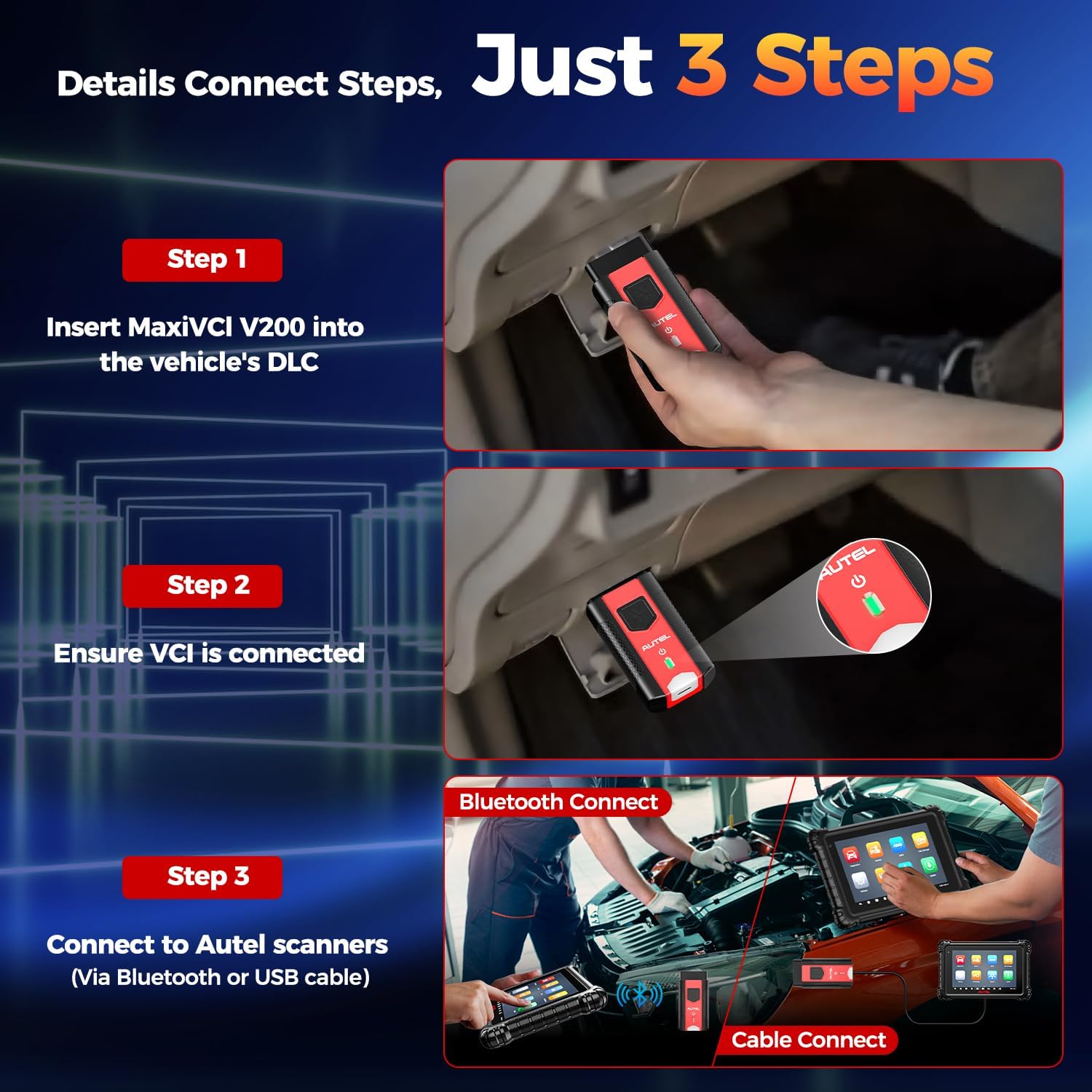
Figure 3.1: Visual guide for the 3-step connection process.
- Step 1: Insert into Vehicle's DLC
Locate the vehicle's Data Link Connector (DLC), typically found under the dashboard. Insert the MaxiVCI V200 into the DLC port. Ensure a secure connection.
Important Safety Reminder: Before connecting or disconnecting the VCI, ensure the vehicle ignition switch is OFF to prevent potential damage to the VCI from instantaneous current shock.
- Step 2: Power Up the Scanner
Turn on your compatible Autel diagnostic scanner. The VCI will power on automatically when connected to the vehicle's DLC.
- Step 3: Pair with Scanner
Pair the MaxiVCI V200 with your Autel scanner to establish communication. This can be done wirelessly via Bluetooth or directly using a USB cable. The system prioritizes USB communication if both are connected.
3.1. Non-OBDII Vehicle Connection
For vehicles with a non-OBDII port, an additional OBDI adapter is required (not included). Connect the 16-pin jack of the OBDI adapter to the Vehicle Data Connector on the MaxiVCI V200, then connect the OBDI adapter to the vehicle's specific DLC.
4. Operating the MaxiVCI V200
Once connected, the MaxiVCI V200 acts as a bridge for vehicle data transmission to your Autel scanner. Its wireless capability allows for flexible operation around the vehicle.

Figure 4.1: Wireless operation of the MaxiVCI V200, enabling diagnostics up to 164 feet (50m) away.
4.1. LED Indicators
The MaxiVCI V200 features LED indicators to provide status information:
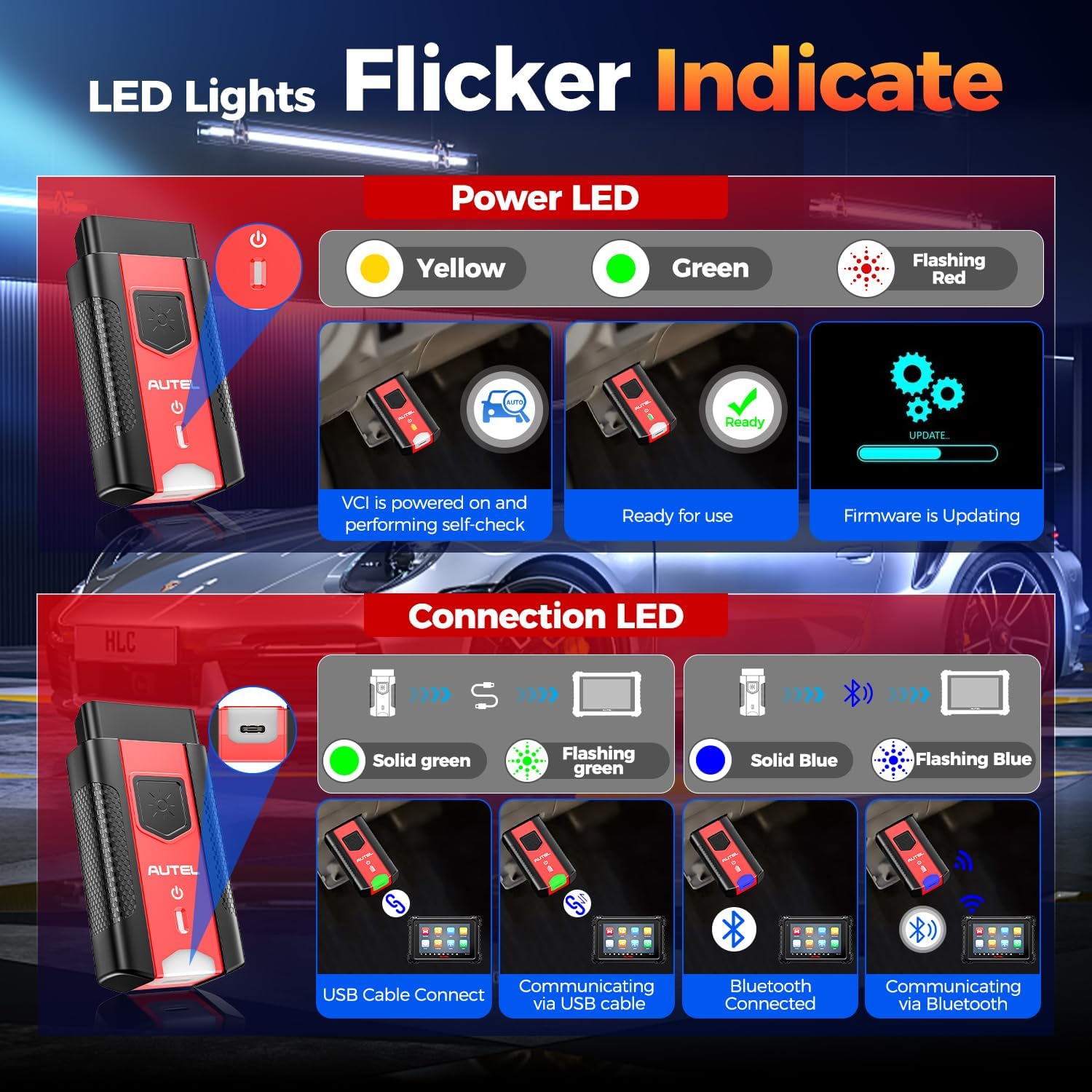
Figure 4.2: Understanding the Power and Connection LED indicators.
- Power LED:
- Yellow: VCI is powered on and performing self-check.
- Green: Ready for use.
- Flashing Red: Firmware is updating.
- Connection LED:
- Solid Green: USB Cable Connected.
- Flashing Green: Communicating via USB cable.
- Solid Blue: Bluetooth Connected.
- Flashing Blue: Communicating via Bluetooth.
4.2. Protocol Support
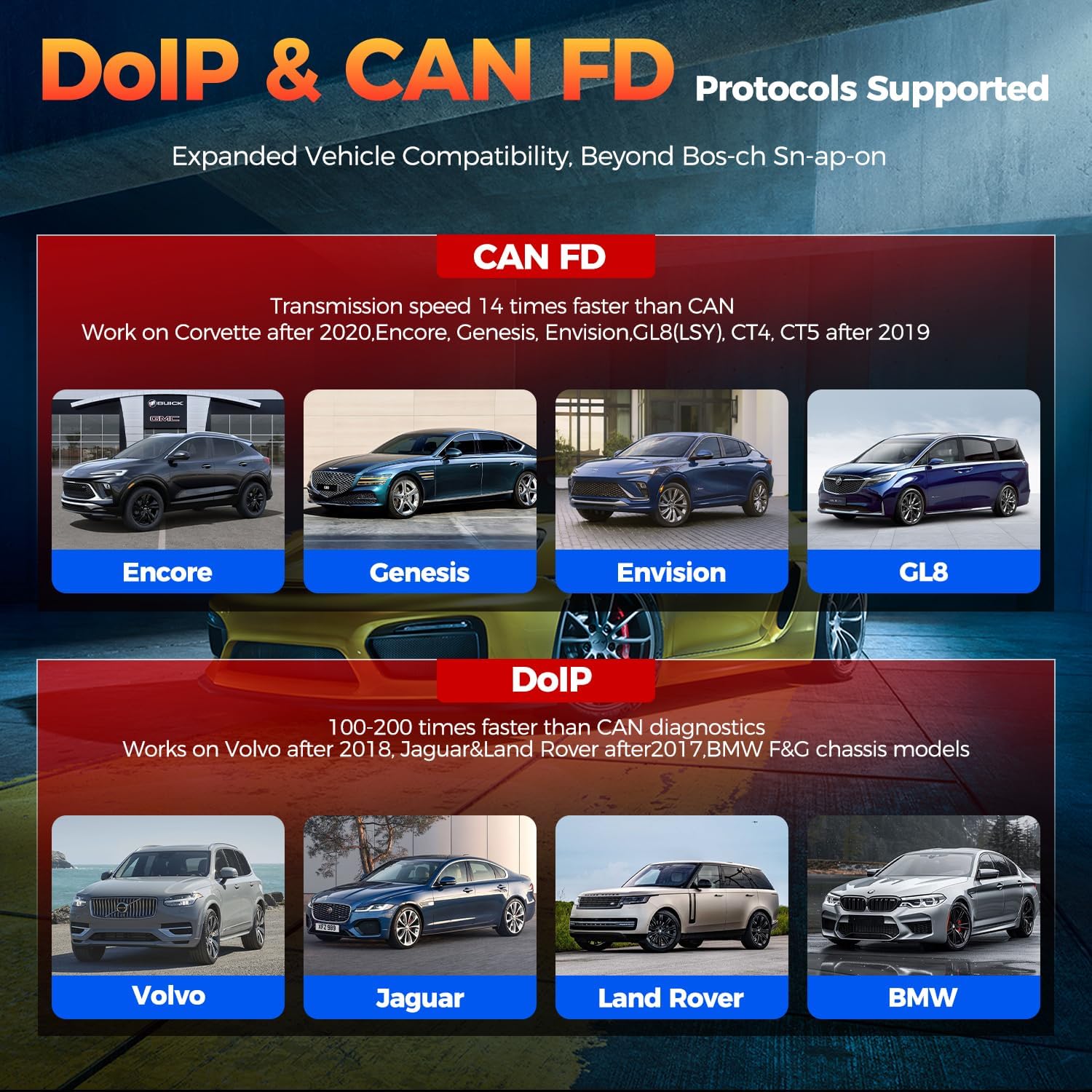
Figure 4.3: Overview of CAN FD and DoIP protocol support and compatible vehicle types.
The MaxiVCI V200 supports the following advanced communication protocols:
- CAN FD: Offers data transfer speeds up to 14 times faster than traditional CAN, supporting newer vehicle models like Corvette after 2020, Encore, Genesis, Envision, GL8(LSY), CT4, CT5 after 2019.
- DoIP (Diagnostics over Internet Protocol): Provides 100-200 times faster diagnostics than CAN, compatible with vehicles such as Volvo after 2018, Jaguar/Land Rover after 2017, and BMW F&G chassis models.
5. Maintenance
To ensure the longevity and optimal performance of your Autel MaxiVCI V200, follow these maintenance guidelines:
- Keep the device clean and free from dust and debris. Use a soft, dry cloth for cleaning.
- Avoid exposing the device to extreme temperatures, humidity, or direct sunlight.
- Store the device in a safe place when not in use to prevent physical damage.
- Do not attempt to disassemble or modify the device, as this will void the warranty.
6. Troubleshooting
If you encounter issues with your MaxiVCI V200, refer to the following common troubleshooting tips:
- Device Not Powering On: Ensure the VCI is securely plugged into the vehicle's DLC. Check the vehicle's OBDII port for power supply issues.
- Connection Issues (Bluetooth/USB):
- For Bluetooth: Ensure Bluetooth is enabled on your Autel scanner and the VCI is within range (up to 75 feet). Try re-pairing the devices.
- For USB: Ensure the USB cable is securely connected to both the VCI and the scanner. Try a different USB port or cable.
- No Communication with Vehicle:
- Verify that the vehicle's ignition is in the ON position (engine off or running, as required by the diagnostic procedure).
- Confirm that the VCI's LED indicators show a proper connection and communication status.
- Ensure the vehicle's DLC is not damaged.
- If using a non-OBDII vehicle, confirm the correct OBDI adapter is used and properly connected.
- Firmware Update Issues: If the Power LED is flashing red, the firmware is updating. Do not disconnect the VCI or power off the scanner during this process. If the update fails, try again ensuring a stable connection.
For persistent issues or advanced technical support, please contact Autel customer service.
7. Specifications
| Specification | Value |
|---|---|
| Model | MaxiVCI V200 VCI Wireless Dongle |
| Item Weight | 5 ounces |
| Product Dimensions | 0.79 x 1.57 x 1.97 inches |
| Manufacturer Part Number | VCI V200 |
| Supported Protocols | CAN FD, DoIP, CAN, EOBD, OBD, OBDII |
| Wireless Range | Up to 75 feet (approx. 23 meters) |
| Connectivity | Bluetooth, USB |
8. Warranty and Support
The Autel MaxiVCI V200 VCI200 OBD2 Bluetooth Connector Adapter Vehicle Communication Interface comes with a 1-year warranty from the date of purchase. Additionally, Autel offers a 30-day no-reason return and replacement policy.
For any connectivity issues, technical assistance, or warranty claims, please contact Autel customer support via email: auteldirect@outlook.com.
Autel is committed to providing 24/7/365 technical support and ensuring customer satisfaction.