
AMprime Model 1789
AMprime Single Din Car Stereo Bluetooth Hands-Free Calling Car Audio Receiver User Manual
Model: 1789
Introduction
This manual provides detailed instructions for the installation, operation, and maintenance of your AMprime Single Din Car Stereo. Please read this manual thoroughly before using the product to ensure proper function and to maximize your listening experience. Keep this manual for future reference.

Front view of the AMprime Single Din Car Stereo, displaying FM 87.5 on its digital LCD screen, with various control buttons and ports visible.
What's in the Box
Verify that all components are present in the package:
- AMprime Single Din Car Stereo Unit
- User Manual
- Power Cable
- Speaker Cable
- Mounting Bracket (2 pieces)

An illustration showing all items included in the product package: the car stereo unit, power cable, speaker cable, user manual, and mounting brackets, along with dimensions of the unit.
Specifications
| Feature | Detail |
|---|---|
| Brand | AMprime |
| Connectivity Technology | Auxiliary, Bluetooth, RCA, USB |
| Controller Type | Hand Control |
| Special Features | Built-In Bluetooth, Dual Bluetooth, FM, USB/SD/AUX-IN, RGB Backlit Buttons |
| Compatible Devices | Smartphone, Speaker |
| Connector Type | 3.5mm Jack, RCA, USB |
| Audio Output Mode | Stereo |
| Surround Sound Channel Configuration | 4.1 |
| Output Power | 60 Watts (6E+1 Watts) |
| Standard Size | Single DIN (178*50MM) |
| Working Voltage | DC 12V |
Setup and Installation
Pre-Installation Check
Before installation, ensure your vehicle's dashboard opening is compatible with a standard single DIN size (178mm x 50mm). Disconnect the vehicle's battery negative terminal before beginning any electrical work.
Wiring Diagram
Refer to the wiring diagram provided with your unit or on the unit itself for specific connections. General wiring includes:
- Yellow Wire: Constant 12V (Battery Positive)
- Red Wire: ACC 12V (Ignition Switch)
- Black Wire: Ground (Chassis Ground)
- Blue Wire: Antenna/Amplifier Remote Turn-On
- Speaker Wires: Connect to vehicle's speakers (e.g., White/White-Black for Front Left, Gray/Gray-Black for Front Right, Green/Green-Black for Rear Left, Purple/Purple-Black for Rear Right). Ensure correct polarity.
- RCA Output: For connecting external amplifiers or subwoofers.
Use the provided power and speaker cables for connection. If you are unsure about the wiring, consult a professional installer.
Mounting
- Insert the metal mounting sleeve into the dashboard opening.
- Bend the tabs on the sleeve outwards to secure it in place.
- Slide the stereo unit into the mounting sleeve until it clicks into place.
- Connect all necessary wiring harnesses to the back of the stereo.
Operating Instructions
Basic Controls
- Power/Mute Button (MOO): Press to turn on/off. Short press to mute/unmute audio.
- Volume Knob: Rotate to adjust volume.
- Mode Button (MOD): Press to cycle through modes (FM, Bluetooth, USB, SD, AUX).
- B/A Button: Used for band selection in FM mode or answer/end calls in Bluetooth mode.
- CLK Button: Displays clock. Press and hold to set time.
- Preset Buttons (1-6): In FM mode, short press to select stored stations. Long press to store current station.
- Forward/Backward Buttons (◀◀ / ▶▶): Skip tracks in media playback or tune radio stations.
- RST (Reset) Button: Small button, usually recessed. Press with a pointed object to reset the unit to factory settings.
Bluetooth Hands-Free Calling
- Pairing:
- Ensure Bluetooth is enabled on your mobile phone.
- Select Bluetooth mode on the car stereo. The display will show "BT" or "PAIRING".
- Search for Bluetooth devices on your phone. The stereo will appear as "CAR BT" or similar.
- Select "CAR BT" to connect. If prompted for a password, enter "0000".
- Once paired, the display will show "CONNECTED".
- Making/Receiving Calls:
- To answer an incoming call, press the B/A button.
- To reject an incoming call, long press the B/A button.
- To end an active call, press the B/A button.
- Dial numbers from your phone; audio will route through the stereo.

Visual representation of the Bluetooth hands-free calling function, showing a driver safely making a call through the car stereo system.
Dual Bluetooth Function
This unit supports connecting two mobile phones via Bluetooth simultaneously. When one phone is actively playing audio, the other phone will automatically pause. When the first phone stops playing, the second phone can automatically resume playback without manual intervention.
FM Radio Operation
- Press the MOD button to select FM mode.
- Auto Search: Long press the ◀◀ or ▶▶ button to automatically search for the next strong station.
- Manual Tune: Short press the ◀◀ or ▶▶ button to manually tune the frequency step by step.
- Store Stations: To store a station, tune to the desired frequency, then long press one of the preset buttons (1-6) until you hear a beep. The station is now saved to that preset.
- Recall Stations: Short press a preset button (1-6) to recall a stored station.

Depiction of the FM radio function, highlighting stable chip performance, auto/semi/manual search options, and the ability to store stations.
USB/SD/AUX-IN Media Playback
The stereo supports MP3, WAV, and WMA audio formats.
- USB Playback: Insert a USB flash drive into the front USB port. The unit will automatically switch to USB mode and begin playing compatible audio files.
- SD Card Playback: Insert an SD card into the SD card slot (if available). The unit will automatically switch to SD mode and play compatible audio files.
- AUX-IN Playback: Connect an external audio device (e.g., smartphone, MP3 player) to the front 3.5mm AUX-IN jack using an audio cable. Press the MOD button to select AUX mode.

An overview of the media playback options, illustrating the TF card slot (optional), USB port for media, USB port for charging, and the AUX-IN jack.
Quick Charge Function
The dedicated USB charging port (often labeled with a lightning bolt icon) provides fast charging for compatible mobile phones and other USB-powered devices. Simply connect your device using a USB cable to this port.
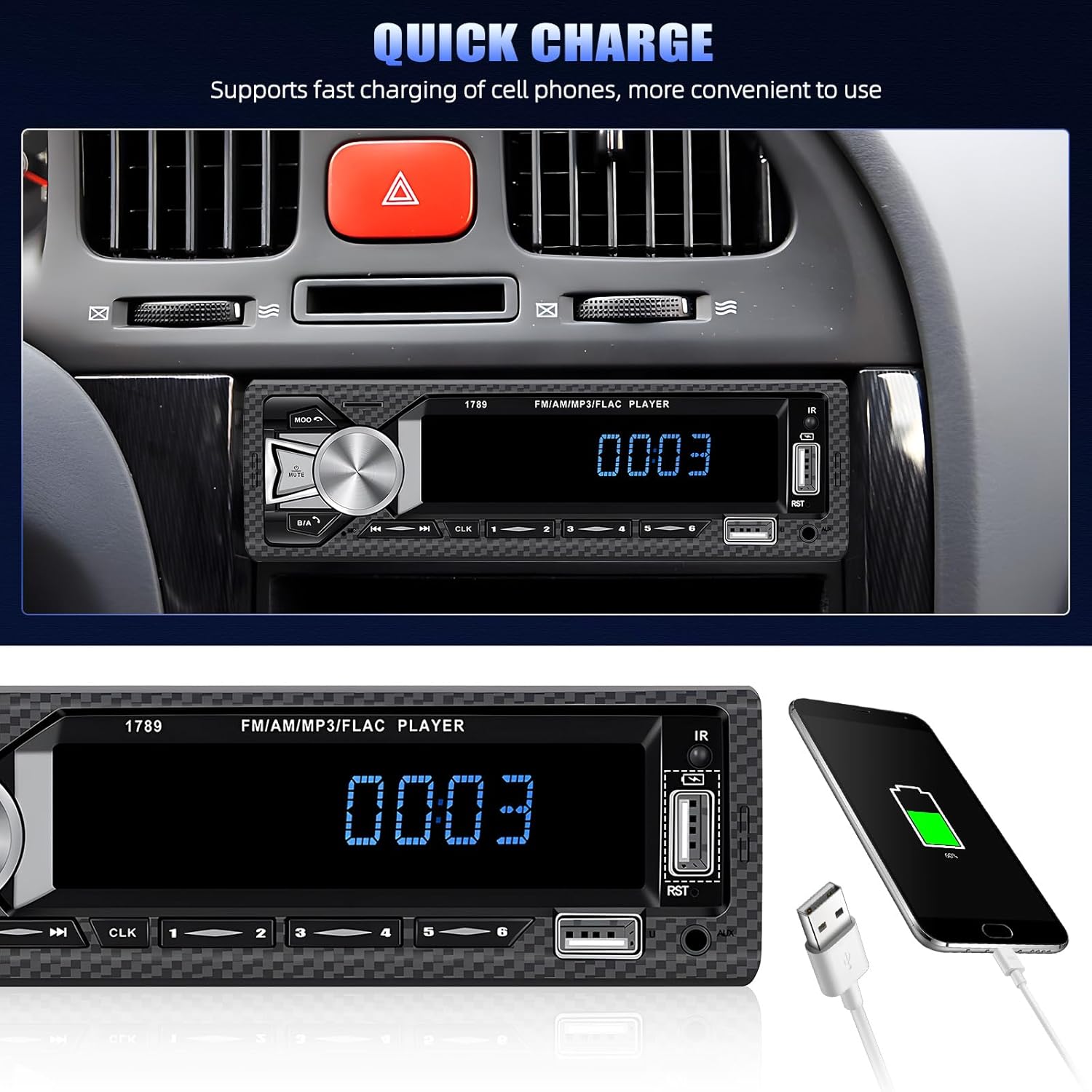
Visual demonstration of the quick charge feature, showing a smartphone connected to the stereo's USB charging port and indicating fast charging capability.
RGB Backlit Buttons
The physical buttons on the stereo feature a 7-color RGB backlight. You can manually change the button color to match your vehicle's interior lighting or your personal preference. Refer to the specific button combination or menu option in the unit's settings (usually accessed by long-pressing the volume knob or a dedicated button) to cycle through or select colors.

Examples of the car stereo's multi-color RGB LED backlight, showcasing various color options for the buttons.
Maintenance
- Cleaning: Use a soft, dry cloth to clean the unit's surface. For stubborn dirt, dampen the cloth slightly with water. Avoid using harsh chemicals or abrasive cleaners.
- Temperature: Do not expose the unit to extreme temperatures, direct sunlight for prolonged periods, or high humidity.
- Ventilation: Ensure the unit has adequate ventilation to prevent overheating. Do not block any ventilation openings.
- Power: Disconnect power before performing any maintenance or if the unit will not be used for an extended period.
Troubleshooting
| Problem | Possible Cause | Solution |
|---|---|---|
| No power | Blown fuse; Incorrect wiring; Loose connection | Check vehicle's fuse box and stereo's fuse; Verify wiring connections (Yellow, Red, Black wires); Ensure connections are secure. |
| No sound | Volume too low; Mute activated; Incorrect speaker wiring; Faulty speakers | Increase volume; Press Mute button; Check speaker wire connections and polarity; Test with known good speakers. |
| Bluetooth not connecting | Bluetooth not enabled on phone; Stereo not in pairing mode; Interference | Ensure phone's Bluetooth is on; Put stereo in Bluetooth mode; Move phone closer to stereo; Reset stereo (RST button). |
| Poor FM radio reception | Antenna not connected; Weak signal area; Interference | Ensure antenna is properly connected; Try auto-scanning for stations; Avoid areas with high electrical interference. |
| USB/SD not playing | Unsupported file format; Corrupted files; Drive/card not inserted correctly | Ensure files are MP3/WAV/WMA; Reformat drive/card; Reinsert drive/card firmly. |
If the problem persists after trying these solutions, please contact customer support.
Warranty and Support
Warranty Information
This product comes with a standard manufacturer's warranty. For specific details regarding warranty coverage, duration, and terms, please refer to the warranty card included in your product packaging or contact AMprime customer service directly. Keep your purchase receipt as proof of purchase for warranty claims.
Customer Support
For technical assistance, troubleshooting beyond this manual, or warranty inquiries, please contact AMprime customer support through their official website or the contact information provided with your purchase. When contacting support, please have your product model number (Model 1789) and purchase details ready.
You can visit the AMprime Store on Amazon for more information: AMprime Store
Ask a question about this manual
Ask about setup, troubleshooting, compatibility, parts, safety, or missing instructions. Manuals+ will review the question and use this page’s manual context to help answer it.