
FANGOR S20
Contents
FANGOR S20 Mini Sound Bar
User Manual
1. Introduction
Thank you for choosing the FANGOR S20 Mini Sound Bar. This compact yet powerful sound bar is designed to enhance your audio experience with its 60W output, advanced DSP technology, and versatile connectivity options. This manual provides detailed instructions for setup, operation, and maintenance to ensure optimal performance and longevity of your device.
2. Package Contents
Please verify that all items listed below are included in your package. If any items are missing or damaged, please contact customer support.

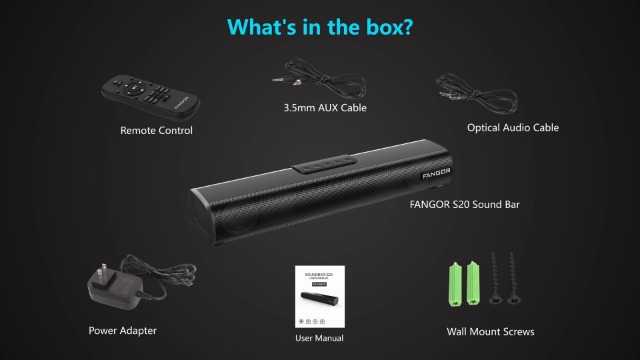
Figure 2.1: The FANGOR S20 Mini Sound Bar package includes the sound bar unit, a remote control, a 3.5mm AUX cable, an optical audio cable, a power adapter, a user manual, and wall mount screws for installation.
- FANGOR S20 Mini Sound Bar
- Remote Control
- 3.5mm AUX Cable
- Optical Audio Cable
- Power Adapter
- User Manual
- Wall Mount Screws
3. Product Features
3.1 Powerful Hi-fi Stereo Audio
The FANGOR S20 is equipped with dual powerful full-range drivers and dual low-frequency diaphragms to deliver a rich and immersive audio experience.

Figure 3.1: Internal view of the sound bar showcasing its dual full-range drivers and low-frequency diaphragms for enhanced sound quality.
3.2 DSP Technology with 3 Equalizer Modes
Built-in Digital Signal Processing (DSP) technology offers three distinct equalizer modes (Movie, Music, Dialog) to optimize sound output for different content types.

Figure 3.2: Select from Dialog, Movie, or Music modes to tailor the sound profile to your listening preference.
3.3 Bluetooth 5.0 Connectivity
Enjoy seamless wireless audio streaming with Bluetooth 5.0, providing a stable and convenient connection to your mobile devices.

Figure 3.3: Easily connect your smartphone or other Bluetooth-enabled devices to the sound bar for wireless audio playback.
3.4 Wide Compatibility
The sound bar offers multiple wired and wireless connection options, including HDMI ARC, Optical, AUX, and USB, ensuring compatibility with a wide range of devices such as TVs, PCs, laptops, projectors, tablets, and phones.

Figure 3.4: The sound bar supports diverse connections for universal compatibility with your entertainment systems.
4. Setup Guide
4.1 Placement Options
The FANGOR S20 Mini Sound Bar can be conveniently placed on a cabinet or mounted on a wall to suit your home theater setup.

Figure 4.1: Choose between wall-mounting for a sleek look or desktop placement for easy setup.
4.2 Connecting Your Sound Bar
The FANGOR S20 offers various connection methods to integrate with your audio sources. Refer to the video below for a visual guide on connecting your sound bar.
Video 4.1: This official FANGOR video provides a comprehensive overview of the S20 Sound Bar, demonstrating its features and various connection methods, including Bluetooth, HDMI ARC, Optical, AUX, and USB. It highlights the ease of setup and the sound bar's compatibility with different devices.
4.2.1 Bluetooth Connection
- Long press the power button on the sound bar for 3 seconds to turn it on and automatically enter Bluetooth pairing mode.
- On your device (e.g., TV, smartphone), navigate to Bluetooth settings and search for 'SOUNDBAR-S20'.
- Select 'SOUNDBAR-S20' to pair. A voice prompt will confirm successful pairing.
4.2.2 Wired Connections (HDMI ARC / Optical / AUX / USB)
Connect the appropriate cable (HDMI, Optical, or 3.5mm AUX) from your source device to the corresponding input port on the sound bar. For HDMI ARC and Optical connections, ensure your TV's audio output settings are configured correctly (e.g., set to HDMI ARC Output Port/Optical Output Port and Digital Output to PCM).
- HDMI ARC: Connect an HDMI cable from the sound bar's HDMI ARC port to your TV's HDMI ARC port. This allows for two-way communication and TV remote volume control.
- Optical: Connect an optical audio cable from the sound bar's SPDIF port to your TV's Optical Out port.
- AUX: Use the 3.5mm AUX cable to connect the sound bar's AUX port to your device's audio output.
- USB: Insert a USB drive into the USB port for direct audio playback.
5. Operating Instructions
5.1 Power On/Off
- Power On: Long press the power button on the sound bar or press the power button on the remote control.
- Power Off: Long press the power button on the sound bar or press the power button on the remote control.
5.2 Mode Selection
Press the 'M' button on the sound bar or the corresponding input button (BT, OPT, HDMI, AUX, USB) on the remote control to switch between input modes.
5.3 Volume Control
- Sound Bar: Use the '+' and '-' buttons on the sound bar or the VOL+ / VOL- buttons on the remote control to adjust the volume.
- Source Device: For optimal sound, it is recommended to set your TV/smartphone volume to a high level and control the main volume through the sound bar.
5.4 Equalizer Modes
Press the 'MOVIE', 'MUSIC', or 'DIALOG' buttons on the remote control to select your preferred sound mode.
- MOVIE Mode: Enhances cinematic sound effects for an immersive movie-watching experience.
- MUSIC Mode: Optimizes audio for music playback, providing balanced and clear sound.
- DIALOG Mode: Improves vocal clarity, making conversations in TV shows and movies easier to understand.
5.5 Bass and Treble Adjustment
Use the 'TREB+' / 'TREB-' and 'BASS+' / 'BASS-' buttons on the remote control to fine-tune the treble and bass levels according to your preference.
6. Maintenance
To ensure the longevity and optimal performance of your FANGOR S20 Mini Sound Bar, follow these maintenance guidelines:
- Cleaning: Use a soft, dry cloth to clean the surface of the sound bar. Do not use liquid cleaners or aerosol sprays, as they may damage the finish or internal components.
- Storage: When not in use for extended periods, store the sound bar in a cool, dry place away from direct sunlight and extreme temperatures.
- Ventilation: Ensure proper ventilation around the sound bar to prevent overheating. Do not block any ventilation openings.
7. Troubleshooting
If you encounter any issues with your FANGOR S20 Mini Sound Bar, please refer to the following common problems and solutions:
| Problem | Possible Cause | Solution |
|---|---|---|
| No sound from the sound bar. | Incorrect input mode selected. Loose cable connection. TV audio output settings incorrect. Sound bar or TV volume too low. | Press 'M' or input buttons on remote to select correct mode. Check all cable connections (HDMI, Optical, AUX). Ensure TV audio output is set to HDMI ARC/Optical Output and Digital Output to PCM. Increase volume on both sound bar and TV/source device. |
| Bluetooth pairing fails. | Sound bar not in pairing mode. Device too far from sound bar. Interference from other devices. | Long press power button to enter pairing mode. Ensure device is within 10 meters of the sound bar. Turn off other Bluetooth devices nearby. |
| Remote control not working. | Batteries are dead or incorrectly inserted. Obstruction between remote and sound bar. | Replace batteries (2x AAA, not included). Ensure correct polarity. Remove any objects blocking the remote's line of sight to the sound bar. |
| Sound is distorted or unclear. | Volume too high. Incorrect EQ mode. Source audio quality is poor. | Lower the volume. Try switching between MOVIE/MUSIC/DIALOG modes. Check the audio source for quality issues. |
If the problem persists after trying these solutions, please contact FANGOR customer support.
8. Specifications
| Feature | Detail |
|---|---|
| Brand | FANGOR |
| Model Number | S20 |
| Speaker Type | Multimedia |
| Special Feature | Equalizer |
| Speaker Maximum Output Power | 60 Watts |
| Connectivity Technology | Bluetooth, Auxiliary, USB, Optical, HDMI |
| Wireless Communication Technology | Bluetooth |
| Bluetooth Range | 10 Meters |
| Surround Sound Channel Configuration | 2.0 |
| Product Dimensions | 2.7"D x 15.7"W x 3.9"H |
| Item Weight | 2.83 pounds |
| Control Method | Remote, Button |
| Power Source | Corded Electric |
| Warranty Type | Limited |
9. Warranty and Support
9.1 Warranty Information
The FANGOR S20 Mini Sound Bar comes with a Limited Warranty. For specific terms and conditions, please refer to the warranty card included in your package or visit the official FANGOR website.
9.2 Customer Support
For further assistance, technical inquiries, or troubleshooting not covered in this manual, please refer to the official User Guide (PDF) or visit the FANGOR Store on Amazon.
Documents and downloads
Ask a question about this manual
Ask about setup, troubleshooting, compatibility, parts, safety, or missing instructions. Manuals+ will review the question and use this page’s manual context to help answer it.