
Yeelight YLTD003
Contents
Yeelight Screen Light Bar Pro RGB YLTD003 User Manual
Model: YLTD003
Product Overview
The Yeelight Screen Light Bar Pro RGB YLTD003 is a sophisticated monitor light designed to enhance your workspace lighting. It provides both front illumination for your desk and an RGB backlight for ambient effects, reducing eye strain and improving visual comfort. This manual provides essential information for setup, operation, maintenance, and troubleshooting.
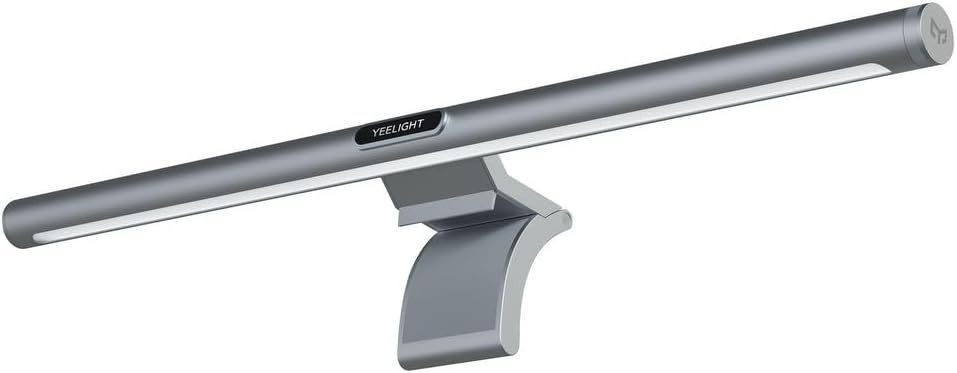
This image displays the Yeelight Screen Light Bar Pro RGB YLTD003. It is a sleek, silver-colored light bar designed to sit atop a monitor, providing illumination. The light bar features a minimalist design with the 'YEELIGHT' logo visible on its front surface. It includes a mounting bracket that securely attaches to the monitor, allowing the light to project downwards onto the desk and also provide an RGB backlight.
Setup Guide
1. Unpacking
Carefully remove all components from the packaging. Ensure all parts are present and undamaged before proceeding with installation.
2. Installation
The Yeelight Screen Light Bar Pro is designed for easy installation on top of your monitor. Ensure your monitor's thickness is compatible with the light bar's clamp mechanism.
- Attach the light bar to the monitor clamp. Ensure it clicks securely into place.
- Place the assembled unit on top of your monitor, ensuring the light bar is centered and stable. Adjust the counterweight at the back of the clamp for optimal balance.
- Connect the power cable to the light bar's input port and then plug the adapter into a suitable power outlet.
- For smart features and full functionality, download the Yeelight app from your device's app store (available for iOS and Android). Follow the in-app instructions to connect the light bar to your Wi-Fi network.
Operation
Basic Functions (Physical Controls)
- Power On/Off: Press the main control knob on the wireless remote to turn the light bar on or off.
- Brightness Adjustment: Rotate the main control knob clockwise to increase brightness, counter-clockwise to decrease.
- Color Temperature Adjustment: Press the dedicated button on the remote to cycle through preset color temperatures (e.g., warm white, cool white).
Advanced Features (Yeelight App)
The Yeelight app unlocks the full potential of your light bar:
- Precise Brightness & Color Temperature Control: Fine-tune brightness and color temperature using sliders in the app.
- RGB Backlight Customization: Access the RGB settings to choose from millions of colors, create custom lighting scenes, and apply dynamic effects for the rear ambient light.
- Smart Home Integration: Connect with smart home platforms like Google Assistant, Amazon Alexa, or Apple HomeKit for voice control and automation.
- Game Mode & Sync: Utilize specific modes for immersive gaming experiences, where the light can sync with on-screen action or audio.
- Scheduled Lighting: Set timers for the light bar to turn on/off automatically.
Maintenance
Proper maintenance ensures the longevity and optimal performance of your Yeelight Screen Light Bar Pro.
- Cleaning: Use a soft, dry, lint-free cloth to gently wipe the surface of the light bar. Do not use abrasive cleaners, solvents, or harsh chemicals, as these can damage the finish or electronic components.
- Dust Removal: Regularly dust the light bar to prevent accumulation, which can affect light output and heat dissipation.
- Storage: If storing the light bar for an extended period, disconnect it from the power source and store it in a cool, dry place away from direct sunlight and extreme temperatures.
Troubleshooting
If you encounter issues with your Yeelight Screen Light Bar Pro, refer to the following common problems and solutions:
| Problem | Possible Cause | Solution |
|---|---|---|
| Light bar does not turn on. | No power supply. | Check if the power cable is securely connected to the light bar and the power outlet. Ensure the power outlet is functional. |
| Cannot connect to the Yeelight app. | Incorrect Wi-Fi settings or network issues. | Ensure your Wi-Fi is enabled and the light bar is within range of your router. Verify you are connecting to a 2.4GHz Wi-Fi network, as 5GHz networks may not be supported. Restart the light bar and your mobile device. |
| Light flickers or behaves erratically. | Unstable power supply or firmware issue. | Ensure the power supply is stable. Check the Yeelight app for any available firmware updates and install them. |
| Remote control is unresponsive. | Low battery or pairing issue. | Replace the battery in the remote control. Re-pair the remote control with the light bar according to the instructions in the Yeelight app or product guide. |
Technical Specifications
| Feature | Detail |
|---|---|
| Brand | Yeelight |
| Manufacturer | YEELIGHT |
| Model Number | YLTD003 |
| Manufacturer Part Number | YP00369 |
| Product Dimensions | 2.79 x 24.64 x 16.51 cm |
| Item Weight | 1.13 kg |
| Colour | Silver |
| Power Source | Corded Electric |
| Number of Light Sources | 1 |
| Batteries Included | No |
Warranty and Support
This Yeelight product comes with a standard manufacturer's warranty, covering defects in materials and workmanship under normal use. The specific duration and terms of the warranty may vary by region and retailer.
For detailed warranty information, technical support, troubleshooting assistance beyond this manual, or service inquiries, please visit the official Yeelight website or contact their customer service directly. Keep your purchase receipt as proof of purchase for warranty claims.
Yeelight Official Website: www.yeelight.com
Ask a question about this manual
Ask about setup, troubleshooting, compatibility, parts, safety, or missing instructions. Manuals+ will review the question and use this page’s manual context to help answer it.