
1. Introduction
Thank you for choosing the MAJORITY Quadriga Internet Radio with CD Player. This device offers a comprehensive audio experience, combining traditional and modern listening options. Enjoy access to thousands of internet radio stations, DAB+ and FM broadcasts, CD playback, Bluetooth streaming, Spotify Connect, and podcasts. With its powerful 120W 2.1 stereo sound and integrated subwoofer, the Quadriga delivers rich and clear audio.

Image: Front view of the MAJORITY Quadriga Internet Radio with CD Player.
2. Safety Instructions
- Read all instructions carefully before use and retain them for future reference.
- Do not expose the unit to dripping or splashing liquids.
- Ensure adequate ventilation around the unit. Do not block any ventilation openings.
- Do not place the unit near heat sources such as radiators, heat registers, stoves, or other apparatus (including amplifiers) that produce heat.
- Protect the power cord from being walked on or pinched, particularly at plugs, convenience receptacles, and the point where they exit from the apparatus.
- Only use attachments/accessories specified by the manufacturer.
- Unplug this apparatus during lightning storms or when unused for long periods.
- Refer all servicing to qualified service personnel. Servicing is required when the apparatus has been damaged in any way.
3. What's in the Box
Carefully unpack your MAJORITY Quadriga and ensure all items listed below are present:
- 1x MAJORITY Quadriga Unit
- 1x Power Cable
- 1x Remote Control
- 1x AUX Cable
- 1x RF Antenna
- 2x AAA Batteries (for remote control)
- 1x User Manual

Image: All components included in the MAJORITY Quadriga package.
4. Product Overview
4.1 Front Panel
The front panel features the main display, control knob, function buttons, and CD slot.

Image: Detailed view of the front panel controls and display.
4.2 Rear Panel
The rear panel provides various connectivity options for external devices and the antenna connection.
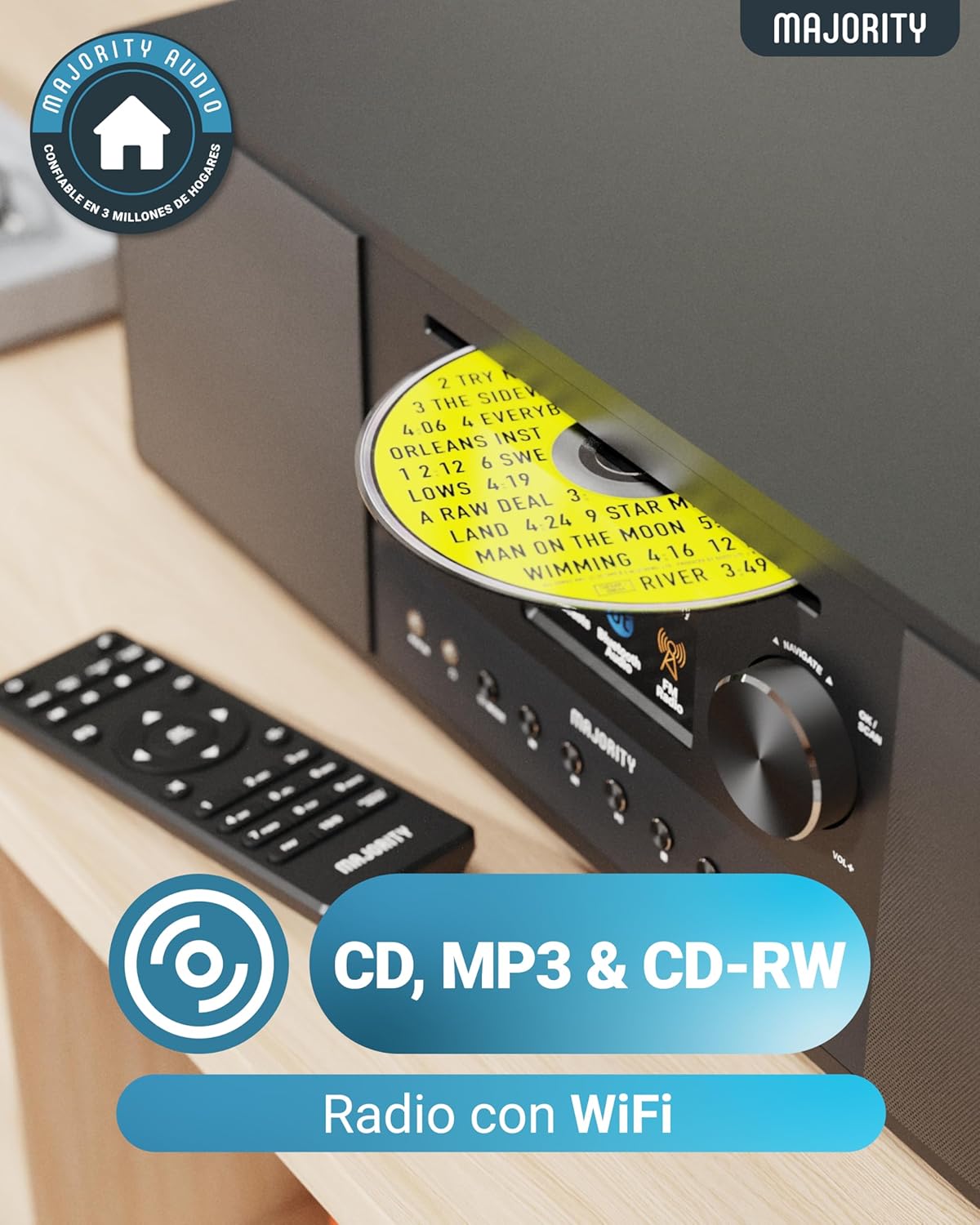
Image: Rear panel with input/output ports and antenna connector.
4.3 Remote Control
The included remote control allows convenient operation of all functions from a distance.

Image: The remote control unit.
5. Setup
5.1 Unpacking and Placement
Remove the unit from its packaging. Place the Quadriga on a stable, flat surface away from direct sunlight, heat sources, and moisture. Ensure there is sufficient space around the unit for proper ventilation.
5.2 Connecting Power
Connect the power cable to the DC IN port on the rear of the unit, then plug the other end into a wall socket.
5.3 Connecting Antenna
For optimal DAB+ and FM reception, connect the supplied RF antenna to the DAB/FM ANTENNA port on the rear panel. Extend the antenna fully for best signal.
5.4 Initial Setup and Network Connection
Upon first power-on, the unit will guide you through an initial setup process. This typically includes:
- Language Selection: Choose your preferred language from the on-screen menu.
- Network Setup: The unit will scan for available Wi-Fi networks. Select your network and enter the password using the control knob and buttons. A stable internet connection is required for Internet Radio, Spotify Connect, and podcast features.
- Time and Date: Set the correct time and date, or allow the unit to synchronize automatically via the internet.
6. Operating Instructions
6.1 Basic Controls
- Power Button: Press to turn the unit on or off.
- Control Knob: Rotate to navigate menus and adjust volume. Press to confirm selections.
- Mode Button: Press to cycle through available modes (Internet Radio, DAB+, FM, CD, Bluetooth, USB, AUX, Optical, RCA).
- Preset Buttons: Use to save and recall your favorite radio stations.
6.2 Internet Radio
Select 'Internet Radio' mode. You can browse stations by location, genre, or search for specific stations. Save your favorite stations to presets for quick access.

Image: The Quadriga unit highlighting its radio capabilities.
6.3 DAB+ Radio
Switch to 'DAB+' mode. The unit will automatically scan for available digital radio stations. Use the control knob to select a station from the list.
6.4 FM Radio
Select 'FM' mode. You can manually tune to frequencies or perform an auto-scan to find available stations.
6.5 Bluetooth Mode
Select 'Bluetooth' mode. The unit will enter pairing mode. On your smartphone or other Bluetooth device, search for 'MAJORITY Quadriga' and connect. Once paired, you can stream audio wirelessly.

Image: The Quadriga unit showcasing Bluetooth and Spotify features.
6.6 CD Playback
Insert a CD into the CD slot on the front panel. The unit will automatically switch to 'CD' mode and begin playback. Supports CD, CD-R, and CD-RW discs.

Image: Close-up of the CD player slot with a disc inserted.
6.7 USB Playback
Insert a USB drive into the USB port on the rear panel. Select 'USB' mode. The unit will display the contents of the USB drive, allowing you to browse and play audio files.
6.8 AUX, RCA, and Optical Input
Connect external audio devices using the appropriate cables to the AUX IN, RCA IN, or OPTICAL IN ports on the rear panel. Select the corresponding input mode on the Quadriga to play audio from the connected device.
6.9 Spotify Connect
To use Spotify Connect, ensure your Quadriga is connected to the internet and you have a Spotify Premium account. Open the Spotify app on your smartphone or tablet, play music, and select the Quadriga from the 'Devices Available' list. This allows direct streaming over Wi-Fi for superior sound quality.
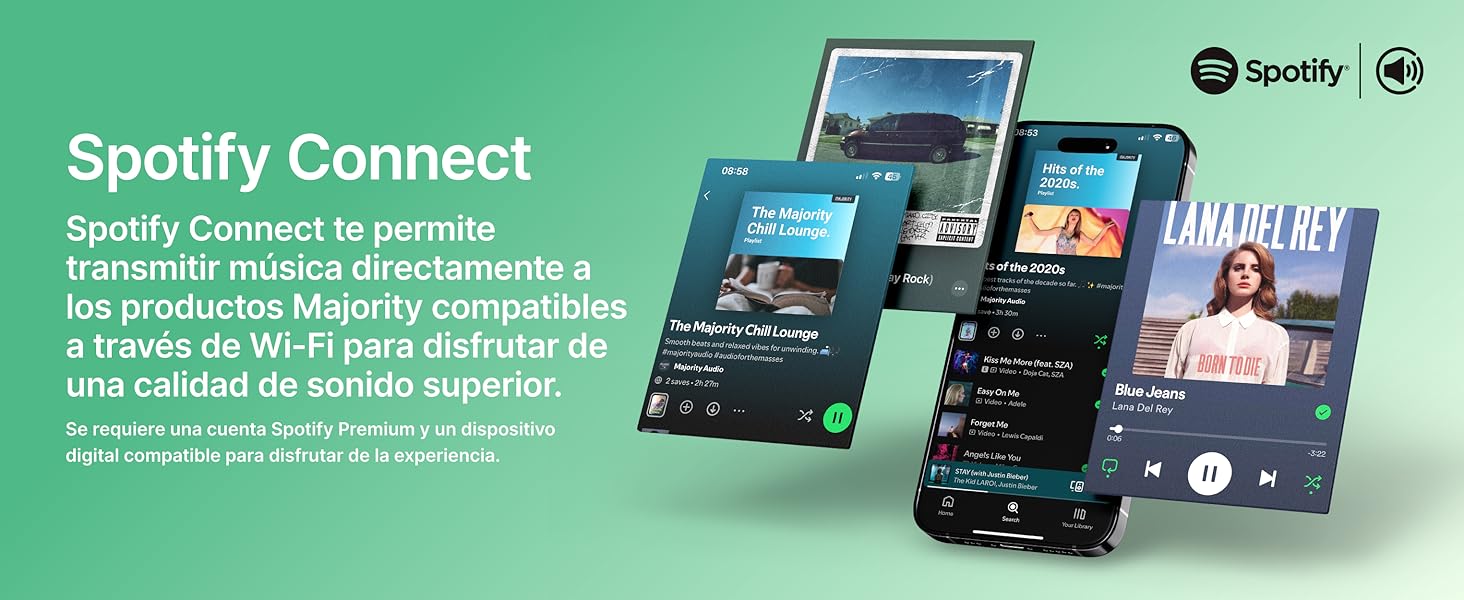
Image: Visual guide to using Spotify Connect with the Quadriga.
6.10 Podcasts
In 'Internet Radio' mode, navigate to the 'Podcasts' section. You can browse and listen to a wide variety of podcasts from around the world.
6.11 OKTIV App Control
The OKTIV app allows wireless control of your Majority product via Wi-Fi, enabling you to adjust settings and manage music from anywhere in your home. The app is compatible with iOS and Android devices.
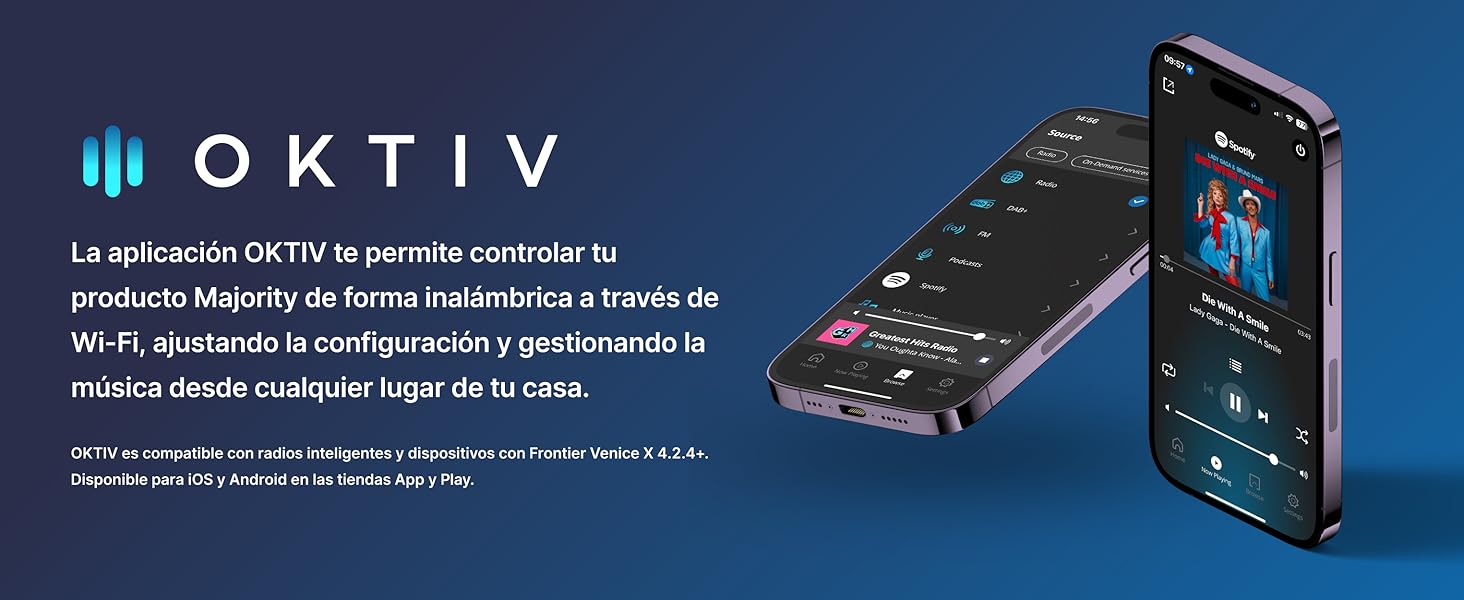
Image: Smartphones displaying the OKTIV app for remote control.
7. Maintenance
- Cleaning: Use a soft, dry cloth to clean the unit. Do not use abrasive cleaners or solvents.
- CD Player Care: Handle CDs by the edges to avoid fingerprints. If the CD player experiences reading errors, try cleaning the disc with a soft, lint-free cloth.
- Ventilation: Ensure ventilation openings are clear of dust and debris to prevent overheating.
8. Troubleshooting
| Problem | Possible Cause | Solution |
|---|---|---|
| No power | Power cable not connected; Wall socket faulty | Check power cable connection; Try a different wall socket. |
| No sound | Volume too low; Incorrect input mode selected; Mute activated | Increase volume; Select correct input mode; Deactivate mute. |
| Poor radio reception | Antenna not extended; Weak signal; Interference | Extend antenna fully; Reposition the unit; Move away from other electronic devices. |
| Cannot connect to Wi-Fi | Incorrect password; Router too far; Network issue | Verify Wi-Fi password; Move unit closer to router; Restart router. |
| CD not playing/reading | Disc dirty/scratched; Disc type not supported | Clean the CD; Ensure it is a supported CD, CD-R, or CD-RW. |
9. Specifications
- Model: Quadriga
- Dimensions (L x W x H): 43 x 27 x 12.8 cm
- Weight: 5.4 kg
- Audio Output Power: 120W (2.1 Stereo with Subwoofer)
- Connectivity: Wi-Fi, Bluetooth, Ethernet
- Radio Tuner: Internet Radio, DAB+, FM
- Disc Compatibility: CD, CD-R, CD-RW
- Inputs: AUX (3.5mm), RCA, Optical, USB
- Special Features: Spotify Connect, Podcasts
- Power Source: Wired Electric (240 Volts)
- Display Type: LCD
- Material: Plastic

Image: View of the integrated subwoofer and 120W audio output.
10. Warranty
The MAJORITY Quadriga comes with a 3-year extended warranty. Product registration may be required to activate the full warranty period. Please refer to the warranty card included in your package or visit the official MAJORITY website for detailed terms and conditions regarding warranty claims and registration.
11. Support
For further assistance, technical support, or to access additional resources, please visit the official MAJORITY website. You can find FAQs, updated manuals, and contact information for customer service there.
Website: www.majority.co.uk


