
WANGCL IND26864
WANGCL Multimeter LCD Digital USB Tester User Manual
Model: IND26864 | Brand: WANGCL
1. Introduction
The WANGCL Multimeter LCD Digital USB Tester is a versatile diagnostic tool designed for monitoring and testing various electrical parameters of electronic devices. It is capable of measuring voltage, current, power, resistance, and capacity, making it ideal for assessing the performance of mobile phone chargers, data cables, and mobile power supplies. This device provides real-time data to help identify and troubleshoot charging issues.

Figure 1.1: Front view of the WANGCL Multimeter LCD Digital USB Tester, displaying its color screen and various input/output ports.
2. Safety Information
Please read all safety instructions carefully before using the device. Failure to follow these instructions may result in electric shock, fire, or damage to the device or connected equipment.
- Power Supply: Always use a compliant and stable power supply. Ensure the input voltage and current do not exceed the device's specified limits.
- Temperature: Avoid exposing the device to extreme heat or direct sunlight. Operate within the specified temperature range (0~80°C).
- Ventilation: Ensure proper ventilation around the device during operation to prevent overheating.
- Moisture: Keep the device dry. Do not expose it to water or other liquids.
- Handling: Handle the device with care. Avoid dropping or subjecting it to strong impacts.
- Disassembly: Do not attempt to disassemble, repair, or modify the device. Refer all servicing to qualified personnel.
- Connection: Ensure all connections are secure and correct before applying power. Incorrect connections can cause damage.
Note: This safety information is derived from standard product safety guidelines and typical product packaging warnings.
3. Product Features
The WANGCL Multimeter LCD Digital USB Tester offers a comprehensive set of features for detailed electrical analysis:
- Wide Application: Suitable for testing mobile phone chargers, data cables, and mobile power supplies.
- Real-time Monitoring: Continuously monitors charging parameters of electronic devices.
- Multiple Interfaces: Equipped with 8 types of interfaces for broad compatibility:
- Type-C male input
- Type-C female input
- Type-C female chassis output
- 5525/5521 female input
- 5525/5521 male output
- USB3.0 male input
- USB3.0 female header output
- Micro USB
- Bluetooth Connectivity: Supports Bluetooth remote control for setting and measuring via a mobile phone application.
- Multifunctional Protections: Includes overload protection, power-off memory, timer charging, and battery full power-off functions.
- Color Screen: Features a 1.8-inch 128*160 color screen for clear display of data.
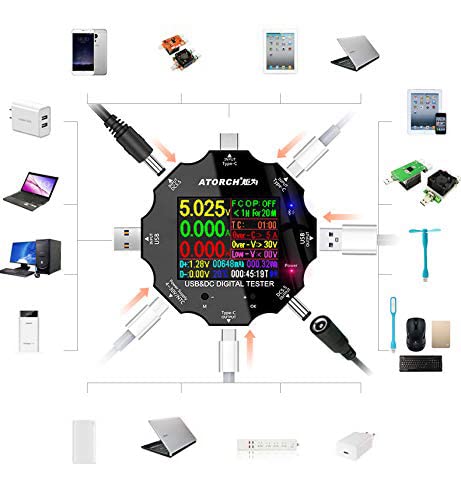
Figure 3.1: Diagram illustrating the various input and output interfaces of the USB tester and its broad compatibility with different devices.
4. Specifications
| Parameter | Value |
|---|---|
| Voltage Measurement Range | 3.60V~32.00V |
| Current Measurement Range | 0.00~5.10A |
| USB Load Limit | 5V 1A/2A/3A (Max 15W) |
| Capacity/Power Accumulation Range | 0~99999mAh / 0~999.99Wh |
| Power Measurement Range | 000.00~163.00W |
| Impedance Measurement Range | 1~999.9Ω |
| Temperature Measurement Range | 0~80°C |
| Timing Range | 999 hours 59 minutes 59 seconds |
| Input Interfaces | Type-C / Micro USB / USB / DC5.5 |
| USB D+ D- Voltage Range | 0V~2.99V |
| Screen Type | 1.8 inches 128*160 color screen |
| Self-consumption Current | <0.025A |
| Operating Temperature | -10~+60°C |
| Dimensions | 6.2 x 6.2 x 1.4 cm |
| Item Weight | 65 g |
5. Setup
Follow these steps to set up your WANGCL USB Tester for first use:
- Unpacking: Carefully remove the USB tester from its packaging. Inspect the device for any signs of damage.
- Initial Power-On: Connect the tester to a USB power source (e.g., a wall charger, power bank, or computer USB port) using one of its input interfaces (Type-C, Micro USB, or USB). The screen should light up, displaying the current measurements.
- Familiarize with Controls: Locate the physical buttons on the device. These are typically used for navigating menus and changing display modes.
6. Operating Instructions
The USB tester is designed for straightforward operation. Here are the basic steps for common measurements:
- Connect Power Source: Plug the tester's input port (e.g., USB-A male, Type-C male) into your power source (e.g., wall charger, power bank, computer USB port).
- Connect Device Under Test: Plug the device you wish to test (e.g., smartphone, tablet, USB fan) into one of the tester's output ports (e.g., USB-A female, Type-C female).
- Read Measurements: The color screen will immediately display real-time measurements such as voltage (V), current (A), power (W), accumulated capacity (mAh), and accumulated energy (Wh).
- Navigate Display Modes: Use the physical buttons (usually labeled 'M' for Mode and 'OK' or '+' for selection/next) to cycle through different display screens or measurement parameters. This may include detailed views of D+/D- voltage, temperature, timing, and impedance.
- Resetting Data: To clear accumulated capacity and energy data, typically press and hold a specific button (refer to on-screen prompts or specific model instructions if available) while on the main display.
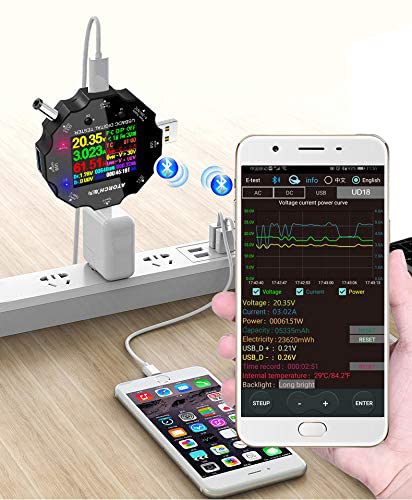
Figure 6.1: The USB tester actively measuring power flow between a wall charger and a mobile phone, with Bluetooth enabled.
7. Bluetooth Connectivity and Mobile App
The WANGCL USB Tester supports Bluetooth connectivity, allowing you to monitor and control the device remotely via a dedicated mobile application. This feature provides a more detailed view of data and additional control options.
- Download the App: Search for the "E_Test" application in your mobile device's app store (e.g., Apple App Store for iOS, Google Play Store for Android). Download and install the application.
- Enable Bluetooth: Ensure Bluetooth is enabled on your mobile device.
- Power On Tester: Connect the USB tester to a power source to turn it on.
- Pairing: Open the "E_Test" app. The app should automatically detect nearby WANGCL USB testers. Select your device from the list to initiate pairing. Follow any on-screen prompts within the app to complete the connection.
- Monitor Data: Once connected, you can view real-time data, historical graphs, and adjust settings directly from your mobile phone.
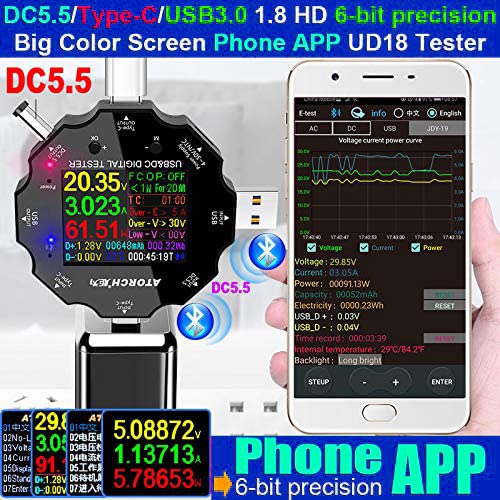
Figure 7.1: The USB tester displaying data on its screen while simultaneously transmitting data to a connected smartphone app for detailed analysis.
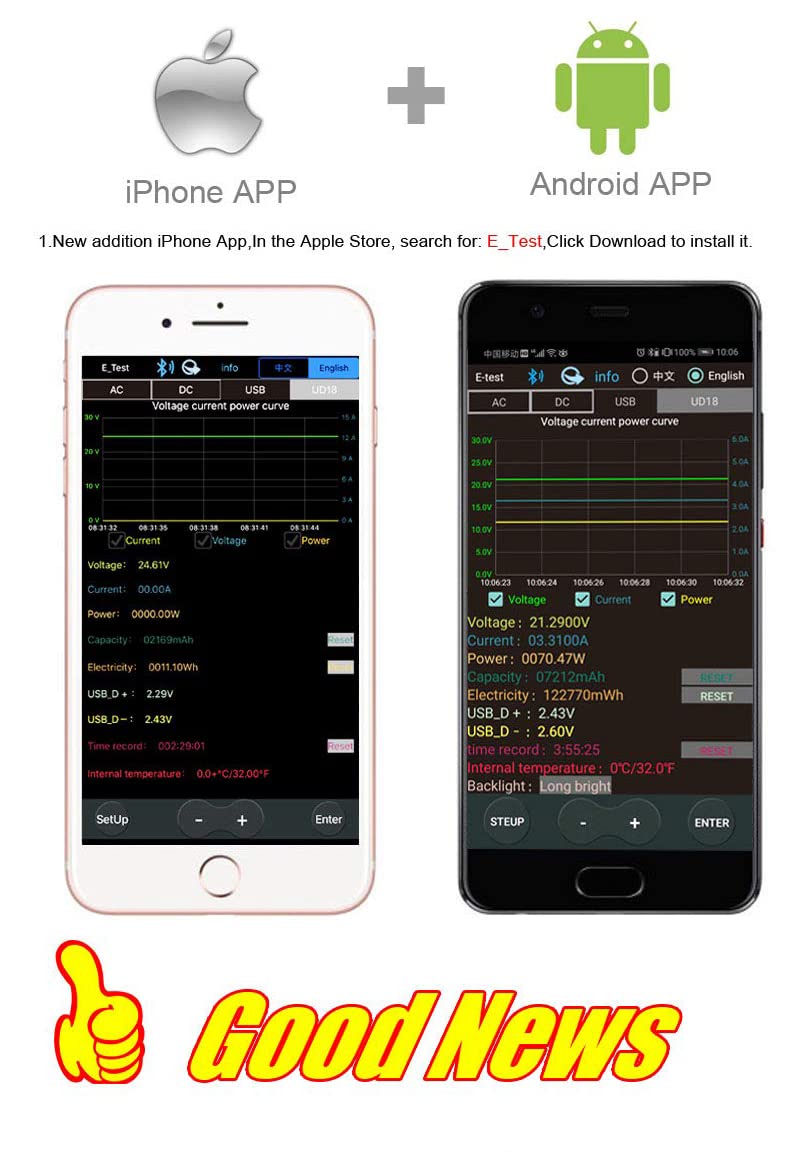
Figure 7.2: Screenshots of the "E_Test" application interface on both iPhone and Android devices, showing similar data display capabilities.
8. Maintenance
Proper maintenance ensures the longevity and accuracy of your WANGCL USB Tester:
- Cleaning: Use a soft, dry cloth to clean the device. Do not use abrasive cleaners, solvents, or harsh chemicals.
- Storage: Store the device in a cool, dry place away from direct sunlight, extreme temperatures, and high humidity.
- Handling: Avoid dropping the device or subjecting it to strong vibrations.
- Port Care: Keep the USB and other ports free from dust and debris.
9. Troubleshooting
If you encounter issues with your WANGCL USB Tester, refer to the following common problems and solutions:
| Problem | Possible Cause / Solution |
|---|---|
| Device does not power on. |
|
| No readings displayed. |
|
| Bluetooth connection fails. |
|
| Inaccurate readings. |
|
10. Warranty and Support
WANGCL is committed to providing quality products. For specific warranty details and support, please refer to your purchase documentation or contact the seller directly.
- Return Policy: This product typically comes with a 30-day return policy from the date of purchase. Please check the specific terms and conditions of your retailer.
- Technical Support: For technical assistance, troubleshooting beyond this manual, or warranty claims, please contact the seller, WANGCL EU, through the Amazon messaging system or the platform where the product was purchased.
Ask a question about this manual
Ask about setup, troubleshooting, compatibility, parts, safety, or missing instructions. Manuals+ will review the question and use this page’s manual context to help answer it.