1. Introduction
This user manual provides comprehensive instructions for the safe and efficient operation of your UNIWA F40 Zello Transceiver Smartphone. Please read this manual thoroughly before using the device and keep it for future reference. The UNIWA F40 is a rugged 4G smartphone designed for reliable communication, featuring Zello Push-to-Talk functionality and IP65 water resistance.
2. Product Overview
2.1 Key Features
- Operating System: Android 6.0
- Processor: MTK6737M Quad Core
- Memory: 1GB RAM, 8GB ROM
- Display: 2.4-inch screen
- Battery: 4000mAh large capacity
- Durability: IP65 Waterproof and Rugged design
- Communication: 4G Network support, Zello Push-to-Talk (PTT)
- Camera: Rear 5MP, Front 0.3MP
2.2 Package Contents
Upon unboxing, please verify that all items listed below are present and in good condition.
- UNIWA F40 Zello Transceiver Smartphone
- Battery (4000mAh)
- USB Charging Cable
- Power Adapter
- User Manual

Figure 2.2: Package Contents of the UNIWA F40.
2.3 Device Layout
Familiarize yourself with the physical components and buttons of your UNIWA F40.
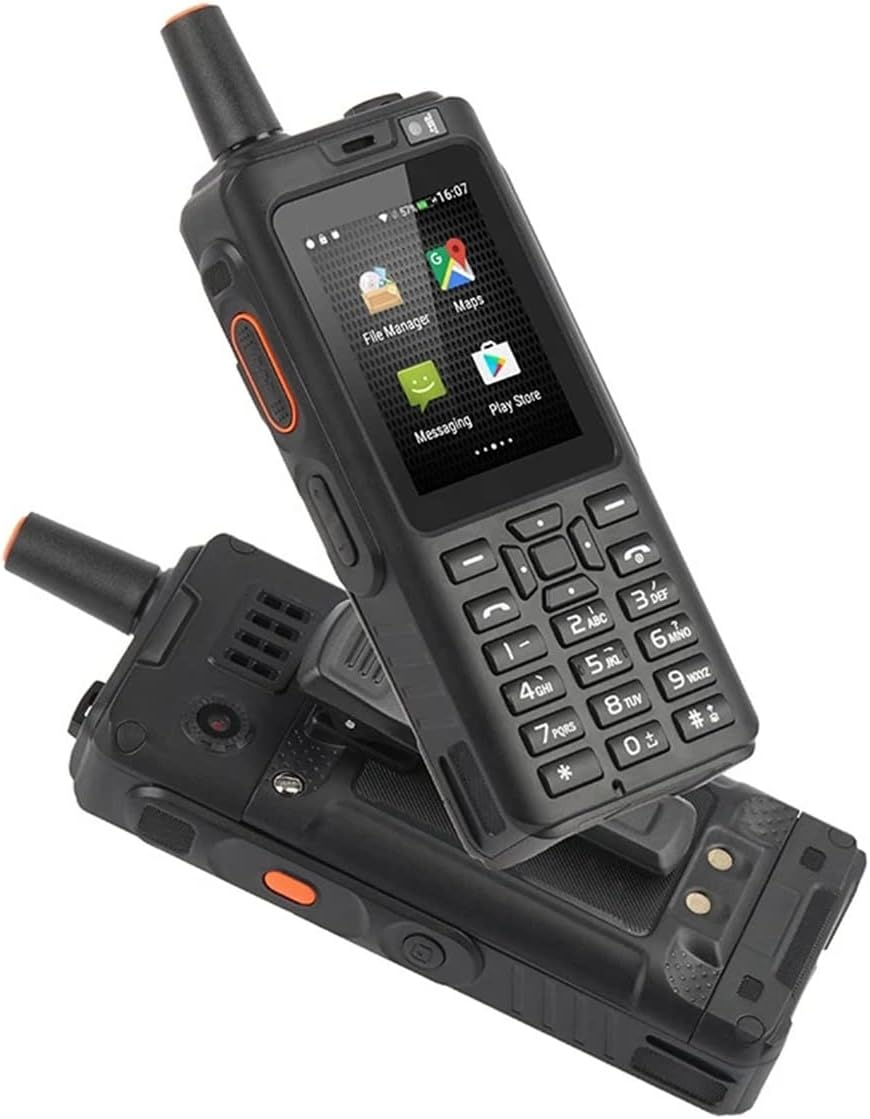
Figure 2.3.1: Front and Back View of the UNIWA F40.


Figure 2.3.2: Detailed Front and Back Views.
- PTT Button: Located on the side for Push-to-Talk functionality.
- Antenna: For enhanced signal reception.
- Display Screen: 2.4-inch color display.
- Keypad: Numeric and function keys for navigation and input.
- Speaker: 32mm diameter speaker for clear audio.
- Back Clip: For convenient carrying.
3. Setup
3.1 Battery and SIM Card Installation
- Ensure the device is powered off.
- Remove the back cover of the device.
- Insert the SIM card(s) into the designated slot(s). The device supports dual SIM.
- Insert the 4000mAh battery into the battery compartment, ensuring the contacts align.
- Replace the back cover, ensuring it is securely latched to maintain IP65 water resistance.
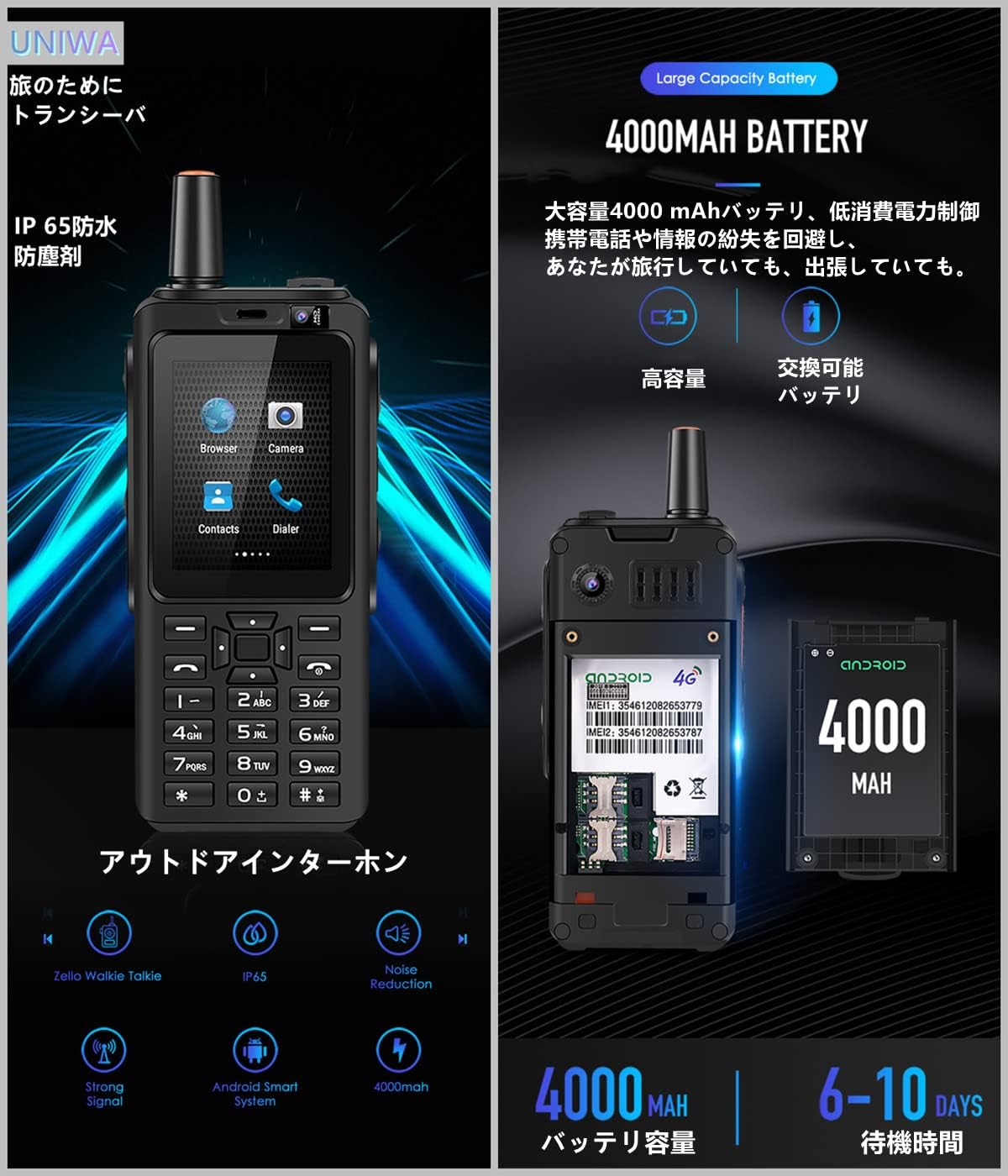
Figure 3.1: Battery and SIM Card Installation.
3.2 Charging the Battery
Before first use, fully charge the device battery.
- Connect the USB cable to the charging port on the device.
- Connect the other end of the USB cable to the power adapter.
- Plug the power adapter into a wall outlet.
- The charging indicator will show the charging status.
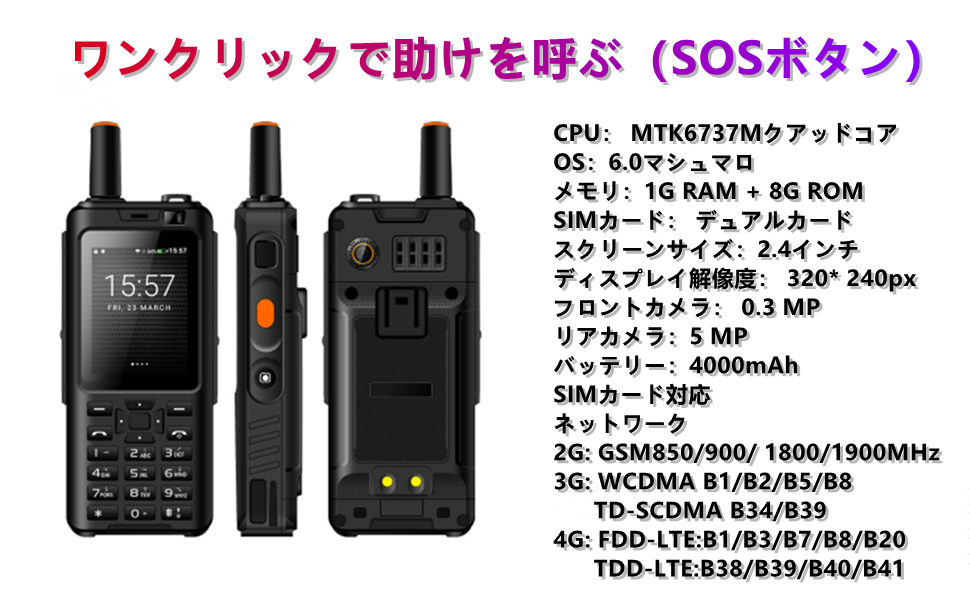
Figure 3.2: 4000mAh Battery Capacity and Standby Time.
3.3 Powering On/Off
- To Power On: Press and hold the Power button until the device vibrates and the screen lights up.
- To Power Off: Press and hold the Power button, then select "Power off" from the options on the screen.
4. Operating Instructions
4.1 Basic Navigation
The UNIWA F40 runs on Android 6.0, providing a familiar interface.

Figure 4.1: Android 6.0 System Interface.
- Use the navigation keys to move between icons and menu options.
- Press the center key to select an item.
- Use the back key to return to the previous screen.
4.2 Making Calls
To make a standard phone call:
- Navigate to the "Dialer" application.
- Enter the phone number using the keypad.
- Press the Call button (usually green) to initiate the call.
4.3 Using Zello Push-to-Talk (PTT)
The UNIWA F40 is optimized for Zello, allowing instant communication.
- Ensure the Zello application is installed and configured with your account.
- Open the Zello app.
- Select the desired contact or channel.
- Press and hold the dedicated PTT button on the side of the device to transmit your voice.
- Release the PTT button to stop transmitting and listen for replies.
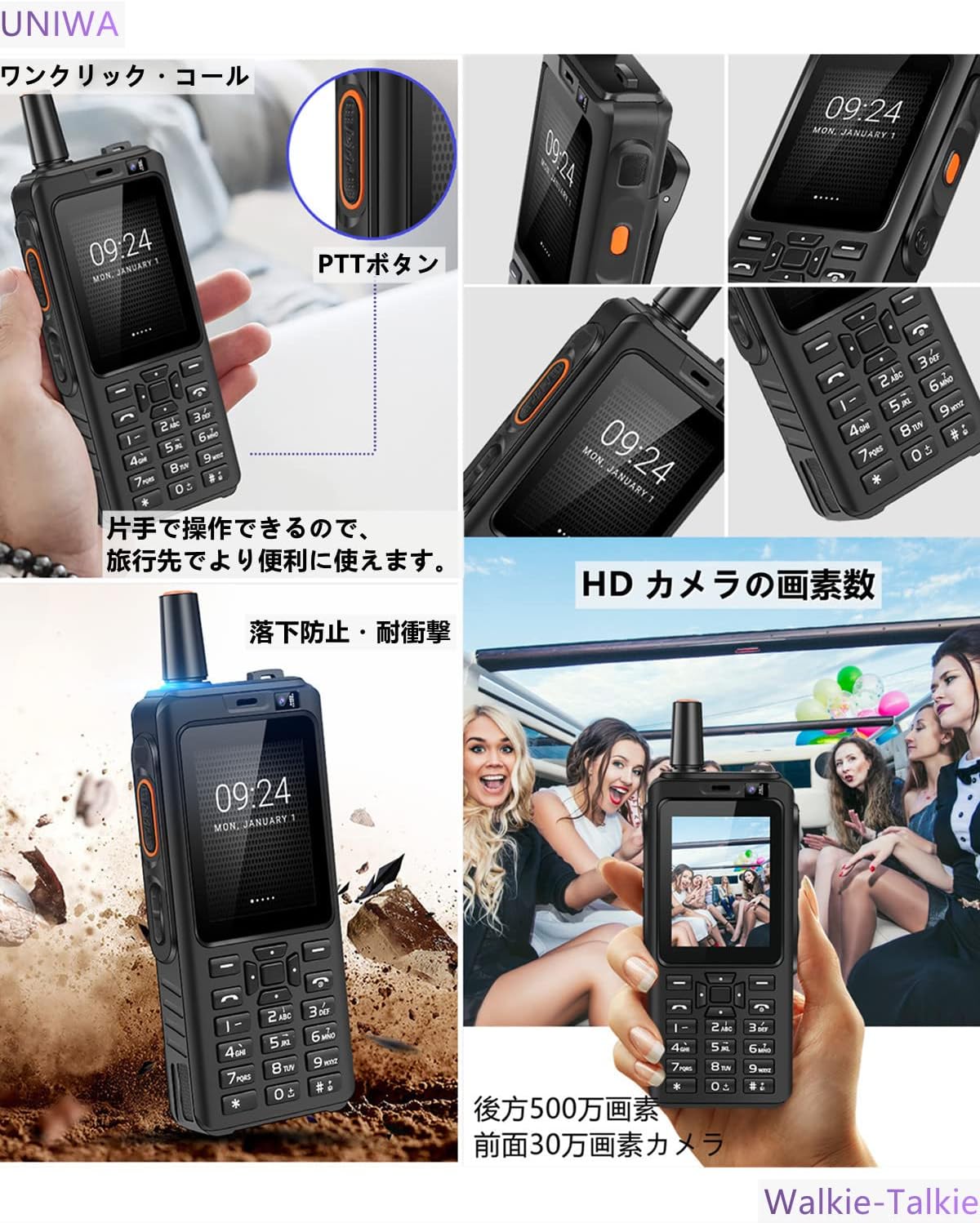
Figure 4.3: PTT Button Location.
4.4 Camera Usage
The device features a rear 5MP camera and a front 0.3MP camera.
- Navigate to the "Camera" application.
- Frame your shot using the display.
- Press the capture button on the screen to take a photo.
- To switch between front and rear cameras, use the camera switch icon within the app.
4.5 Network and Connectivity
- 4G Network: The device supports 4G connectivity for fast data and communication. Ensure your SIM card has an active 4G plan.
- Wi-Fi: To connect to Wi-Fi, go to Settings > Wi-Fi, turn Wi-Fi on, and select your desired network. Enter the password if required.
- Bluetooth: For connecting to wireless accessories, go to Settings > Bluetooth, turn Bluetooth on, and pair with your device.

Figure 4.5: Super Strong Signal Capability.
5. Maintenance
5.1 Cleaning the Device
- Use a soft, lint-free cloth to wipe the screen and body of the device.
- For stubborn marks, slightly dampen the cloth with water or a screen cleaner.
- Avoid using harsh chemicals, abrasive cleaners, or solvents.
5.2 Battery Care
- Avoid exposing the battery to extreme temperatures (hot or cold).
- Do not puncture, disassemble, or short-circuit the battery.
- If the device will not be used for an extended period, charge it to about 50% before storing.
5.3 Water Resistance (IP65)
The UNIWA F40 is rated IP65 for water and dust resistance. This means it is protected against dust ingress and low-pressure water jets from any direction.
- Ensure all ports (USB, headphone jack) are securely covered when not in use.
- Do not submerge the device in water.
- If the device gets wet, wipe it dry immediately with a clean cloth.
- Do not charge the device if the charging port is wet.
Figure 5.3: IP65 Water Resistance.
6. Troubleshooting
| Problem | Possible Cause | Solution |
|---|---|---|
| Device does not power on. | Low battery; software crash. | Charge the device for at least 30 minutes. Perform a forced restart by holding the Power button for 10-15 seconds. |
| No network signal. | SIM card not inserted correctly; out of network coverage; network settings issue. | Reinsert SIM card. Move to an area with better coverage. Check network settings (Settings > More > Mobile networks). |
| Zello PTT not working. | No internet connection; Zello app not configured; PTT button mapping issue. | Ensure 4G or Wi-Fi is active. Log in to Zello and check channel/contact selection. Verify PTT button mapping in Zello settings. |
| Battery drains quickly. | Too many background apps; high screen brightness; poor signal. | Close unused apps. Reduce screen brightness. Use power-saving mode. |
7. Specifications
Detailed technical specifications for the UNIWA F40 Zello Transceiver Smartphone.
| Feature | Detail |
|---|---|
| Model | UNIWA F40 |
| Operating System | Android 6.0 |
| CPU | MTK6737M Quad Core |
| RAM | 1GB |
| ROM | 8GB |
| Display Size | 2.4 inches |
| Display Resolution | 320*240px |
| Rear Camera | 5MP |
| Front Camera | 0.3MP |
| Battery Capacity | 4000mAh |
| SIM Card Support | Dual SIM |
| Network Support | 2G GSM850/900/1800/1900MHz, 3G WCDMA B1/B2/B5/B8, TD-SCDMA B34/B39, 4G FDD-LTE:B1/B3/B7/B8/B20, TDD-LTE:B38/B39/B40/B41 |
| Waterproof Level | IP65 |
| Dimensions | 119 x 55 x 24.5 mm |
| Weight | 188g |
| Operating Temperature | -10°C to 60°C |

Figure 7.1: Physical Dimensions and Key Specifications.
8. Warranty and Support
8.1 Warranty Information
The UNIWA F40 comes with a warranty period of Within 1 Year from the date of purchase. This warranty covers manufacturing defects under normal use. Please retain your proof of purchase for warranty claims.
The warranty does not cover:
- Damage caused by misuse, abuse, or accident.
- Damage caused by unauthorized repairs or modifications.
- Normal wear and tear.
- Damage from exposure to conditions beyond the IP65 rating.
8.2 Customer Support
For technical assistance, troubleshooting beyond this manual, or warranty inquiries, please contact the seller or manufacturer directly through the platform where the product was purchased.


