
1. Introduction
This manual provides essential information and instructions for the safe and efficient use of your Gateway GWTN141-10BK 14.1-inch laptop. Please read this manual thoroughly before operating your device and retain it for future reference. Adhering to the guidelines in this document will help ensure optimal performance and longevity of your laptop.
2. Package Contents
Verify that all items are present in the package:
- Gateway GWTN141-10BK 14.1-inch Laptop
- Power Adapter
- Quick Start Guide (if included)
- Warranty Information (if included)
If any items are missing or damaged, contact your retailer or Gateway support.
3. Device Overview
Familiarize yourself with the physical components and ports of your Gateway GWTN141-10BK laptop.

Figure 3.1: Front view of the Gateway GWTN141-10BK laptop with the screen open. The keyboard and touchpad are visible, along with the Gateway logo on the bottom bezel and palm rest.
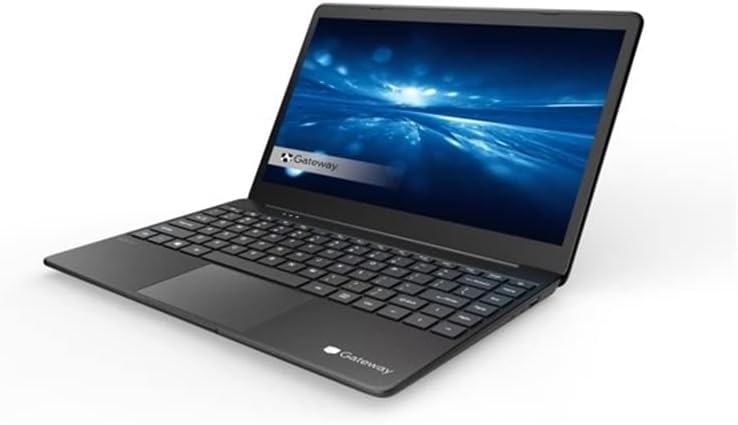
Figure 3.2: Angled view of the Gateway GWTN141-10BK laptop, showcasing the slim profile and the keyboard layout. The screen displays a blue abstract background.
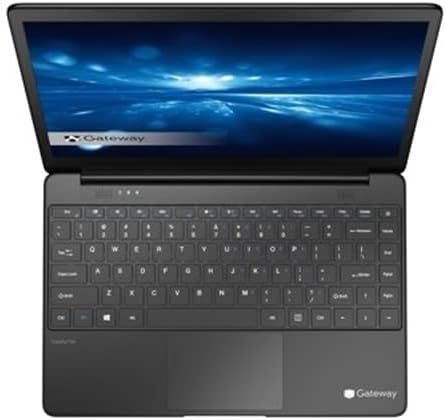
Figure 3.3: Top-down view of the Gateway GWTN141-10BK laptop, highlighting the full keyboard, touchpad, and the webcam located above the screen.
3.1. Ports and Connectors
- USB Ports: For connecting external devices such as mice, keyboards, and storage drives.
- HDMI Port: For connecting to external displays or projectors.
- Audio Jack: For connecting headphones or external speakers.
- Power Input: For connecting the power adapter to charge the laptop.
4. Setup
4.1. Initial Power On
- Connect the power adapter to the laptop's power input port and then to a power outlet.
- Open the laptop lid.
- Press the power button, typically located on the keyboard or side of the laptop.
- Follow the on-screen instructions to complete the initial Windows 10 Home setup, including language, region, and user account creation.
4.2. Connecting to Wi-Fi
- During the initial setup, you will be prompted to connect to a Wi-Fi network. Select your network from the list.
- Enter the Wi-Fi password (security key) if prompted.
- If setting up later, click the Wi-Fi icon in the taskbar, select your network, and click 'Connect'.
5. Operating Instructions
5.1. Basic Navigation
- Touchpad: Use the touchpad for cursor control. Tap to click, use two fingers to scroll, and pinch to zoom.
- Keyboard: The keyboard functions like a standard PC keyboard. Utilize function keys (Fn) in combination with F1-F12 for special features like volume control, brightness adjustment, and Wi-Fi toggle.
5.2. Power Management
- Sleep Mode: Close the lid or select 'Sleep' from the Start Menu to put the laptop into a low-power state.
- Shut Down: To completely turn off the laptop, go to the Start Menu, select 'Power', and then 'Shut down'.
- Restart: To restart the laptop, go to the Start Menu, select 'Power', and then 'Restart'.
5.3. Connecting Peripherals
Connect external devices such as USB drives, external monitors via HDMI, or audio devices to the appropriate ports. The laptop will typically detect and install necessary drivers automatically.
6. Maintenance
6.1. Cleaning the Laptop
- Use a soft, lint-free cloth slightly dampened with water or a screen cleaner to clean the display.
- For the keyboard and chassis, use a soft cloth. Avoid harsh chemicals or abrasive materials.
- Use compressed air to clear dust from vents and keyboard crevices.
6.2. Battery Care
- Avoid fully discharging the battery frequently.
- Store the laptop in a cool, dry place when not in use for extended periods.
- Use only the original power adapter provided with your laptop.
6.3. Software Updates
Regularly check for and install Windows updates to ensure system stability, security, and performance. Go to Settings > Update & Security > Windows Update.
6.4. Data Backup
It is recommended to regularly back up your important files to an external drive or cloud storage to prevent data loss.
7. Troubleshooting
This section addresses common issues you might encounter with your laptop.
- Laptop will not turn on: Ensure the power adapter is securely connected and the battery has sufficient charge. Try holding the power button for 10-15 seconds to perform a hard reset.
- No Wi-Fi connection: Check if Wi-Fi is enabled in Windows settings. Restart your router and laptop. Ensure drivers are up to date.
- Slow performance: Close unnecessary applications, check for malware, ensure sufficient free storage space, and update Windows.
- Screen issues: If the screen is blank or flickering, try connecting an external monitor to determine if the issue is with the laptop's display or graphics card.
For persistent issues, consult the Gateway support website or contact customer service.
8. Specifications
Key technical specifications for the Gateway GWTN141-10BK laptop:
| Feature | Specification |
|---|---|
| Model Name | GWTN141-10BK |
| Screen Size | 14.1 Inches |
| Screen Resolution | 1920 x 1080 pixels |
| Processor | Intel Core i5-1135G7 |
| RAM | 16 GB DDR4 SDRAM |
| Hard Drive | 512 GB SSD |
| Operating System | Windows 10 Home |
| Graphics Card | Integrated |
| Wireless Type | 802.11ax |
| Average Battery Life | 10 Hours |
| Color | Black |
| Rear Webcam Resolution | 1 MP |
9. Warranty and Support
Your Gateway GWTN141-10BK laptop is covered by a limited warranty. Please refer to the warranty card included in your package for specific terms and conditions. For technical support, driver downloads, or further assistance, visit the official Gateway support website or contact their customer service department.


