1. Introduction
This user manual provides comprehensive instructions for the DORHEA ESP32 Development Board, featuring the CP2102 chip and a 38-pin narrow design. This board integrates WiFi and Bluetooth capabilities, making it suitable for a wide range of Internet of Things (IoT) and embedded system projects. Please read this manual thoroughly before using the device to ensure proper setup and operation.
2. Product Overview
The DORHEA ESP32 Development Board is designed for ease of use and integration into various projects. Its narrow form factor allows for convenient placement on breadboards and within compact enclosures. The board is powered by a dual-core Tensilica LX6 processor, offering robust performance for complex applications.
Key Features:
- Compact Design: Narrow 38-pin layout, compatible with standard breadboards.
- Integrated Connectivity: Supports 802.11bgn Wi-Fi and Bluetooth (Classic and LE).
- Powerful Processor: Dual Tensilica LX6 cores, clocked up to 240 MHz.
- Memory: 512 KB SRAM for efficient program execution.
- USB Interface: Type-C port for power and data communication via the CP2102 USB-to-UART bridge.
- Flexible Programming: Supports Lua programming and FreeRTOS operating system.
- Operating Modes: Functions in AP (Access Point), STA (Station), and AP+STA modes.
- User Controls: Equipped with Reset and Boot buttons for easy firmware flashing.
Component Identification:
Refer to the images below for a visual guide to the development board's components and pinout.
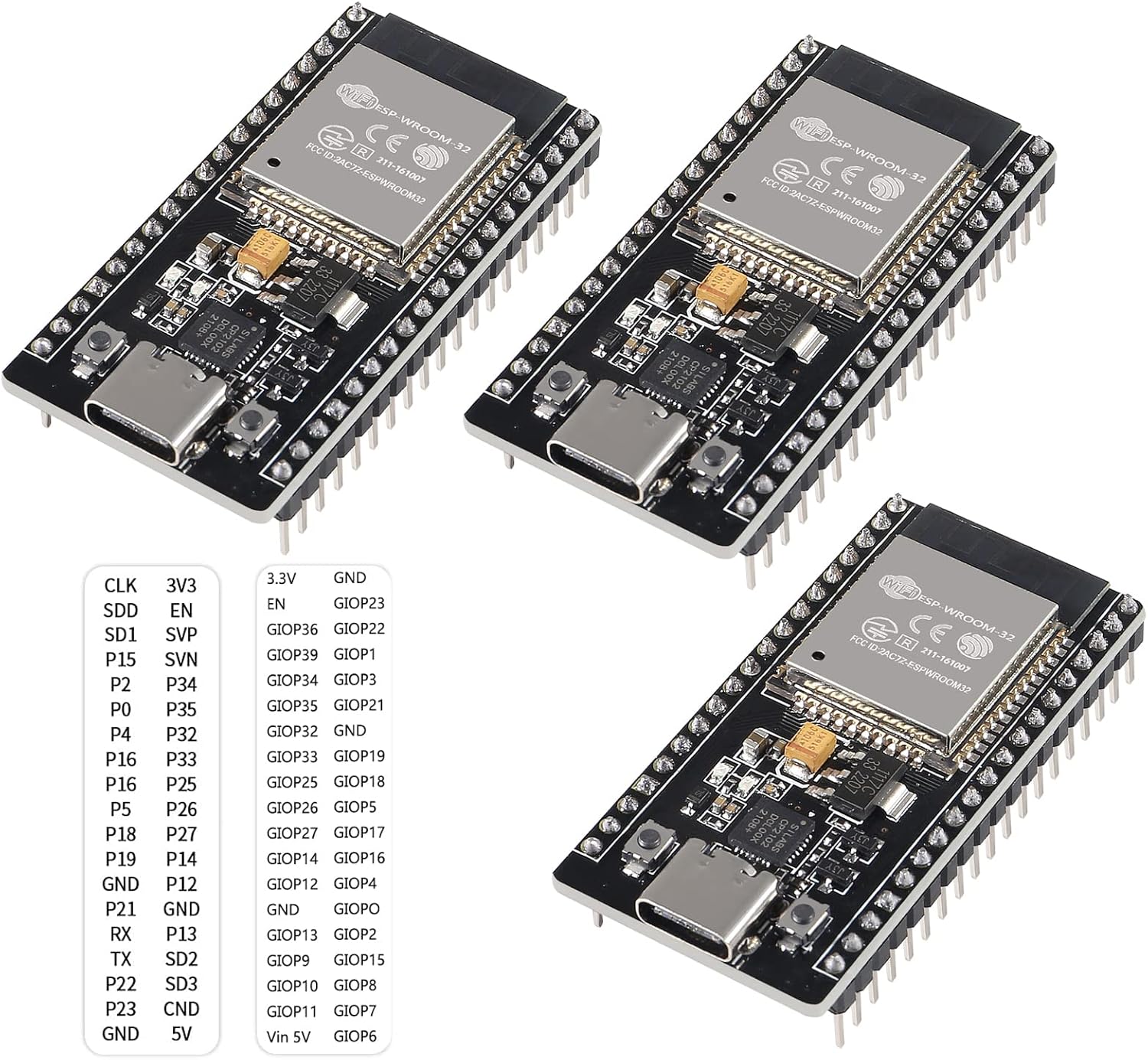
Image 2.1: Overview of three DORHEA ESP32 Development Boards and their pin assignments.

Image 2.2: Top view showing the ESP-WROOM-32 module, CP2102 chip, USB-C port, and buttons. Bottom view showing solder points and additional pin labels.

Image 2.3: Detailed close-up images highlighting the ESP-WROOM-32 module, USB-C connector, and pin headers.
3. Specifications
| Feature | Specification |
|---|---|
| Processor | Dual-core Tensilica LX6, up to 240 MHz |
| RAM | 512 KB SRAM |
| Wireless Connectivity | Wi-Fi (802.11bgn), Bluetooth (Classic and LE) |
| USB Interface | USB Type-C (via CP2102 chip) |
| Operating System Support | FreeRTOS |
| Operating Modes | AP, STA, AP+STA |
| Dimensions (Board) | Approx. 51mm x 25.5mm (2.00in x 1.00in) |
| Pin Count | 38-pin |
| Weight | Approx. 1.13 ounces (per board) |

Image 3.1: Physical dimensions of the ESP32 Development Board.
4. Setup
4.1 Driver Installation (CP2102)
The board uses a CP2102 USB-to-UART bridge chip for communication with your computer. Before connecting the board, ensure you have the correct drivers installed for your operating system. Drivers can typically be found on the Silicon Labs website or through your operating system's update service.
- Windows: Download and install the CP210x Universal Windows Driver.
- macOS: Download and install the CP210x VCP Driver for Mac OS X.
- Linux: Most modern Linux distributions include CP210x drivers by default.
4.2 Connecting the Board
- Connect one end of a USB Type-C cable to the port on the ESP32 Development Board.
- Connect the other end of the USB Type-C cable to an available USB port on your computer.
- The board should power on, and your computer should recognize it as a serial port.
4.3 Development Environment Setup
To program the ESP32 board, you will need a suitable Integrated Development Environment (IDE). Popular choices include:
- Arduino IDE: Install the ESP32 board support package through the Boards Manager.
- PlatformIO (VS Code Extension): Install PlatformIO and select the appropriate ESP32 board profile (e.g.,
ESP32 Dev ModuleorNodeMCU-32).
4.4 Pinout Diagram
Understanding the pinout is crucial for connecting external components and utilizing the board's full functionality.

Image 4.1: Pinout diagram illustrating GPIOs, power pins, and special functions.
5. Operating Instructions
5.1 Flashing Firmware
To upload your code or firmware to the ESP32 board:
- Prepare your code in your chosen IDE (Arduino IDE, PlatformIO).
- Select the correct board and serial port in your IDE.
- Initiate the upload process.
- When the IDE indicates "Connecting...." or prompts, press and hold the "BOOT" button on the ESP32 board.
- Release the "BOOT" button once the upload process begins (e.g., when dots stop printing in the console).
- The firmware will then be uploaded to the board.
5.2 Basic Programming Concepts
The ESP32 supports various programming approaches:
- Arduino Framework: Use C++ with Arduino-style functions for easy development.
- ESP-IDF: Espressif IoT Development Framework for more advanced, low-level control using C/C++.
- MicroPython/Lua: For rapid prototyping and scripting, the board supports Lua programming.
Utilize the integrated Wi-Fi and Bluetooth capabilities to create network-connected devices, sensors, and automation projects. Refer to the extensive online documentation and community resources for specific code examples and tutorials.
6. Maintenance
To ensure the longevity and reliable operation of your DORHEA ESP32 Development Board, follow these maintenance guidelines:
- Handle with Care: Avoid dropping the board or applying excessive force to components.
- Static Discharge: Always handle the board in an anti-static environment or take precautions to prevent electrostatic discharge (ESD), which can damage sensitive electronic components.
- Keep Dry: Protect the board from moisture and liquids. Operate it in a dry environment.
- Cleanliness: Keep the board free from dust and debris. Use a soft brush or compressed air for cleaning if necessary.
- Power Supply: Use a stable 5V power supply via the USB-C port. Avoid over-voltage or reverse polarity connections.
7. Troubleshooting
If you encounter issues with your ESP32 Development Board, consider the following troubleshooting steps:
- Board Not Recognized by Computer:
- Ensure CP2102 drivers are correctly installed.
- Try a different USB-C cable and port.
- Restart your computer.
- Firmware Upload Fails:
- Verify that you are pressing and holding the BOOT button when prompted by the IDE during the upload process.
- Check that the correct board and serial port are selected in your IDE.
- Ensure your USB cable is capable of data transfer, not just charging.
- Weak Wi-Fi Reception:
- The ESP32's integrated antenna can be sensitive to its environment. Ensure the board is not enclosed in metal or near other strong electromagnetic interference sources.
- Test the board closer to your Wi-Fi router.
- Specific GPIO Pin Not Functioning:
- Inspect the pin's solder joint for any defects. If comfortable, a minor soldering repair might be needed.
- Verify your code correctly initializes and uses the GPIO pin.
- Board Not Powering On:
- Check the USB-C cable and power source.
- Ensure there are no short circuits on the board or connected components.
8. Warranty and Support
For product support, technical assistance, or warranty inquiries, please refer to the DORHEA brand's official support channels. Typically, this includes their website or the platform where the product was purchased.
You can visit the DORHEA Store for more information: DORHEA Store on Amazon


