1. Safety Information
Please read all instructions carefully before using this product. Failure to follow these instructions may result in personal injury or damage to the product or vehicle.
- Electrical Safety: Ensure proper wiring connections to prevent short circuits and electrical hazards. Consult a professional for installation if unsure.
- Driving Safety: Do not operate the device in a way that distracts you from driving. Always keep your eyes on the road.
- Volume Control: Keep the volume at a level where you can still hear outside traffic and emergency signals.
- Temperature: Avoid exposing the unit to extreme temperatures or direct sunlight for extended periods.
2. What's in the Box
Verify that all components are present before beginning installation.
- Car Stereo Unit
- Power Cable
- Speaker Cable
- Remote Control
- Mounting Keys
- User Manual
- Backup Camera
- External Microphone

3. Product Overview
The METEESER 5-inch Single Din Car Stereo features a responsive touchscreen and intuitive controls for an enhanced in-car experience.

Front Panel Controls:
- Power/Mode Button: Press to turn on/off, short press to change mode.
- Volume Knob: Rotate to adjust volume. Press to select.
- USB Port (1): For CarPlay/Android Auto connection and media playback.
- USB Port (2): For charging and media playback.
- Microphone (MIC): Built-in microphone for hands-free calls.
- TF Card Slot: For media playback.
- AUX-in Port: For external audio input.
- Menu Button: Access settings and menu options.
- Fast-forward/Backward Knobs: For track skipping or radio tuning.
4. Installation
This unit is designed for standard single DIN installation. Professional installation is recommended.
4.1. Wiring Diagram

4.2. Mounting Steps
- Detach Short Sleeve: Carefully detach the short sleeve from the radio body using an iron tool.
- Insert Sleeve: Insert the short sleeve into the car's radio installation aperture.
- Secure Frame: Use mounting tools to press the iron clip onto the short sleeve, fastening the iron piece to the car.
- Place Radio: Place the radio onto the mounting window and secure the steel frame to the radio.
- Verify Ground Plate: Check that the external ground plate of the car radio is correctly matched and secured.

4.3. Backup Camera Connection
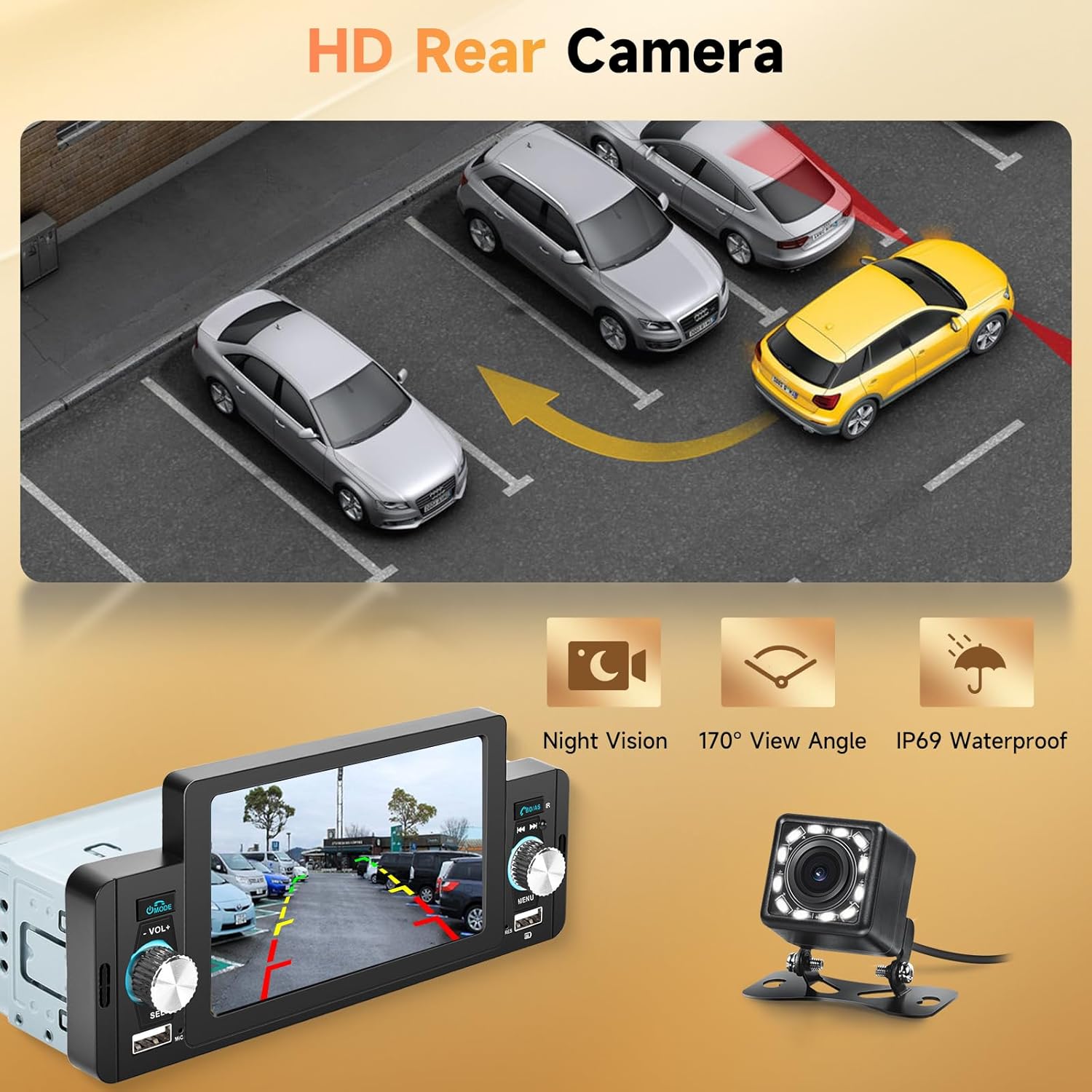
Connect the backup camera as shown in the diagram. The camera will automatically display when the vehicle is in reverse gear.

5. Basic Operation
5.1. Power On/Off
Press the MODE button to turn the unit on. Press and hold to turn off.
5.2. Volume Adjustment
Rotate the VOL+ / VOL- knob to increase or decrease the volume.
5.3. Source Selection
Short press the MODE button to cycle through available audio sources (Radio, USB, TF, AUX-in, Bluetooth, CarPlay/Android Auto).
6. Key Features and Functions
6.1. Apple CarPlay / Android Auto
Connect your smartphone via USB to access CarPlay or Android Auto. This allows for navigation, music playback, hands-free calls, and voice control (Siri/Google Assistant) directly from the stereo's touchscreen.

Voice Control: Use Siri or Google Assistant for navigation, making calls, sending messages, and playing music by simply speaking commands.

6.2. Mirror Link
Mirror Link allows you to display your smartphone's screen directly onto the car stereo. Connect your phone via USB and follow the on-screen prompts to activate.
Video: Demonstration of Apple CarPlay, Android Auto, and Mirror Link features on the METEESER 5-inch Touch Screen Car Stereo.
6.3. Bluetooth 5.1
Pair your mobile device via Bluetooth for hands-free calling and wireless audio streaming. The unit includes both a built-in microphone and an external microphone for clear communication.
- Pairing: Go to the Bluetooth menu on the stereo and your phone. Select the stereo's name from your phone's Bluetooth device list to pair.
- Hands-Free Calling: Answer, make, and end calls directly from the stereo screen.
- Audio Streaming: Play music from your phone wirelessly through the car speakers.
6.4. FM Radio
Access the FM radio function to listen to your favorite stations. Use the fast-forward/backward knobs or touchscreen controls to tune.
6.5. USB Ports & TF Card Slot
The unit features two USB ports and a TF card slot for media playback (audio/video) and charging devices. One USB port supports 5V 2A fast charging.


6.6. HD Backup Camera
The included HD backup camera provides a wide 170° viewing angle and night vision. The display automatically switches to the camera view when the vehicle is in reverse.
6.7. Steering Wheel Control (SWC)
Connect to your vehicle's existing steering wheel controls for convenient operation of the stereo without taking your hands off the wheel.
6.8. 10-Band Equalizer (EQ)
Customize your audio experience with the built-in 10-band equalizer. Adjust frequency levels to match your preferences or choose from preset sound modes (e.g., Jazz, Classic, Rock, Pop, Flat, User).
7. Troubleshooting
| Problem | Possible Cause | Solution |
|---|---|---|
| No power | Incorrect wiring; Blown fuse. | Check power and ground connections; Replace fuse if necessary. |
| No sound | Incorrect speaker wiring; Volume too low; Mute activated. | Verify speaker connections; Increase volume; Deactivate mute function. |
| CarPlay/Android Auto not connecting | Faulty USB cable; Phone not compatible; App not updated. | Use a high-quality USB cable; Ensure phone compatibility; Update phone OS and apps. |
| Backup camera not displaying | Incorrect camera wiring; Camera power issue. | Check camera video input and reverse trigger wire connection; Ensure camera receives power. |
| Bluetooth not pairing | Bluetooth not enabled on phone/stereo; Device too far. | Ensure Bluetooth is active on both devices; Keep devices within range. |
8. Specifications
- Screen Size: 5 inches
- Screen Type: Capacitive Touchscreen
- Installation Size: Standard Single Din (Length: 7 inch/178 mm, Height: 1.94 inch/50mm, Depth: 2.3 inch/58 mm)
- Connectivity: Bluetooth 5.1, USB, TF Card, AUX-in
- Special Features: Apple CarPlay, Android Auto, Mirror Link, HD Backup Camera, Siri Voice Control, FM Radio, SWC, 10 Band EQ
- Product Dimensions: 2.87 x 7.36 x 3.23 inches
- Item Weight: 1.54 pounds
- Video Encoding: MKV/AVI/TS/TP/MP4/M4V (Max bit rate 50Mbps-80Mbps)
- Audio Output Mode: Stereo
- Surround Sound Channel Configuration: 4.0
9. Warranty and Support
METEESER provides a 2-year unconditional warranty and replacement for this product. Additionally, lifetime technical support is available to assist with any compatibility, installation, or usage issues.
For technical assistance, please contact us at: asd85hk@163.com. Our technical support team is available 7 days a week, 24 hours a day.


